> For the complete documentation index, see [llms.txt](https://docs.samita.io/llms.txt). Markdown versions of documentation pages are available by appending `.md` to page URLs; this page is available as [Markdown](https://docs.samita.io/ai-features/generate-image.md).

# Generate a badge image with AI

Generate a custom badge image from a short description or your own prompt, using the AI Image Generator.

The **AI Image Generator** creates a badge image from a description — no design skills needed. Fill in five short guided fields, or switch to a single free-form prompt.

{% hint style="info" %}
Generating an image uses one of your 50 monthly AI credits. The dialog shows your usage as **Current usage credits**, with an **x/50 used** badge.
{% endhint %}

{% stepper %}
{% step %}

## Open an image badge

In **Sami Product Labels**, go to **Badges & Labels** and open a badge that uses an image, or click **Create badge** to start a new one. The editor opens on the **Design** tab.
{% endstep %}

{% step %}

## Click Create AI image

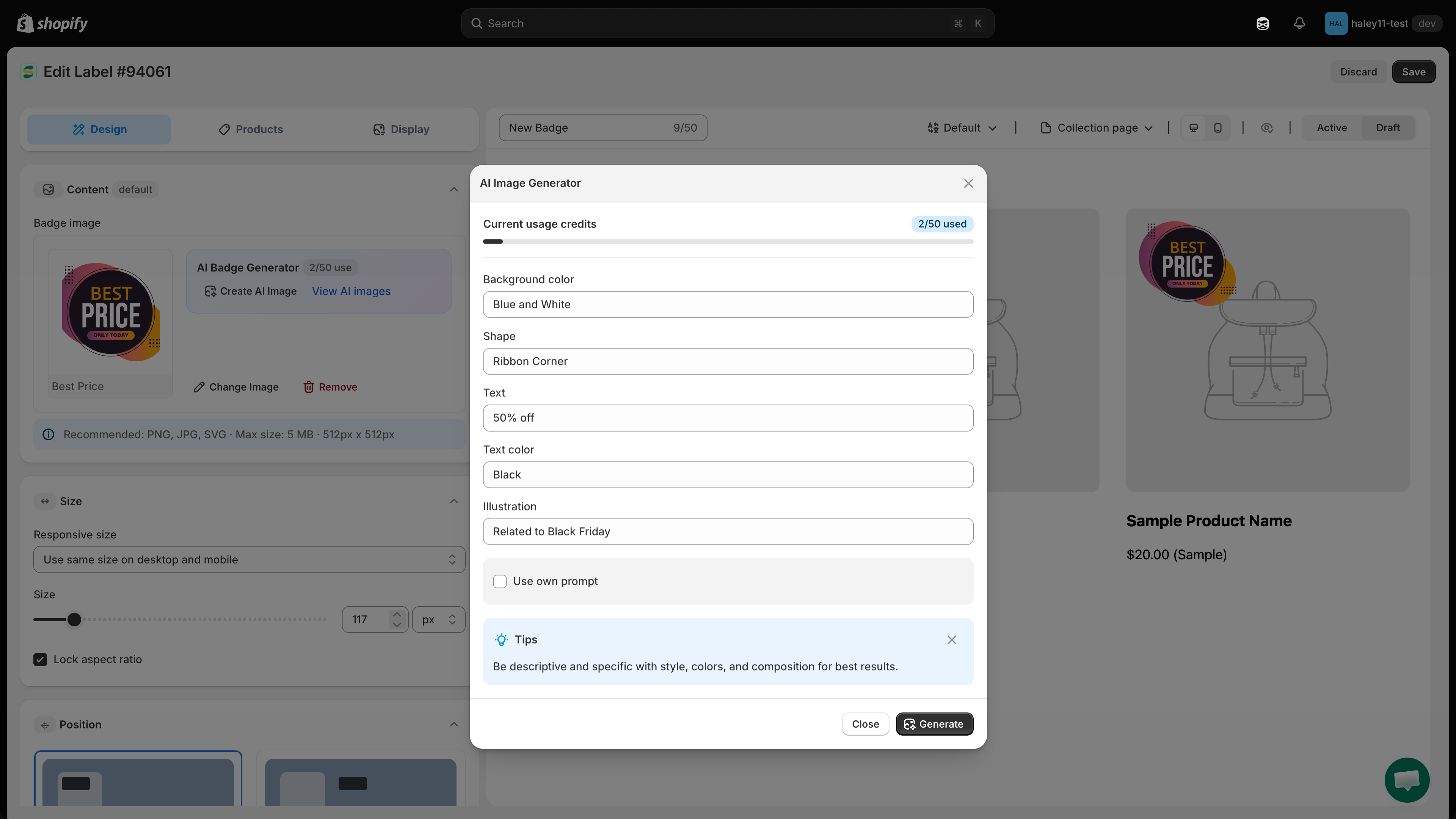
In the **Content** panel, find the **AI Badge Generator** box directly beside the badge image. It shows your remaining credits and two links: **Create AI image** and **View AI images**.

Click **Create AI image** to open the **AI Image Generator** dialog.

<figure><img src="https://1598842017-files.gitbook.io/~/files/v0/b/gitbook-x-prod.appspot.com/o/spaces%2F1WRTlT5AcaLSAedbCJyZ%2Fuploads%2Fgit-blob-40d593f1562602f7a2dd915e70aaaacddb1c69df%2Fimage_177.png?alt=media" alt="The AI Badge Generator box in the Content panel with the Create AI image and View AI images links"><figcaption><p>The AI Badge Generator box sits next to the badge image in the Content panel.</p></figcaption></figure>
{% endstep %}

{% step %}

## Describe the badge with the guided fields

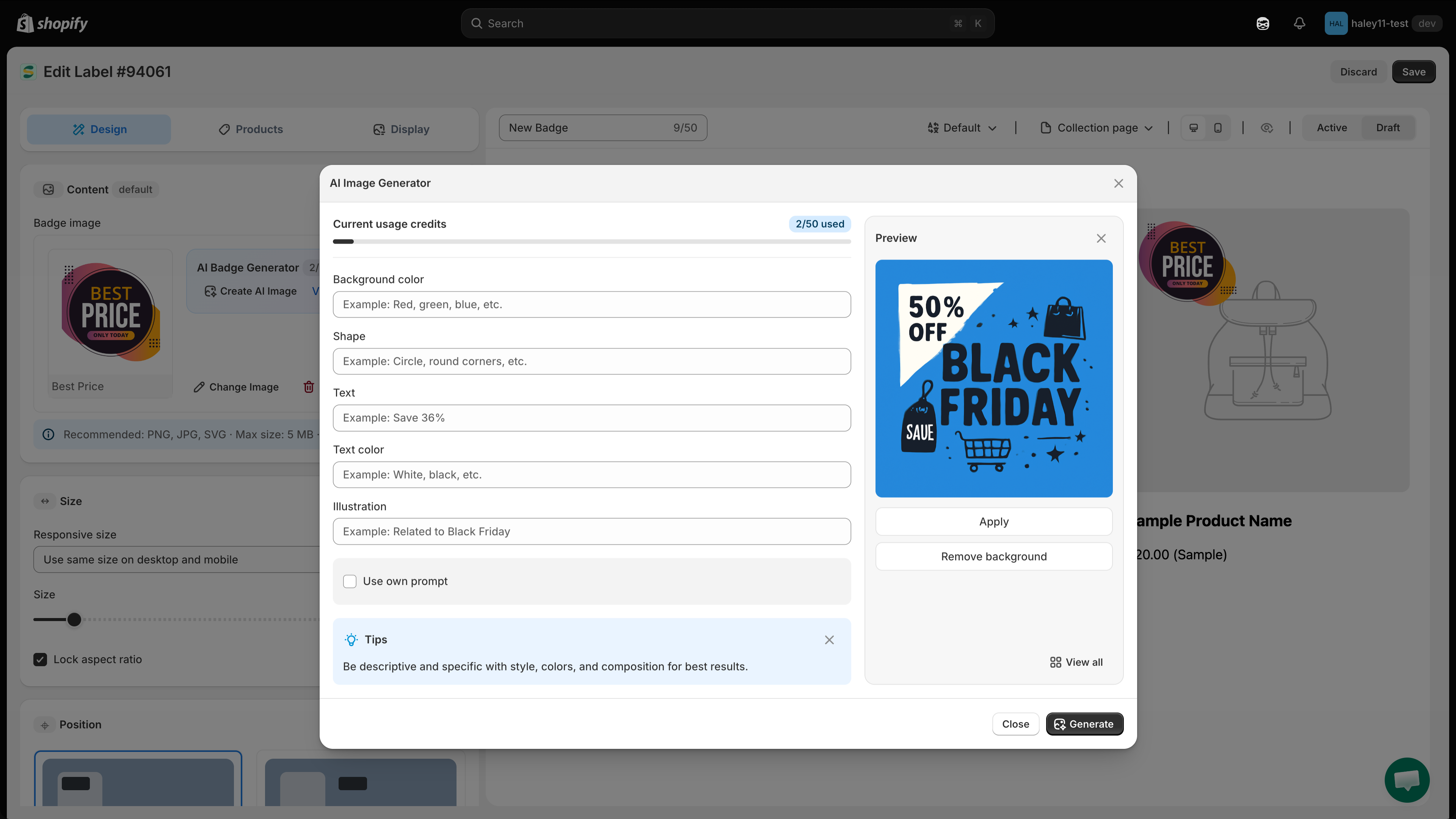
Fill in as many of the five fields as apply. Each one takes a short free-text description — there is no fixed list to pick from.

| Field                | Example                     |
| -------------------- | --------------------------- |
| **Background color** | Red, green, blue, etc.      |
| **Shape**            | Circle, round corners, etc. |
| **Text**             | Save 36%                    |
| **Text color**       | White, black, etc.          |
| **Illustration**     | Related to Black Friday     |

<figure><img src="https://1598842017-files.gitbook.io/~/files/v0/b/gitbook-x-prod.appspot.com/o/spaces%2F1WRTlT5AcaLSAedbCJyZ%2Fuploads%2Fgit-blob-2c7b83a96bfe64b98ed8d341ef33e243966eba97%2Fimage_178.png?alt=media" alt="The AI Image Generator dialog with the five guided fields"><figcaption><p>Describe the badge you want, then click Generate.</p></figcaption></figure>
{% endstep %}

{% step %}

## (Optional) Write your own prompt instead

Tick **Use own prompt**. The five guided fields grey out and a single **Type your prompt here...** text area takes their place, giving you full control over the description sent to the AI.

{% hint style="info" %}
The dialog's own tip: *be descriptive and specific with style, colors, and composition for best results.*
{% endhint %}
{% endstep %}

{% step %}

## Click Generate

Click **Generate** at the bottom of the dialog. **Close** discards the dialog without generating.
{% endstep %}

{% step %}

## Apply the result

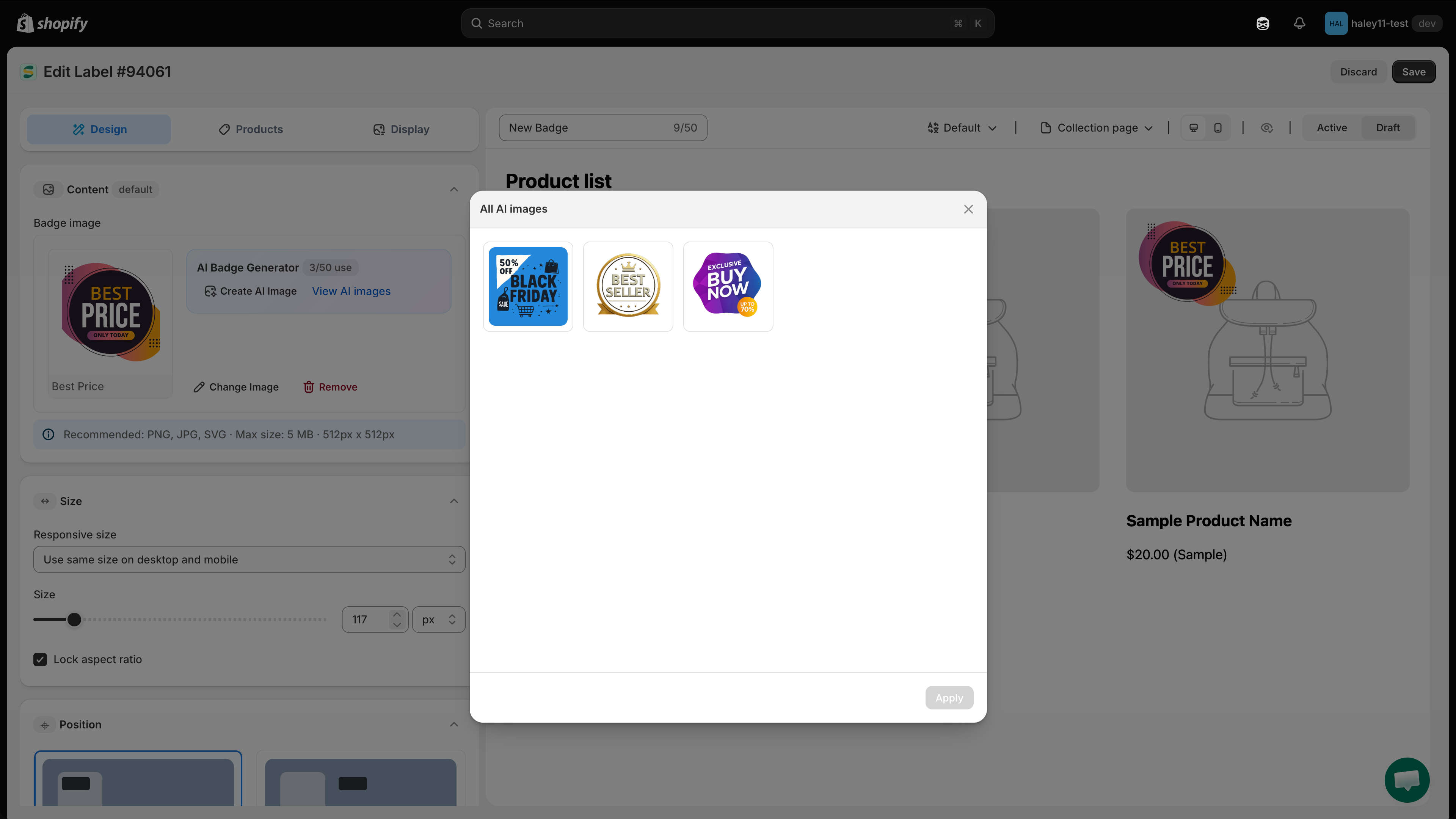
When the image is ready, use the preview panel to finish:

| Action                | Result                                                |
| --------------------- | ----------------------------------------------------- |
| **Apply**             | Uses the image on your badge and closes the dialog.   |
| **Remove background** | Strips the background from the generated image first. |
| **View all**          | Opens your full **All AI images** gallery.            |

<figure><img src="https://1598842017-files.gitbook.io/~/files/v0/b/gitbook-x-prod.appspot.com/o/spaces%2F1WRTlT5AcaLSAedbCJyZ%2Fuploads%2Fgit-blob-4b7e1e724c95083e291bdec2da07a7d7e0ff2bc4%2Fimage_179.png?alt=media" alt="The generated image in the preview panel with Apply and Remove background actions"><figcaption><p>Review the generated image, then apply it to the badge.</p></figcaption></figure>
{% endstep %}

{% step %}

## Reuse images from All AI images

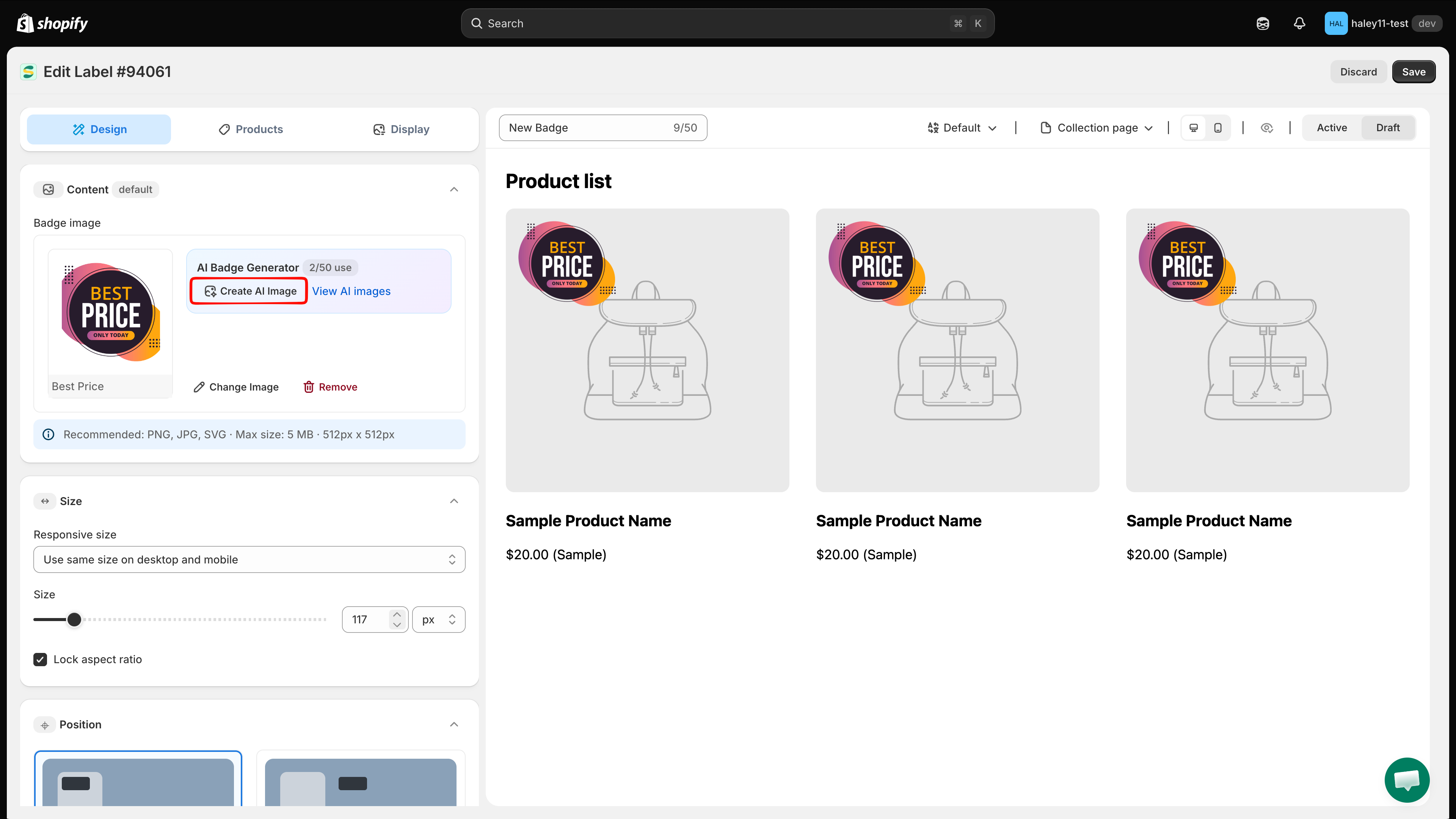
Every image you generate is saved. Click **View AI images** in the **AI Badge Generator** box to open the **All AI images** gallery, pick any previous image, and click **Apply** — from any badge, at any time, without spending another credit.

<figure><img src="https://1598842017-files.gitbook.io/~/files/v0/b/gitbook-x-prod.appspot.com/o/spaces%2F1WRTlT5AcaLSAedbCJyZ%2Fuploads%2Fgit-blob-af8013de67c9ddc38597b1d89c0c7d2fc2beb944%2Fimage_180.png?alt=media" alt="The All AI images gallery listing previously generated images"><figcaption><p>Reuse a previously generated image instead of spending a new credit.</p></figcaption></figure>
{% endstep %}
{% endstepper %}

## Tips for better results

* **Be specific.** Fill in as many guided fields as you can, or name colors, shapes, text, and style in your own prompt.
* **Ask for a transparent background.** Badges blend into your theme better without a solid backdrop — or use **Remove background** afterwards.
* **Iterate.** If the first result misses, adjust the description and generate again.
* **Check the gallery first.** Reusing an image from **All AI images** costs no credit.

## Next steps

* [Edit an image with AI](/ai-features/edit-image.md) — refine a generated image or change an existing one.
* [Create an image badge](/badges-and-labels/create-image-badge.md) — set up an image-based badge.

{% hint style="success" %}
**Need support?**

If you run into any difficulty while following these steps, contact us at <support@samita.io>.
{% endhint %}


---

# Agent Instructions
This documentation is published with GitBook. GitBook is the documentation platform designed so that both humans and AI agents can read, navigate, and reason over technical content effectively. Learn more at gitbook.com.

## Querying This Documentation
If you need additional information that is not directly available in this page, you can query the documentation dynamically by asking a question.

Perform an HTTP GET request on the current page URL with the `ask` query parameter, and the optional `goal` query parameter:

```
GET https://docs.samita.io/ai-features/generate-image.md?ask=<question>&goal=<endgoal>
```

`ask` is the immediate question: it should be specific, self-contained, and written in natural language.
`goal` is optional and describes the broader end goal you are ultimately trying to accomplish on behalf of the user. GitBook uses it to tailor the answer towards what is most useful for that goal.

The response will contain a direct answer to the question and relevant excerpts and sources from the documentation.

Use this mechanism when the answer is not explicitly present in the current page, you need clarification or additional context, or you want to retrieve related documentation sections.