> For the complete documentation index, see [llms.txt](https://docs.samita.io/llms.txt). Markdown versions of documentation pages are available by appending `.md` to page URLs; this page is available as [Markdown](https://docs.samita.io/ai-features/overview.md).
# AI features overview
Generate badge images from a text prompt, or edit an existing image with AI, without any design skills.
**Sami Product Labels** includes AI tools that create and modify badge images for you. Describe what you want in a few short fields — or in your own prompt — and the AI produces an image you can apply straight to a badge.
{% hint style="info" %}
AI image features require the **DIAMOND** plan, listed there as **Create images with AI generation**. Your plan includes 50 AI uses per month. See [Pricing plans](/settings/pricing-plans.md).
{% endhint %}
## Available AI features
### AI Badge Generator
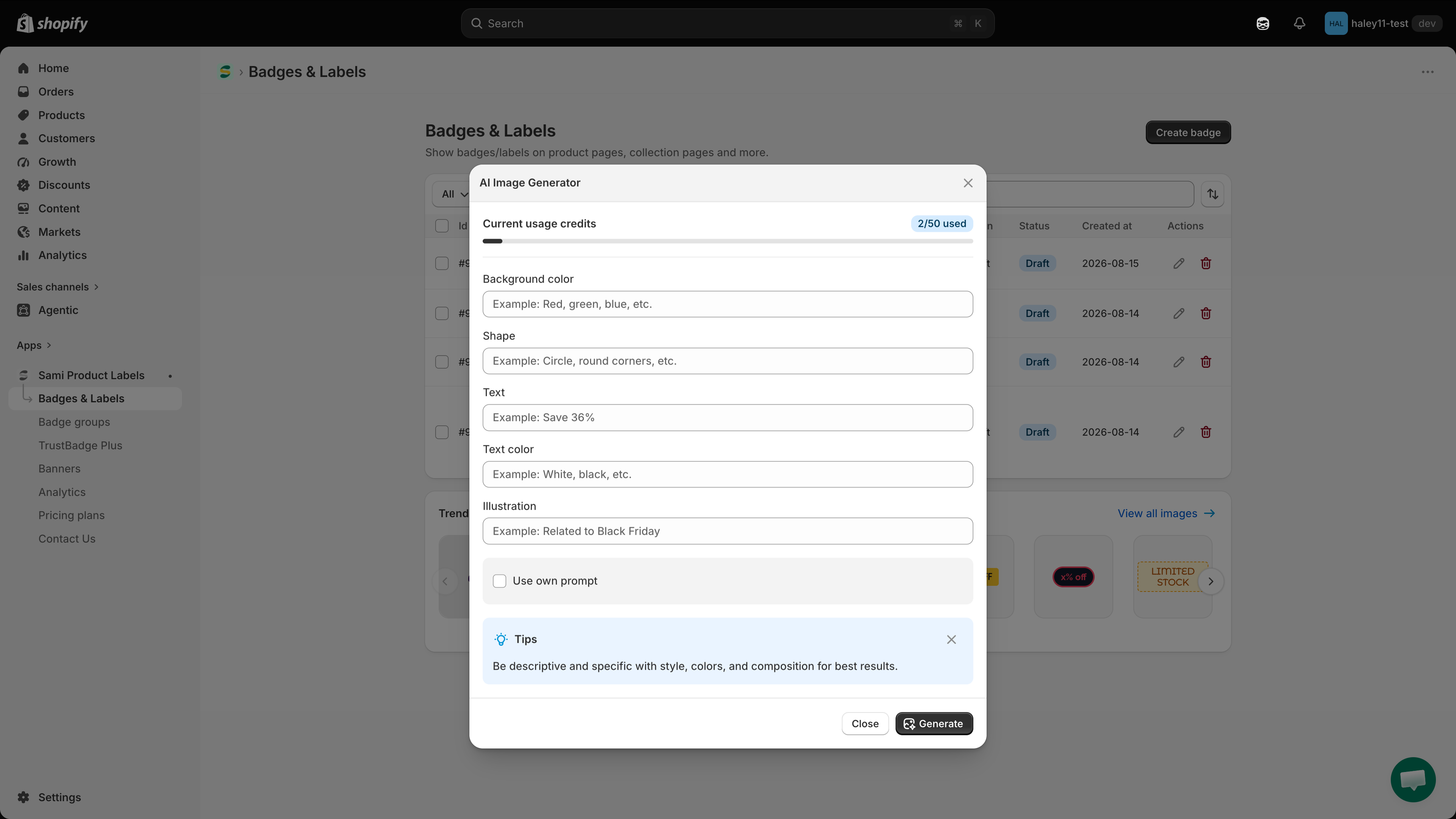
Open the **AI Image Generator** from the **AI Badge Generator** panel in the badge editor, describe the badge you want, and click **Generate**.
| Feature | Description |
| ------------------- | --------------------------------------------------------------------------------------------------------- |
| **Guided fields** | Describe your badge with five short fields — Background color, Shape, Text, Text color, and Illustration. |
| **Your own prompt** | Tick **Use own prompt** to replace the guided fields with a single free-form prompt. |
| **All AI images** | Reuse anything you have generated before, from any badge, via **View AI images**. |
Your usage is shown as **Current usage credits** with an **x/50 used** badge at the top of the dialog.
Fill in the guided fields — or your own prompt — and click Generate.
### Edit AI Image
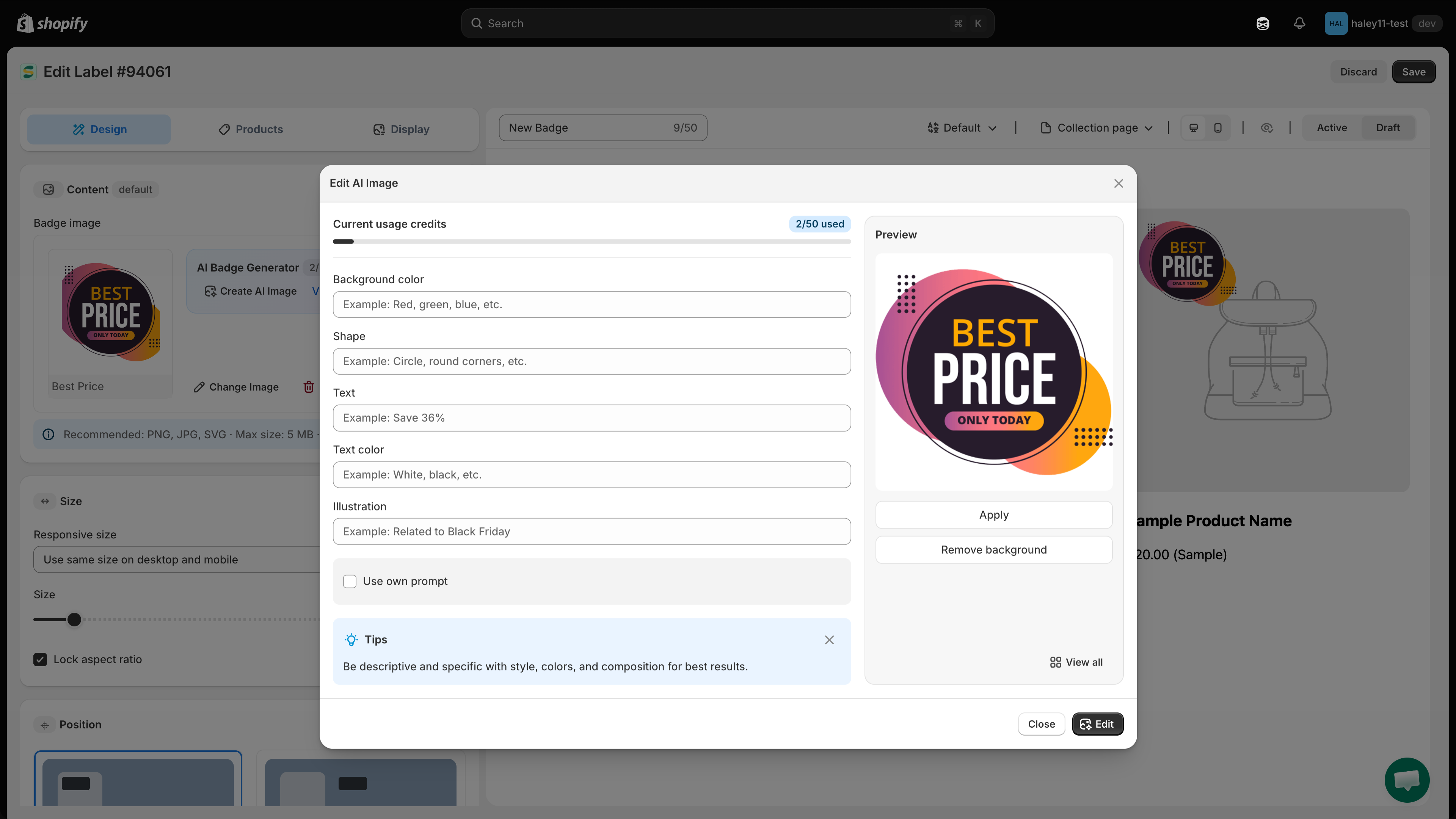
Reach the **Edit AI Image** dialog through **Change Image > Edit with AI**. It uses the same guided fields and **Use own prompt** option, but applies them to the badge's current image and shows the outcome in a **Preview** panel.
Common uses:
* Removing an image background with the dedicated **Remove background** action.
* Adjusting colors or styling on an existing badge image.
* Refining an AI-generated image with a follow-up edit.
Describe the change, then review it in the preview before applying.
## Monthly quota
Your DIAMOND plan includes **50 AI uses per month**, shared between image generation and image editing. The counter appears as **Current usage credits** in both dialogs.
## Next steps
* [Generate an AI image](/ai-features/generate-image.md) — create a badge image from a description.
* [Edit an image with AI](/ai-features/edit-image.md) — modify the image already on a badge.
* [Create an image badge](/badges-and-labels/create-image-badge.md) — set up an image-based badge.
{% hint style="success" %}
**Need support?**
If you run into any difficulty while following these steps, contact us at .
{% endhint %}
---
# Agent Instructions
This documentation is published with GitBook. GitBook is the documentation platform designed so that both humans and AI agents can read, navigate, and reason over technical content effectively. Learn more at gitbook.com.
## Querying This Documentation
If you need additional information that is not directly available in this page, you can query the documentation dynamically by asking a question.
Perform an HTTP GET request on the current page URL with the `ask` query parameter, and the optional `goal` query parameter:
```
GET https://docs.samita.io/ai-features/overview.md?ask=&goal=
```
`ask` is the immediate question: it should be specific, self-contained, and written in natural language.
`goal` is optional and describes the broader end goal you are ultimately trying to accomplish on behalf of the user. GitBook uses it to tailor the answer towards what is most useful for that goal.
The response will contain a direct answer to the question and relevant excerpts and sources from the documentation.
Use this mechanism when the answer is not explicitly present in the current page, you need clarification or additional context, or you want to retrieve related documentation sections.