> For the complete documentation index, see [llms.txt](https://docs.samita.io/llms.txt). Markdown versions of documentation pages are available by appending `.md` to page URLs; this page is available as [Markdown](https://docs.samita.io/b2b-lock-password-protect/access-rules/confirmation-prompt.md).

# Confirmation prompt

Ask a shopper to self-certify with a confirm button before they can access protected content.

**Confirmation prompt** shows a shopper a short statement and a confirm button — for example, "I confirm I am 18 or older." Clicking the button grants access. It's a self-certification, not a real identity check: the app has no way to verify that what the shopper is confirming is actually true, so use it for things like age or terms acknowledgements where you're relying on the shopper's honesty, not for anything that needs to be independently verified.

Like Subscribe, Passcode, and Secret link, Confirmation prompt is action-based — it doesn't have an If/Unless toggle, since the shopper unlocks the content by clicking Confirm rather than by matching a condition.

## Add the rule

1. Open **Locks** and create a new lock, or open an existing one to edit it.
2. Choose the content you want to protect. See [Access rules overview](/b2b-lock-password-protect/access-rules/overview.md) for how rules fit into a lock.
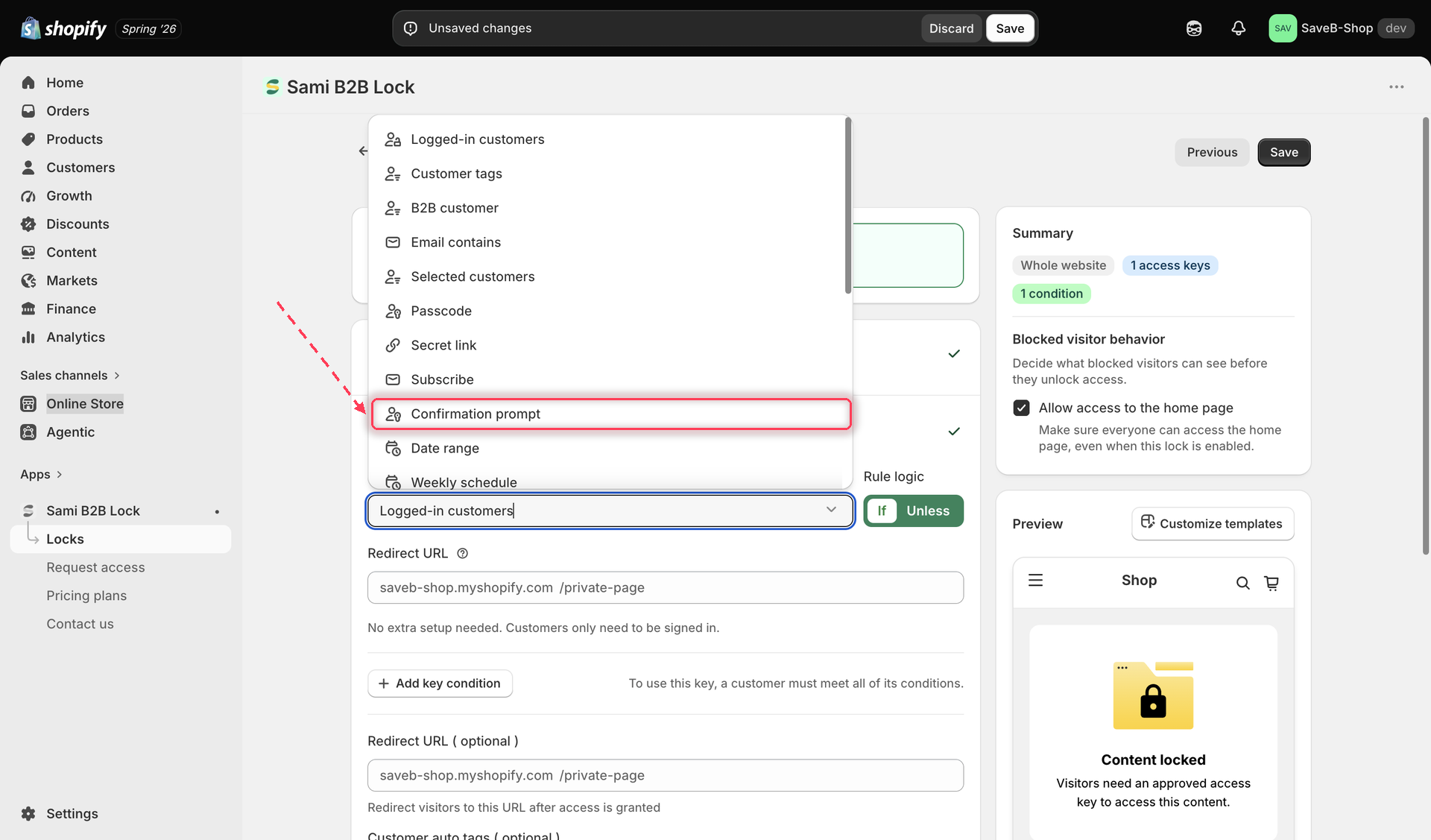
3. Click the **Unlock rules** tab, then in the **Condition type** dropdown, select **Confirmation prompt**.

<figure><img src="https://27754559-files.gitbook.io/~/files/v0/b/gitbook-x-prod.appspot.com/o/spaces%2FF4qMYopXntYz9YgUqZSo%2Fuploads%2Fgit-blob-b38cef0e4f5f179615b03b46d6def0497a982f5f%2Fscreenshot-access-rules-picker-confirmation-prompt.png?alt=media" alt="The Unlock rules tab with Confirmation prompt selected in the Condition type dropdown."><figcaption><p>Select Confirmation prompt from the Condition type dropdown on the Unlock rules tab.</p></figcaption></figure>

4. Edit the prompt's content and button text if you want something more specific than the defaults (see below).
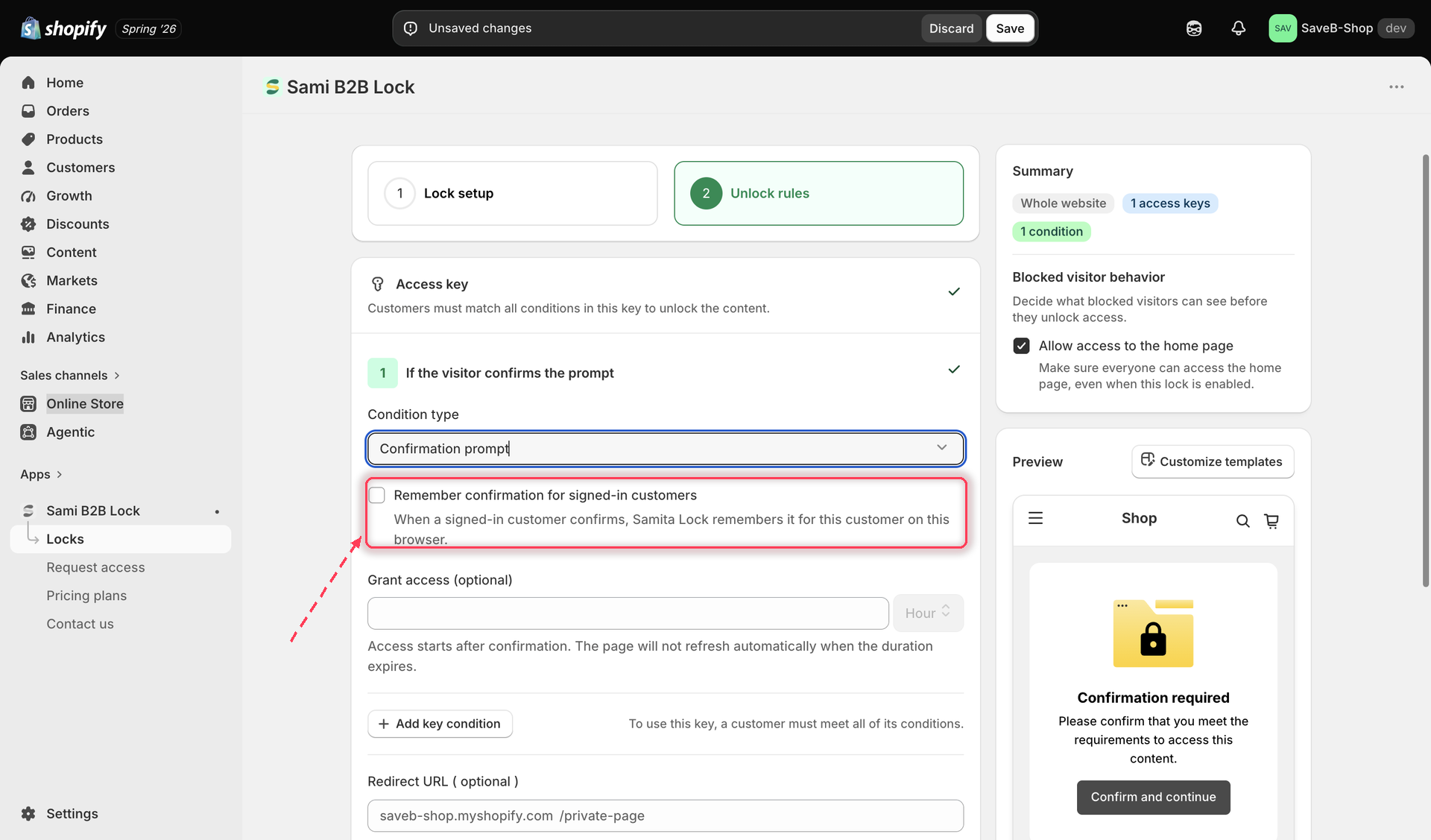
5. Turn on **Remember confirmation for signed-in customers** if you want signed-in shoppers to only have to confirm once (see the warning below before you do).
6. Optionally set a **Grant access** duration.

<figure><img src="https://27754559-files.gitbook.io/~/files/v0/b/gitbook-x-prod.appspot.com/o/spaces%2FF4qMYopXntYz9YgUqZSo%2Fuploads%2Fgit-blob-1bb768da407b7ed19942b35197df0821f8babfe8%2Fscreenshot-access-rules-confirmation-prompt-config.png?alt=media" alt="The Confirmation prompt rule settings, showing the Remember confirmation for signed-in customers toggle and the Grant access duration field."><figcaption><p>Configure the remember toggle and how long a confirmation lasts before the shopper has to confirm again.</p></figcaption></figure>

7. Click **Save**.

## Shopper-facing copy

By default, shoppers see:

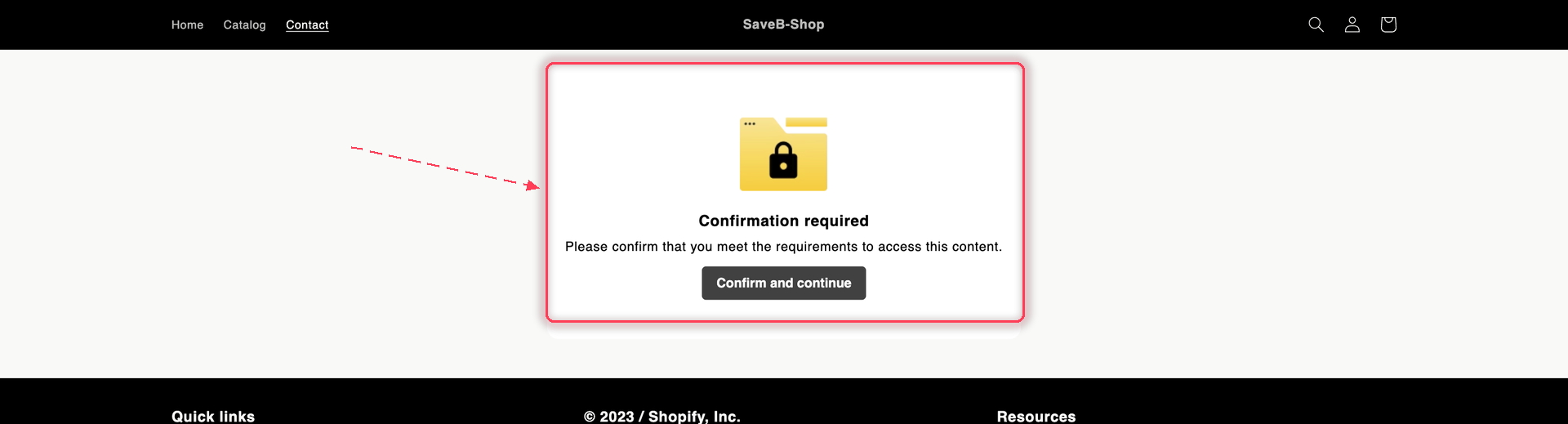
* Notification: **"Confirmation required"** / **"Please confirm that you meet the requirements to access this content."**
* Button: **"Confirm and continue."**

Both the statement and the button text are editable per lock and per storefront language — for example, changing it to "I confirm I am 18 or older" for an age-restricted product. See [Translate lock messages](/b2b-lock-password-protect/design-and-customization/translate-messages.md).

<figure><img src="https://27754559-files.gitbook.io/~/files/v0/b/gitbook-x-prod.appspot.com/o/spaces%2FF4qMYopXntYz9YgUqZSo%2Fuploads%2Fgit-blob-0e537dc72e9e63b9ded2427c33d35a450ea6a413%2Fscreenshot-storefront-confirmation-prompt.png?alt=media" alt="A locked storefront page showing a Confirmation required card with a Confirm and continue button."><figcaption><p>The shopper must confirm before the content unlocks.</p></figcaption></figure>

## Remember confirmation for signed-in customers

{% hint style="warning" %}
**Remember confirmation for signed-in customers has no expiry.** The confirmation is stored in local storage in the same browser, associated with that customer's ID. It ignores **Grant access** duration and remains until browser storage is cleared or you turn off the toggle and save the lock. It does not transfer to another browser or device.
{% endhint %}

If you'd rather have shoppers re-confirm periodically (for an age gate you want re-checked every so often, for instance), leave this toggle off and rely on the **Grant access** duration field instead.

## Save

Once saved, the confirmation prompt appears whenever this rule is checked, and the app grants access as soon as the shopper clicks the confirm button.

## Related docs

* [Access rules overview](/b2b-lock-password-protect/access-rules/overview.md)
* [Combining rules](/b2b-lock-password-protect/access-rules/combining-rules.md)
* [Grant access duration](/b2b-lock-password-protect/lock-behavior/grant-access-duration.md)
* [Subscribe to unlock](/b2b-lock-password-protect/access-rules/subscribe.md)


---

# Agent Instructions
This documentation is published with GitBook. GitBook is the documentation platform designed so that both humans and AI agents can read, navigate, and reason over technical content effectively. Learn more at gitbook.com.

## Querying This Documentation
If you need additional information that is not directly available in this page, you can query the documentation dynamically by asking a question.

Perform an HTTP GET request on the current page URL with the `ask` query parameter, and the optional `goal` query parameter:

```
GET https://docs.samita.io/b2b-lock-password-protect/access-rules/confirmation-prompt.md?ask=<question>&goal=<endgoal>
```

`ask` is the immediate question: it should be specific, self-contained, and written in natural language.
`goal` is optional and describes the broader end goal you are ultimately trying to accomplish on behalf of the user. GitBook uses it to tailor the answer towards what is most useful for that goal.

The response will contain a direct answer to the question and relevant excerpts and sources from the documentation.

Use this mechanism when the answer is not explicitly present in the current page, you need clarification or additional context, or you want to retrieve related documentation sections.