> For the complete documentation index, see [llms.txt](https://docs.samita.io/llms.txt). Markdown versions of documentation pages are available by appending `.md` to page URLs; this page is available as [Markdown](https://docs.samita.io/b2b-lock-password-protect/access-rules/date-range.md).
# Date range
Only make a lock active between a fixed start and end date — useful for time-limited promotions and events.
**Date range** matches visitors while the current date falls between a fixed start date and end date you set. Outside that window, the rule doesn't match. It's a good fit for anything tied to a calendar date rather than a recurring pattern — an early-access window ahead of a launch, a holiday promotion, or a members-only sale that should stop working automatically once it ends.
Like most access rules (aside from the action-based ones such as Passcode, Secret link, Subscribe, and Confirmation prompt), Date range can be set to match **If** the current date is inside the range, or **Unless** it is — inverting it to match everything outside the range instead. Each rule can also have its own **Redirect URL** that only applies when this specific rule fails. See [Combining rules](/b2b-lock-password-protect/access-rules/combining-rules.md) and [Redirect after access](/b2b-lock-password-protect/lock-behavior/redirect-after-access.md).
## Add the rule
1. Open **Locks** and create a new lock, or open an existing one to edit it.
2. Choose the content you want to protect. See [Access rules overview](/b2b-lock-password-protect/access-rules/overview.md) for how rules fit into a lock.
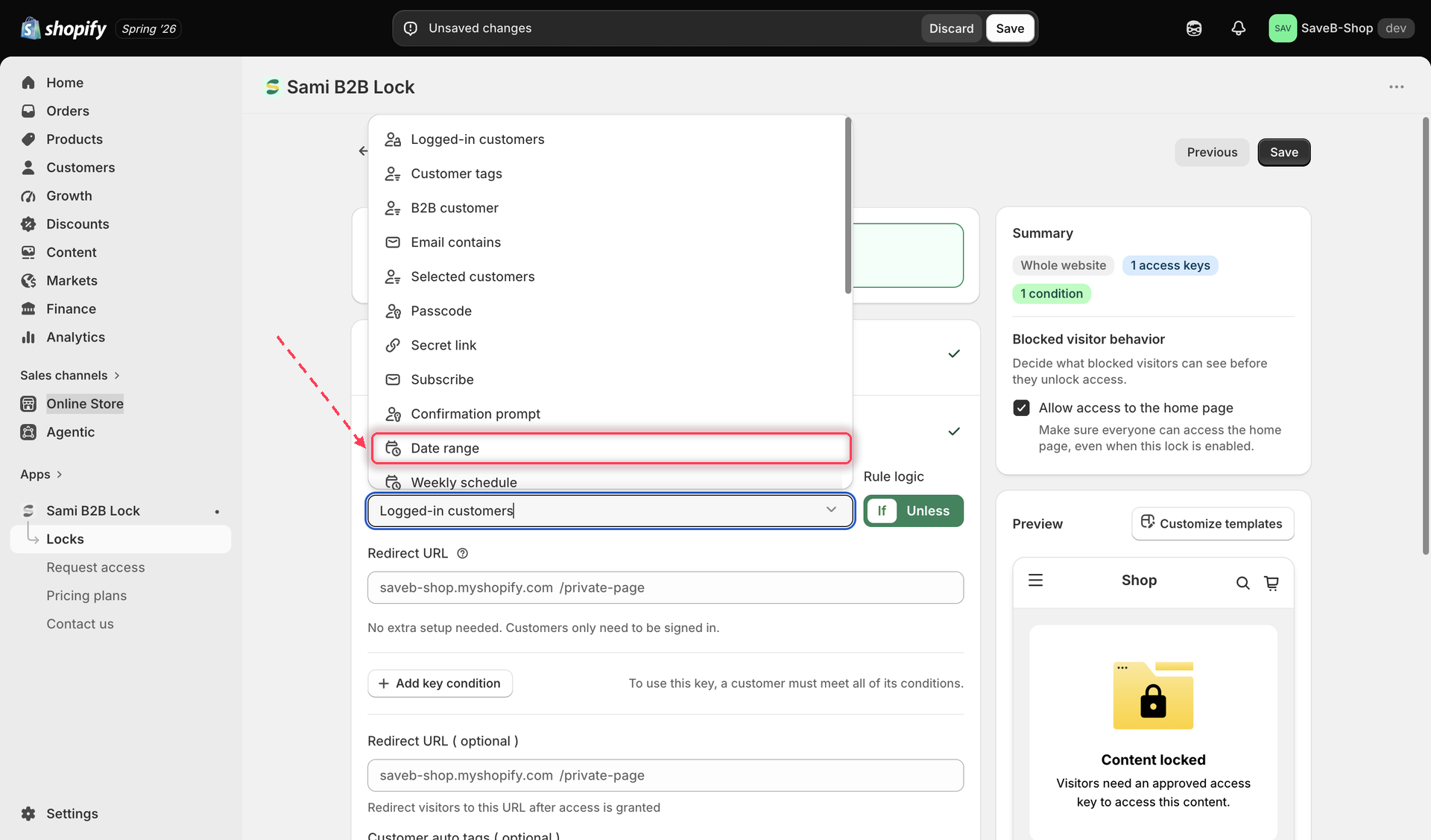
3. Click the **Unlock rules** tab, then in the **Condition type** dropdown, select **Date range**.
Select Date range from the Condition type dropdown on the Unlock rules tab.
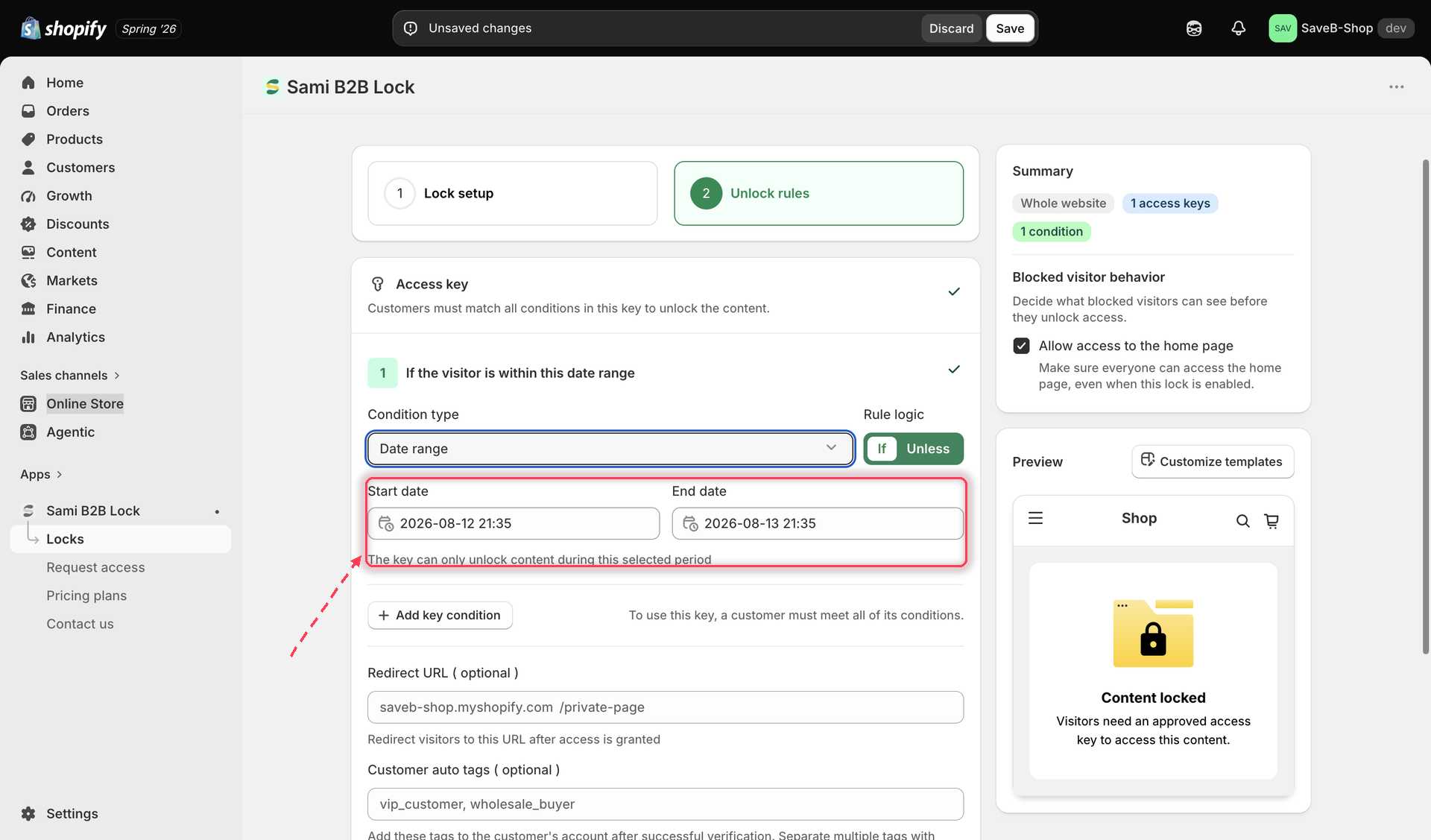
4. Set a **start date** and an **end date** for when this rule should match.
Set the start and end date the lock's date range condition is active between.
5. Choose **If** or **Unless** depending on whether you want the lock active during the range or outside it.
6. Click **Save**.
{% hint style="info" %}
Combine Date range with another rule in the same access key if you want the time window to only apply to certain visitors — for example, "Date range AND Customer tags" to run an early-access promo only for tagged VIP customers during the promo window.
{% endhint %}
## Related docs
* [Access rules overview](/b2b-lock-password-protect/access-rules/overview.md)
* [Combining rules](/b2b-lock-password-protect/access-rules/combining-rules.md)
* [Weekly schedule](/b2b-lock-password-protect/access-rules/weekly-schedule.md)
* [Location](/b2b-lock-password-protect/access-rules/location.md)
---
# Agent Instructions
This documentation is published with GitBook. GitBook is the documentation platform designed so that both humans and AI agents can read, navigate, and reason over technical content effectively. Learn more at gitbook.com.
## Querying This Documentation
If you need additional information that is not directly available in this page, you can query the documentation dynamically by asking a question.
Perform an HTTP GET request on the current page URL with the `ask` query parameter, and the optional `goal` query parameter:
```
GET https://docs.samita.io/b2b-lock-password-protect/access-rules/date-range.md?ask=&goal=
```
`ask` is the immediate question: it should be specific, self-contained, and written in natural language.
`goal` is optional and describes the broader end goal you are ultimately trying to accomplish on behalf of the user. GitBook uses it to tailor the answer towards what is most useful for that goal.
The response will contain a direct answer to the question and relevant excerpts and sources from the documentation.
Use this mechanism when the answer is not explicitly present in the current page, you need clarification or additional context, or you want to retrieve related documentation sections.