For the complete documentation index, see llms.txt. This page is also available as Markdown.

Access rules overview

What an access rule is, how If/Unless matching works, and where to find every rule type the app supports.

An access rule is the condition a visitor has to meet before they're allowed to see or use whatever you're locking — a product, a collection, a page, your whole storefront, or checkout. Every lock needs at least one access rule; without one, the app has no way to tell an approved visitor from anyone else.

You add access rules from a lock's Unlock rules tab. Each rule checks one specific thing about the visitor — are they logged in, do they have a certain tag, did they enter the right passcode — and the lock only opens once all configured conditions are satisfied.

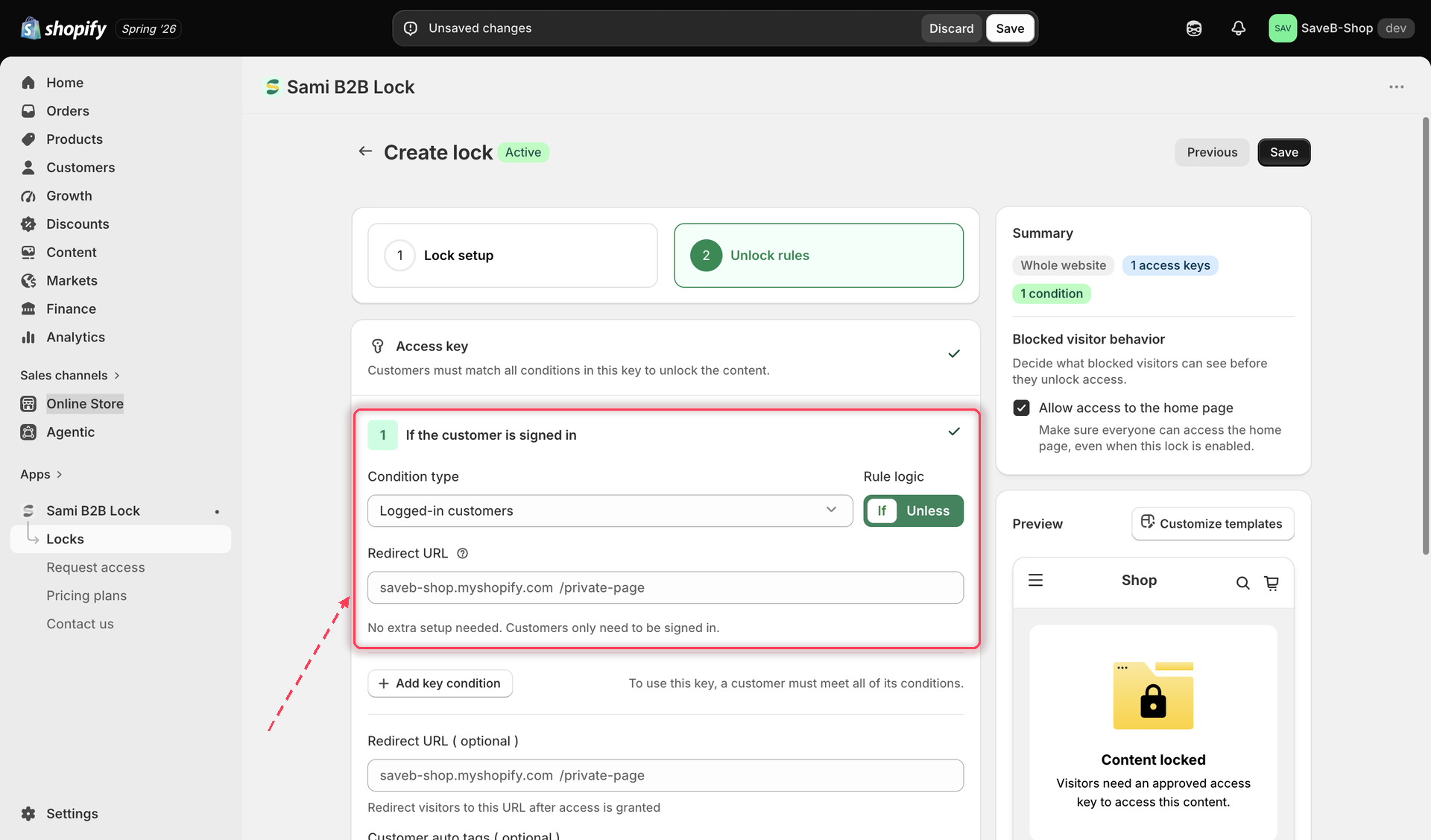
Access rule picker showing the full list of available condition types
Choosing an access rule from the condition type picker inside a lock's editor.
If and Unless

Most access rules can be set to match one of two ways:

  • If — the rule is satisfied when the visitor does meet the condition (for example, If Logged-in customers: the visitor must be signed in).

  • Unless — the rule is inverted, and is satisfied when the visitor does not meet the condition (for example, Unless Logged-in customers: the visitor must not be signed in).

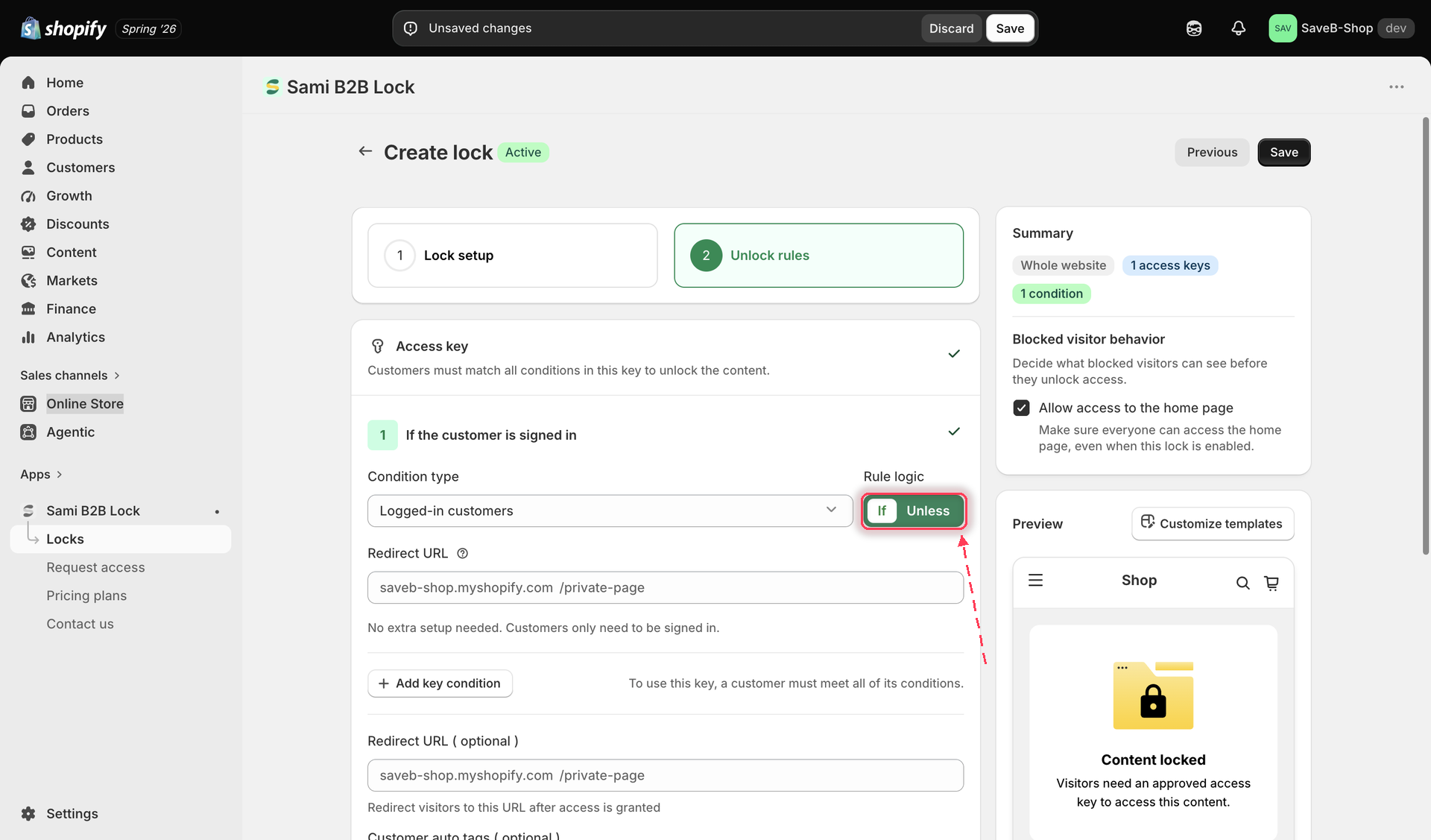
You'll find this as the Rule logic switch beside each rule's condition type.

The Rule logic switch next to a rule's condition type, set to If with Unless as the alternative
Use the Rule logic switch to flip a rule between If and Unless.
Five rules work differently and don't have an If/Unless toggle at all: Passcode, Secret link, Subscribe to unlock, Confirmation prompt, and Custom liquid. These are action-based rules — instead of matching a yes/no fact about the visitor, they ask the visitor to do something (enter a code, subscribe, confirm a statement) or run a snippet of code, and that action's own result decides whether the rule passes.

Combining more than one rule

A lock can use more than one access rule at once. How those conditions interact — including a worked example — is covered in its own page:

Every access rule

The rules below are grouped by what they check. Click through to any rule's own page for the full setup steps.

Identity & customer rules — who the visitor is

Unlock actions — something the visitor does to unlock

Time & schedule — when the lock is active

Location & device — where the visitor is browsing from

Purchase history — what the customer has already bought

  • Purchased items — the customer previously bought specific products or variants

  • Order quantity — the customer's total order count meets a minimum

Cart — what's currently in the visitor's cart

  • Cart conditions — cart products, cart variants, cart quantity, and cart total

Some rules and content types are only available on paid plans. If a rule is greyed out in the picker, that's why — the picker will point you to the plan comparison.

What a blocked visitor sees

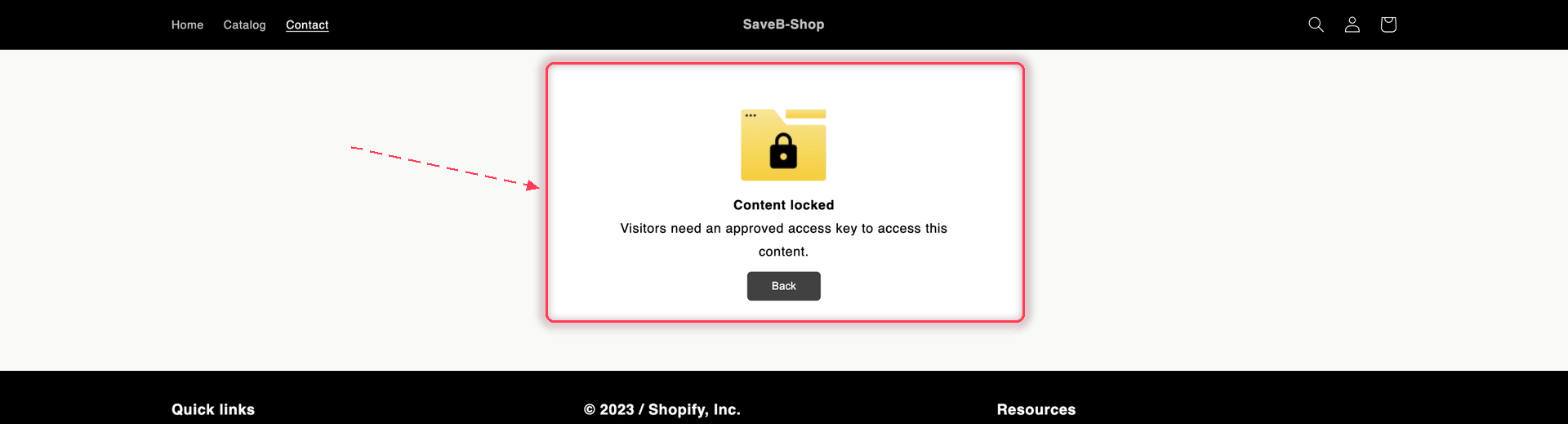
When a rule denies someone on a page, collection, or blog, the app replaces the content with a lock card. Access denied message is the default text on that card, and most rules always use it:

A locked storefront page showing the Content locked card with the message Visitors need an approved access key to access this content and a Back button.
The Access denied message — the card most rules show.
For signed-out visitors

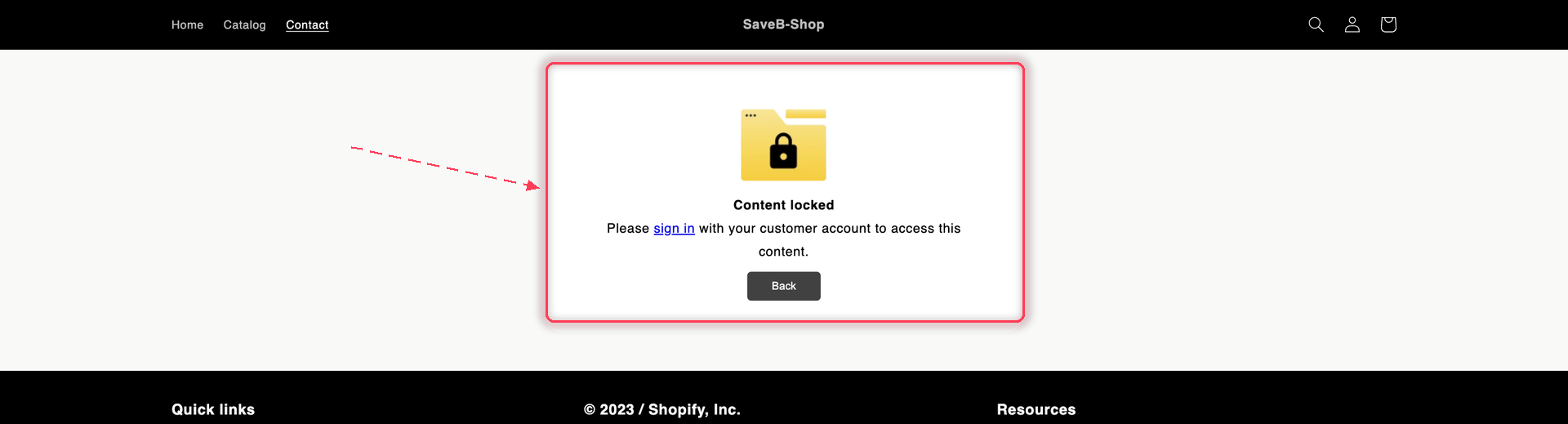
Five rules check who the customer is, so for those a signed-out visitor might only need to sign in. Those rules swap in a second message — Guest message content — which includes a sign-in link:

A locked storefront page showing the Content locked card asking the visitor to sign in with their customer account.
The Guest message — shown only by the five customer-identity rules, and only to signed-out visitors.

The guest message appears only when all three of these are true:

  1. That rule is set to If, not Unless.

  2. The visitor is not signed in.

Otherwise the card shows the Access denied message. So a signed-in customer who fails a Customer tags rule gets Access denied, and so does every visitor — signed in or not — blocked by a rule like Date range, Location, or Cart conditions.

Message field
When it's used

Guest message content

Only the five rules above, set to If, for signed-out visitors

Access denied message

Everything else

Edit both fields per lock, and per storefront language, from the lock's Messages section. The default Access denied wording ("Visitors need an approved access key…") doesn't tell a shopper what to do next — replacing it with something actionable, like how to apply for a wholesale account, is usually worth the minute. See Translate lock messages.

The action-based rules (Passcode, Secret link, Subscribe to unlock, Confirmation prompt) replace this card with their own prompt, since the visitor can unlock the content themselves on the spot.

Last updated

Was this helpful?