> For the complete documentation index, see [llms.txt](https://docs.samita.io/llms.txt). Markdown versions of documentation pages are available by appending `.md` to page URLs; this page is available as [Markdown](https://docs.samita.io/b2b-lock-password-protect/access-rules/secret-link.md).

# Secret link

Protect content so only visitors arriving via a URL with a valid access token can unlock it.

The Secret link rule protects content so it can only be unlocked by arriving through a specific URL — one that carries a valid `?access=` token at the end. There's no field for the shopper to fill in; the link itself is the key. It's a good fit for sending a private preview or an invite-only offer straight to someone's inbox, where you'd rather they just click through than type a code.

## How Secret link works

Secret link is one of the app's action-based rules, so it doesn't have an If/Unless toggle. Instead, the app checks the URL a visitor used to arrive at the locked page: if it ends in `?access=` followed by one of this rule's active tokens, the visitor is let straight in. Arriving at the same page without that token — or with an old, deleted one — shows the locked experience instead.

You can keep more than one secret link active at once, so you can hand out a different link to different recipients (or campaigns) while they all unlock the same content.

## Steps to manage

1. Open the app and go to **Locks**, then open the lock you want to protect (or create a new one).
2. On the **Lock setup** tab, set **Content to lock** to whatever you're protecting.
3. Click the **Unlock rules** tab to continue.
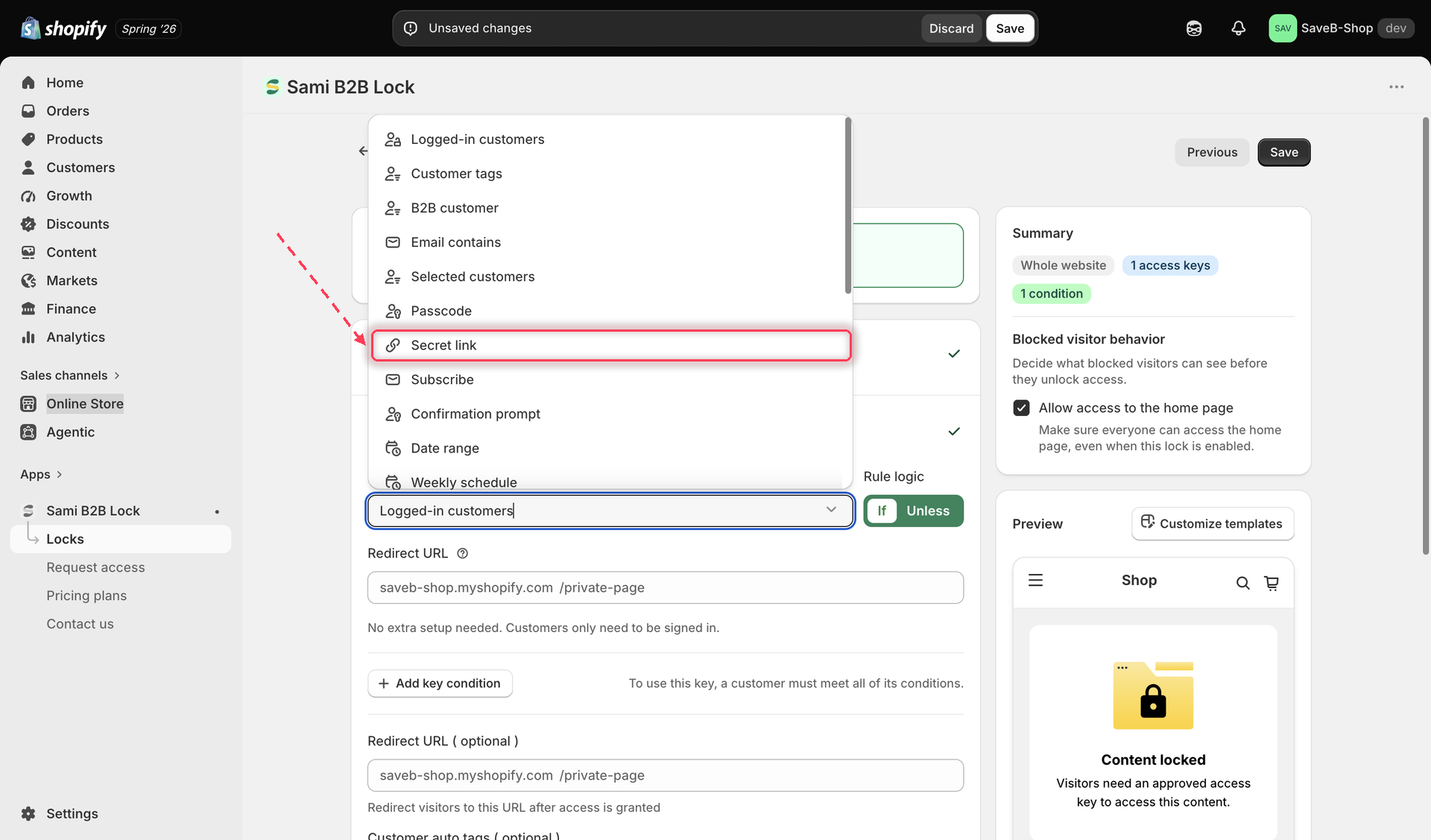
4. Add an access rule and set the condition type to **Secret link**.

   <figure><img src="https://27754559-files.gitbook.io/~/files/v0/b/gitbook-x-prod.appspot.com/o/spaces%2FF4qMYopXntYz9YgUqZSo%2Fuploads%2Fgit-blob-5eb5fdd6a0793520a5b07222a21bdca04dd973eb%2Fscreenshot-access-rules-secret-link-picker.png?alt=media" alt="Access rule picker with Secret link selected as the condition type"><figcaption><p>Choosing Secret link as the condition type for a new access rule.</p></figcaption></figure>
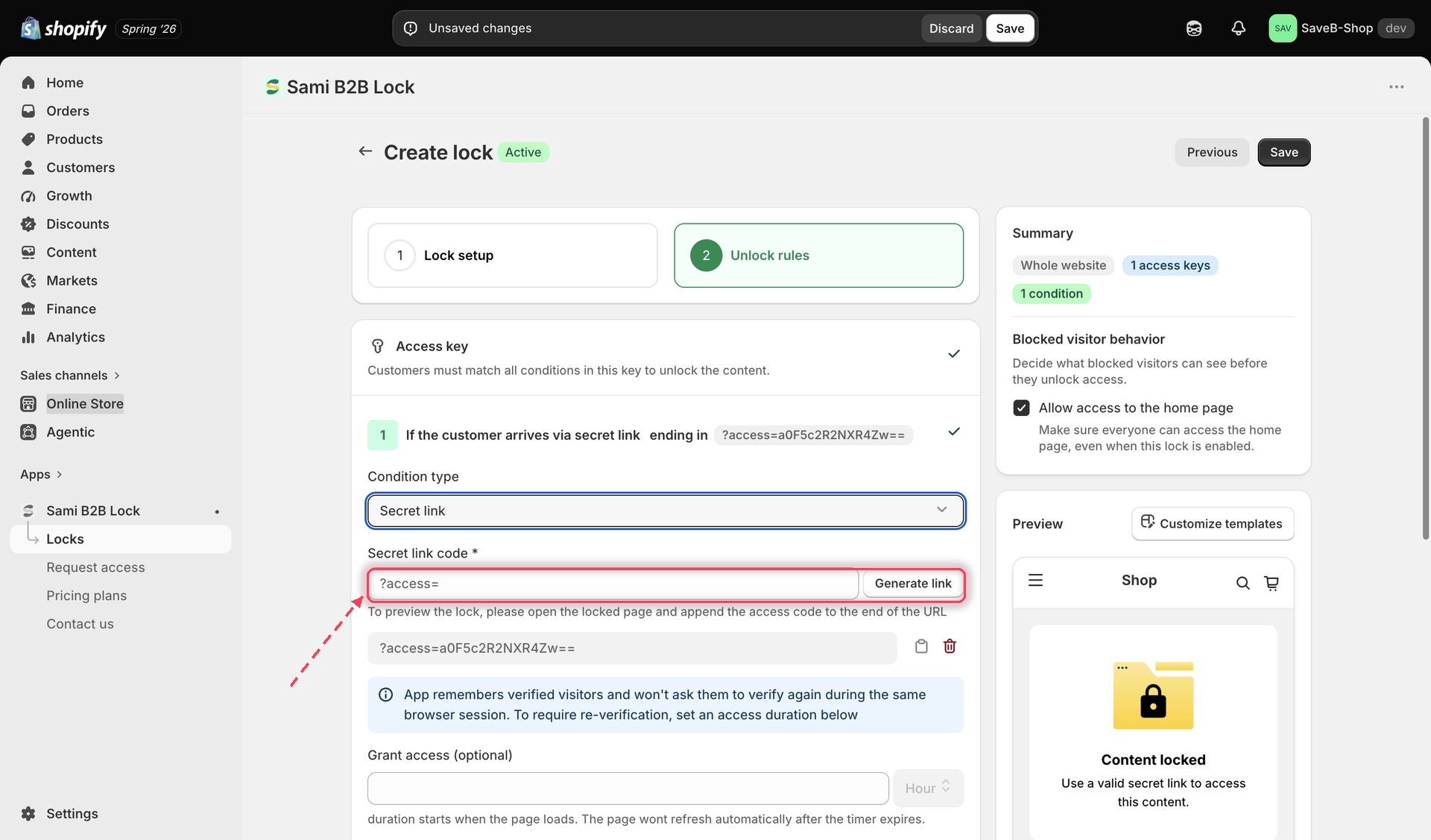
5. Type a code into the field and click **Generate link** — or leave the field empty and click the same button to have the app generate a random token for you automatically. The app shows the token with the `?access=` prefix already in place, and appends it to your lock's preview URL so you can see the full link to share.

   <figure><img src="https://27754559-files.gitbook.io/~/files/v0/b/gitbook-x-prod.appspot.com/o/spaces%2FF4qMYopXntYz9YgUqZSo%2Fuploads%2Fgit-blob-d2998a6e25613ba4b5623de2012e900c759a04c2%2Fscreenshot-access-rules-secret-link-generate.png?alt=media" alt="Secret link field with a generated token and the Generate link button"><figcaption><p>Generating a secret link token, shown with the full URL it produces.</p></figcaption></figure>
6. Repeat step 5 to add more secret links if you want several active at once — each one independently unlocks the same content.
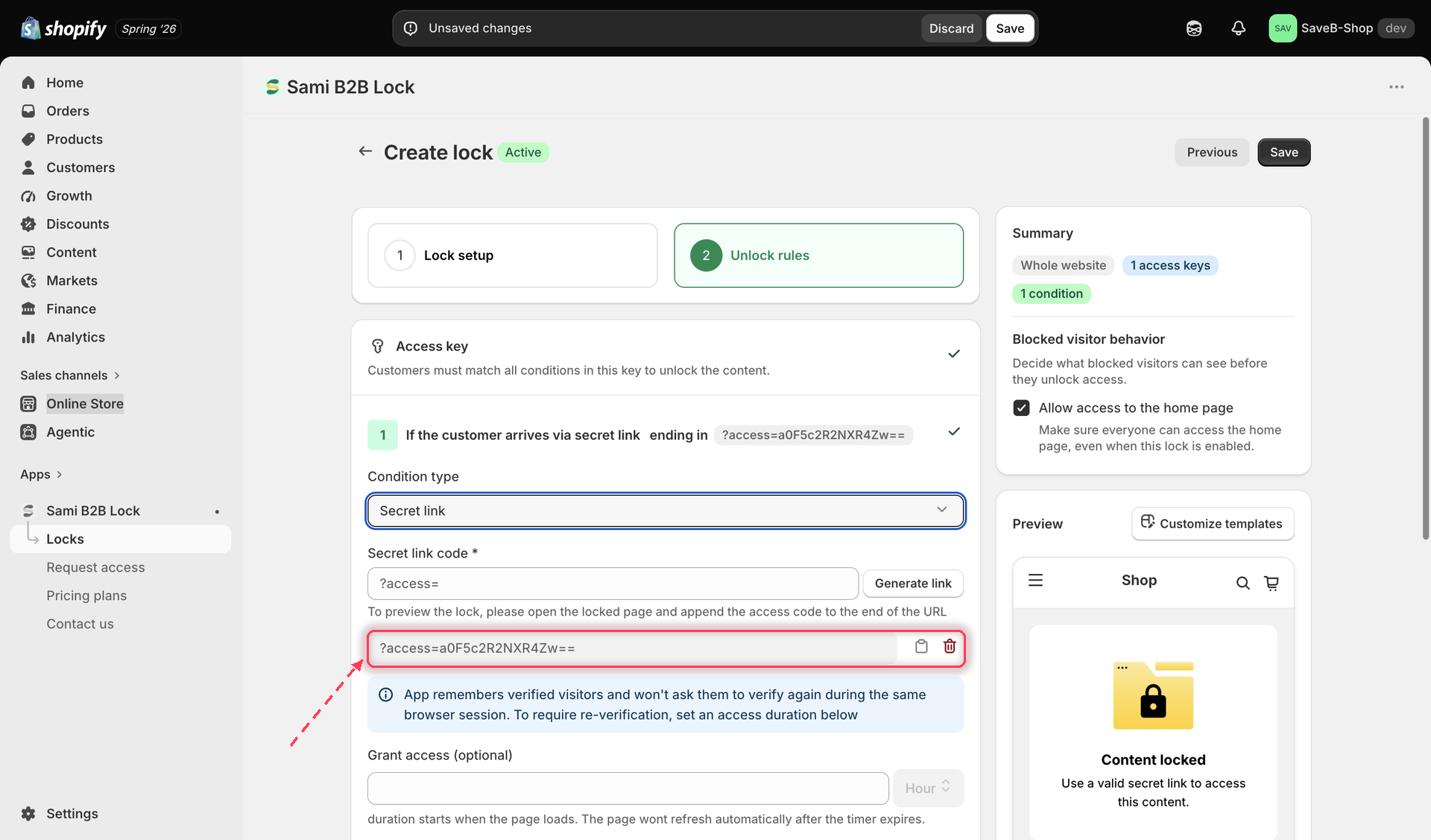
7. Each link in the list has its own **Copy** and **Delete** buttons: copy the full link to share it, or delete a link you want to revoke.

   <figure><img src="https://27754559-files.gitbook.io/~/files/v0/b/gitbook-x-prod.appspot.com/o/spaces%2FF4qMYopXntYz9YgUqZSo%2Fuploads%2Fgit-blob-3d9ff62b9531c4a5ae04c24ca30f88279ac8988e%2Fscreenshot-access-rules-secret-link-list.png?alt=media" alt="List of active secret links with copy and delete controls next to each one"><figcaption><p>Managing the list of active secret links — copy one to share it, or delete one to revoke it.</p></figcaption></figure>
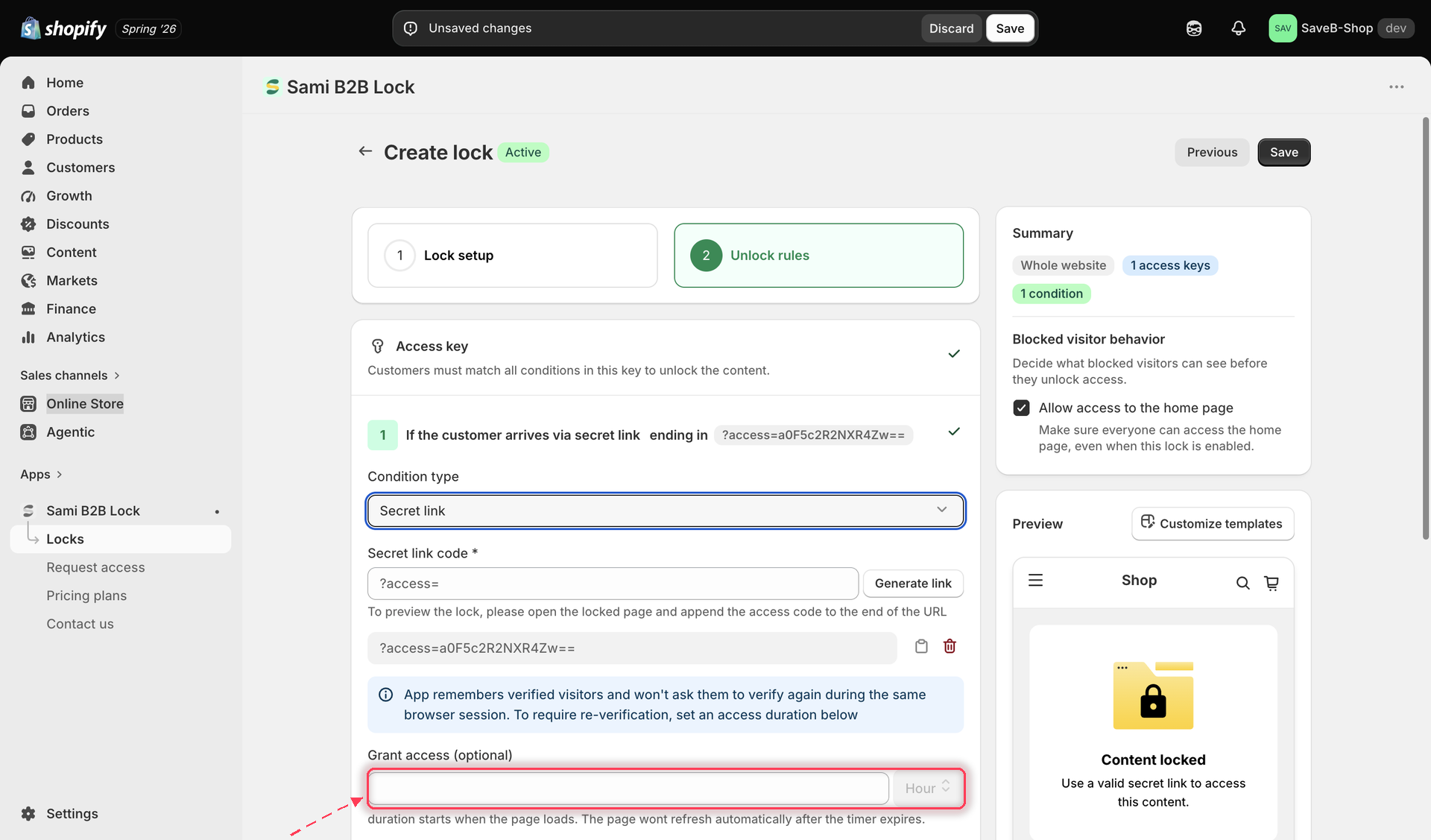
8. Configure **Grant access (optional)** — leave it blank to remember a verified visitor only for their current browser session, or enter a number and choose a unit (minutes, hours, or days) to keep them remembered for a fixed duration instead.

   <figure><img src="https://27754559-files.gitbook.io/~/files/v0/b/gitbook-x-prod.appspot.com/o/spaces%2FF4qMYopXntYz9YgUqZSo%2Fuploads%2Fgit-blob-77e6f4b1a7537f833c9357e1481beebacc4f007f%2Fscreenshot-access-rules-secret-link-duration.png?alt=media" alt="Grant access duration field with a number and unit selector for the Secret link rule"><figcaption><p>Setting how long a verified visitor stays unlocked before needing the link again.</p></figcaption></figure>
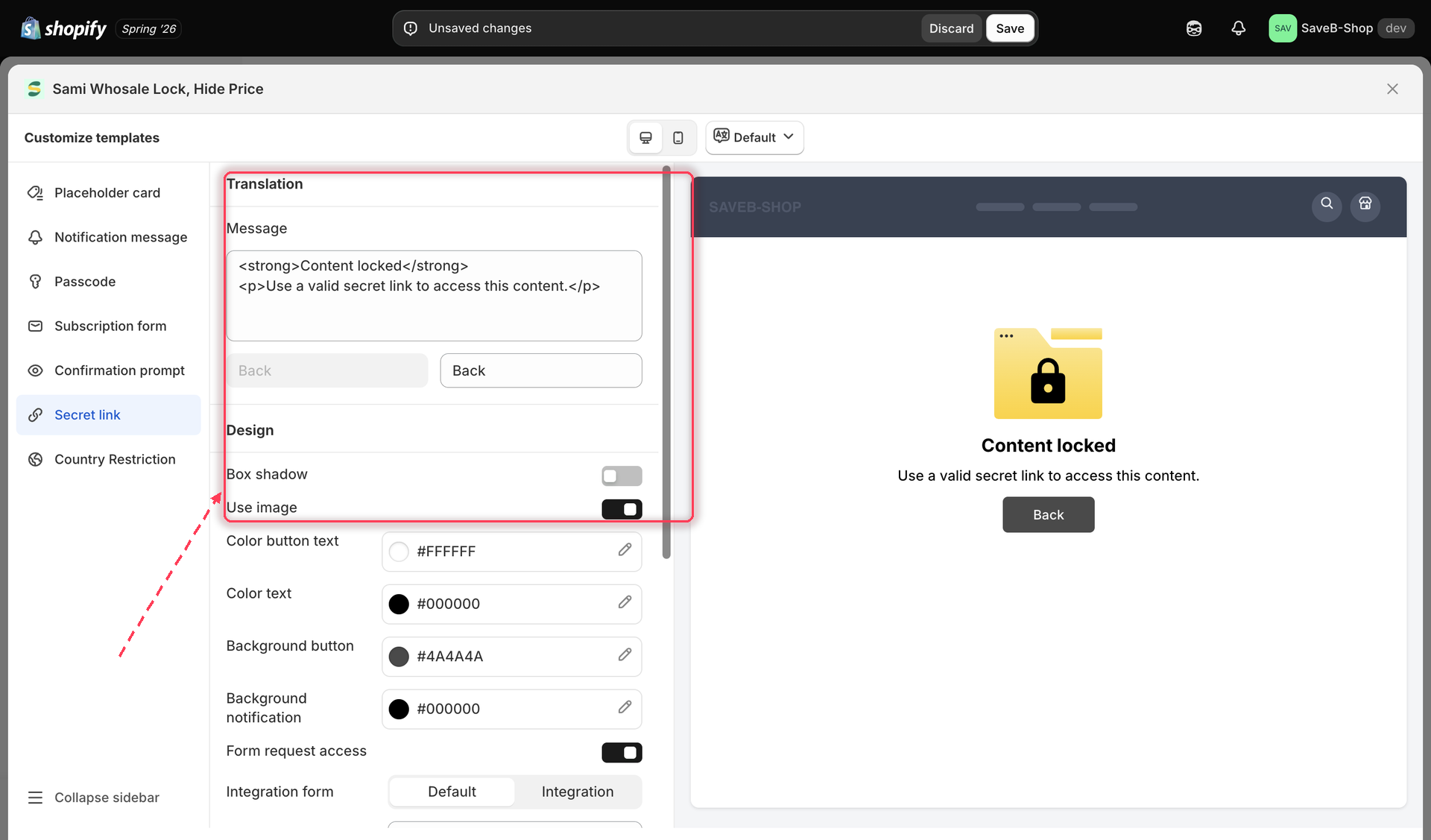
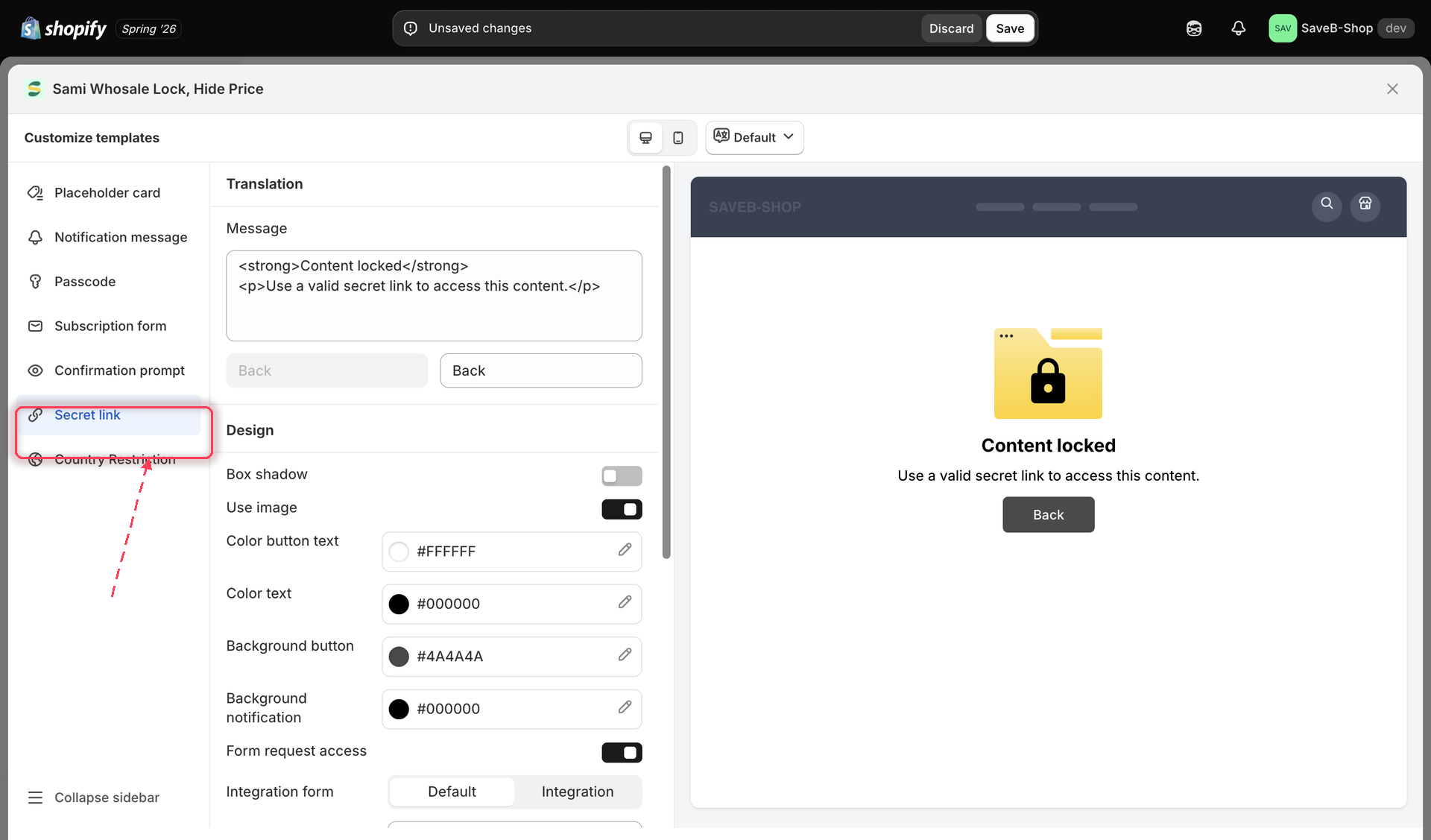
9. Customize the secret-link message and any other translated copy for this lock, per storefront language, from the lock's Messages section.

   <figure><img src="https://27754559-files.gitbook.io/~/files/v0/b/gitbook-x-prod.appspot.com/o/spaces%2FF4qMYopXntYz9YgUqZSo%2Fuploads%2Fgit-blob-f14d973514075f7252ed7e9bd01eece5dbae1586%2Fscreenshot-access-rules-secret-link-messages.png?alt=media" alt="Secret link message field in the lock&#x27;s translation and messages settings"><figcaption><p>Editing the copy shown to shoppers who arrive without a valid secret link.</p></figcaption></figure>
10. Customize the design of the lock screen shown to visitors without a valid link (colors, button style) from the lock's Design section if you want it to match your theme.

    <figure><img src="https://27754559-files.gitbook.io/~/files/v0/b/gitbook-x-prod.appspot.com/o/spaces%2FF4qMYopXntYz9YgUqZSo%2Fuploads%2Fgit-blob-71a196a13a162db0306212a0ecad376623f5b51e%2Fscreenshot-access-rules-secret-link-design.png?alt=media" alt="Design settings panel for the secret link lock screen"><figcaption><p>Adjusting the lock screen's colors from the lock's Design settings.</p></figcaption></figure>
11. Click **Save**.

{% hint style="info" %}
Secret link is the other of the two access rules that support **Request access** — a built-in form shoppers without a link can use to ask you for one. See [Request access overview](/b2b-lock-password-protect/request-access/overview.md) for how to turn it on and manage submissions.
{% endhint %}

## Customer experience on the storefront

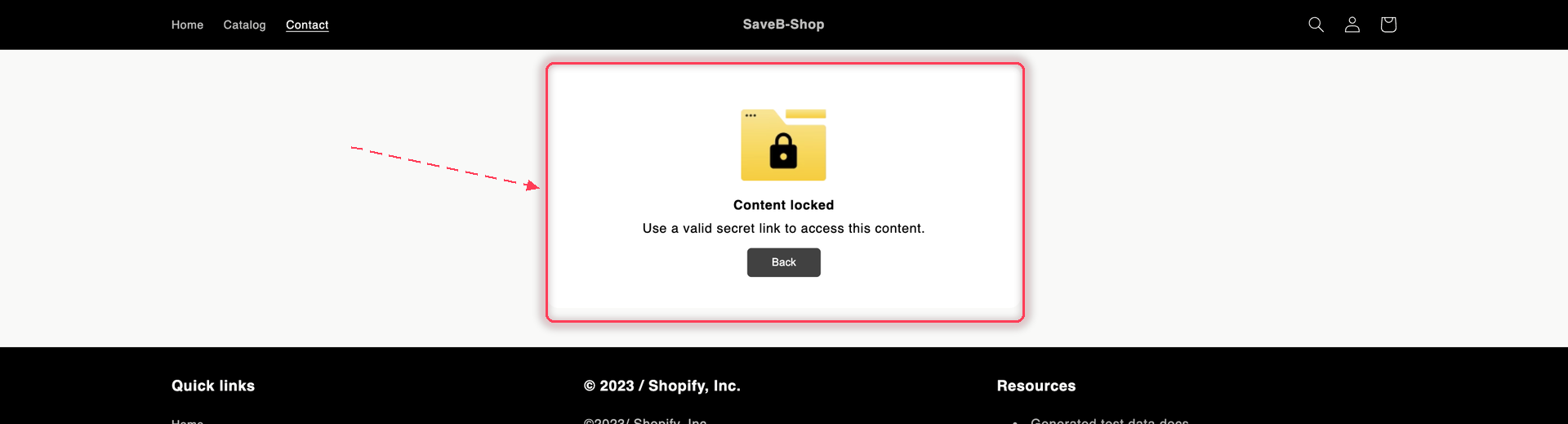
A shopper who reaches secret-link-protected content without a valid token in the URL sees a "Content locked" message: "Use a valid secret link to access this content." A shopper who arrives with a valid token in the URL is let straight through — there's no form to fill in. Once verified, the app remembers them for the rest of their session (or for your configured grant-access duration), so revisiting the same page without the token in the URL still works while that memory lasts.

All of this copy is editable per lock and per storefront language from the Messages section — see [Translate lock messages](/b2b-lock-password-protect/design-and-customization/translate-messages.md).

<figure><img src="https://27754559-files.gitbook.io/~/files/v0/b/gitbook-x-prod.appspot.com/o/spaces%2FF4qMYopXntYz9YgUqZSo%2Fuploads%2Fgit-blob-7d9c3be318a18580176995e0c03ff096aab164c3%2Fscreenshot-storefront-secret-link.png?alt=media" alt="A locked storefront page showing the Content locked card with the message Use a valid secret link to access this content and a Back button."><figcaption><p>Without a valid token in the URL, the visitor gets this card instead of the page.</p></figcaption></figure>

## Related docs

* [Passcode](/b2b-lock-password-protect/access-rules/passcode.md)
* [Request access overview](/b2b-lock-password-protect/request-access/overview.md)
* [Grant access duration](/b2b-lock-password-protect/lock-behavior/grant-access-duration.md)
* [Translate lock messages](/b2b-lock-password-protect/design-and-customization/translate-messages.md)


---

# Agent Instructions
This documentation is published with GitBook. GitBook is the documentation platform designed so that both humans and AI agents can read, navigate, and reason over technical content effectively. Learn more at gitbook.com.

## Querying This Documentation
If you need additional information that is not directly available in this page, you can query the documentation dynamically by asking a question.

Perform an HTTP GET request on the current page URL with the `ask` query parameter, and the optional `goal` query parameter:

```
GET https://docs.samita.io/b2b-lock-password-protect/access-rules/secret-link.md?ask=<question>&goal=<endgoal>
```

`ask` is the immediate question: it should be specific, self-contained, and written in natural language.
`goal` is optional and describes the broader end goal you are ultimately trying to accomplish on behalf of the user. GitBook uses it to tailor the answer towards what is most useful for that goal.

The response will contain a direct answer to the question and relevant excerpts and sources from the documentation.

Use this mechanism when the answer is not explicitly present in the current page, you need clarification or additional context, or you want to retrieve related documentation sections.