> For the complete documentation index, see [llms.txt](https://docs.samita.io/llms.txt). Markdown versions of documentation pages are available by appending `.md` to page URLs; this page is available as [Markdown](https://docs.samita.io/b2b-lock-password-protect/access-rules/shop-domain.md).

# Shop domain

Match visitors based on the exact domain they're currently browsing your store on.

**Shop domain** matches the exact hostname a visitor is using to browse your store. This is useful when your store is available through both a connected custom domain, such as `www.your-store.com`, and its original Shopify domain, such as `your-store.myshopify.com`.

Use this rule to make protected content available only on your public custom domain, or to keep a testing flow available only through the `myshopify.com` domain.

Enter one or more domains without a protocol or path, for example `www.your-store.com` or `your-store.myshopify.com`.

* **If**: the visitor matches when their current domain is one of the domains you entered.
* **Unless**: the visitor matches when their current domain is not one of the domains you entered.

When this rule is combined with other Lock conditions, every condition must be satisfied. See [Combining rules](/b2b-lock-password-protect/access-rules/combining-rules.md).

## Add the rule

1. Open **Locks** and create a new lock, or open an existing one to edit it.
2. Choose the content you want to protect. See [Access rules overview](/b2b-lock-password-protect/access-rules/overview.md) for how rules fit into a lock.
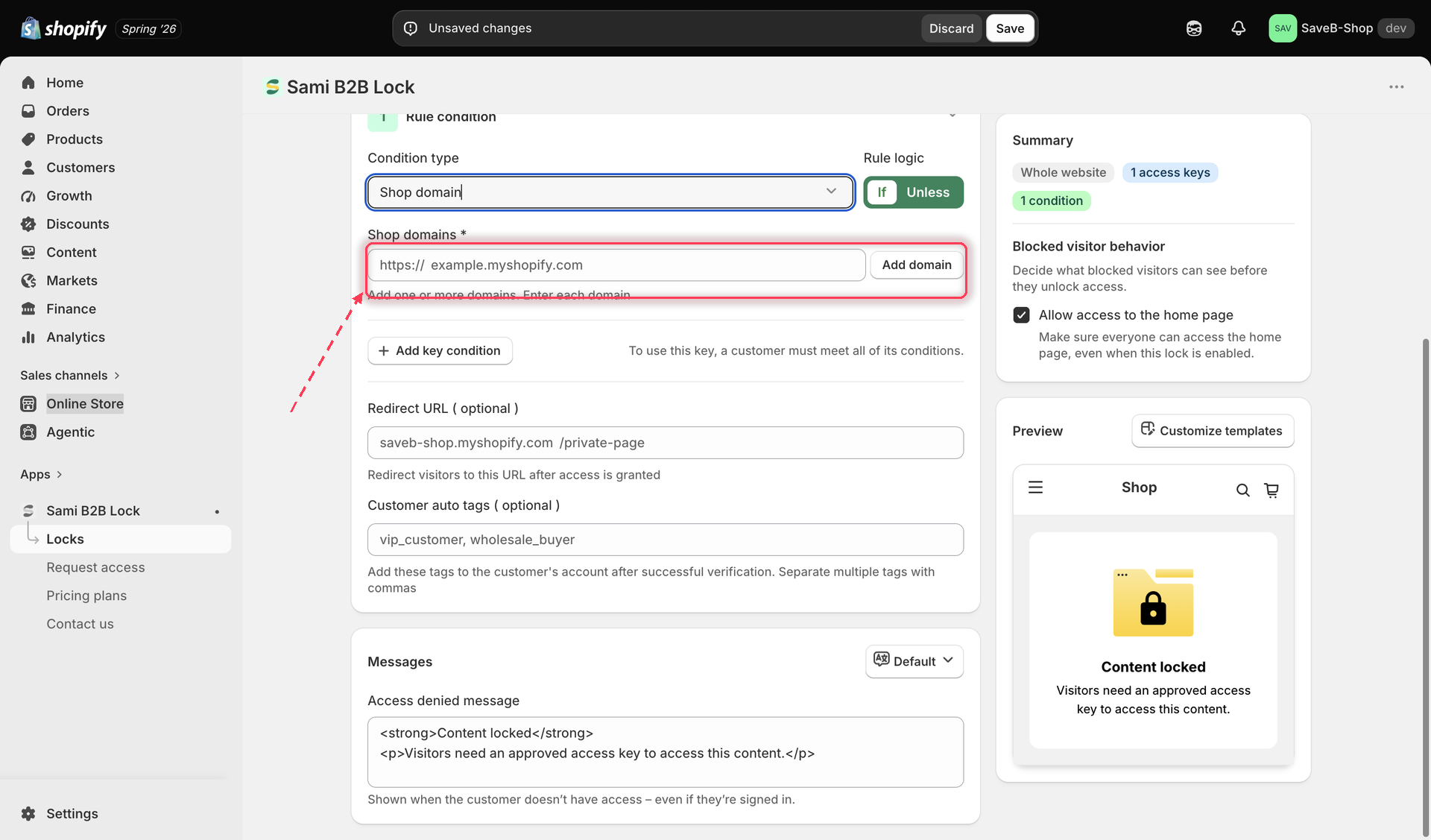
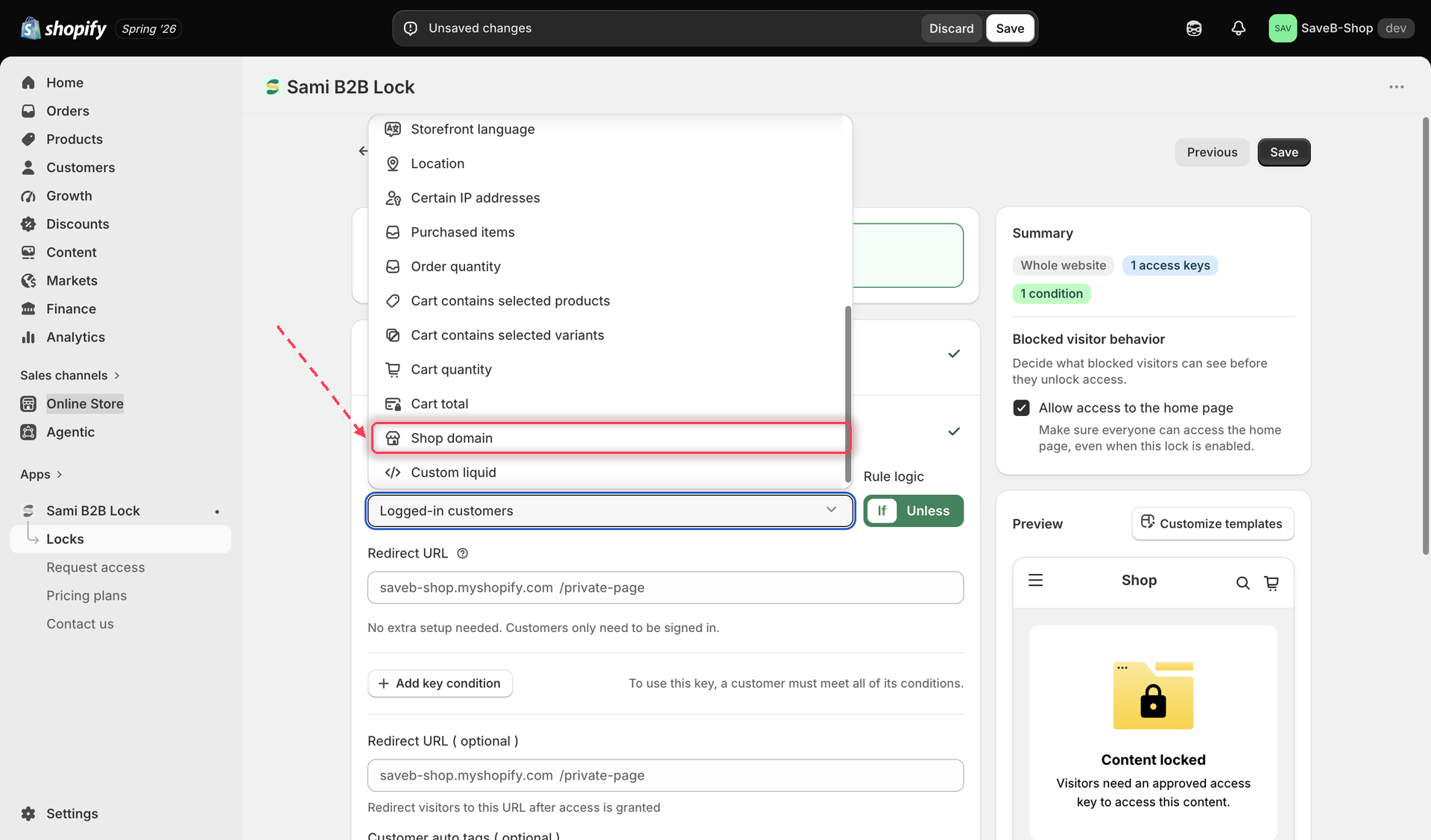
3. Click the **Unlock rules** tab, then in the **Condition type** dropdown, select **Shop domain**.

<figure><img src="https://27754559-files.gitbook.io/~/files/v0/b/gitbook-x-prod.appspot.com/o/spaces%2FF4qMYopXntYz9YgUqZSo%2Fuploads%2Fgit-blob-40415299582391e941faf377c74ebe91a27b1315%2Fscreenshot-access-rules-picker-shop-domain.png?alt=media" alt="The Unlock rules tab with Shop domain selected in the Condition type dropdown."><figcaption><p>Select Shop domain from the Condition type dropdown on the Unlock rules tab.</p></figcaption></figure>

4. Enter the exact domain(s) you want to match — for example, your custom domain or your `*.myshopify.com` domain. You can add more than one.

<figure><img src="https://27754559-files.gitbook.io/~/files/v0/b/gitbook-x-prod.appspot.com/o/spaces%2FF4qMYopXntYz9YgUqZSo%2Fuploads%2Fgit-blob-34f3a971b2e0405824804f5b0a7ba428d82b3a54%2Fscreenshot-access-rules-shop-domain-config.png?alt=media" alt="The Shop domain rule settings, showing a list input for entering exact domains."><figcaption><p>Add each exact domain this rule should match against the visitor's current browsing domain.</p></figcaption></figure>

5. Choose **If** or **Unless**.
6. Click **Save**.

## Example: Keep a preview page on the Shopify domain

Suppose your public store uses `www.your-store.com`, but a preview page should only be available through `your-store.myshopify.com`.

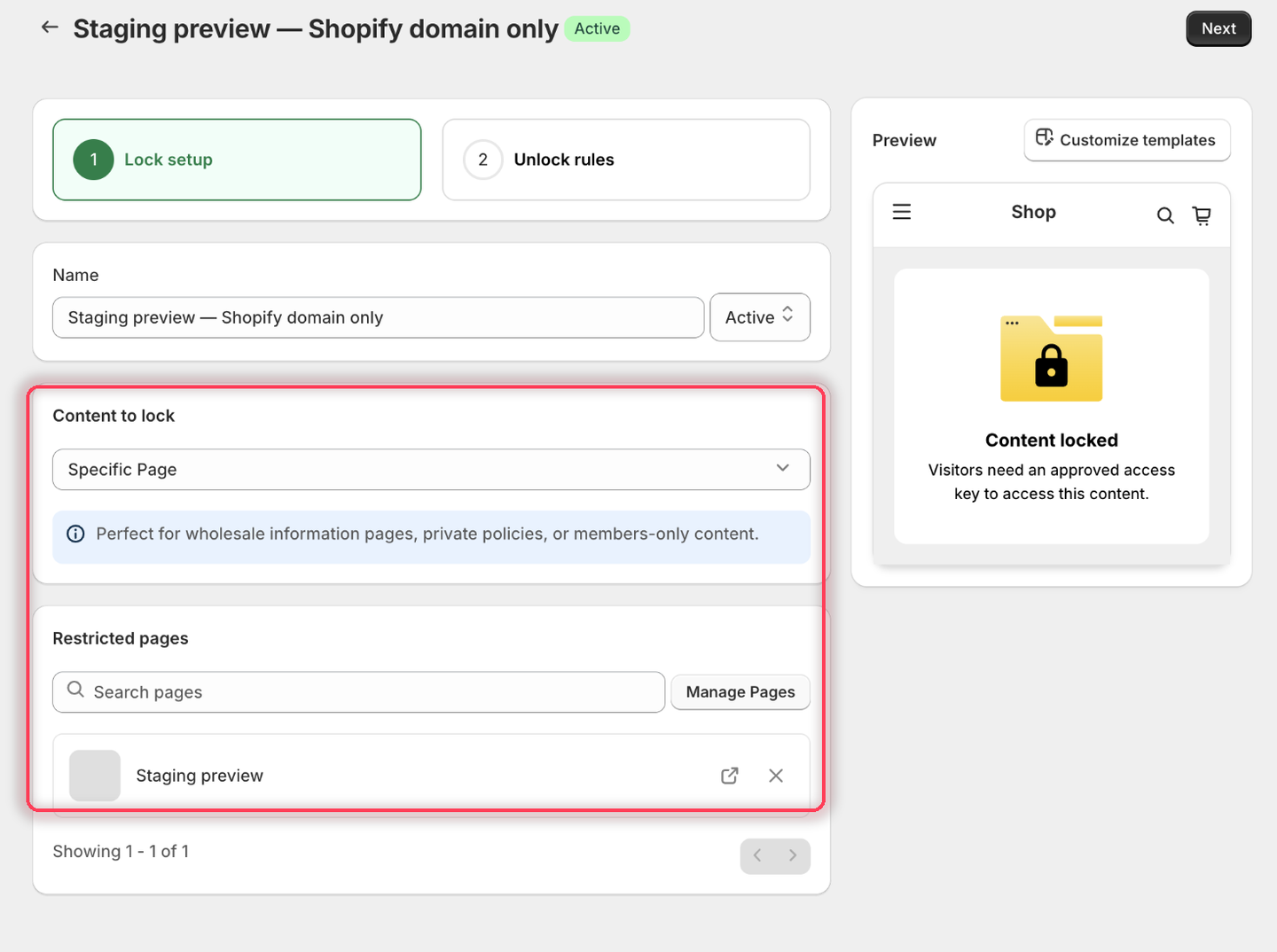
1. Select the **Staging preview** page as the content to protect.

<figure><img src="https://27754559-files.gitbook.io/~/files/v0/b/gitbook-x-prod.appspot.com/o/spaces%2FF4qMYopXntYz9YgUqZSo%2Fuploads%2Fgit-blob-4b8598e1f6634fcece7ca2928a03ee5f1189409b%2Fscreenshot-example-shop-domain-content.png?alt=media" alt="The Lock setup tab with Specific Page as the content type and the Staging preview page listed under Restricted pages."><figcaption><p>Pick the page that should stay on the Shopify domain.</p></figcaption></figure>

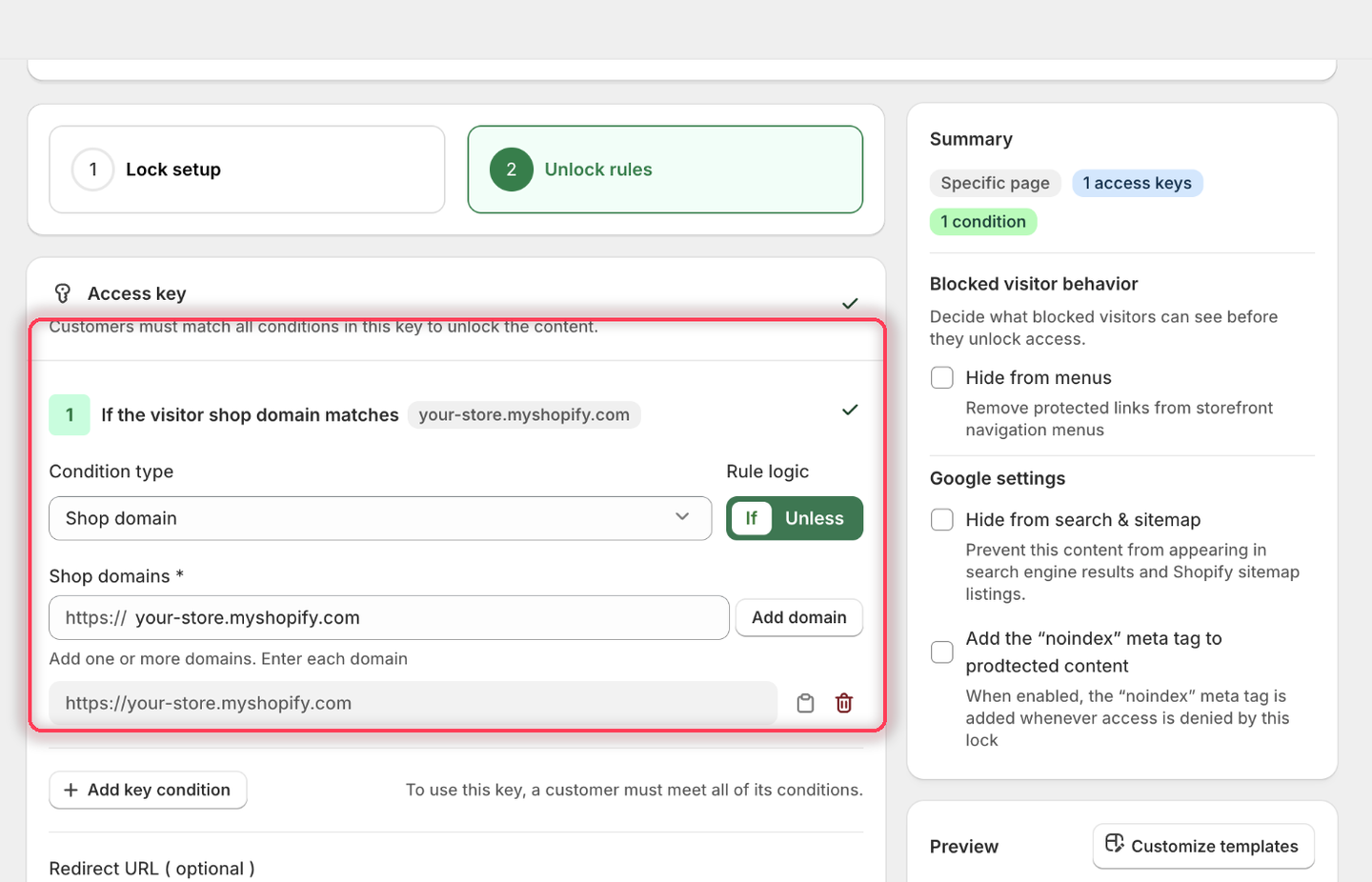
2. Add **Shop domain**, choose **If**, and type `your-store.myshopify.com` into **Shop domains**. The field already supplies the `https://` prefix, so enter the host only — then click **Add domain** to commit it to the list.

<figure><img src="https://27754559-files.gitbook.io/~/files/v0/b/gitbook-x-prod.appspot.com/o/spaces%2FF4qMYopXntYz9YgUqZSo%2Fuploads%2Fgit-blob-95c1d57d64da398aba342bbcef926241cd224882%2Fscreenshot-example-shop-domain-rule.png?alt=media" alt="The Shop domain condition with Rule logic set to If, the host typed into the Shop domains field, and the full https:// URL added to the list below."><figcaption><p>The condition heading reads: If the visitor shop domain matches your-store.myshopify.com.</p></figcaption></figure>

3. Leave the rule's **Redirect URL** empty.
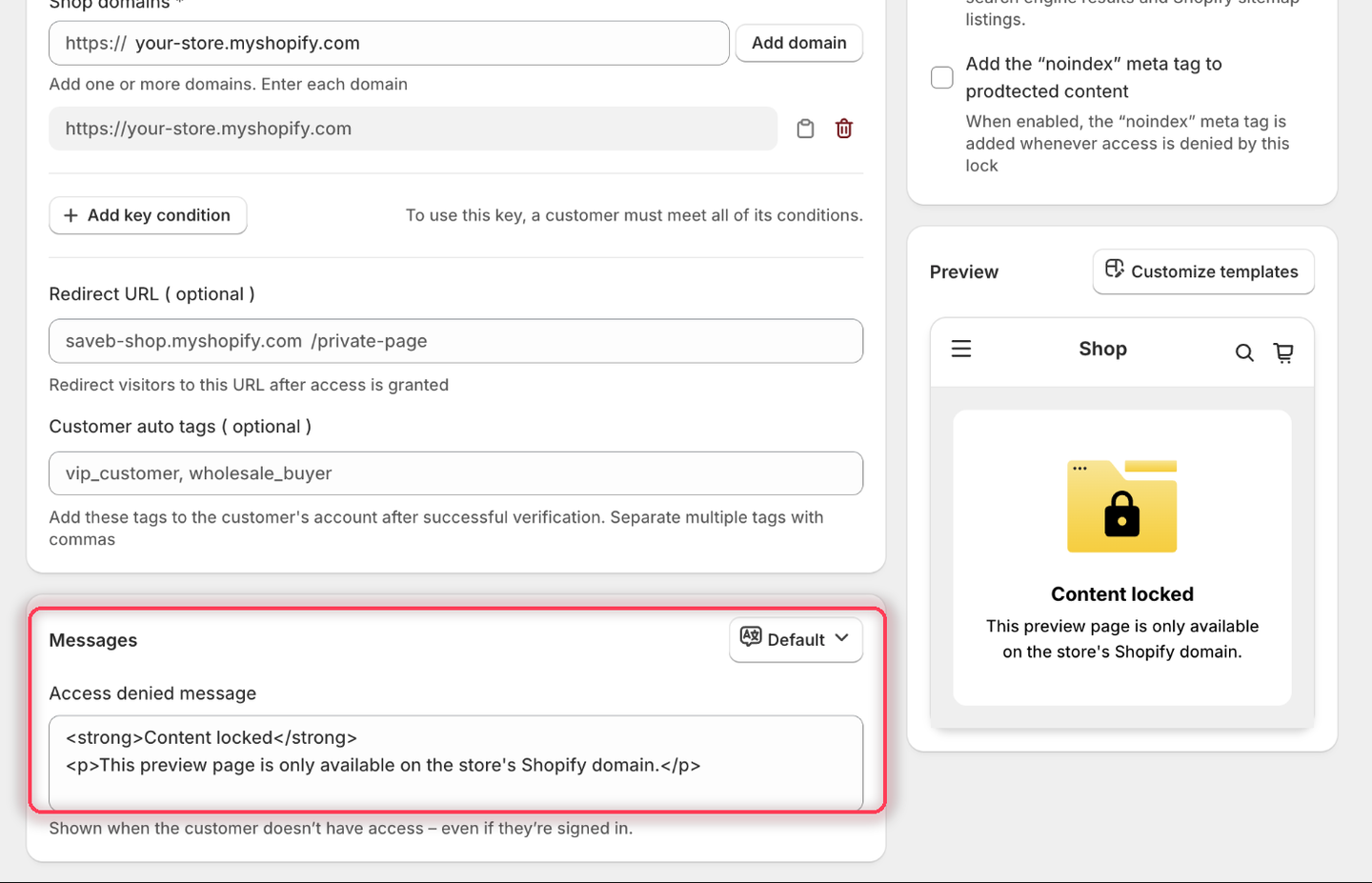
4. Set the **Access denied message** to:

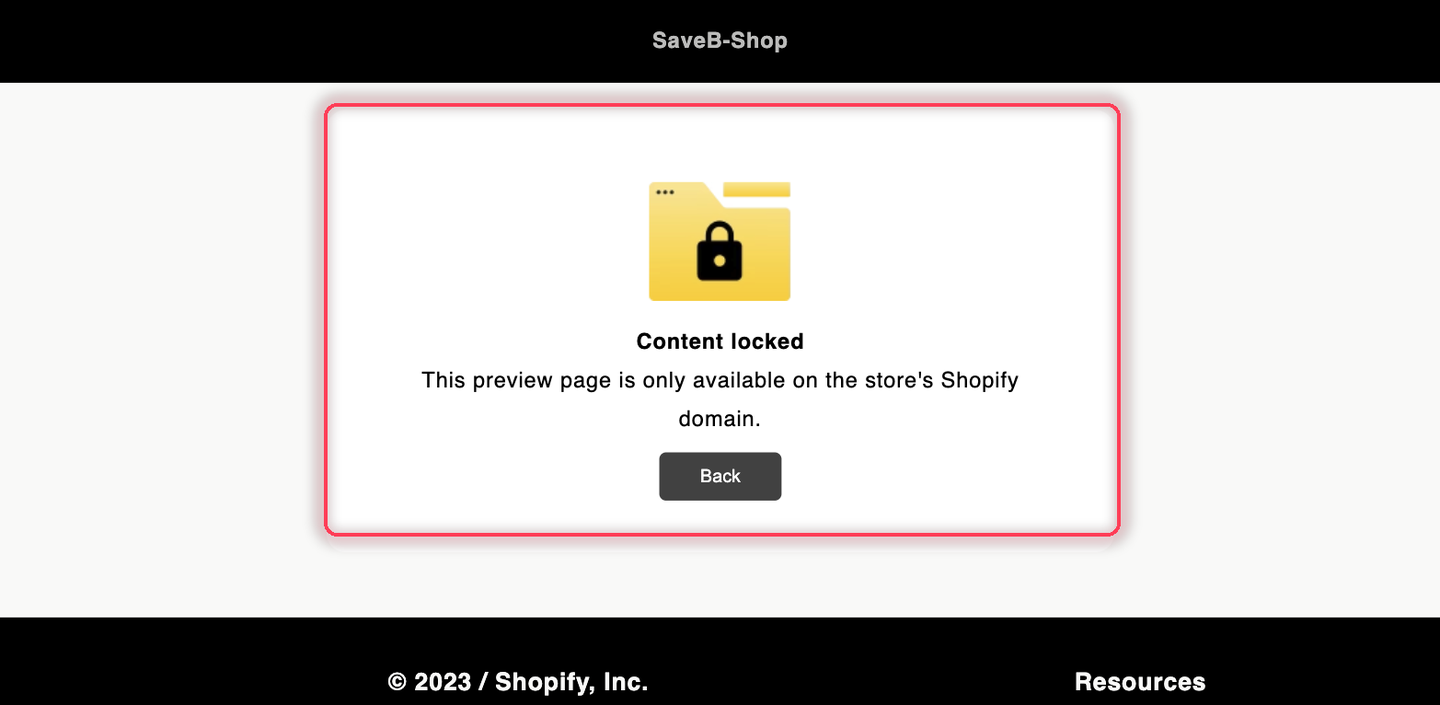
> This preview page is only available on the store's Shopify domain.

<figure><img src="https://27754559-files.gitbook.io/~/files/v0/b/gitbook-x-prod.appspot.com/o/spaces%2FF4qMYopXntYz9YgUqZSo%2Fuploads%2Fgit-blob-63293d461c98af4a318a1acf29005541563dfbe5%2Fscreenshot-example-shop-domain-message.png?alt=media" alt="The Messages card with the Access denied message set to the Shopify-domain-only wording, and the Preview panel rendering it."><figcaption><p>The Preview panel confirms the wording before you save.</p></figcaption></figure>

5. Click **Save**.

### Result on the storefront

The page opens normally at `your-store.myshopify.com`. When the same page is opened at `www.your-store.com`, the domain does not match, so the page remains locked and displays the message above.

<figure><img src="https://27754559-files.gitbook.io/~/files/v0/b/gitbook-x-prod.appspot.com/o/spaces%2FF4qMYopXntYz9YgUqZSo%2Fuploads%2Fgit-blob-2fb66576ae861b29307b3ffb6b8adf103eaafbce%2Fscreenshot-example-shop-domain-result.png?alt=media" alt="The Staging preview page displaying the configured Shopify-domain-only message."><figcaption><p>On the public custom domain, the visitor sees the Access denied message from this example.</p></figcaption></figure>

## Related docs

* [Access rules overview](/b2b-lock-password-protect/access-rules/overview.md)
* [Combining rules](/b2b-lock-password-protect/access-rules/combining-rules.md)
* [Certain IP addresses](/b2b-lock-password-protect/access-rules/certain-ip-addresses.md)
* [Location](/b2b-lock-password-protect/access-rules/location.md)


---

# Agent Instructions
This documentation is published with GitBook. GitBook is the documentation platform designed so that both humans and AI agents can read, navigate, and reason over technical content effectively. Learn more at gitbook.com.

## Querying This Documentation
If you need additional information that is not directly available in this page, you can query the documentation dynamically by asking a question.

Perform an HTTP GET request on the current page URL with the `ask` query parameter, and the optional `goal` query parameter:

```
GET https://docs.samita.io/b2b-lock-password-protect/access-rules/shop-domain.md?ask=<question>&goal=<endgoal>
```

`ask` is the immediate question: it should be specific, self-contained, and written in natural language.
`goal` is optional and describes the broader end goal you are ultimately trying to accomplish on behalf of the user. GitBook uses it to tailor the answer towards what is most useful for that goal.

The response will contain a direct answer to the question and relevant excerpts and sources from the documentation.

Use this mechanism when the answer is not explicitly present in the current page, you need clarification or additional context, or you want to retrieve related documentation sections.