> For the complete documentation index, see [llms.txt](https://docs.samita.io/llms.txt). Markdown versions of documentation pages are available by appending `.md` to page URLs; this page is available as [Markdown](https://docs.samita.io/b2b-lock-password-protect/content-to-lock/overview/all-products.md).
# All products
Lock your entire product catalog in one lock, with optional exceptions.
Choose **All products** when you want a single lock to cover your entire catalog at once — for example, hiding every price and Add to cart button until a visitor logs in, rather than building the same rule product by product.
## Create the lock
1. Open **Locks** in the app's navigation.
2. Click **Create lock**.
3. Give the lock a descriptive name, for example "All products — login required."
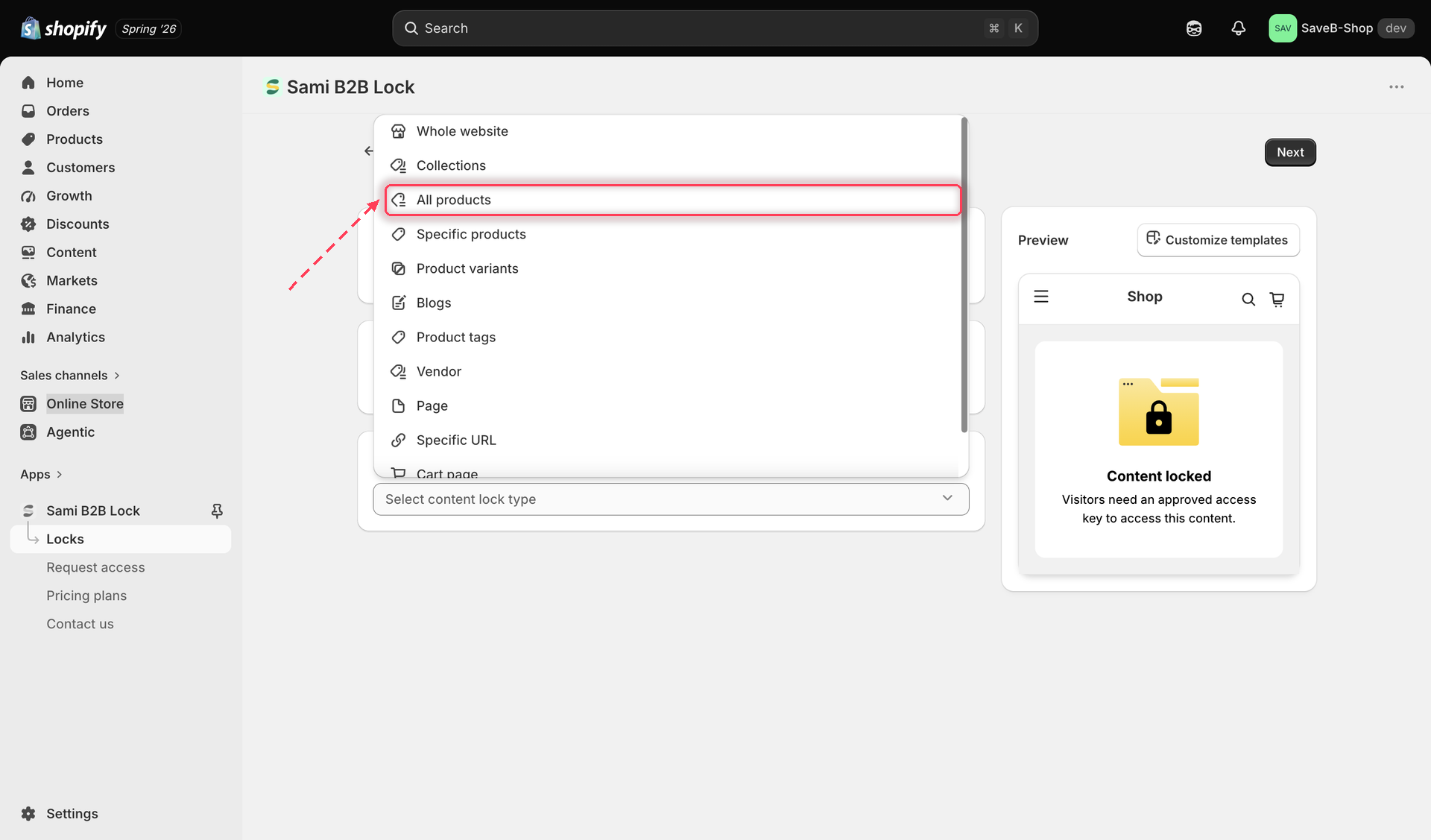
4. On the **Lock setup** tab, in the content picker, choose **Products**, then select **All products**.
Choose All products to cover your entire catalog with one lock.
## Exclude specific products (optional)
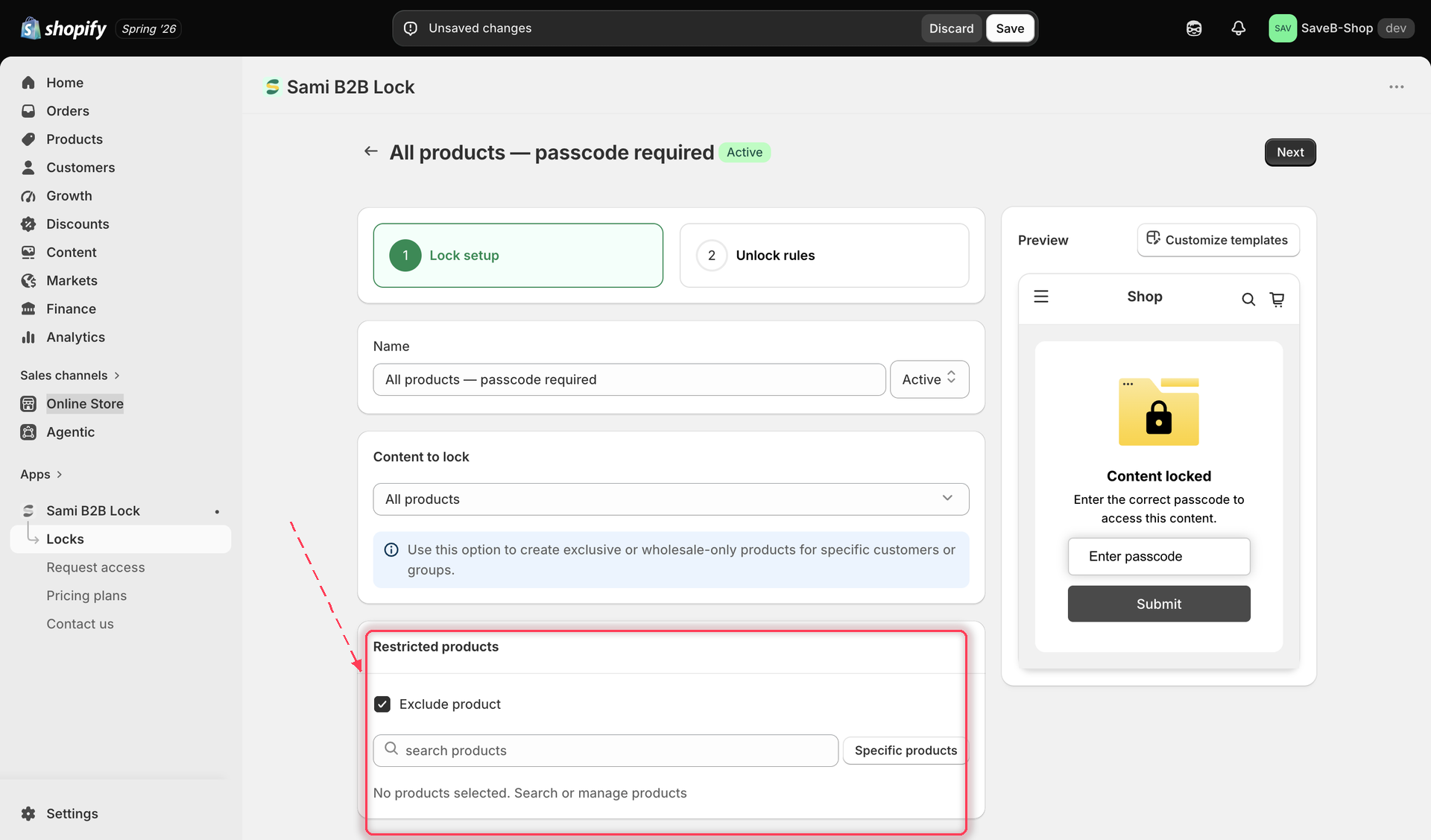
5. Still on the **Lock setup** tab, turn on the exclude option and select any products that should stay unlocked even though the rest of your catalog is locked. This is useful when almost everything should be gated except a handful of always-public items.
Turn on the exclude option to keep specific products unlocked when the rest of your catalog is locked.
{% hint style="warning" %}
Locking all products may require a paid plan depending on your current plan.
{% endhint %}
6. Click the **Unlock rules** tab to continue.
## Add an access rule
7. Add at least one rule — **Logged-in customers** is a common choice for an all-products lock. See [Access rules overview](/b2b-lock-password-protect/access-rules/overview.md) for the full catalogue.
8. Add every required condition to the access key. All conditions must be satisfied. See [Combining rules](/b2b-lock-password-protect/access-rules/combining-rules.md).
## Choose a lock behavior
On the same **Unlock rules** tab, the right-hand sidebar has a **Blocked visitor behavior** panel — configure it alongside your rule:
9. [Hide price and Add to cart](/b2b-lock-password-protect/lock-behavior/hide-price-and-add-to-cart.md) is the most common behavior for a whole-catalog lock — it lets you hide just the price, just the Add to cart button, or both, and show a message or styled button in their place. Review [Lock behavior overview](/b2b-lock-password-protect/lock-behavior/overview.md) for all the available options.
## Save
10. Click **Save**. The lock takes effect on your storefront as soon as the app embed is enabled.
## Related docs
* [Products and variants](/b2b-lock-password-protect/content-to-lock/overview.md)
* [Specific products](/b2b-lock-password-protect/content-to-lock/overview/specific-products.md)
* [Access rules overview](/b2b-lock-password-protect/access-rules/overview.md)
* [Manage locks](/b2b-lock-password-protect/locks/manage-locks.md)
---
# Agent Instructions
This documentation is published with GitBook. GitBook is the documentation platform designed so that both humans and AI agents can read, navigate, and reason over technical content effectively. Learn more at gitbook.com.
## Querying This Documentation
If you need additional information that is not directly available in this page, you can query the documentation dynamically by asking a question.
Perform an HTTP GET request on the current page URL with the `ask` query parameter, and the optional `goal` query parameter:
```
GET https://docs.samita.io/b2b-lock-password-protect/content-to-lock/overview/all-products.md?ask=&goal=
```
`ask` is the immediate question: it should be specific, self-contained, and written in natural language.
`goal` is optional and describes the broader end goal you are ultimately trying to accomplish on behalf of the user. GitBook uses it to tailor the answer towards what is most useful for that goal.
The response will contain a direct answer to the question and relevant excerpts and sources from the documentation.
Use this mechanism when the answer is not explicitly present in the current page, you need clarification or additional context, or you want to retrieve related documentation sections.