> For the complete documentation index, see [llms.txt](https://docs.samita.io/llms.txt). Markdown versions of documentation pages are available by appending `.md` to page URLs; this page is available as [Markdown](https://docs.samita.io/b2b-lock-password-protect/lock-behavior/grant-access-duration.md).
# Grant access duration
Control how long a visitor stays unlocked after passing an action-based access rule before they have to verify again.
Once a visitor passes an action-based rule — **Passcode**, **Secret link**, **Subscribe to unlock**, or **Confirmation prompt** — the app remembers that they're allowed in, so they aren't asked to verify on every page load. **Grant access duration** controls exactly how long that memory lasts before the visitor has to verify again.
## Reach this setting
1. Open **Locks** and create a new lock, or open an existing one to edit it.
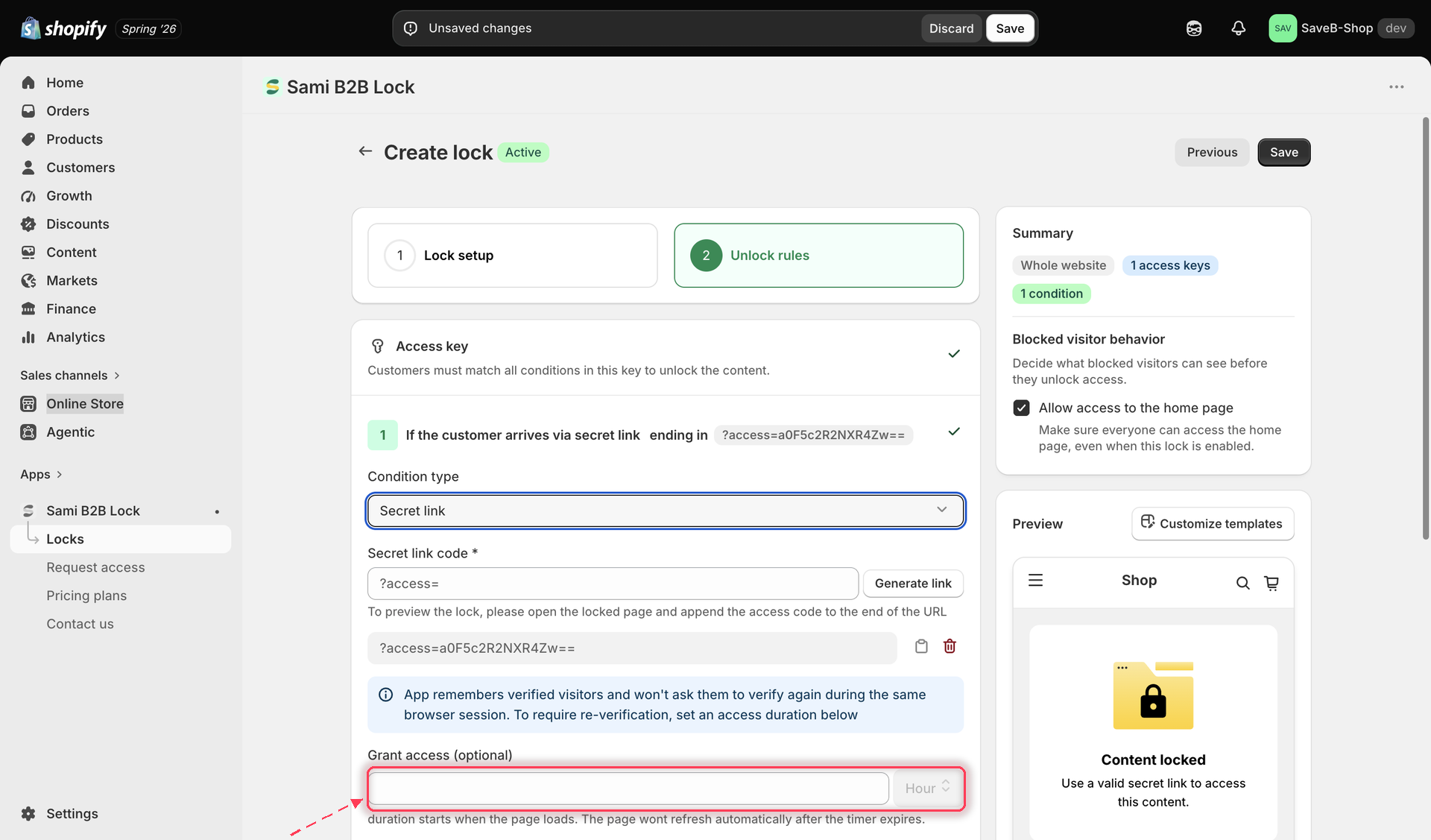
2. On the **Unlock rules** tab, add an access key with one of the action-based rules: **Passcode**, **Secret link**, **Subscribe to unlock**, or **Confirmation prompt**, in the main column.
3. Inside that rule's settings, in the same main column, find the **Grant access (optional)** field. This is a per-rule setting, not part of the **Blocked visitor behavior** sidebar panel.
Enter a number and choose a unit to set how long a visitor stays unlocked after verifying.
4. Choose your duration (see below) and click **Save**.
## Session-only vs. a fixed duration
* **Leave the field blank** — the app remembers a verified visitor only for their current browser session. As soon as they close their browser, that memory is gone and they'll need to verify again the next time they visit.
* **Enter a number and pick a unit** — minutes, hours, or days — for a fixed duration. The countdown starts the moment access is granted, not from when the browser is closed, so the visitor stays unlocked for exactly that long even across multiple visits, until the duration runs out.
{% hint style="info" %}
The duration starts counting as soon as access is granted. The page itself won't automatically refresh or re-lock itself the instant the timer expires — the app re-checks access the next time the visitor loads or navigates to a protected page.
{% endhint %}
## It's a per-browser cookie, not an account setting
Grant access duration is stored as a cookie in the visitor's browser, not as a setting on their Shopify customer account. That means:
* A visitor who verifies on their phone won't be automatically remembered when they switch to their laptop, or to a different browser on the same device.
* Clearing cookies, using a private/incognito window, or switching browsers resets the memory, even within the duration you set.
{% hint style="warning" %}
**Exception — Confirmation prompt's "remember for signed-in customers" toggle.** If that toggle is turned on for a Confirmation prompt rule, a signed-in customer's confirmation is remembered differently: it's stored in the browser's local storage tied to that customer, and it has **no expiry at all** — it doesn't follow the duration set here, and it doesn't reset when the browser session ends. See [Confirmation prompt](/b2b-lock-password-protect/access-rules/confirmation-prompt.md) for details on that toggle.
{% endhint %}
## Related docs
* [Lock behavior overview](/b2b-lock-password-protect/lock-behavior/overview.md)
* [Confirmation prompt](/b2b-lock-password-protect/access-rules/confirmation-prompt.md)
* [Passcode](/b2b-lock-password-protect/access-rules/passcode.md)
* [Secret link](/b2b-lock-password-protect/access-rules/secret-link.md)
---
# Agent Instructions
This documentation is published with GitBook. GitBook is the documentation platform designed so that both humans and AI agents can read, navigate, and reason over technical content effectively. Learn more at gitbook.com.
## Querying This Documentation
If you need additional information that is not directly available in this page, you can query the documentation dynamically by asking a question.
Perform an HTTP GET request on the current page URL with the `ask` query parameter, and the optional `goal` query parameter:
```
GET https://docs.samita.io/b2b-lock-password-protect/lock-behavior/grant-access-duration.md?ask=&goal=
```
`ask` is the immediate question: it should be specific, self-contained, and written in natural language.
`goal` is optional and describes the broader end goal you are ultimately trying to accomplish on behalf of the user. GitBook uses it to tailor the answer towards what is most useful for that goal.
The response will contain a direct answer to the question and relevant excerpts and sources from the documentation.
Use this mechanism when the answer is not explicitly present in the current page, you need clarification or additional context, or you want to retrieve related documentation sections.