> For the complete documentation index, see [llms.txt](https://docs.samita.io/llms.txt). Markdown versions of documentation pages are available by appending `.md` to page URLs; this page is available as [Markdown](https://docs.samita.io/b2b-lock-password-protect/lock-behavior/hide-from-menus.md).
# Hide from menus
Remove a protected item's links from your storefront navigation menus.
This behavior is available on locks that protect **Products and variants**, **Collections**, **Pages**, **Blogs and articles**, or a **Specific URL**. It removes any navigation menu link pointing to the protected item, so it doesn't show up as an option for visitors browsing your storefront's menus.
{% hint style="info" %}
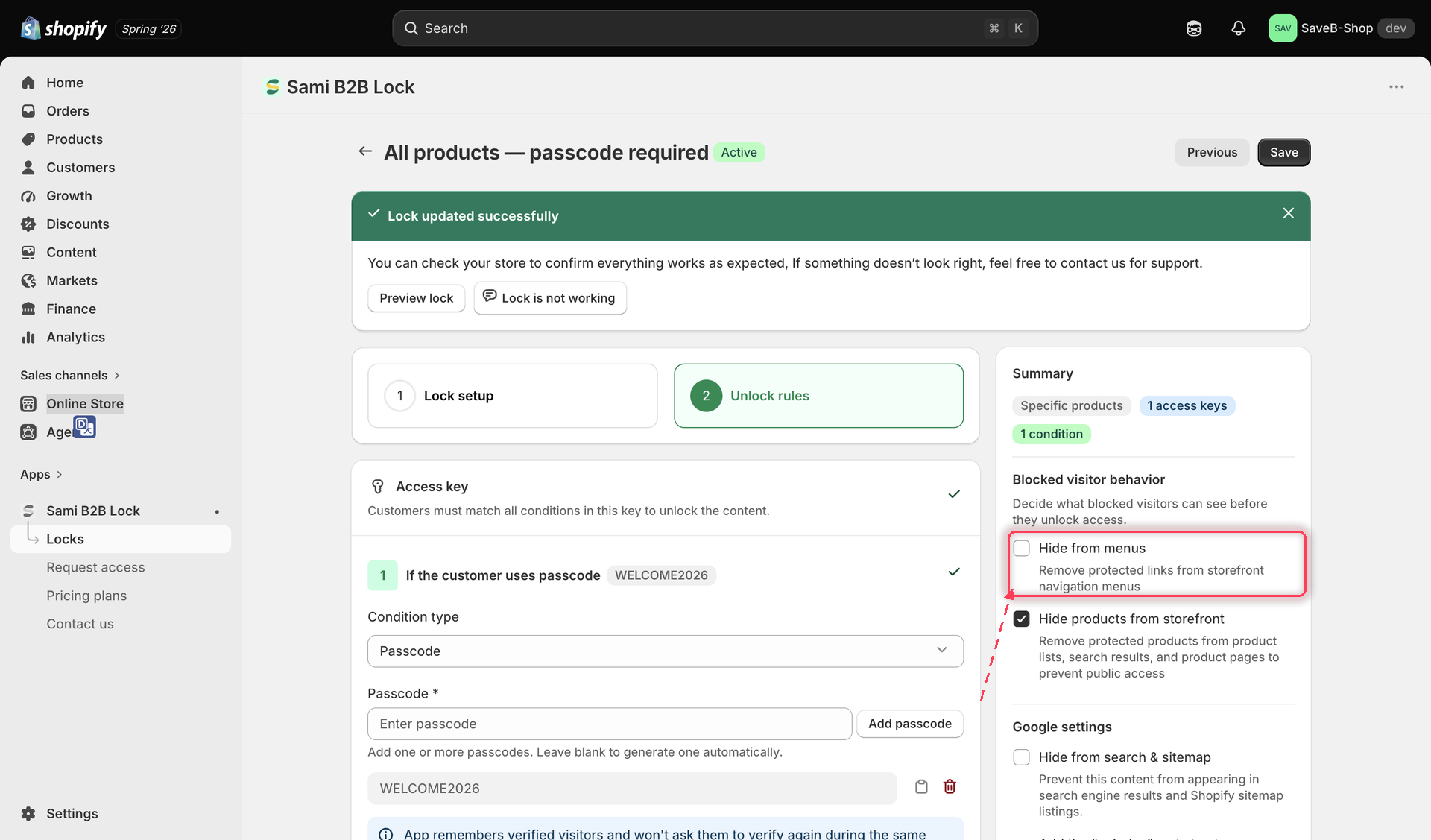
The **Hide from menus** checkbox is confirmed to appear in the **Blocked visitor behavior** panel for **Products and variants** and **Collections** content types. Other content types listed above may show the same option, a variation, or none — check the panel for your specific content type.
{% endhint %}
{% hint style="warning" %}
Hiding a link from your menus does not lock the page or product itself. A visitor who already has the direct URL — from a bookmark, a shared link, or a search result — can still reach it unless another behavior (like [Hide from search engines](/b2b-lock-password-protect/lock-behavior/hide-from-search-engines.md)) or the lock's own access rules also block it. Use this setting to declutter navigation, not as your only protection.
{% endhint %}
## Reach this setting
1. Open **Locks** and create a new lock, or open an existing one to edit it.
2. On the **Lock setup** tab, choose a content type that supports this behavior — **Products and variants**, **Collections**, **Pages**, **Blogs and articles**, or **Specific URL** — and select what to protect.
3. Click the **Unlock rules** tab, then add your access rules in the main column.
4. On the same **Unlock rules** tab, find the **Hide from menus** checkbox in the **Blocked visitor behavior** panel in the right-hand sidebar.
Turn on Hide from menus to remove links to the protected item from your storefront navigation.
## What it does
When turned on, any link in your storefront's navigation menus that points to the protected product, collection, page, article, or URL is removed from those menus. Visitors browsing your menus simply won't see it listed as an option — the menu behaves as if the link were never added.
{% hint style="warning" %}
This setting may require a paid plan. If your current plan doesn't include it, the app shows an upgrade prompt in place of the checkbox.
{% endhint %}
Click **Save** once you've turned this on for the lock.
## Related docs
* [Lock behavior overview](/b2b-lock-password-protect/lock-behavior/overview.md)
* [Hide from search engines](/b2b-lock-password-protect/lock-behavior/hide-from-search-engines.md)
* [Hide price and Add to cart](/b2b-lock-password-protect/lock-behavior/hide-price-and-add-to-cart.md)
* [Specific URL](/b2b-lock-password-protect/content-to-lock/specific-url.md)
---
# Agent Instructions
This documentation is published with GitBook. GitBook is the documentation platform designed so that both humans and AI agents can read, navigate, and reason over technical content effectively. Learn more at gitbook.com.
## Querying This Documentation
If you need additional information that is not directly available in this page, you can query the documentation dynamically by asking a question.
Perform an HTTP GET request on the current page URL with the `ask` query parameter, and the optional `goal` query parameter:
```
GET https://docs.samita.io/b2b-lock-password-protect/lock-behavior/hide-from-menus.md?ask=&goal=
```
`ask` is the immediate question: it should be specific, self-contained, and written in natural language.
`goal` is optional and describes the broader end goal you are ultimately trying to accomplish on behalf of the user. GitBook uses it to tailor the answer towards what is most useful for that goal.
The response will contain a direct answer to the question and relevant excerpts and sources from the documentation.
Use this mechanism when the answer is not explicitly present in the current page, you need clarification or additional context, or you want to retrieve related documentation sections.