> For the complete documentation index, see [llms.txt](https://docs.samita.io/llms.txt). Markdown versions of documentation pages are available by appending `.md` to page URLs; this page is available as [Markdown](https://docs.samita.io/b2b-lock-password-protect/lock-behavior/hide-price-on-google.md).

# Hide prices from Google

Keep wholesale or members-only prices out of Google's results — which settings to combine, what the app handles, and the one piece that lives in your theme.

Stores running wholesale, contract, or members-only pricing often hide a price from shoppers and then find it still showing in Google's results. This page covers why that happens, which settings to combine, and the one piece that lives in your theme rather than in the app.

{% hint style="info" %}
**Two different jobs.** Your access rules decide what a *visitor* sees on the page. Search visibility decides whether *Google* is pointed at that page at all. Hiding a price from shoppers doesn't by itself remove it from Google, and removing a page from search doesn't lock it — you need both halves.
{% endhint %}

## Before you start

| Requirement                                               | Why it matters                                                                                                                                                |
| --------------------------------------------------------- | ------------------------------------------------------------------------------------------------------------------------------------------------------------- |
| A paid plan                                               | The **Google settings** checkboxes are a paid feature. On the Free plan the app shows an upgrade prompt in their place.                                       |
| Content type **Products and variants** or **Collections** | The price and Add-to-cart options, and the **Google settings** panel, only appear for these content types.                                                    |
| The theme app embed turned on                             | Nothing in the app reaches your storefront until the embed is active. See [Enable the app embed](/b2b-lock-password-protect/quick-start/enable-app-embed.md). |
| A publicly reachable store                                | Google can't crawl — or re-crawl — a store still behind Shopify's own storefront password. Nothing in search results will change until the store is public.   |
| A theme edit, or support                                  | Taking the price out of your theme's structured data is a small Liquid change. Support will make it for you.                                                  |

## What it does and doesn't do

| The app does                                                                                                       | The app does not                                                                   |
| ------------------------------------------------------------------------------------------------------------------ | ---------------------------------------------------------------------------------- |
| Replace the visible price — and optionally the Add to cart button — for anyone who hasn't passed your access rules | Rewrite the price inside your theme's structured data (`ld+json`)                  |
| Remove protected products from your storefront's own search and from the sitemap Shopify gives to search engines   | Delete pages Google has already indexed                                            |
| Optionally add a `noindex` tag, so a page reached directly still isn't indexed                                     | Make Google re-crawl — Google decides when it comes back                           |
| Apply per lock, so different products can be treated differently                                                   | Touch Google Shopping or Merchant Center feeds, which Shopify generates separately |

{% hint style="warning" %}
Treat these settings as a **search-visibility layer**, not as protection. A visitor who reaches the page directly is still governed by the access rules on the lock — nothing on this page blocks anybody on its own.
{% endhint %}

## When to use it

It's worth doing when a public price would actively cost you something:

* **Wholesale or B2B pricing** that shouldn't be listed next to your retail price.
* **Per-customer or contract pricing**, where any single public number is misleading.
* **Channel conflict**, where distributors or resellers object to seeing your direct price indexed.

| Your store          | Suggested setup                                                                                                                                                                                            |
| ------------------- | ---------------------------------------------------------------------------------------------------------------------------------------------------------------------------------------------------------- |
| Mixed B2B and B2C   | Lock only the B2B products or collections and hide the price on that lock. Your retail catalogue stays fully indexed and keeps earning traffic.                                                            |
| Wholesale only      | One lock covering all products, price hidden, search visibility turned off for the whole catalogue.                                                                                                        |
| Quote-based pricing | Hide price and Add to cart for everyone, then point shoppers at a sign-in or quote request through the message text. See [Request access overview](/b2b-lock-password-protect/request-access/overview.md). |

## Set it up

1. Open **Locks** and create a new lock, or open an existing one to edit it.
2. On the **Lock setup** tab, set **Content to lock** to **Products and variants** — or **Collections** — then select the products whose prices should stay private.
3. Click **Next** to reach the **Unlock rules** tab, and add at least one access rule: **Logged-in customers**, or a **Customer tags** rule matching your wholesale tag, for example. A lock with no rule has nothing to check, so nothing gets hidden.
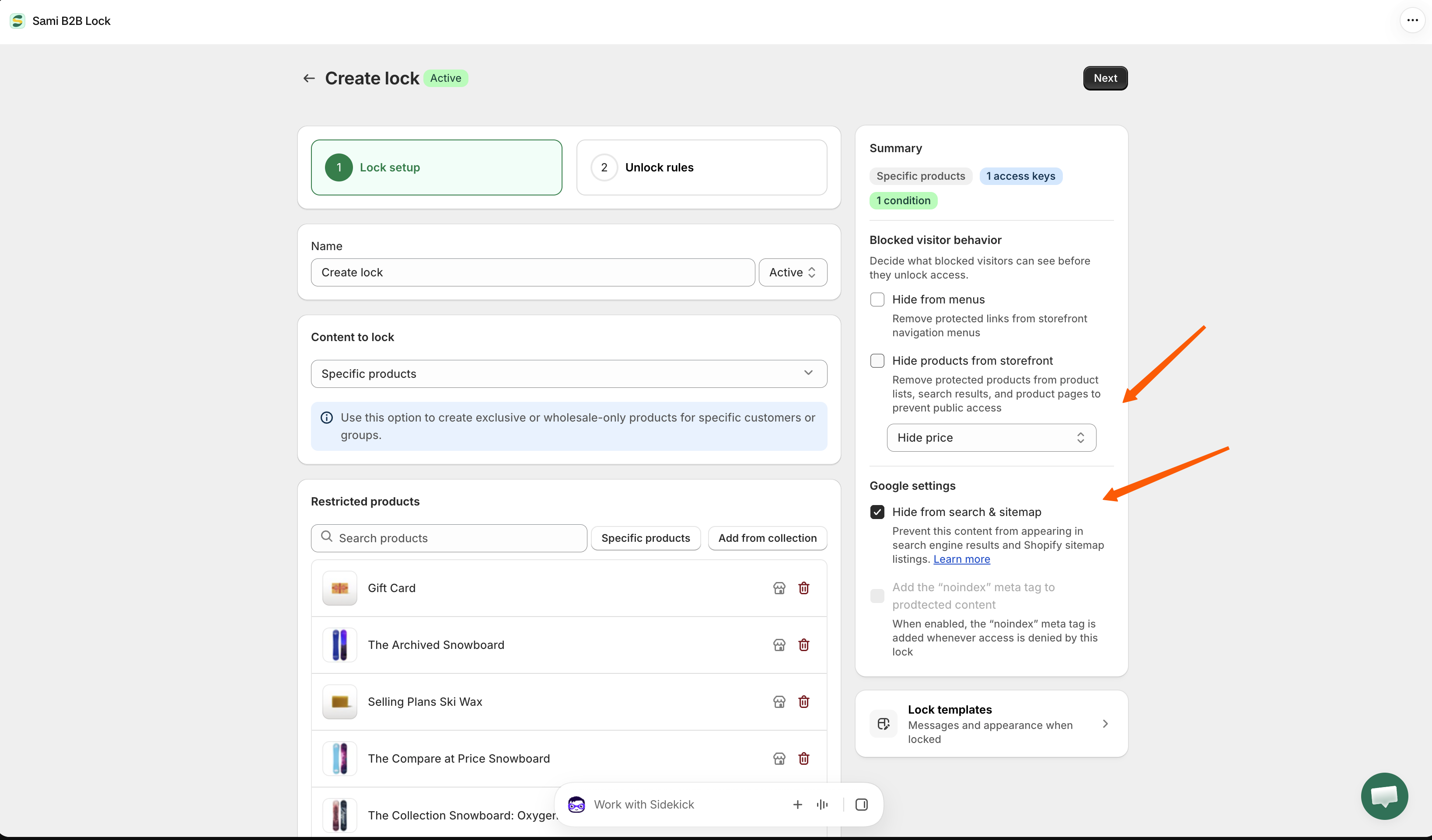
4. In the right-hand sidebar, open **Blocked visitor behavior** and set the dropdown to **Hide product price** — or **Hide product price and atc** if the buy button should go too.
5. Directly below it, in **Google settings**, tick **Hide from search & sitemap**. If you'd rather the page didn't appear in results at all, tick **Add the "noindex" meta tag to protected content** as well.
6. Click **Save**.

<figure><img src="https://27754559-files.gitbook.io/~/files/v0/b/gitbook-x-prod.appspot.com/o/spaces%2FF4qMYopXntYz9YgUqZSo%2Fuploads%2Fgit-blob-87cdc9671dbf3f179788a93330046fdca7f0a3ab%2Fscreenshot-lock-behavior-hide-price-google.png?alt=media" alt="The right-hand sidebar of the Unlock rules tab, showing Blocked visitor behavior set to Hide product price and atc, and Google settings with Hide from search and sitemap ticked."><figcaption><p>Both settings live in the same sidebar — the price setting on top, the search setting right below it.</p></figcaption></figure>

{% hint style="info" %}
Step 4 controls what a *shopper* sees on the page. Step 5 controls whether *search engines* are pointed at the page in the first place. Doing only one of them is the most common reason this setup doesn't behave as expected.
{% endhint %}

## Check the structured data in your theme

Most Shopify themes publish the price a second time, in a block of structured data (`application/ld+json`) in the page source. It's separate from the price your shoppers see, and it's the block Google reads to build a rich result. The app replaces the visible price, but it does **not** rewrite that block — so the price can still be sitting in your theme's code for Google to pick up.

To check: open a protected product page, use your browser's **View page source**, and search for `ld+json`. If you find a price there, that's what Google is reading.

<figure><img src="https://27754559-files.gitbook.io/~/files/v0/b/gitbook-x-prod.appspot.com/o/spaces%2FF4qMYopXntYz9YgUqZSo%2Fuploads%2Fgit-blob-f130a461ad73435b4d1e891d5d47286b9e728da1%2Fscreenshot-theme-structured-data-price.png?alt=media" alt="A product page&#x27;s source showing the application/ld+json block, with the price field still carrying the product&#x27;s price even though the visible price is hidden."><figcaption><p>The visible price is hidden, but the same price is still published in the page's structured data.</p></figcaption></figure>

{% hint style="warning" %}
**If a price still shows in Google after both settings are on, this is almost always the reason.** Removing it needs a small Liquid edit, and the exact change depends on how your theme is built. Contact the team and they'll make the edit for you — see [Contact support](/b2b-lock-password-protect/help/contact-support.md).
{% endhint %}

## SEO considerations

### Decide whether you still want the traffic

**Hide from search & sitemap** stops the page being listed for crawling; the **noindex** tag goes further and keeps it out of results entirely. If these products are a route into your store for new buyers, the second step costs you that traffic — Google can index a product's title, description, and images perfectly well without a price. If the products are purely internal, taking them out of results completely is the cleaner choice.

### Write product copy that works without a price

A product page with the price replaced needs to carry its own weight. Lead with what the product is and who it's for, and make the next step obvious — the message that replaces the price is editable per lock and per language, so use it to say "sign in for wholesale pricing" rather than leaving the default. See [Translate lock messages](/b2b-lock-password-protect/design-and-customization/translate-messages.md).

### Google Shopping is a separate feed

Shopping ads and Merchant Center feeds are generated by Shopify, not by this app. A product whose price is hidden on your storefront can still be submitted to Shopping with its price attached. If that matters, exclude those products from the feed in Merchant Center or in whichever app manages it.

## What to expect

| Question                                       | Answer                                                                                                                                            |
| ---------------------------------------------- | ------------------------------------------------------------------------------------------------------------------------------------------------- |
| How soon does Google update?                   | Not immediately. Google refreshes a listing the next time it crawls the page, and it sets that schedule itself — expect days rather than minutes. |
| How do I check progress?                       | Google Search Console. Watch the affected URLs and see whether price data stops appearing in the result.                                          |
| Does an old cached price disappear on its own? | Only after a re-crawl. Until then the previous result can keep showing the old price.                                                             |
| Does this affect my whole store?               | No. Each lock applies only to the products or collections selected on it.                                                                         |

## Troubleshooting

| Symptom                                     | What to check                                                                                                                                                                                                                                      |
| ------------------------------------------- | -------------------------------------------------------------------------------------------------------------------------------------------------------------------------------------------------------------------------------------------------- |
| Price still shows in Google                 | Confirm the lock is active and saved, the store is public, and Google has had time to re-crawl. If all three are true, it's the theme's structured data — see [Check the structured data in your theme](#check-the-structured-data-in-your-theme). |
| Price still shows on the storefront         | That's an access-rule question, not a search one. Confirm the lock has a rule, that you're testing as a visitor who fails it, and that the theme app embed is on. See [Lock not working](/b2b-lock-password-protect/help/lock-not-working.md).     |
| The checkboxes are greyed out               | **Google settings** is a paid feature, and the **noindex** option stays disabled until **Hide from search & sitemap** is ticked first.                                                                                                             |
| The **Google settings** panel isn't there   | It appears for **Products and variants** and **Collections**. Check the content type on the **Lock setup** tab.                                                                                                                                    |
| The product vanished from Google completely | Either the **noindex** option is on, or your theme or an SEO app is adding its own `noindex`.                                                                                                                                                      |
| Shopping ads still show the price           | Merchant Center feeds are separate from this app. Update the feed there.                                                                                                                                                                           |

## Related docs

* [Hide price and Add to cart](/b2b-lock-password-protect/lock-behavior/hide-price-and-add-to-cart.md)
* [Hide from search engines](/b2b-lock-password-protect/lock-behavior/hide-from-search-engines.md)
* [Lock behavior overview](/b2b-lock-password-protect/lock-behavior/overview.md)
* [Contact support](/b2b-lock-password-protect/help/contact-support.md)


---

# Agent Instructions
This documentation is published with GitBook. GitBook is the documentation platform designed so that both humans and AI agents can read, navigate, and reason over technical content effectively. Learn more at gitbook.com.

## Querying This Documentation
If you need additional information that is not directly available in this page, you can query the documentation by asking a question.

Perform an HTTP GET request on the following URL with the `ask` and `goal` query parameters:

```
GET https://docs.samita.io/b2b-lock-password-protect/lock-behavior/hide-price-on-google.md?ask=<question>&goal=<user_goal>
```

`ask` is the immediate question: it should be specific, self-contained, and written in natural language.
`goal` is what the user is ultimately trying to achieve, the reason they need the answer. Sharing it helps GitBook give you a better, more relevant answer. A goal is most helpful when it describes the outcome the user wants rather than restating the question. For example, with `ask=how do I create an API token`, a goal like `automate deployments from our CI pipeline` lets GitBook tailor the answer to that use case.

The response will contain a direct answer to the question and relevant excerpts and sources from the documentation.

Use this mechanism when the answer is not explicitly present in the current page, you need clarification or additional context, or you want to retrieve related documentation sections.
