> For the complete documentation index, see [llms.txt](https://docs.samita.io/llms.txt). Markdown versions of documentation pages are available by appending `.md` to page URLs; this page is available as [Markdown](https://docs.samita.io/badge-groups/overview.md).

# Badge groups overview

Bundle multiple badges and labels into one group, then design and target them as a single unit.

A badge group bundles several badges and labels together so they display as one block on your products — with a shared layout, position, and (optionally) a single set of display conditions.

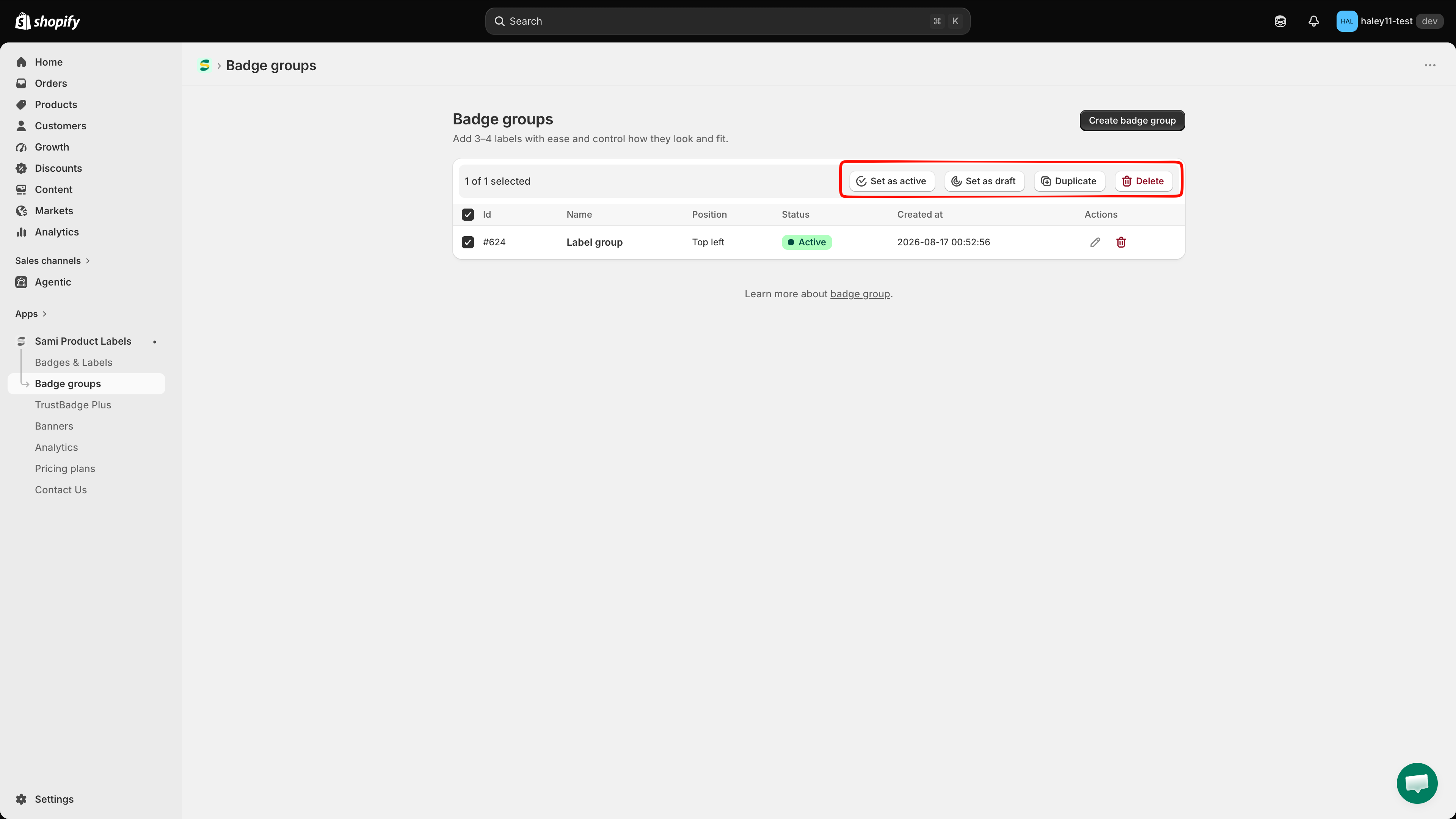
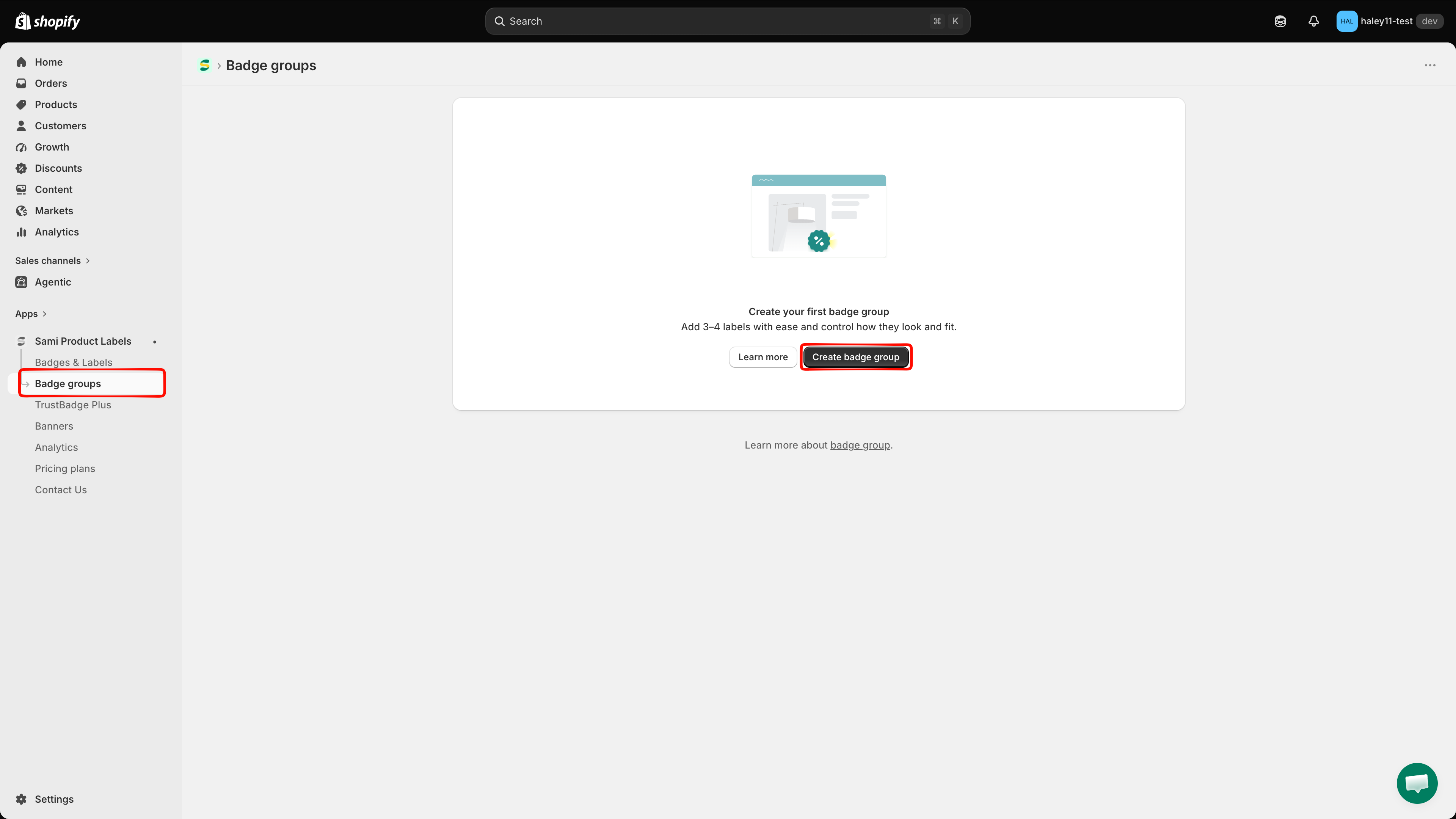
<figure><img src="https://1598842017-files.gitbook.io/~/files/v0/b/gitbook-x-prod.appspot.com/o/spaces%2F1WRTlT5AcaLSAedbCJyZ%2Fuploads%2Fgit-blob-9aa805e5b05f7596cb789d7538079e96f018cd75%2Fimage_106.png?alt=media" alt="Badge groups page with the empty state"><figcaption><p>Open <strong>Badge groups</strong> from the app sidebar to see all your groups.</p></figcaption></figure>

## Why use badge groups?

Promotions often need several badges on the same product at once — a "Sale" badge, a "Limited time" label, and a "Free shipping" badge together. A group keeps them aligned and manageable:

* **One layout for all of them** — stack the badges horizontally or vertically, control the gap, and place the whole set with a single position setting.
* **One set of conditions (optional)** — override each label's own targeting and show the whole group based on one condition instead.

{% hint style="info" %}
Badges and labels must already exist before you can add them to a group. See [Badges & Labels](/badges-and-labels/overview.md) to create them first.
{% endhint %}

## Plan availability

| Plan    | Number of label groups |
| ------- | ---------------------- |
| FREE    | 1                      |
| GOLD    | 1                      |
| DIAMOND | Unlimited              |

Deleted groups still count toward the limit. See [Pricing plans](/settings/pricing-plans.md) for the full comparison.

## What you can configure

The group editor has two tabs: **Design** and **Placement**.

{% tabs %}
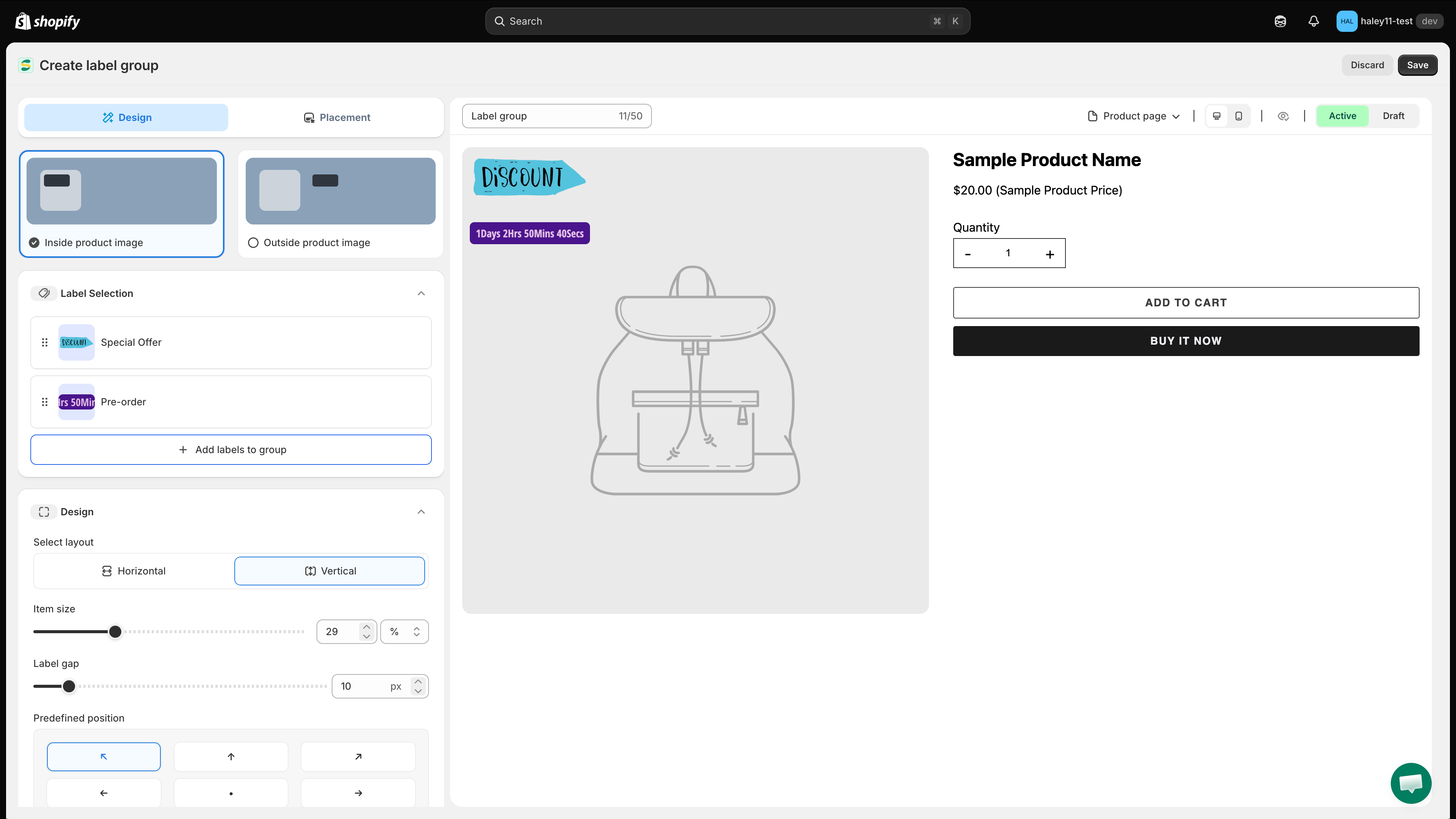
{% tab title="Design" %}

| Setting                            | What it does                                                                  |
| ---------------------------------- | ----------------------------------------------------------------------------- |
| **Inside / Outside product image** | Choose whether the group sits on top of the product image or below it.        |
| **Label Selection**                | Use **Add labels to group** to pick the badges and labels the group contains. |
| **Select layout**                  | **Horizontal** or **Vertical** — how the badges stack within the group.       |
| **Item size**                      | The size of each badge in the group, as a percentage or fixed value.          |
| **Label gap**                      | The spacing between badges in the group, in pixels.                           |
| **Predefined position**            | One of nine anchor points for the whole group on the product image.           |
| **Margin**                         | Fine-tune the offset from the top, bottom, left, and right.                   |
| **Advance Section**                | Add custom CSS for the group (developer zone).                                |

<figure><img src="https://1598842017-files.gitbook.io/~/files/v0/b/gitbook-x-prod.appspot.com/o/spaces%2F1WRTlT5AcaLSAedbCJyZ%2Fuploads%2Fgit-blob-df3410e2794762992c607d103e5f7de292bad8ae%2Fimage_107.png?alt=media" alt="Design tab of the badge group editor"><figcaption><p>The Design tab controls which labels are in the group and how they are laid out.</p></figcaption></figure>
{% endtab %}

{% tab title="Placement" %}
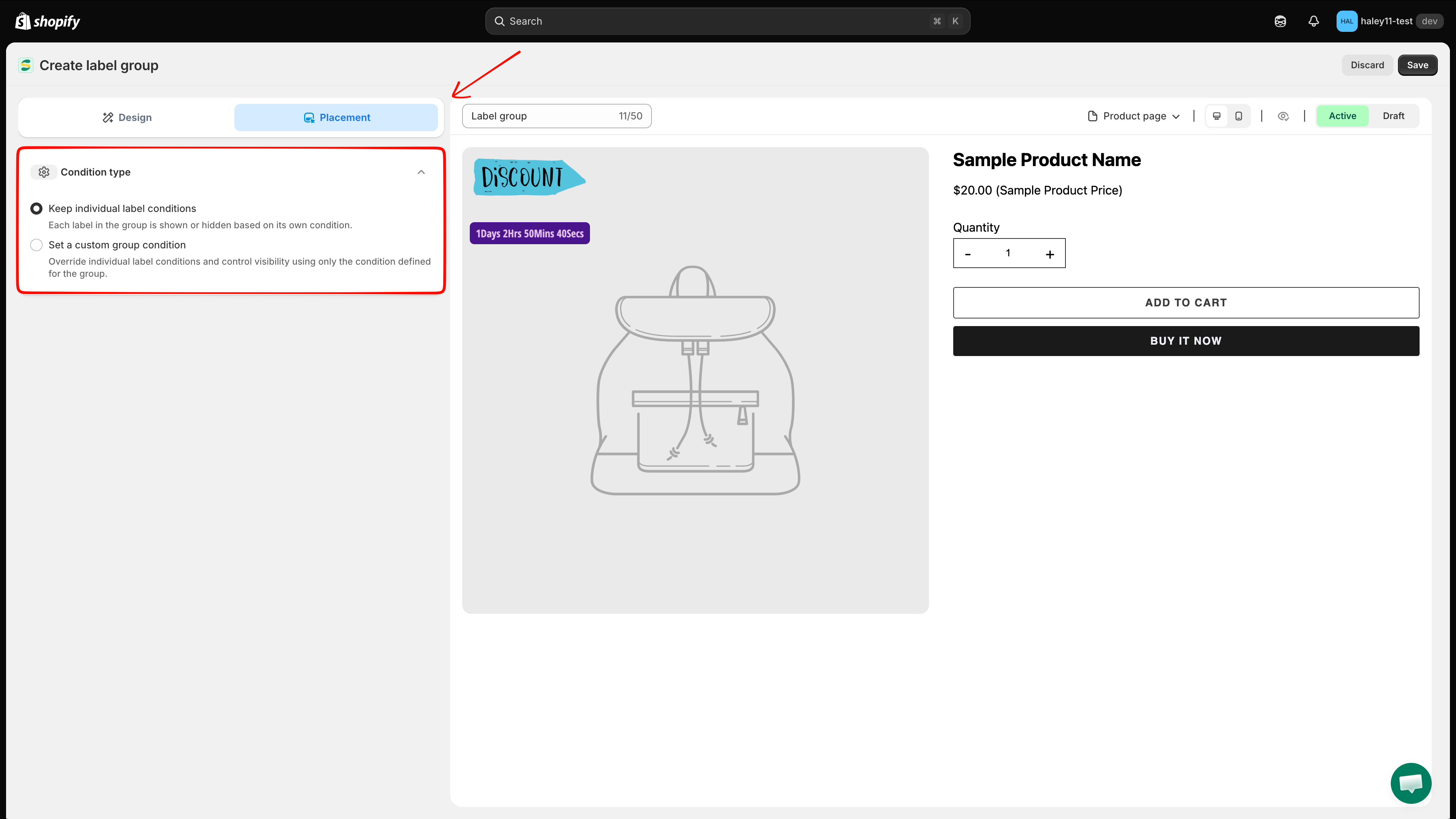
Under **Condition type**, choose how the group decides when to appear:

| Option                               | Behavior                                                                                                          |
| ------------------------------------ | ----------------------------------------------------------------------------------------------------------------- |
| **Keep individual label conditions** | Each label in the group is shown or hidden based on its own condition.                                            |
| **Set a custom group condition**     | Overrides the individual label conditions and controls visibility using only the condition defined for the group. |

Choosing **Set a custom group condition** reveals the group-level condition sections: **Product conditions**, **Customer conditions**, **Page conditions**, **Language conditions**, **Country conditions**, and **Other conditions**.

<figure><img src="https://1598842017-files.gitbook.io/~/files/v0/b/gitbook-x-prod.appspot.com/o/spaces%2F1WRTlT5AcaLSAedbCJyZ%2Fuploads%2Fgit-blob-0bc46f6027a09a3dc2477cfdc61f1de65194b416%2Fimage_108.png?alt=media" alt="Placement tab showing the two condition types"><figcaption><p>Pick between per-label conditions and a single condition for the whole group.</p></figcaption></figure>
{% endtab %}
{% endtabs %}

## Rename and preview

Open the **…** menu in the editor to **Rename** the group or **Preview product**.

<figure><img src="https://1598842017-files.gitbook.io/~/files/v0/b/gitbook-x-prod.appspot.com/o/spaces%2F1WRTlT5AcaLSAedbCJyZ%2Fuploads%2Fgit-blob-8bb0591beacbc347473515302a96bcf271c8b170%2Fimage_109.png?alt=media" alt="Editor overflow menu with Rename and Preview product"><figcaption><p>Use the … menu to rename the group or preview it on a product.</p></figcaption></figure>

## Next steps

* [Create a label group (inside product image)](/badge-groups/create-label-group.md) — overlay a group on the product photo.
* [Create a badge group (outside product image)](/badge-groups/create-badge-group.md) — place a group beside the product information.
* [Badges & Labels overview](/badges-and-labels/overview.md) — create the badges you want to bundle.
* [Set up group conditions](/badge-groups/set-group-conditions.md) — control the whole group with one rule set.
* [Target products](/badges-and-labels/target-products.md) — how conditions work for individual labels.


---

# Agent Instructions
This documentation is published with GitBook. GitBook is the documentation platform designed so that both humans and AI agents can read, navigate, and reason over technical content effectively. Learn more at gitbook.com.

## Querying This Documentation
If you need additional information that is not directly available in this page, you can query the documentation dynamically by asking a question.

Perform an HTTP GET request on the current page URL with the `ask` query parameter, and the optional `goal` query parameter:

```
GET https://docs.samita.io/badge-groups/overview.md?ask=<question>&goal=<endgoal>
```

`ask` is the immediate question: it should be specific, self-contained, and written in natural language.
`goal` is optional and describes the broader end goal you are ultimately trying to accomplish on behalf of the user. GitBook uses it to tailor the answer towards what is most useful for that goal.

The response will contain a direct answer to the question and relevant excerpts and sources from the documentation.

Use this mechanism when the answer is not explicitly present in the current page, you need clarification or additional context, or you want to retrieve related documentation sections.