> For the complete documentation index, see [llms.txt](https://docs.samita.io/llms.txt). Markdown versions of documentation pages are available by appending `.md` to page URLs; this page is available as [Markdown](https://docs.samita.io/badges-and-labels/add-animation.md).
# Add animation to a badge
Add animation effects like pulse to your badges to grab customer attention on your storefront.
Add animation effects to draw customer attention to sales, limited-time offers, and important product information.
## How to add an animation
{% stepper %}
{% step %}
## Open the badge editor
From **Sami Product Labels**, go to **Badges & Labels**. Click **Edit badge/label** for an existing badge, or click **Create badge** and complete the initial badge setup.
{% endstep %}
{% step %}
## Open Design
The editor opens on **Design** by default. If you are on another tab, click **Design**.
{% endstep %}
{% step %}
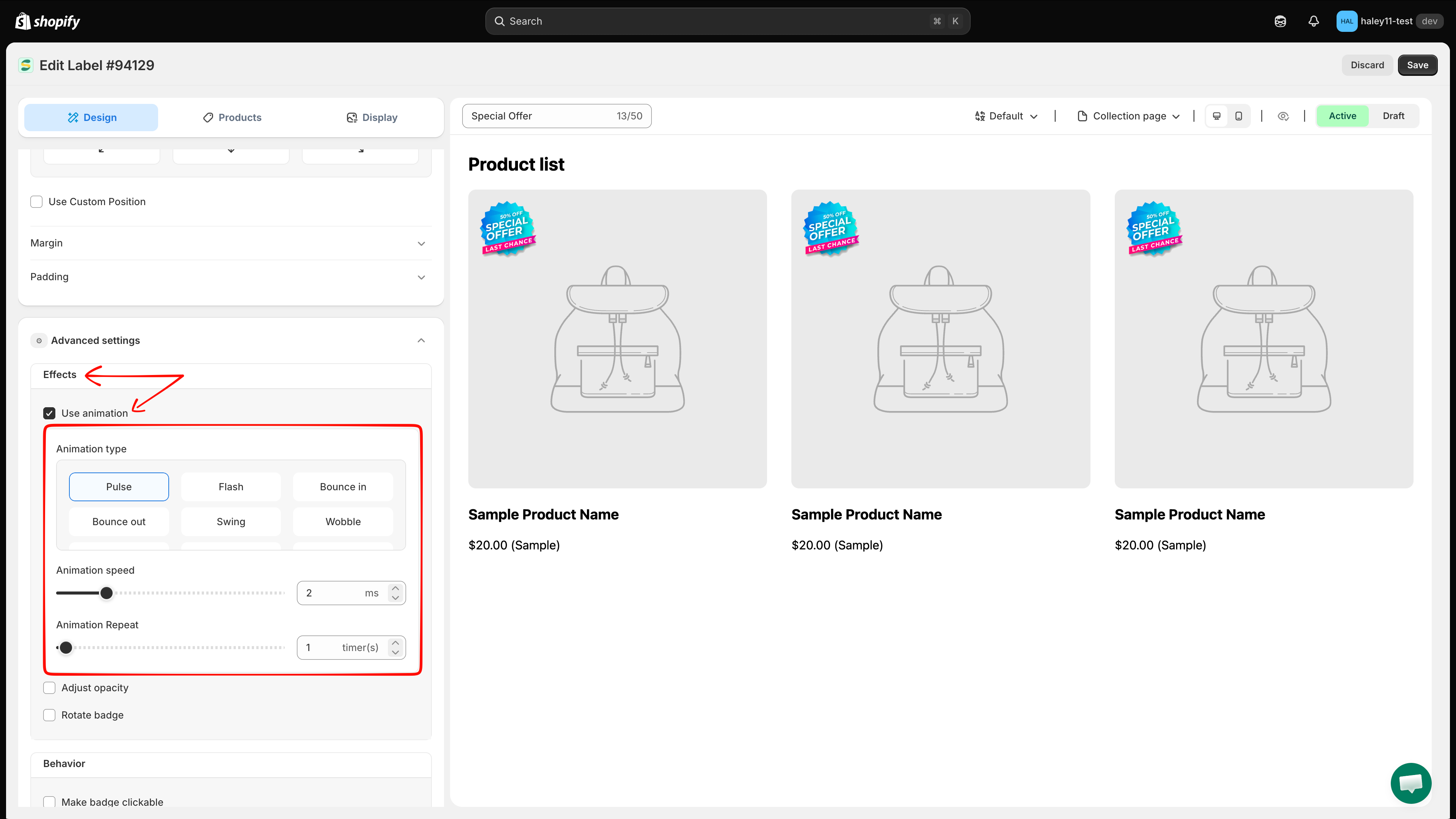
## Expand Advanced settings
Scroll to the bottom of **Design**, then click **Advanced settings**.
Expand Advanced settings to find the animation controls under Effects.
{% endstep %}
{% step %}
## Enable Use animation
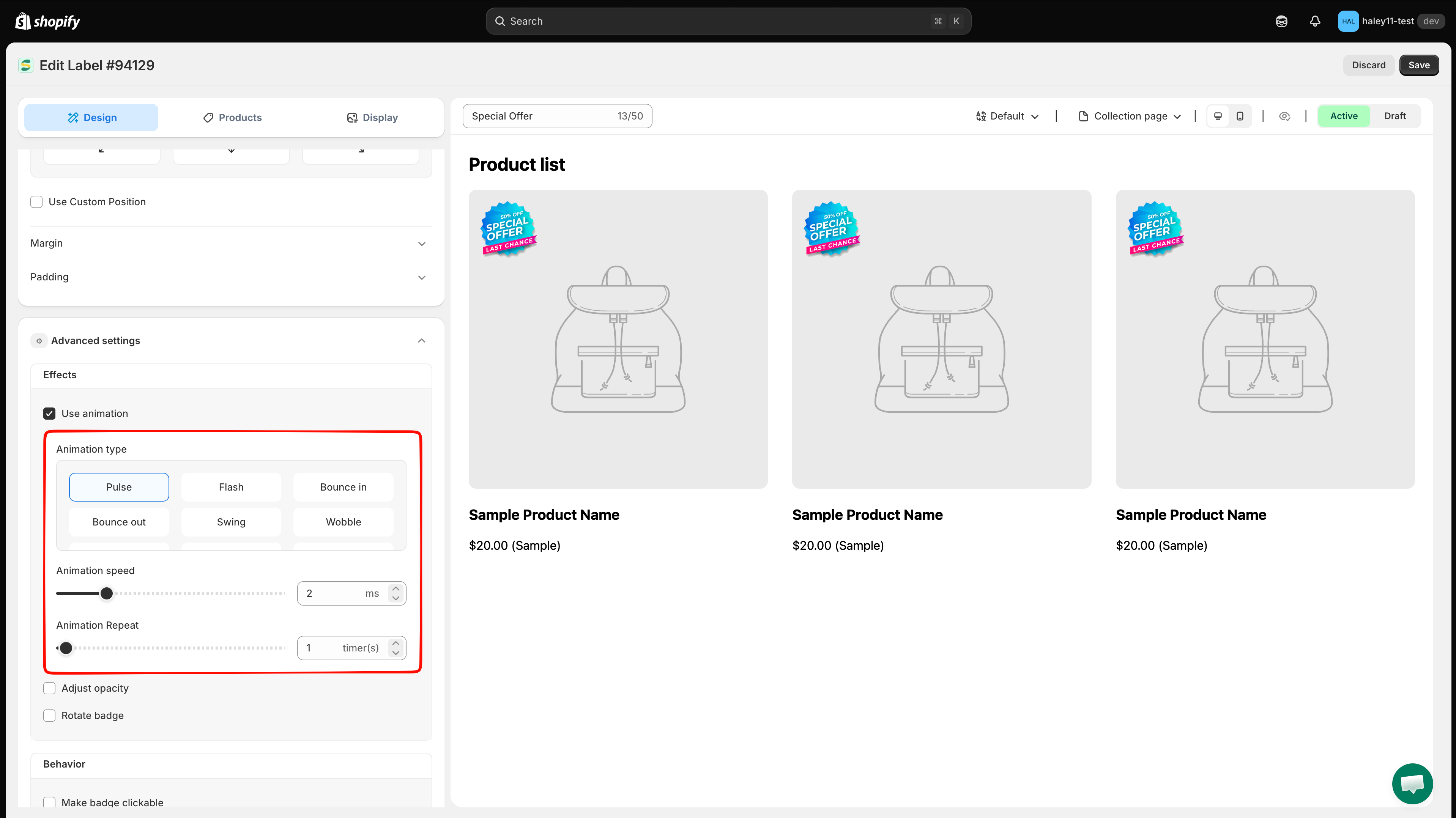
Under **Effects**, turn on **Use animation**. The animation type, speed, and repeat controls appear.
{% endstep %}
{% step %}
## Select the animation type
Choose one of the 13 available effects: **Pulse**, **Flash**, **Bounce in**, **Bounce out**, **Swing**, **Wobble**, **Flip**, **Gelatine**, **Roll in**, **Roll out**, **Rotate in down left**, **Rotate in up left**, or **Hi there**.
Choose an animation effect, then adjust its speed and repeat count.
{% endstep %}
{% step %}
## Set the animation speed
Use the **Animation speed** slider or number field to set a value from 0 to 10. Watch the live preview as you adjust it so the effect remains noticeable without distracting from the product.
{% endstep %}
{% step %}
## Set the repeat count
Use the **Animation Repeat** slider or number field to set a value from 0 to 100.
{% endstep %}
{% step %}
## Save and preview
Check the effect in the live preview. You can switch between collection and product page previews and between desktop and mobile views. When the animation looks right, click **Save** at the top of the editor.
{% endstep %}
{% endstepper %}
{% hint style="info" %}
Also verify the saved badge on the storefront. Theme CSS and page layout can affect how an animation feels in context.
{% endhint %}
## Next steps
* [Change badge style](/badges-and-labels/change-style.md) — Customize fonts, colors, borders, and backgrounds for your badge.
* [Use custom CSS](/badges-and-labels/custom-css.md) — Use custom CSS for advanced styling and animation fine-tuning.
{% hint style="success" %}
**Need support?**
If you run into any difficulty while following these steps, contact us at .
{% endhint %}
---
# Agent Instructions
This documentation is published with GitBook. GitBook is the documentation platform designed so that both humans and AI agents can read, navigate, and reason over technical content effectively. Learn more at gitbook.com.
## Querying This Documentation
If you need additional information that is not directly available in this page, you can query the documentation dynamically by asking a question.
Perform an HTTP GET request on the current page URL with the `ask` query parameter, and the optional `goal` query parameter:
```
GET https://docs.samita.io/badges-and-labels/add-animation.md?ask=&goal=
```
`ask` is the immediate question: it should be specific, self-contained, and written in natural language.
`goal` is optional and describes the broader end goal you are ultimately trying to accomplish on behalf of the user. GitBook uses it to tailor the answer towards what is most useful for that goal.
The response will contain a direct answer to the question and relevant excerpts and sources from the documentation.
Use this mechanism when the answer is not explicitly present in the current page, you need clarification or additional context, or you want to retrieve related documentation sections.