> For the complete documentation index, see [llms.txt](https://docs.samita.io/llms.txt). Markdown versions of documentation pages are available by appending `.md` to page URLs; this page is available as [Markdown](https://docs.samita.io/badges-and-labels/change-size.md).

# Change badge size

Resize text and image badges for desktop, mobile, product pages, and listing pages.

Use the **Size** section in the badge editor to resize a badge everywhere or set a different size for each device and page type.

## Open the Size section

{% stepper %}
{% step %}

## Open Badges & Labels

In Shopify admin, open **Sami Product Labels > Badges & Labels**.
{% endstep %}

{% step %}

## Select a badge

Find the badge you want to resize, then click **Edit badge/label** in its row.

To resize a new badge instead, click **Create badge** and choose **Text badge** or **Image badge**.
{% endstep %}

{% step %}

## Expand Size

In the badge editor, stay on the **Design** tab, scroll to **Size**, and expand the section.

<figure><img src="https://1598842017-files.gitbook.io/~/files/v0/b/gitbook-x-prod.appspot.com/o/spaces%2F1WRTlT5AcaLSAedbCJyZ%2Fuploads%2Fgit-blob-bb68ee019c1bcce5135710b04950912fc02d5f54%2Fimage_38.png?alt=media" alt="Size section in the Design tab of the badge editor"><figcaption><p>Open a badge, stay on Design, and expand Size.</p></figcaption></figure>
{% endstep %}
{% endstepper %}

## Use one size on desktop and mobile

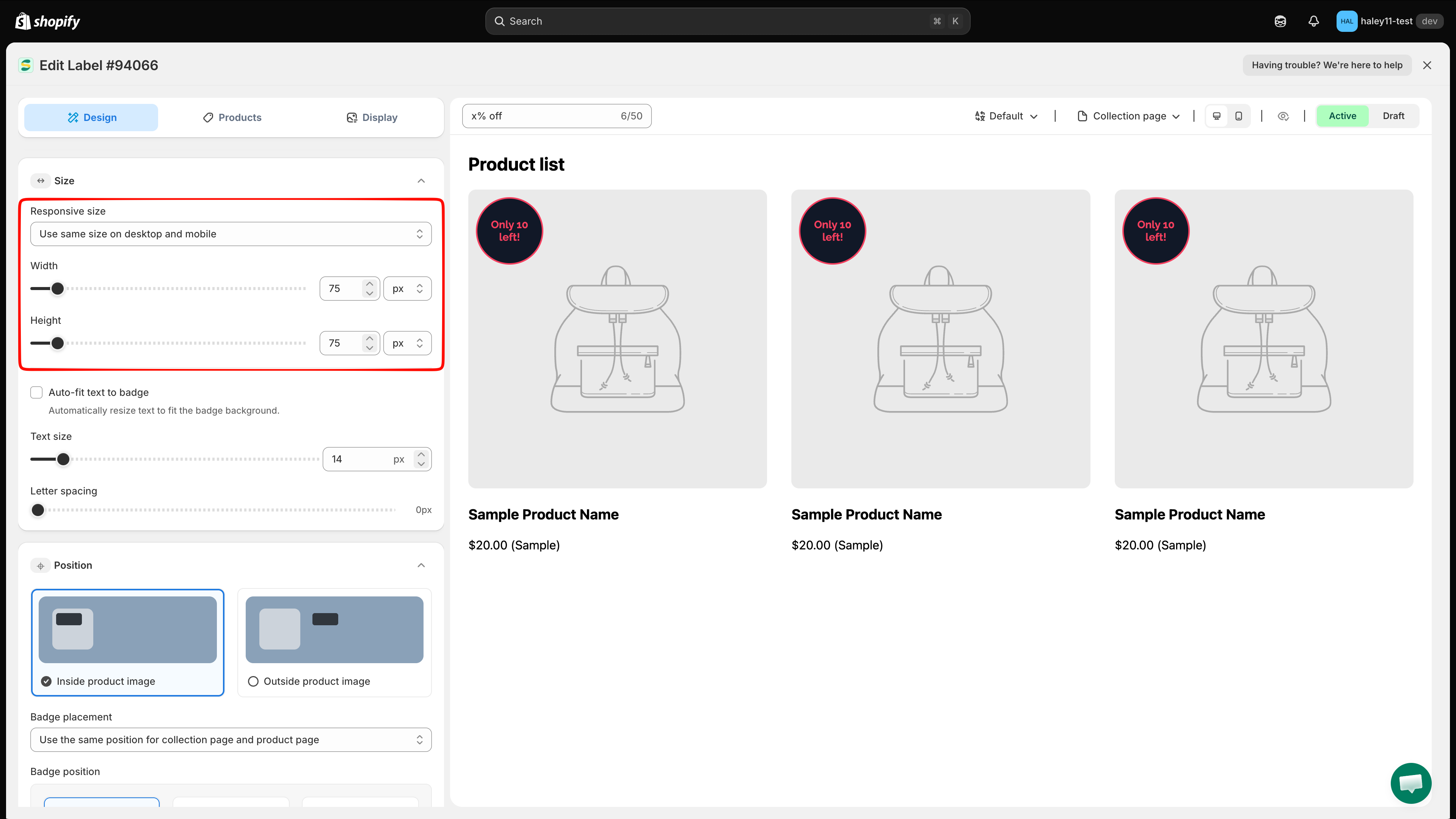
Under **Responsive size**, keep **Use same size on desktop and mobile** selected when the badge should use one set of dimensions on every device and supported page preview.

* For a **text badge**, set **Width** and **Height** separately.
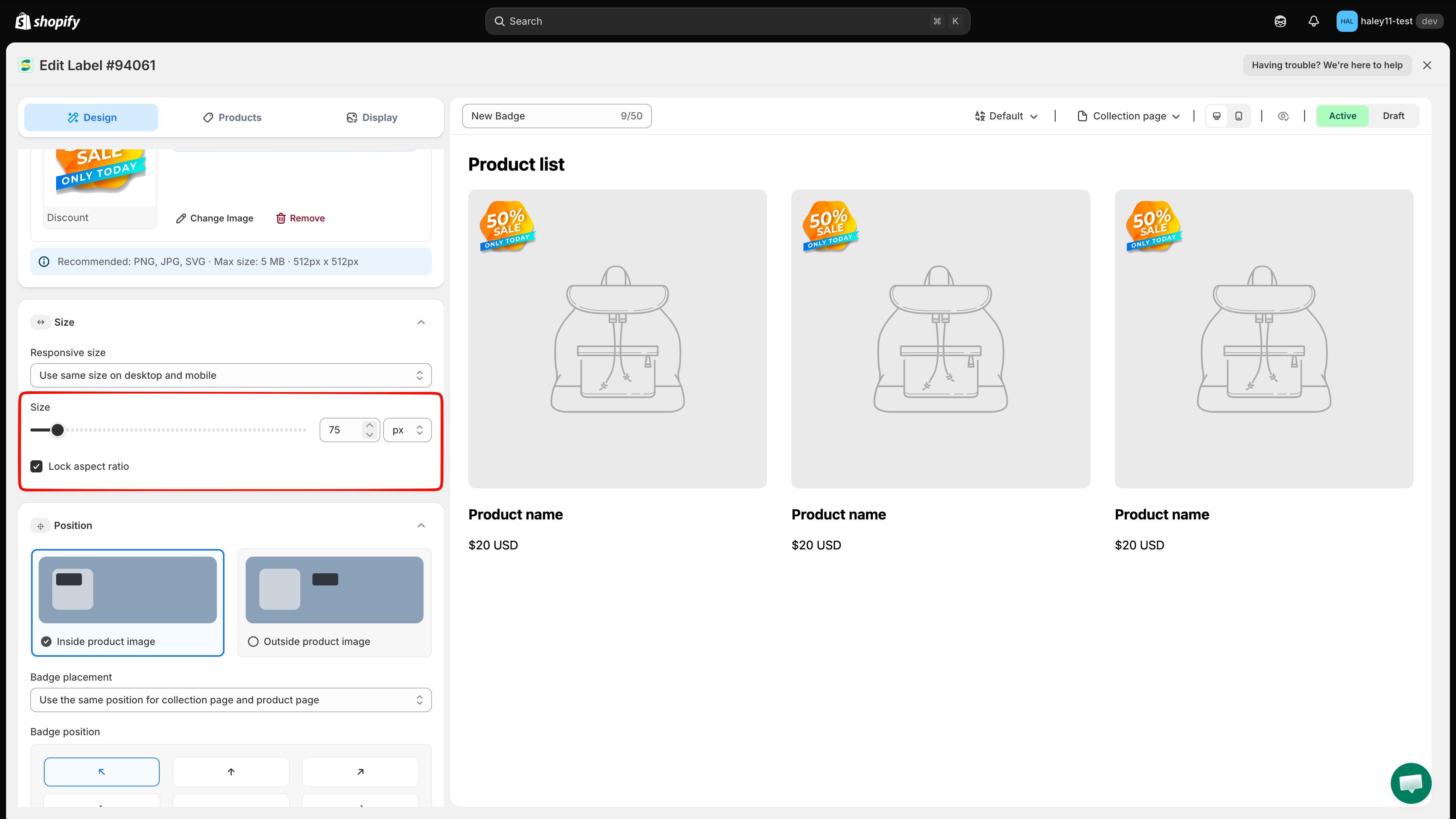
* For an **image badge** with **Lock aspect ratio** enabled, use the **Size** slider or **Width** field. The height changes automatically to preserve the image proportions.

<figure><img src="https://1598842017-files.gitbook.io/~/files/v0/b/gitbook-x-prod.appspot.com/o/spaces%2F1WRTlT5AcaLSAedbCJyZ%2Fuploads%2Fgit-blob-9a58a49f4778096d2f6e80608bf85b269e51a82d%2Fimage_39.png?alt=media" alt="Use same size on desktop and mobile selected for a text badge"><figcaption><p>Use one set of dimensions for desktop and mobile.</p></figcaption></figure>

## Customize each device and page type

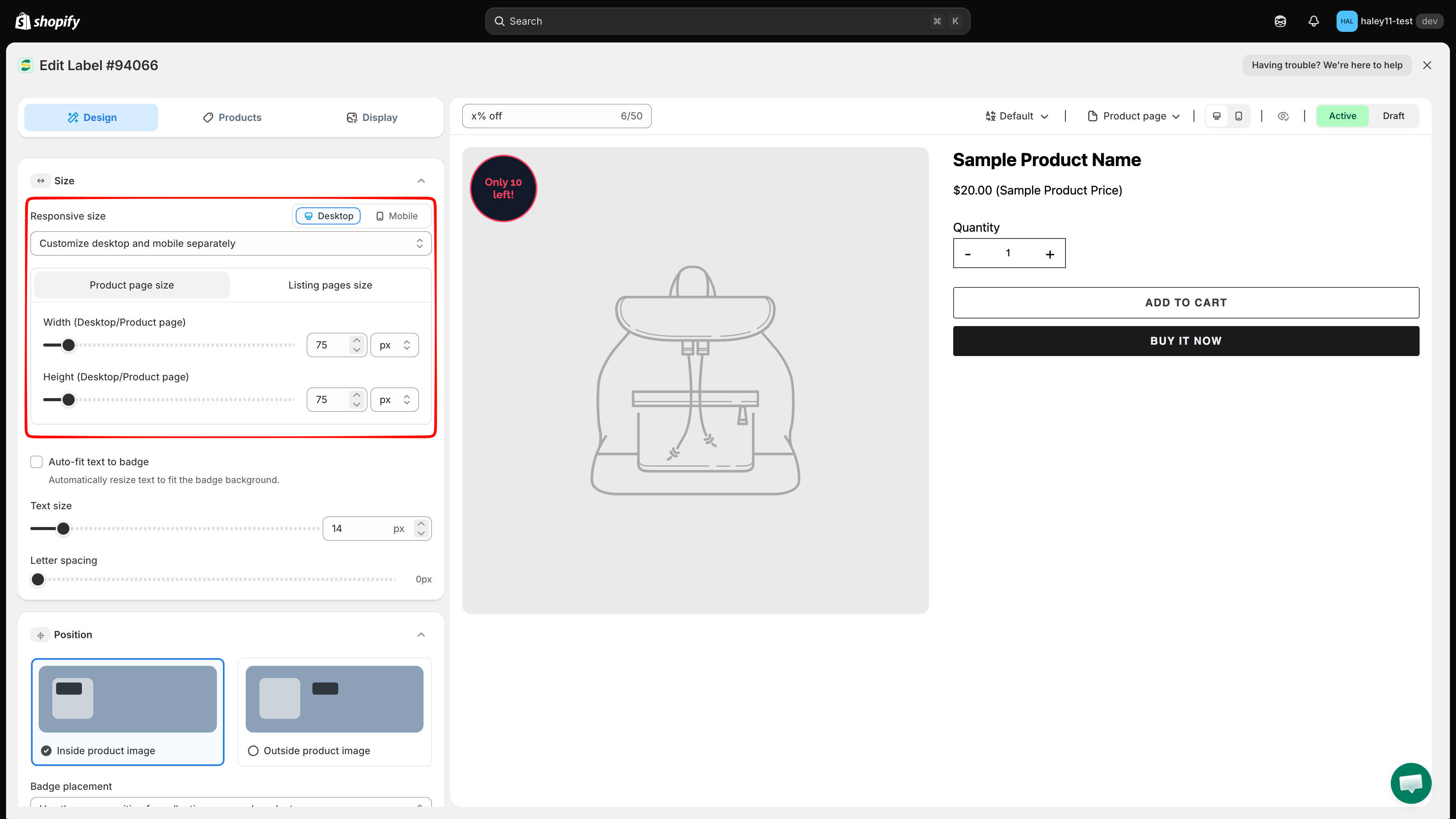
Select **Customize desktop and mobile separately** when the badge needs different dimensions in different contexts.

1. Choose **Desktop** or **Mobile**.
2. Choose **Product page size** or **Listing pages size**.
3. Set the dimensions for that combination.
4. Repeat for the other device and page combinations as needed.

| Selection                        | Where the size applies                                |
| -------------------------------- | ----------------------------------------------------- |
| **Desktop > Product page size**  | Product pages on desktop                              |
| **Desktop > Listing pages size** | Listing pages, including collection pages, on desktop |
| **Mobile > Product page size**   | Product pages on mobile                               |
| **Mobile > Listing pages size**  | Listing pages, including collection pages, on mobile  |

{% hint style="info" %}
The editor uses the label **Listing pages size**. Use this tab for collection-page and other product-list previews.
{% endhint %}

<figure><img src="https://1598842017-files.gitbook.io/~/files/v0/b/gitbook-x-prod.appspot.com/o/spaces%2F1WRTlT5AcaLSAedbCJyZ%2Fuploads%2Fgit-blob-147d27c7e0337cd81d66b8ceb096409dff9f35b9%2Fimage_40.png?alt=media" alt="Separate size controls for desktop, mobile, product pages, and listing pages"><figcaption><p>Select a device and page type, then set the size for that combination.</p></figcaption></figure>

## Choose a size unit

Each dimension can use one of these units:

| Unit   | Use it when                                                                                                                |
| ------ | -------------------------------------------------------------------------------------------------------------------------- |
| **px** | You need an exact dimension in pixels.                                                                                     |
| **%**  | You want the badge to scale relative to the available product-image area. Preview the result on each page type and device. |

For a text badge, **Width** and **Height** have their own unit selectors. They do not need to use the same unit.

## Adjust text badge size

Text badges provide additional controls below **Width** and **Height**:

* **Auto-fit text to badge** off — Set **Text size** as a fixed font size in pixels.
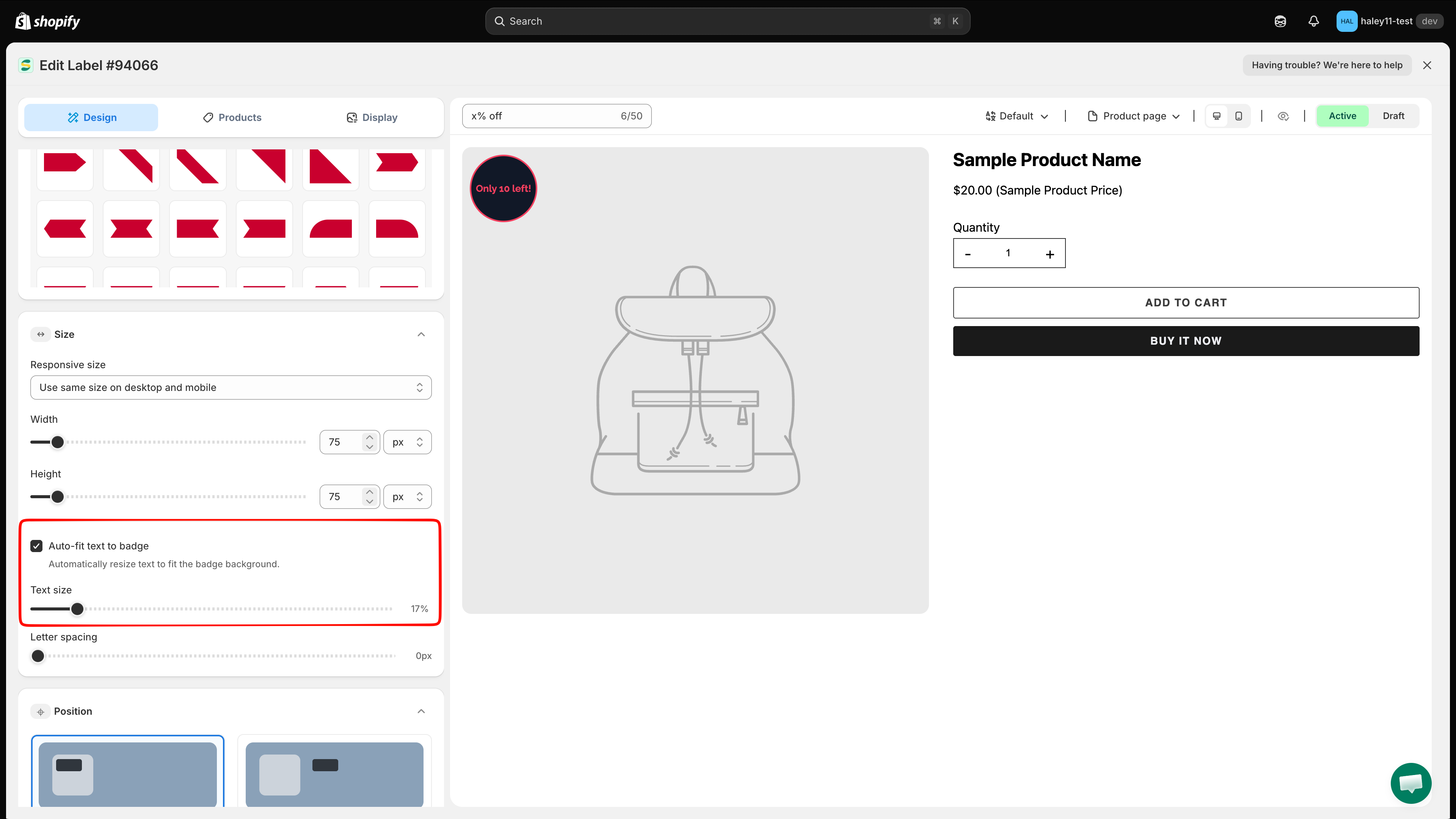
* **Auto-fit text to badge** on — The app automatically resizes the text to fit the badge background, and **Text size** becomes a percentage control.
* **Letter spacing** — Increase or reduce the space between characters in pixels.

{% hint style="info" %}
Turn on **Auto-fit text to badge** when badge text can change length, such as text that contains `{inventory}` or another dynamic variable.
{% endhint %}

<figure><img src="https://1598842017-files.gitbook.io/~/files/v0/b/gitbook-x-prod.appspot.com/o/spaces%2F1WRTlT5AcaLSAedbCJyZ%2Fuploads%2Fgit-blob-645b0b6c466610994bf3b4b34fe3994d4dec5424%2Fimage_41.png?alt=media" alt="Auto-fit text to badge enabled with percentage-based text size"><figcaption><p>Enable Auto-fit text to badge to keep changing text inside the badge background.</p></figcaption></figure>

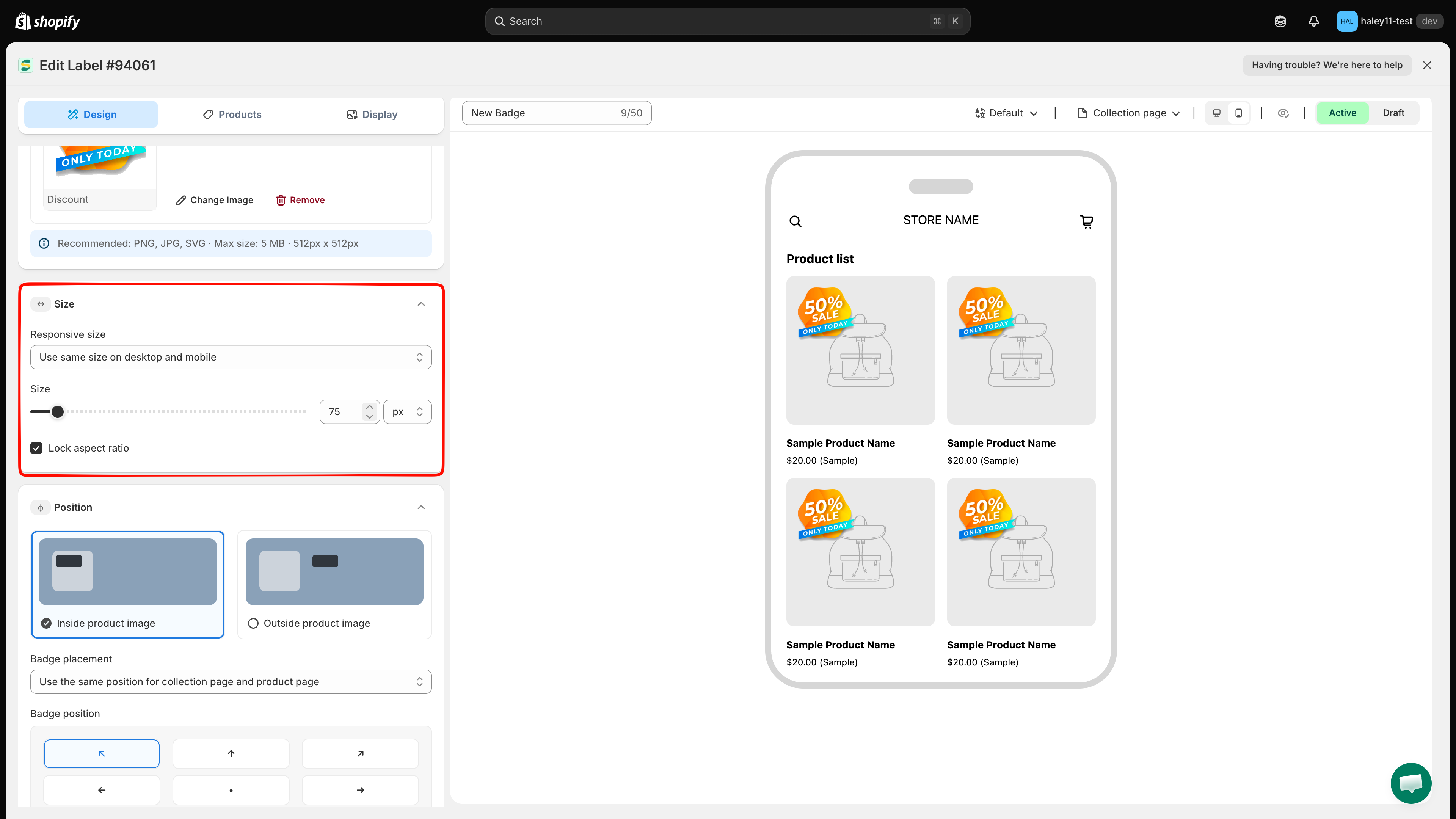
## Keep or change an image badge's proportions

For image badges, **Lock aspect ratio** is enabled by default.

* Keep it enabled to resize the image with one **Size** or **Width** control while preserving the source proportions.
* Turn it off only when you need to set **Width** and **Height** independently. Changing them to a different ratio can stretch or squash the image.

<figure><img src="https://1598842017-files.gitbook.io/~/files/v0/b/gitbook-x-prod.appspot.com/o/spaces%2F1WRTlT5AcaLSAedbCJyZ%2Fuploads%2Fgit-blob-d832d6f26f65b6e92bd31d5c998a429a090fe0bd%2Fimage_42.png?alt=media" alt="Image badge Size controls with Lock aspect ratio enabled"><figcaption><p>Keep Lock aspect ratio enabled to resize an image badge without distorting it.</p></figcaption></figure>

## Preview and save

Use the preview toolbar to switch between **Product page** and **Collection page**, then check both **Desktop view** and **Mobile view**. When the badge looks correct in every required preview, click **Save**.

{% hint style="warning" %}
If you use separate responsive sizes, preview all four device and page combinations before saving.
{% endhint %}

## Next steps

* [Change badge position](/badges-and-labels/change-position.md) — Place your badge at the right location on product images or page elements.
* [Change badge style](/badges-and-labels/change-style.md) — Customize fonts, colors, borders, and visual effects.

{% hint style="success" %}
**Need support?**

If you run into any difficulty while following these steps, contact us at <support@samita.io>.
{% endhint %}


---

# Agent Instructions
This documentation is published with GitBook. GitBook is the documentation platform designed so that both humans and AI agents can read, navigate, and reason over technical content effectively. Learn more at gitbook.com.

## Querying This Documentation
If you need additional information that is not directly available in this page, you can query the documentation dynamically by asking a question.

Perform an HTTP GET request on the current page URL with the `ask` query parameter, and the optional `goal` query parameter:

```
GET https://docs.samita.io/badges-and-labels/change-size.md?ask=<question>&goal=<endgoal>
```

`ask` is the immediate question: it should be specific, self-contained, and written in natural language.
`goal` is optional and describes the broader end goal you are ultimately trying to accomplish on behalf of the user. GitBook uses it to tailor the answer towards what is most useful for that goal.

The response will contain a direct answer to the question and relevant excerpts and sources from the documentation.

Use this mechanism when the answer is not explicitly present in the current page, you need clarification or additional context, or you want to retrieve related documentation sections.