For the complete documentation index, see llms.txt. This page is also available as Markdown.

Use dynamic variables

Reference for dynamic variables that auto-populate text badges with live product and customer data.

Dynamic variables insert live product, inventory, and customer data into your text badges. Instead of writing a static message like "20% Off," use {sale} and the badge automatically shows the correct discount percentage for each product.

Available variables

Variable
Description
Example output

{sale}

Discount percentage off the compare-at price

25%

{sale_amount}

Discount amount off the compare-at price

$10.00

{inventory}

Total items available in inventory

12

{product_vendor}

Product vendor

Nike

{product_type}

Product type

T-Shirt

{product_sku}

Product SKU

SKU-12345

{product_variant_count}

Number of variants

5

{customer_order_total}

Customer's total order count

8

{customer_spent_total}

Customer's total spend

$450.00

{countdown}

Countdown based on the visibility date; choose Style 1 or Style 2 before copying

12Days 20Hrs 50Mins

{product_metafield}

Value from a selected product metafield

Organic Cotton

{variant_metafield}

Value from a selected variant metafield

Size EU 42

How to insert a variable

1

Open a text badge

Create a Text badge or open an existing one. In Design, expand Content and find the Badge text editor.

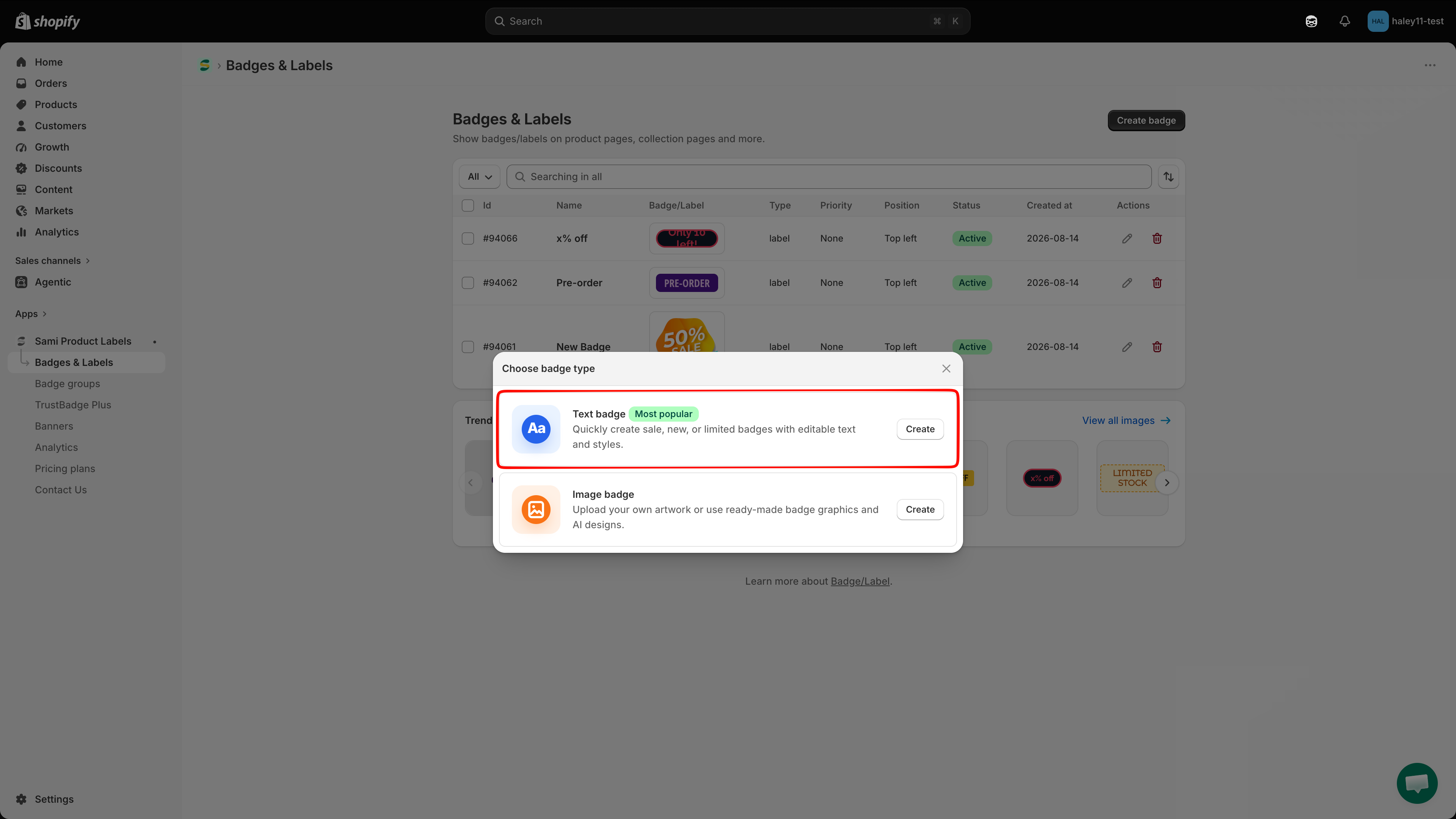
Choose badge type dialog with Text badge highlighted
In Choose badge type, select Text badge to create a badge that supports dynamic variables.
2

Open Insert Dynamic Text

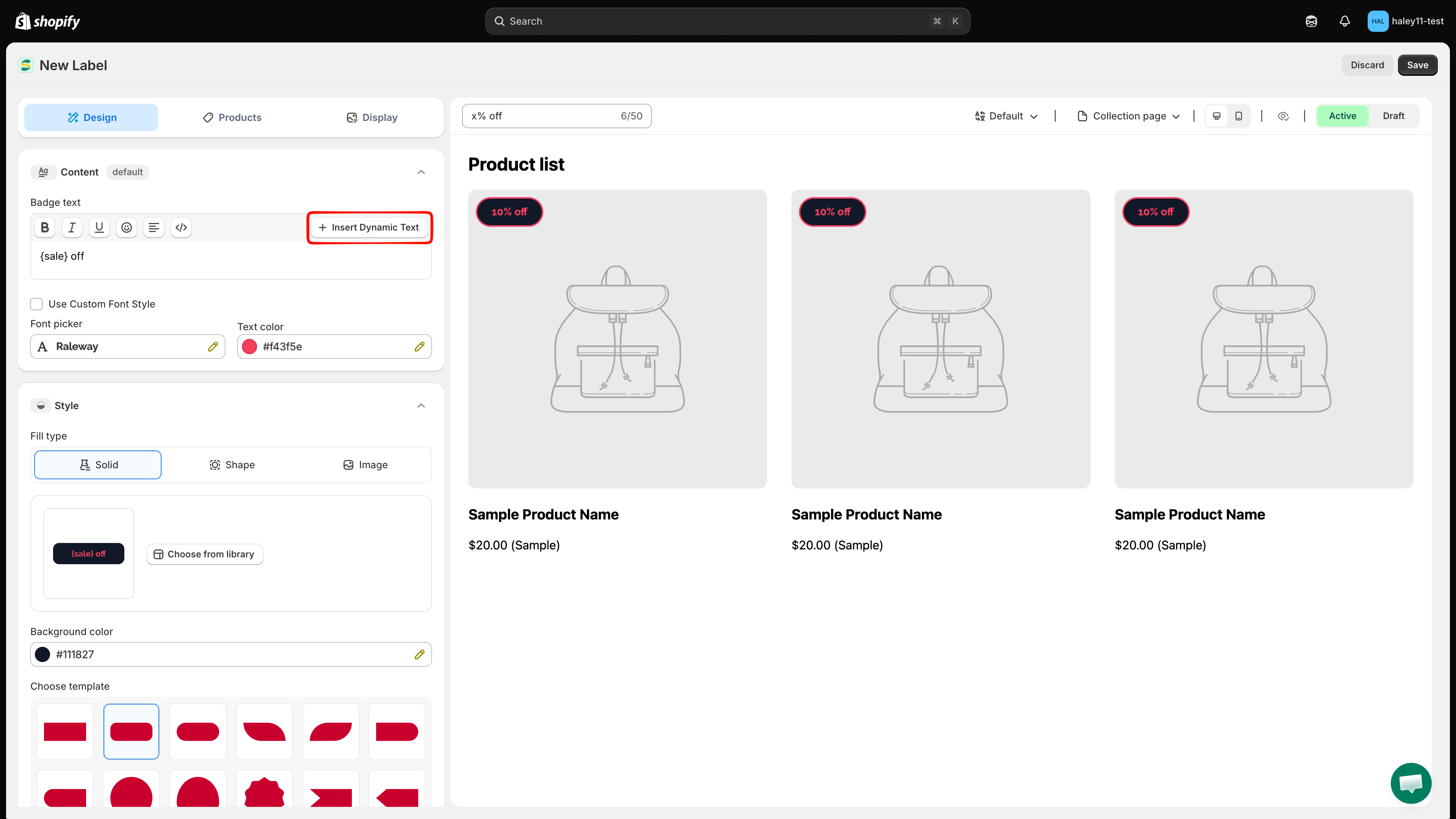
Click Insert Dynamic Text in the Badge text toolbar. The Variables dialog lists each available token, its sample output, and a Copy button.

Insert Dynamic Text button in the Badge text toolbar
Click Insert Dynamic Text to open the Variables dialog.
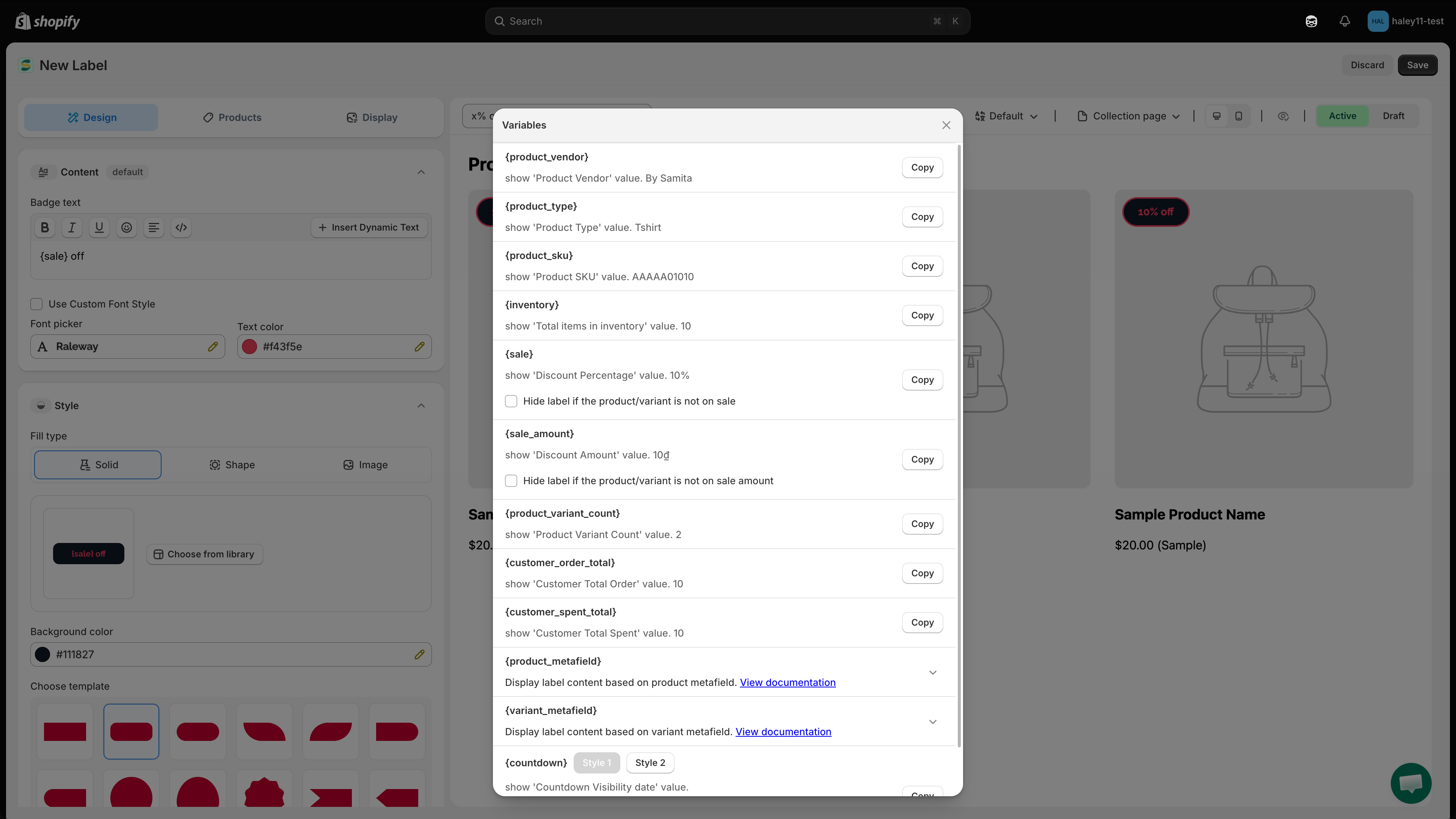
Variables dialog showing dynamic tokens, sample values, and Copy buttons
Review the available variables and their sample output in the Variables dialog.
3

Configure the variable if needed

Most variables are ready to copy immediately. These variables have additional options:

  • Sale variables — For {sale} or {sale_amount}, enable the corresponding Hide label if the product/variant is not on sale option when the badge should disappear for full-price products.

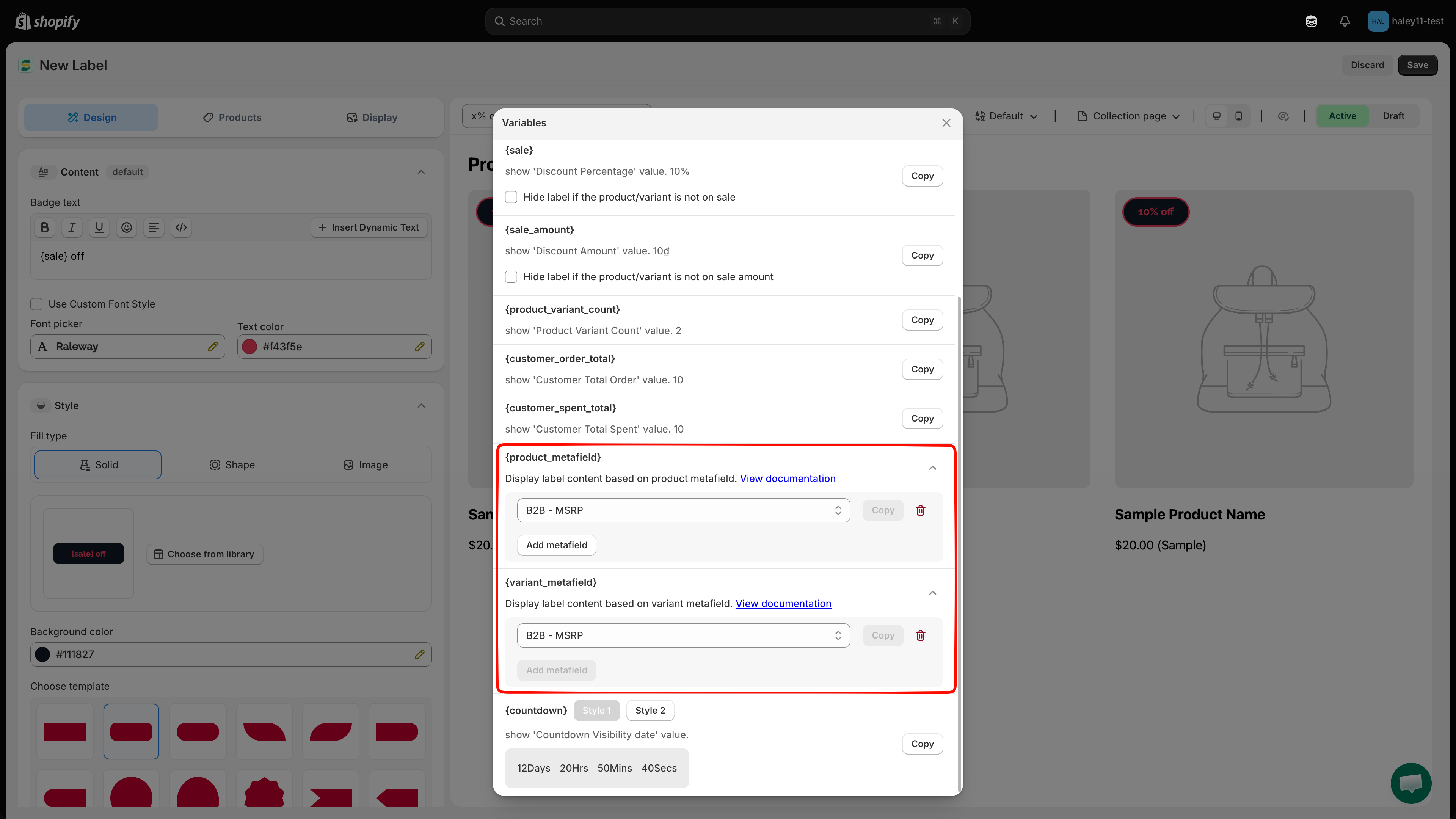
  • Product or variant metafield — Expand {product_metafield} or {variant_metafield}, click Add metafield, then select a metafield from the dropdown.

  • Countdown — Under {countdown}, choose Style 1 or Style 2 before copying the token.

Expanded product metafield variable with Add metafield, metafield dropdown, and Copy button
Add and select the metafield whose value should appear in the badge.
4

Copy and paste the token

Click Copy beside the variable. The Variables dialog closes after copying. Click the desired location in the rich text editor, then paste the token into your badge message.

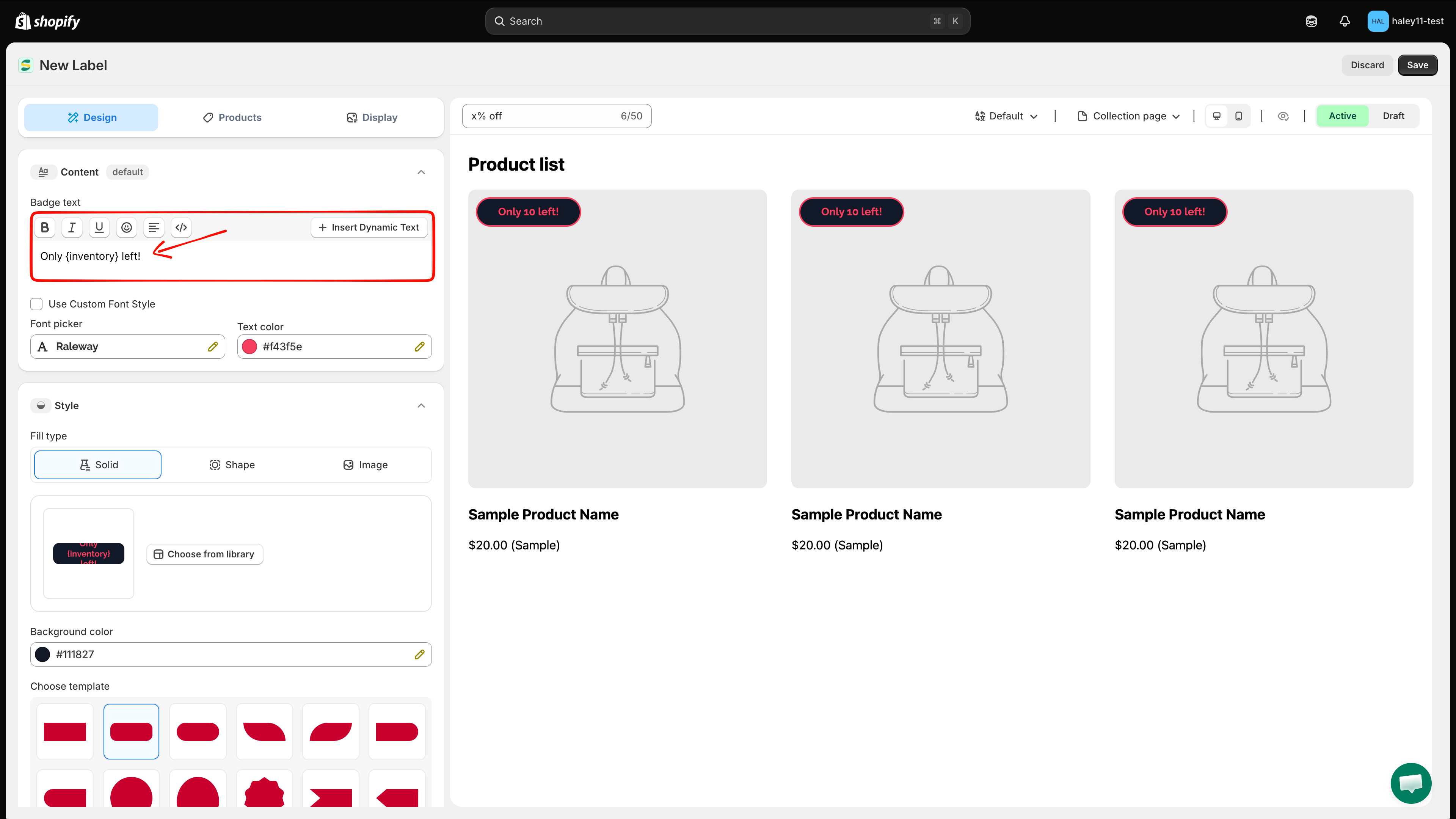
For example, paste {inventory} into Only {inventory} left! or {sale} into Save {sale}!.

Copy does not insert the token automatically. You still need to paste it into the Badge text editor.

Dynamic variable token pasted into the Badge text rich text editor
Paste the copied token at the position where the live value should appear.
5

Preview and save

Check the badge preview after pasting the token. Configure Products and Display as needed, choose Active or Draft, then click Save.

You can also type a standard token such as {sale} or {inventory} directly into the editor. Type it exactly as shown, including the curly braces. Use Insert Dynamic Text for metafields and countdown styles so the app can generate the correct token.

Important notes

Sale variables and product visibility: The {sale} and {sale_amount} variables include an option to auto-hide the badge when the product isn't on sale. Enable it so the badge only shows on products with a compare-at price higher than the current price.

Countdown timer setup: The countdown variables use the visibility date configured under Display > Visibility Date & Countdown.

Metafield variables: Expand the product or variant metafield item in Insert Dynamic Text, click Add metafield, select a metafield definition, and click Copy. Paste the app-generated token instead of typing the generic {product_metafield} or {variant_metafield} placeholder manually.

Example use cases

Here are some common ways merchants use dynamic variables in their text badges:

Badge text
What customers see
Use case

Save {sale}!

Save 25%!

Highlight the discount percentage on sale items

Only {inventory} left!

Only 3 left!

Create urgency with low-stock warnings

Ships from {product_vendor}

Ships from Nike

Show the product vendor for multi-vendor stores

{product_variant_count} options available

5 options available

Let customers know a product comes in multiple variants

{countdown} left!

2d 05h 30m left!

Create urgency with a countdown to the end of a sale

VIP: {customer_order_total} orders

VIP: 8 orders

Reward loyal customers with personalized badges

You have spent {customer_spent_total}

You have spent $450.00

Show customers their spending history for loyalty programs

Next steps

Last updated

Was this helpful?