> For the complete documentation index, see [llms.txt](https://docs.samita.io/llms.txt). Markdown versions of documentation pages are available by appending `.md` to page URLs; this page is available as [Markdown](https://docs.samita.io/badges-and-labels/schedule-visibility.md).

# Schedule badge visibility

Schedule when a badge appears and disappears, restrict it to recurring weekday time windows, and add a countdown to the end time.

Use **Visibility Date & Countdown** to control the overall period when a badge can appear. For recurring campaigns, you can also limit the badge to selected weekdays and a specific time window on those days.

## Schedule a badge

{% stepper %}
{% step %}

## Open the badge editor

In **Sami Product Labels**, open **Badges & Labels**, then create a badge or click **Edit badge/label** for an existing one.
{% endstep %}

{% step %}

## Open Visibility Date & Countdown

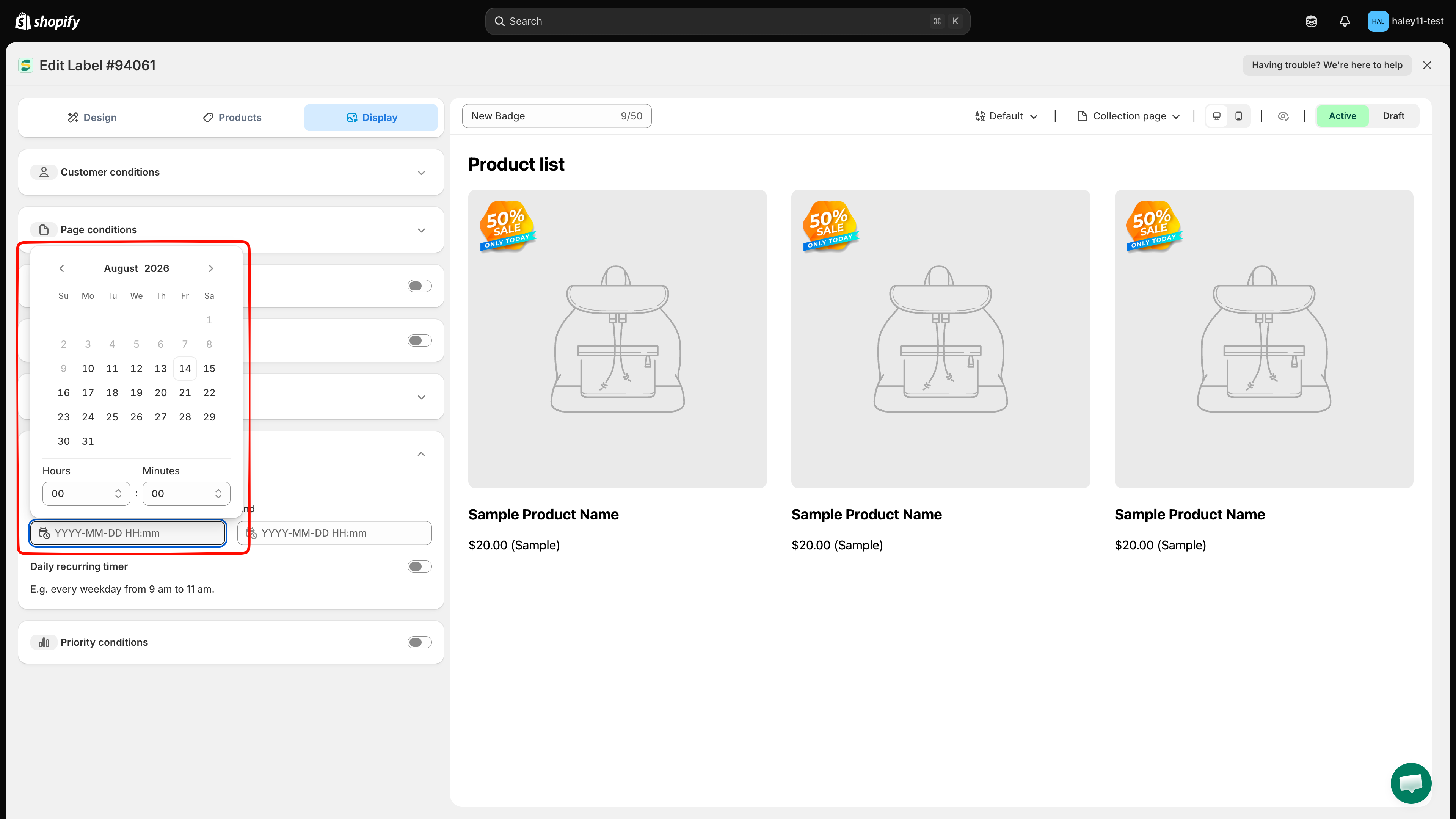
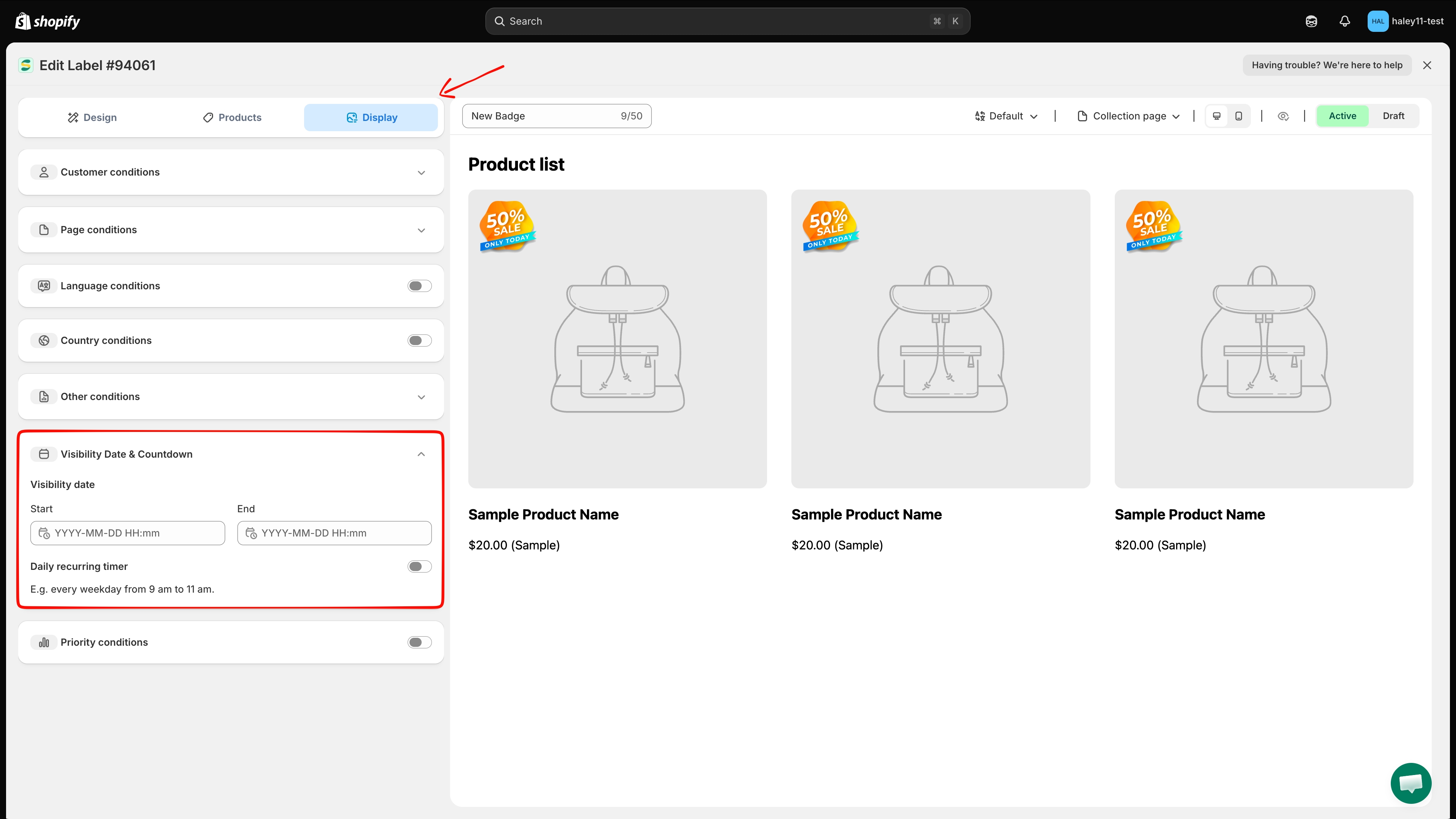
Select the **Display** tab, then expand **Visibility Date & Countdown**.

<figure><img src="https://1598842017-files.gitbook.io/~/files/v0/b/gitbook-x-prod.appspot.com/o/spaces%2F1WRTlT5AcaLSAedbCJyZ%2Fuploads%2Fgit-blob-ac53812ebb620902936f4841ff4f98749d5ecc33%2Fimage_26.png?alt=media" alt="Visibility Date and Countdown section expanded in the Display tab"><figcaption><p>Open Display > Visibility Date &#x26; Countdown to configure the overall visibility period.</p></figcaption></figure>
{% endstep %}

{% step %}

## Set the start date and time

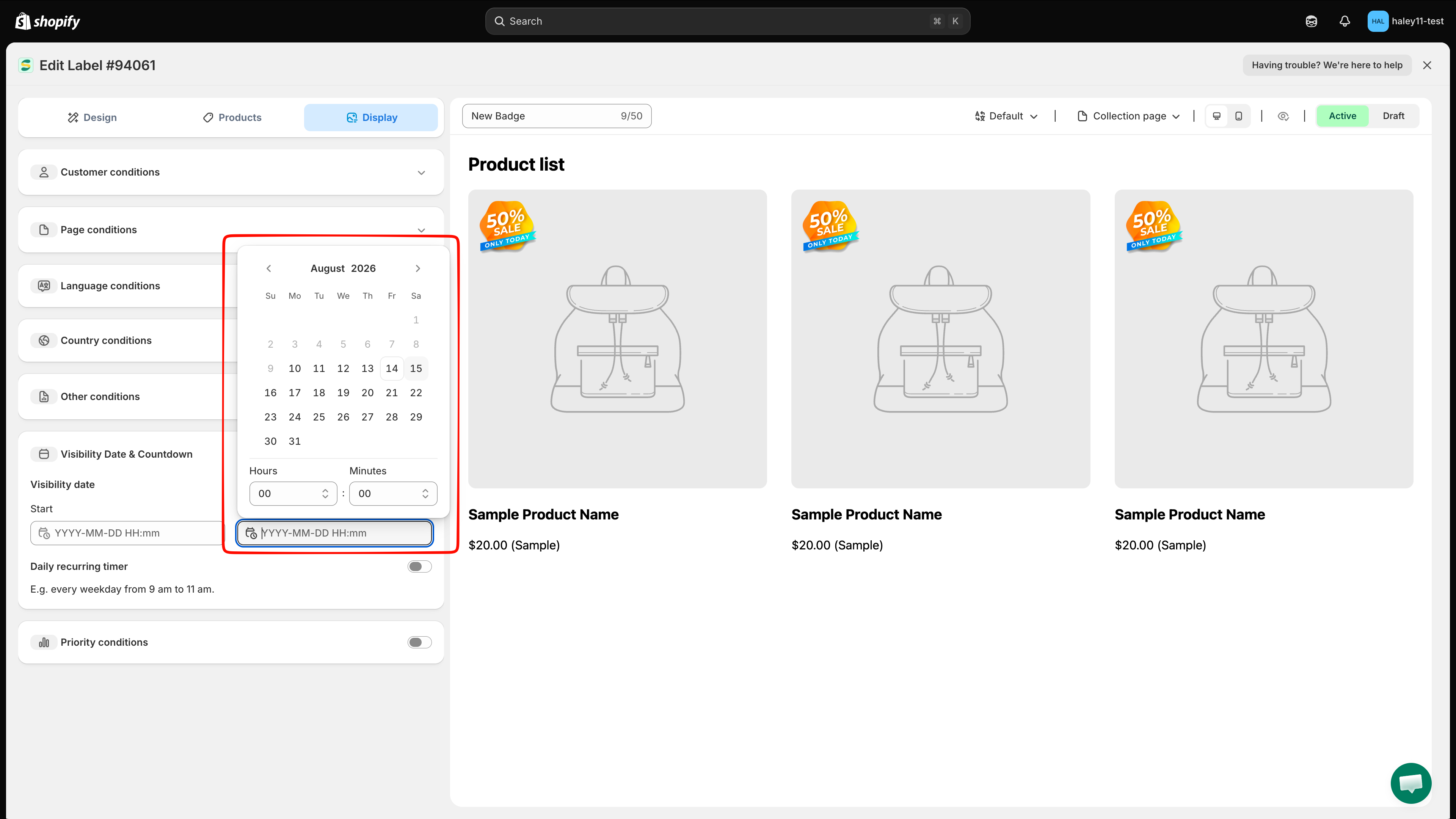
Click **Start**, select a date in the calendar, then choose the **Hours** and **Minutes**. The badge remains hidden until this time.

The field uses the format `YYYY-MM-DD HH:mm`.

<figure><img src="https://1598842017-files.gitbook.io/~/files/v0/b/gitbook-x-prod.appspot.com/o/spaces%2F1WRTlT5AcaLSAedbCJyZ%2Fuploads%2Fgit-blob-79f1fb95f656df2d3acb55360cdc0e3a607ddb71%2Fimage_27.png?alt=media" alt="Start date picker with calendar, Hours, and Minutes controls"><figcaption><p>Select the date, hour, and minute when the badge should start appearing.</p></figcaption></figure>
{% endstep %}

{% step %}

## Set the end date and time

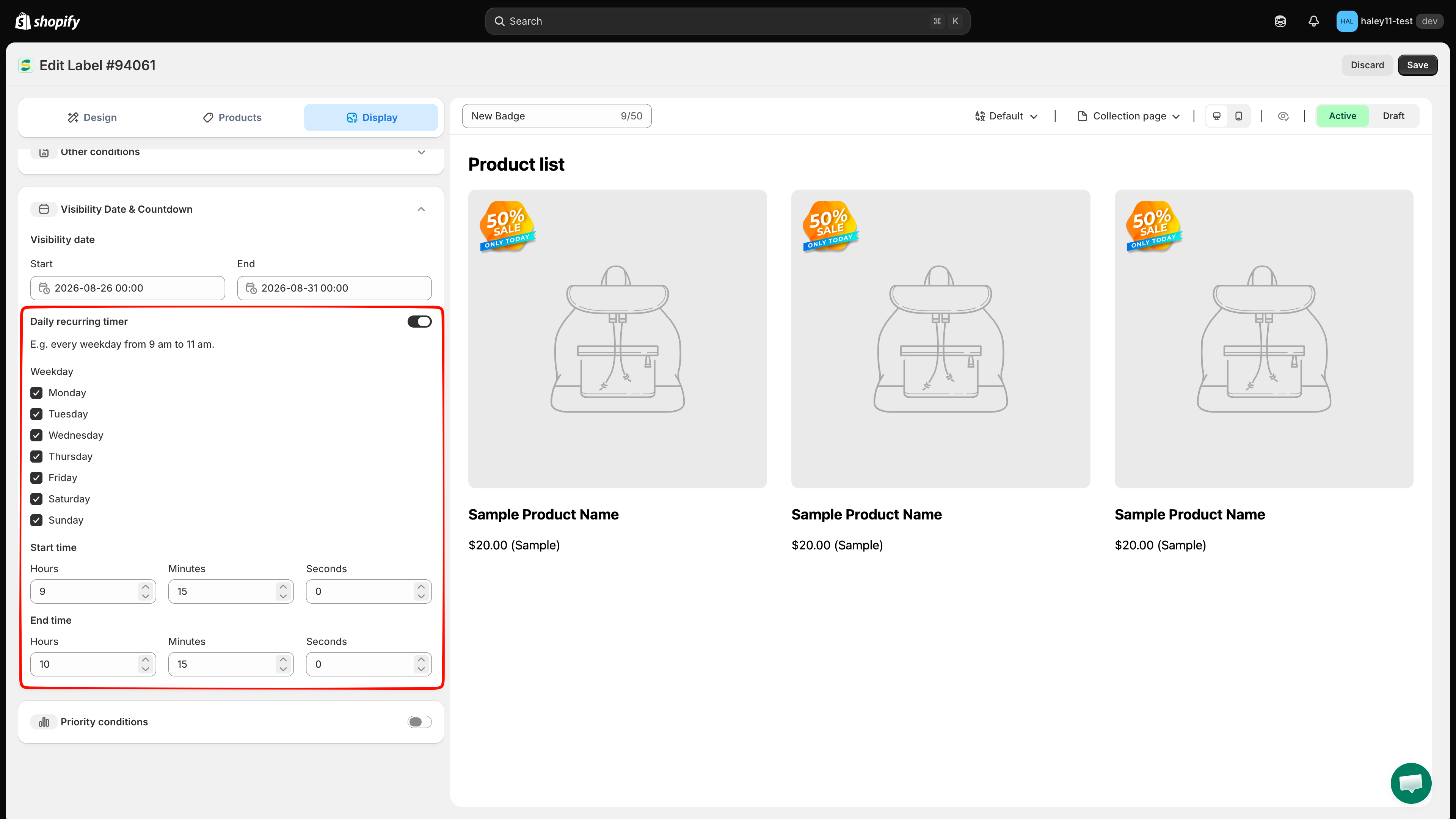
Click **End** and select the date, **Hours**, and **Minutes** when the badge should stop appearing. The **End** time must be later than the **Start** time.

<figure><img src="https://1598842017-files.gitbook.io/~/files/v0/b/gitbook-x-prod.appspot.com/o/spaces%2F1WRTlT5AcaLSAedbCJyZ%2Fuploads%2Fgit-blob-c02cdbd208b30f53d8f22a6237b3b9e70252548d%2Fimage_28.png?alt=media" alt="End date picker with calendar, Hours, and Minutes controls"><figcaption><p>Select when the badge should stop appearing on the storefront.</p></figcaption></figure>
{% endstep %}

{% step %}

## Optional: add a recurring weekday schedule

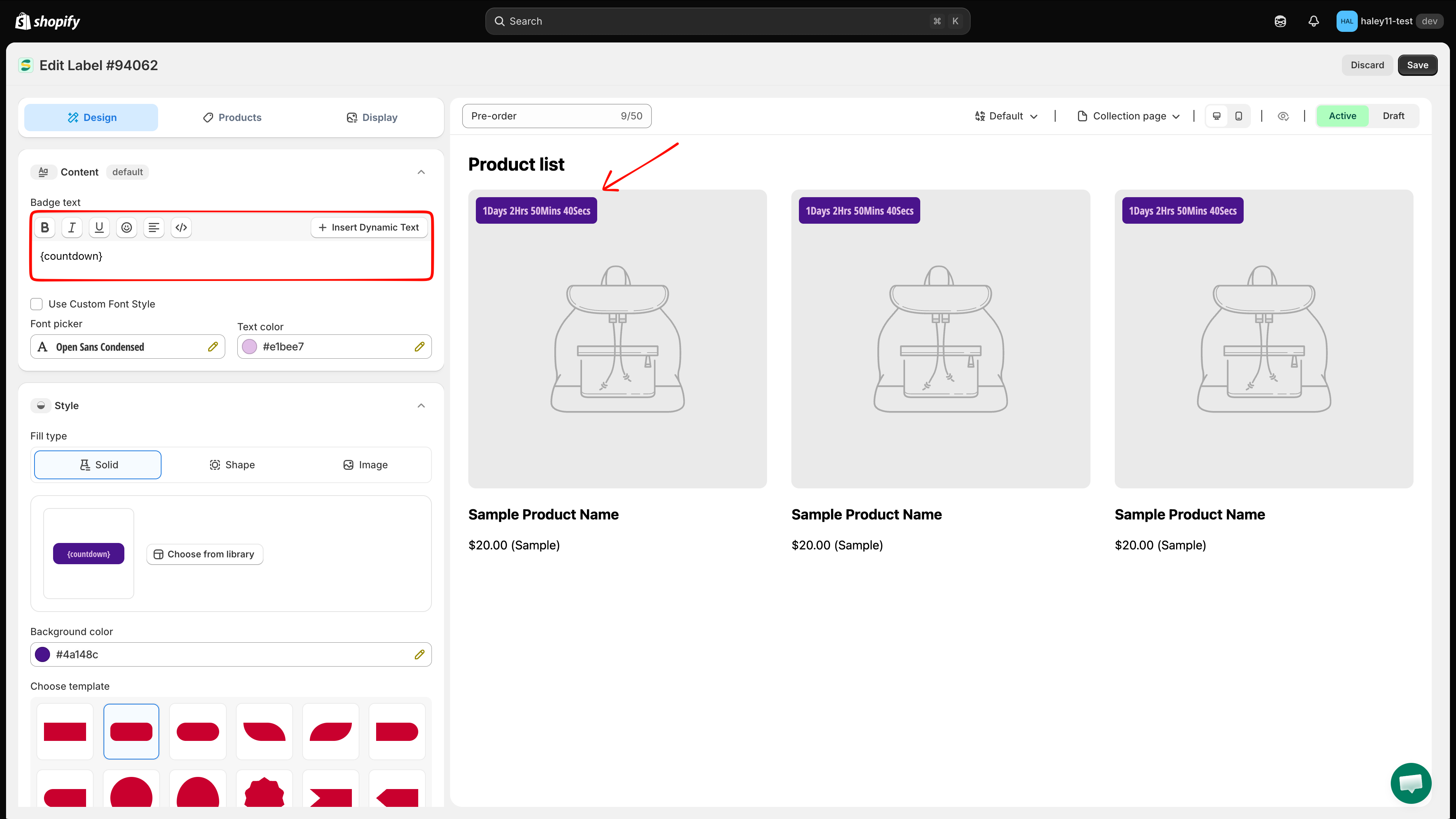
Enable **Daily recurring timer** when the badge should appear only on certain days and during the same time window on each selected day.

1. Under **Weekday**, keep the days when the badge should appear and clear the other days. All seven days are selected by default.
2. Under **Start time**, enter the **Hours**, **Minutes**, and **Seconds** when the daily window begins.
3. Under **End time**, enter the **Hours**, **Minutes**, and **Seconds** when the daily window ends.

The recurring weekday and time rules apply inside the overall **Start** and **End** visibility period. For example, a Monday-to-Friday window from 09:00:00 to 11:00:00 displays the badge only during those hours on those weekdays, and only while the overall date range is active.

<figure><img src="https://1598842017-files.gitbook.io/~/files/v0/b/gitbook-x-prod.appspot.com/o/spaces%2F1WRTlT5AcaLSAedbCJyZ%2Fuploads%2Fgit-blob-7812d1237e87fd7499d490d19401e4bbbcf3405e%2Fimage_29.png?alt=media" alt="Daily recurring timer with weekday selection and Start time and End time fields"><figcaption><p>Select the active weekdays and set one recurring time window shared by those days.</p></figcaption></figure>
{% endstep %}

{% step %}

## Choose a status and save

Choose **Active** to make the badge eligible to appear according to the schedule, or **Draft** to keep it hidden. Click **Save** to apply the configuration.
{% endstep %}
{% endstepper %}

## Add a countdown to a text badge

The countdown is separate from the visibility controls. **Visibility Date & Countdown** defines the schedule, while the `{countdown}` variable renders the remaining time inside a text badge.

1. Make sure the badge has a valid **End** date and time. The countdown counts down to this value.
2. Return to **Design**, expand **Content**, and click **Insert Dynamic Text** in the **Badge text** toolbar.
3. Find `{countdown}`, choose **Style 1** or **Style 2**, then click **Copy**.
4. Paste the copied token into the **Badge text** editor, preview the result, and save the badge.

<figure><img src="https://1598842017-files.gitbook.io/~/files/v0/b/gitbook-x-prod.appspot.com/o/spaces%2F1WRTlT5AcaLSAedbCJyZ%2Fuploads%2Fgit-blob-ba94a3d933353de1fc9d44fc53da4788dd43b849%2Fimage_30.png?alt=media" alt="Countdown variable with Style 1 and Style 2 options in Insert Dynamic Text"><figcaption><p>Choose a countdown style, copy the generated token, and paste it into the badge text.</p></figcaption></figure>

{% hint style="warning" %}
The storefront countdown needs an **End** date and time. If **End** is not configured, the countdown value is blank.
{% endhint %}

For the complete variable workflow, see [Dynamic Variables](/badges-and-labels/dynamic-variables.md).

## How the visibility rules work together

| Configuration                                     | When the badge can appear                                                                   |
| ------------------------------------------------- | ------------------------------------------------------------------------------------------- |
| **Start** and **End** only                        | At any time inside the overall date and time range                                          |
| **Start**, **End**, and **Daily recurring timer** | Inside the overall range, on a selected weekday, and inside the recurring daily time window |
| **Draft** status                                  | Never, even when the schedule matches                                                       |
| **Active** status                                 | When the schedule and all other product and display conditions match                        |

{% hint style="info" %}
The overall **Start** and **End** pickers use minute precision. The recurring **Start time** and **End time** fields also include seconds.
{% endhint %}

## Next steps

* [Dynamic Variables](/badges-and-labels/dynamic-variables.md) — Insert `{countdown}` and other live values into a text badge.
* [Target Products](/badges-and-labels/target-products.md) — Choose which products are eligible to display the scheduled badge.

{% hint style="success" %}
**Need support?**

If you run into any difficulty while following these steps, contact us at <support@samita.io>.
{% endhint %}


---

# Agent Instructions
This documentation is published with GitBook. GitBook is the documentation platform designed so that both humans and AI agents can read, navigate, and reason over technical content effectively. Learn more at gitbook.com.

## Querying This Documentation
If you need additional information that is not directly available in this page, you can query the documentation dynamically by asking a question.

Perform an HTTP GET request on the current page URL with the `ask` query parameter, and the optional `goal` query parameter:

```
GET https://docs.samita.io/badges-and-labels/schedule-visibility.md?ask=<question>&goal=<endgoal>
```

`ask` is the immediate question: it should be specific, self-contained, and written in natural language.
`goal` is optional and describes the broader end goal you are ultimately trying to accomplish on behalf of the user. GitBook uses it to tailor the answer towards what is most useful for that goal.

The response will contain a direct answer to the question and relevant excerpts and sources from the documentation.

Use this mechanism when the answer is not explicitly present in the current page, you need clarification or additional context, or you want to retrieve related documentation sections.