> For the complete documentation index, see [llms.txt](https://docs.samita.io/llms.txt). Markdown versions of documentation pages are available by appending `.md` to page URLs; this page is available as [Markdown](https://docs.samita.io/badges-and-labels/target-by-attribute.md).

# Target by collection, tag, or vendor

Target badges to products based on attributes like title, type, vendor, price, tags, inventory, and more.

Condition-based targeting automatically shows badges on products that match rules you define — no need to hand-pick products one by one.

## Available product conditions

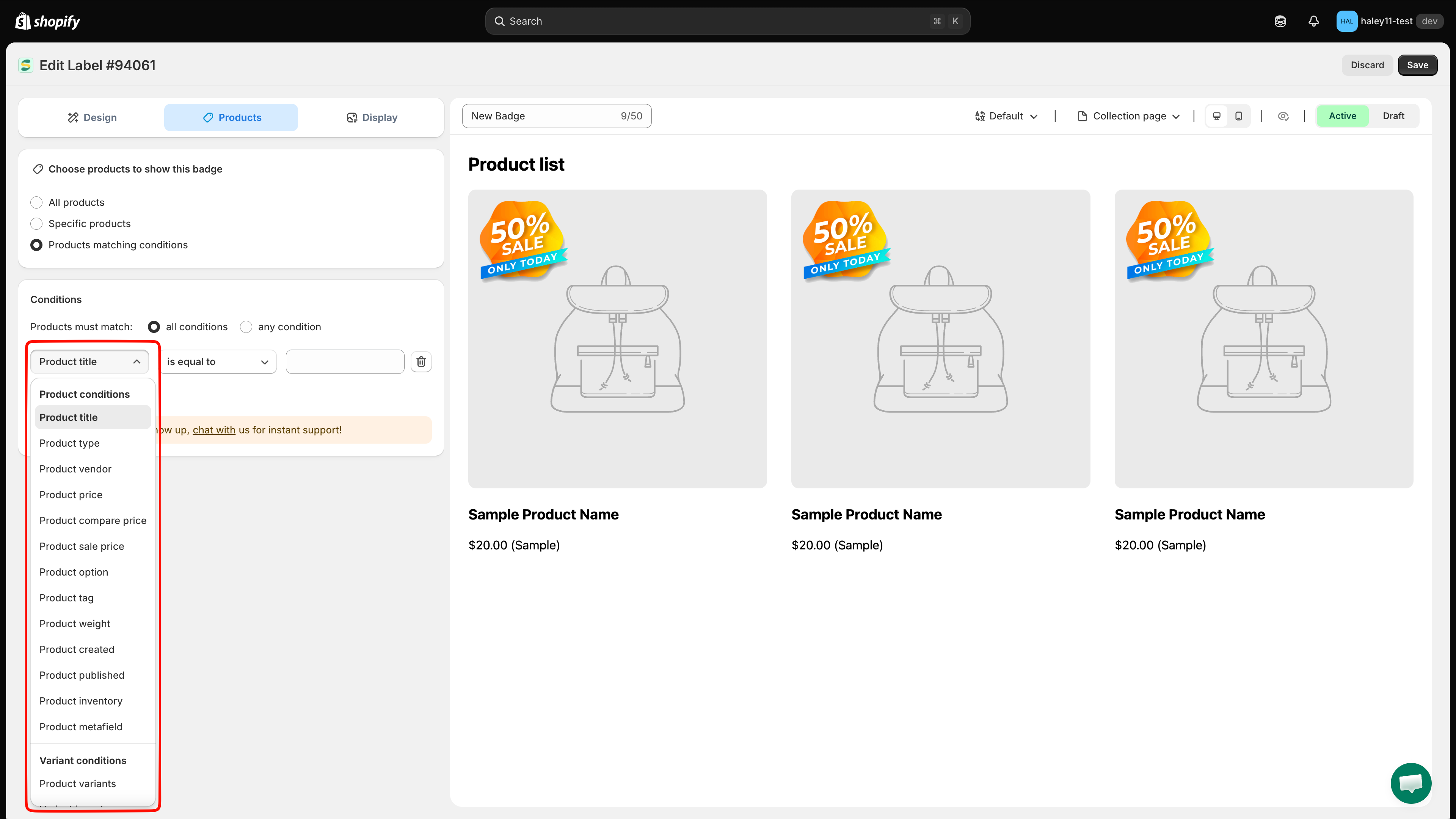
The condition picker currently includes:

* Product title, type, vendor, option, and tag
* Product price, compare price, sale price, and weight
* Product created and published dates
* Product inventory and collections
* Product and variant metafields
* Product variants and variant inventory

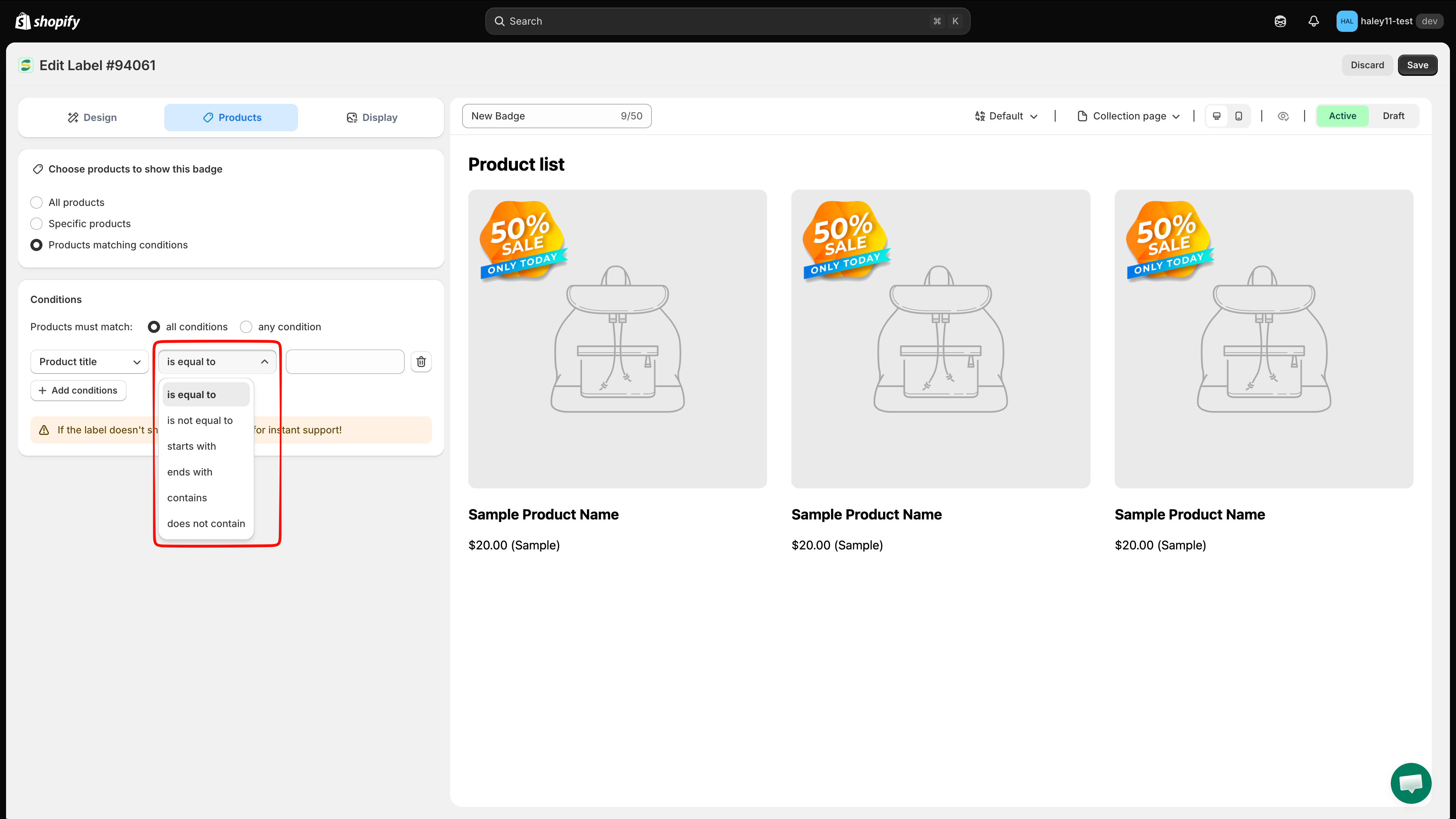
The operator list changes with the selected condition. Text conditions include operators such as **contains** and **starts with**; numeric conditions include **is greater than** and **is less than**; inventory conditions include stock-specific choices.

## How to add a condition

{% stepper %}
{% step %}

## Open the Products tab

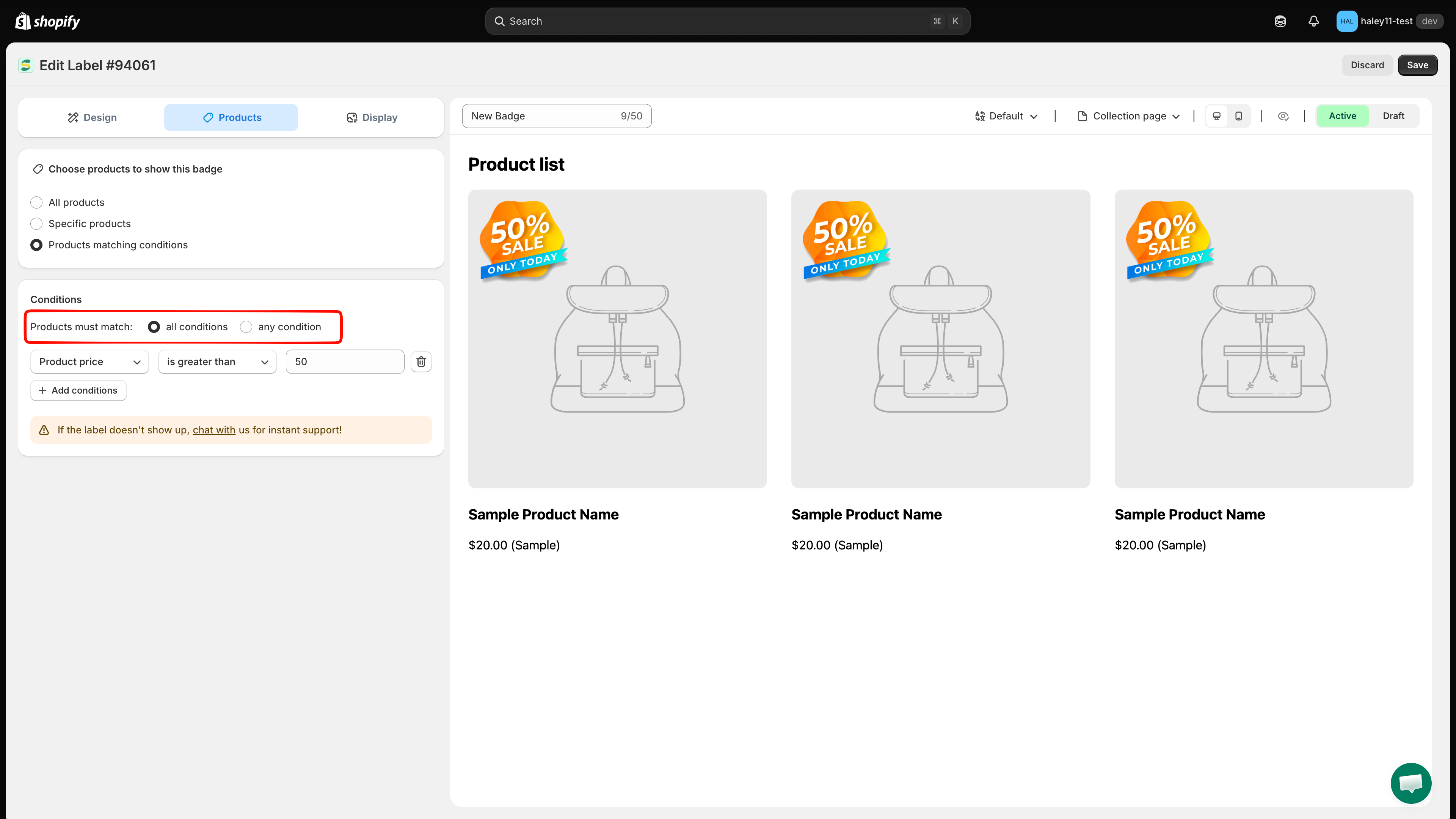
In the badge editor, go to **Products**.

<figure><img src="https://1598842017-files.gitbook.io/~/files/v0/b/gitbook-x-prod.appspot.com/o/spaces%2F1WRTlT5AcaLSAedbCJyZ%2Fuploads%2Fgit-blob-6f1d95f5aa23aac3cd1cfb3cc04b8186dd8addf4%2Fimage_59.png?alt=media" alt="Products tab in the badge editor"><figcaption><p>Open the Products tab in the badge editor.</p></figcaption></figure>
{% endstep %}

{% step %}

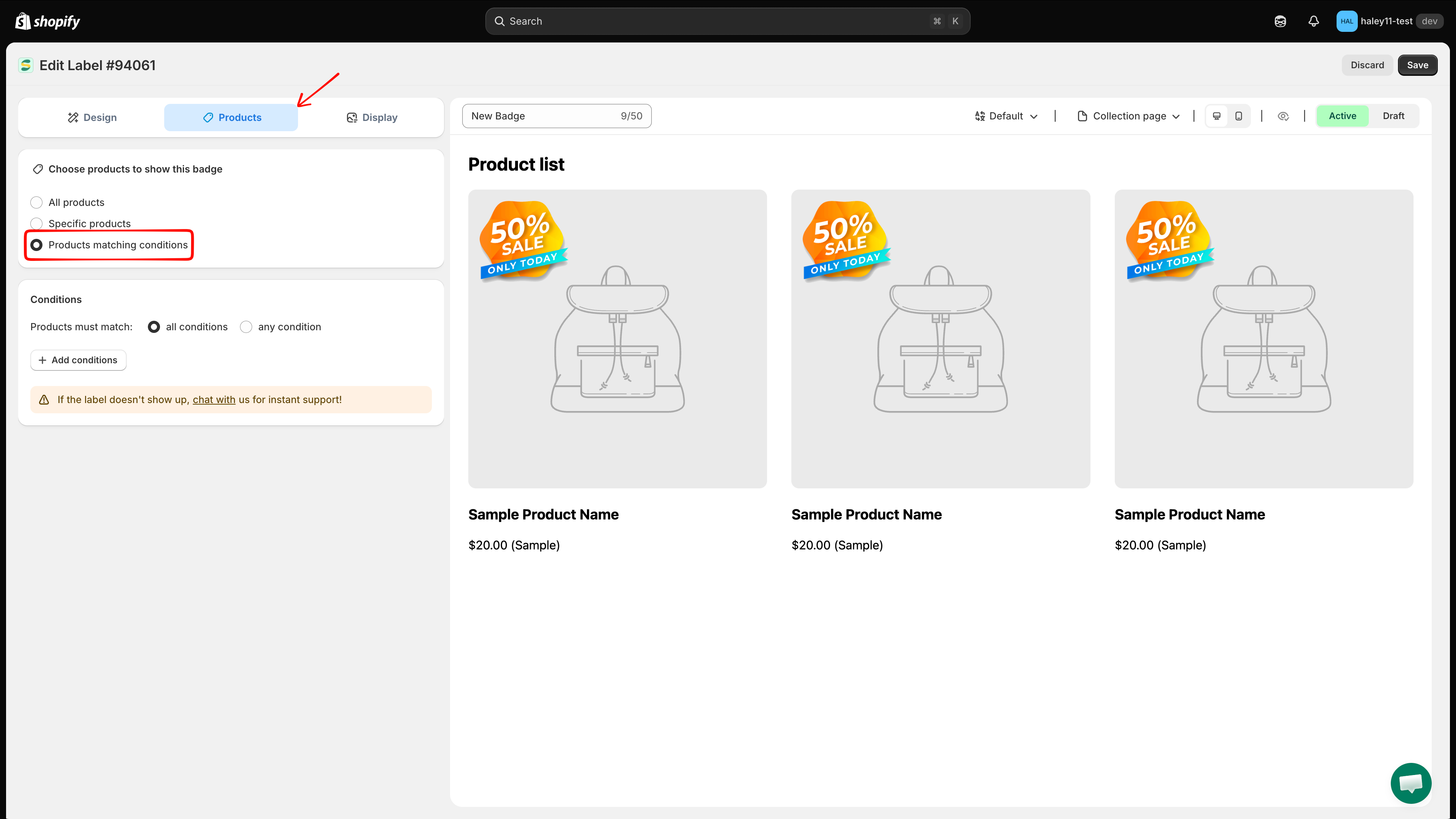
## Select "Products matching conditions"

Under **Choose products to show this badge**, select **Products matching conditions** (instead of **All products** or **Specific products**).

<figure><img src="https://1598842017-files.gitbook.io/~/files/v0/b/gitbook-x-prod.appspot.com/o/spaces%2F1WRTlT5AcaLSAedbCJyZ%2Fuploads%2Fgit-blob-7e4adfc938c84e114dae3c7d7362929ff3bff51f%2Fimage_60.png?alt=media" alt="Products matching conditions option selected"><figcaption><p>Select Products matching conditions to enable condition-based targeting.</p></figcaption></figure>
{% endstep %}

{% step %}

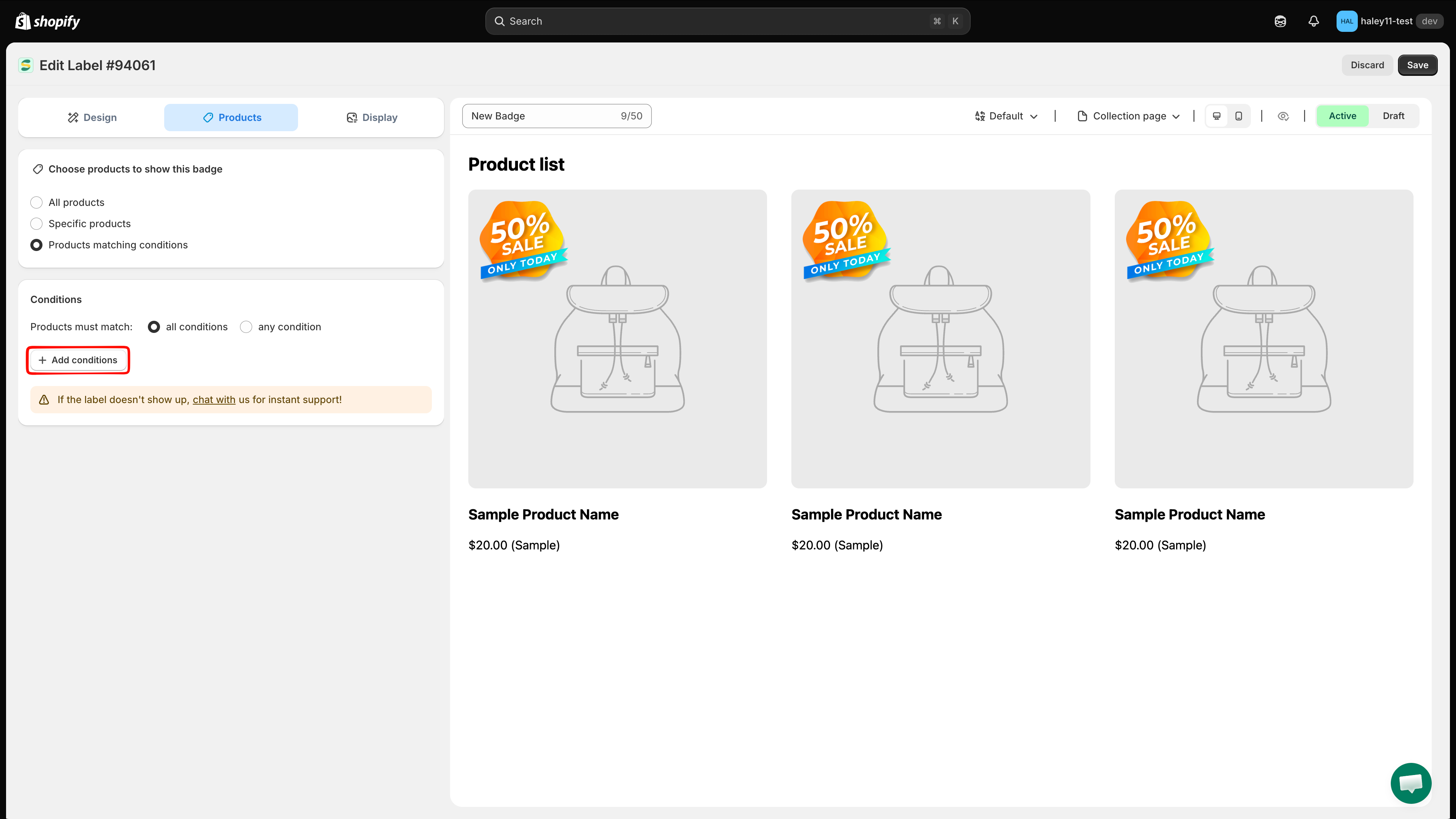
## Click "Add conditions"

Click **Add conditions** to create a new rule.

<figure><img src="https://1598842017-files.gitbook.io/~/files/v0/b/gitbook-x-prod.appspot.com/o/spaces%2F1WRTlT5AcaLSAedbCJyZ%2Fuploads%2Fgit-blob-941feaed7202030c8a3d589488bf5580b5dd53d7%2Fimage_61.png?alt=media" alt="Add conditions button in the targeting panel"><figcaption><p>Click Add conditions to define a product targeting rule.</p></figcaption></figure>
{% endstep %}

{% step %}

## Select the condition type

Choose the attribute you want to target from the dropdown menu (for example, **Product price** or **Product type**).

<figure><img src="https://1598842017-files.gitbook.io/~/files/v0/b/gitbook-x-prod.appspot.com/o/spaces%2F1WRTlT5AcaLSAedbCJyZ%2Fuploads%2Fgit-blob-67c875114686867b55b419bbf98638490e8e7bf9%2Fimage_62.png?alt=media" alt="Condition type dropdown"><figcaption><p>Choose the product attribute to target.</p></figcaption></figure>
{% endstep %}

{% step %}

## Select the operator

Choose how the condition should evaluate the attribute. For example, select **is greater than** for a price condition or **contains** for a title condition.

<figure><img src="https://1598842017-files.gitbook.io/~/files/v0/b/gitbook-x-prod.appspot.com/o/spaces%2F1WRTlT5AcaLSAedbCJyZ%2Fuploads%2Fgit-blob-1f7f29682056a32a289b5de3b31dc4fc8ce676ac%2Fimage_63.png?alt=media" alt="Operator dropdown"><figcaption><p>Choose the operator for the condition.</p></figcaption></figure>
{% endstep %}

{% step %}

## Enter the value

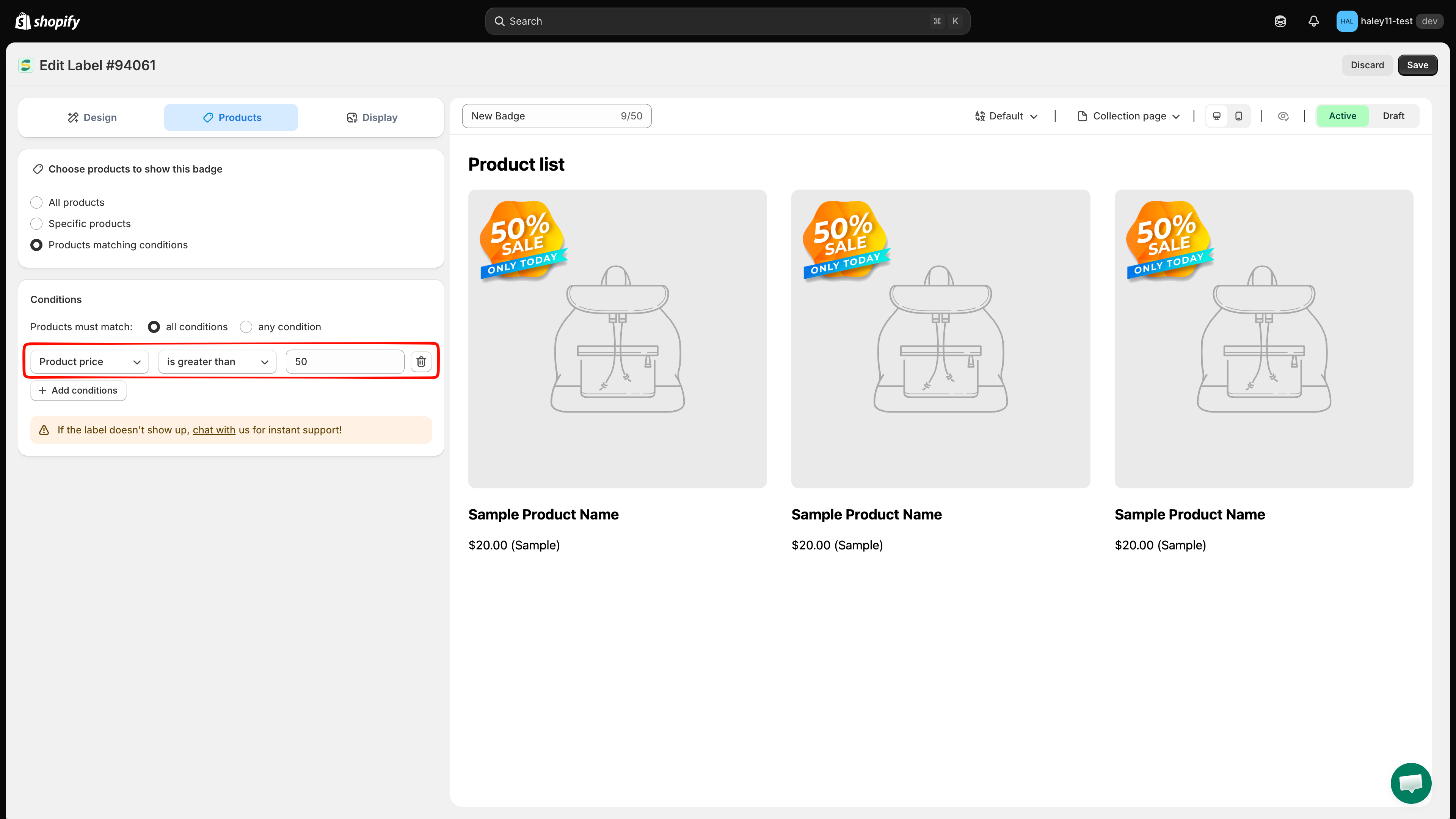
Type the value to match against. For price conditions, enter a number. For text conditions like title or vendor, enter the text to match.

<figure><img src="https://1598842017-files.gitbook.io/~/files/v0/b/gitbook-x-prod.appspot.com/o/spaces%2F1WRTlT5AcaLSAedbCJyZ%2Fuploads%2Fgit-blob-6b6b0cd4965034bb2d2d1a67f0743d36007b32e4%2Fimage_64.png?alt=media" alt="Example condition rule targeting products with price greater than 50"><figcaption><p>A condition rule targeting products priced above 50.</p></figcaption></figure>
{% endstep %}

{% step %}

## Save

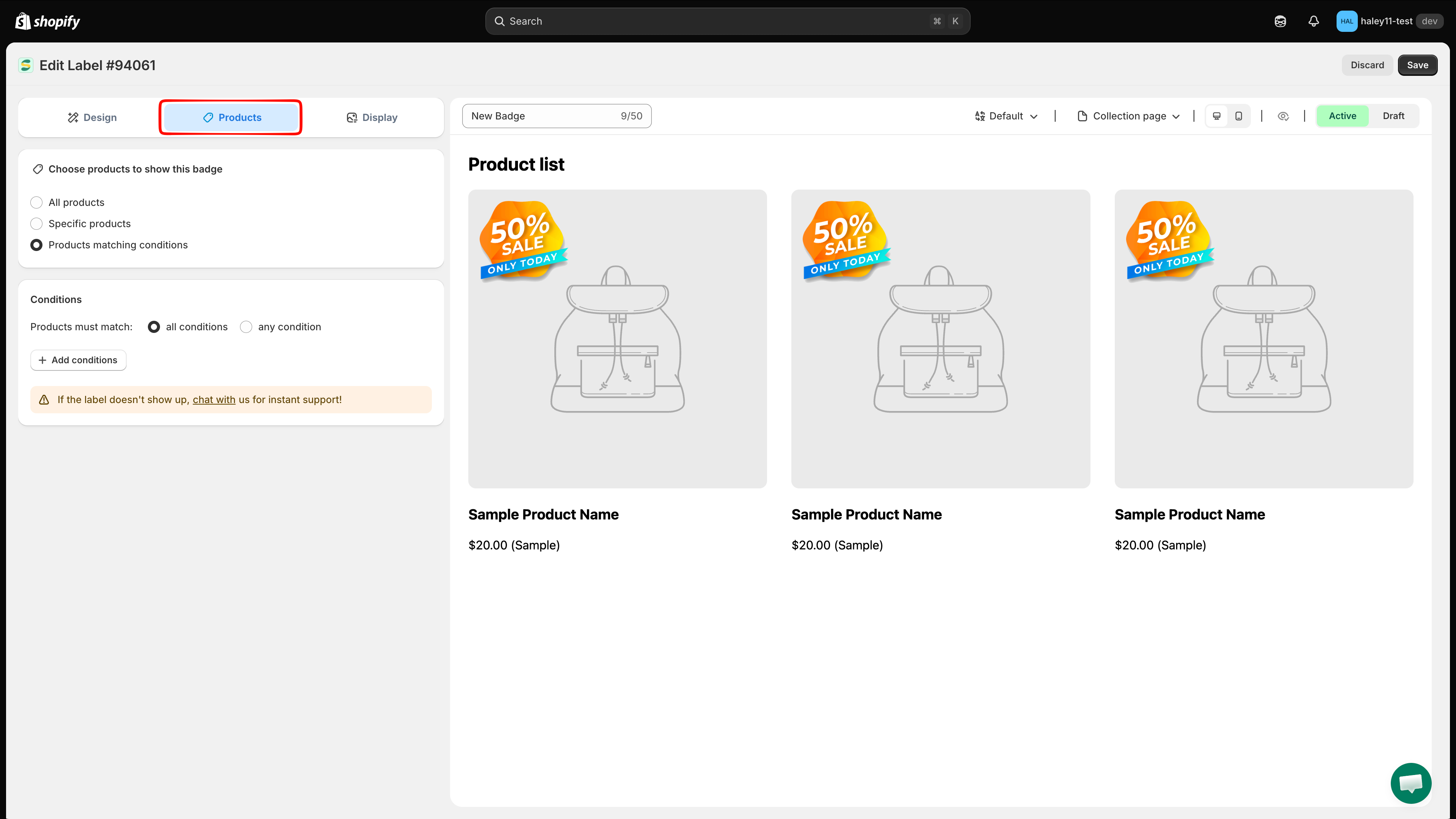
Click **Save** to apply the condition. Products matching your rule will automatically display the badge.

<figure><img src="https://1598842017-files.gitbook.io/~/files/v0/b/gitbook-x-prod.appspot.com/o/spaces%2F1WRTlT5AcaLSAedbCJyZ%2Fuploads%2Fgit-blob-7eaf490152ad3fbd4dbe108a32cdd5f29d7ab674%2Fimage_65.png?alt=media" alt="Save button applying the condition"><figcaption><p>Click Save to apply the condition rule.</p></figcaption></figure>
{% endstep %}
{% endstepper %}

## AND vs OR logic

When you add multiple conditions, you can choose how they work together:

| Logic mode               | Behavior                                                                                                         |
| ------------------------ | ---------------------------------------------------------------------------------------------------------------- |
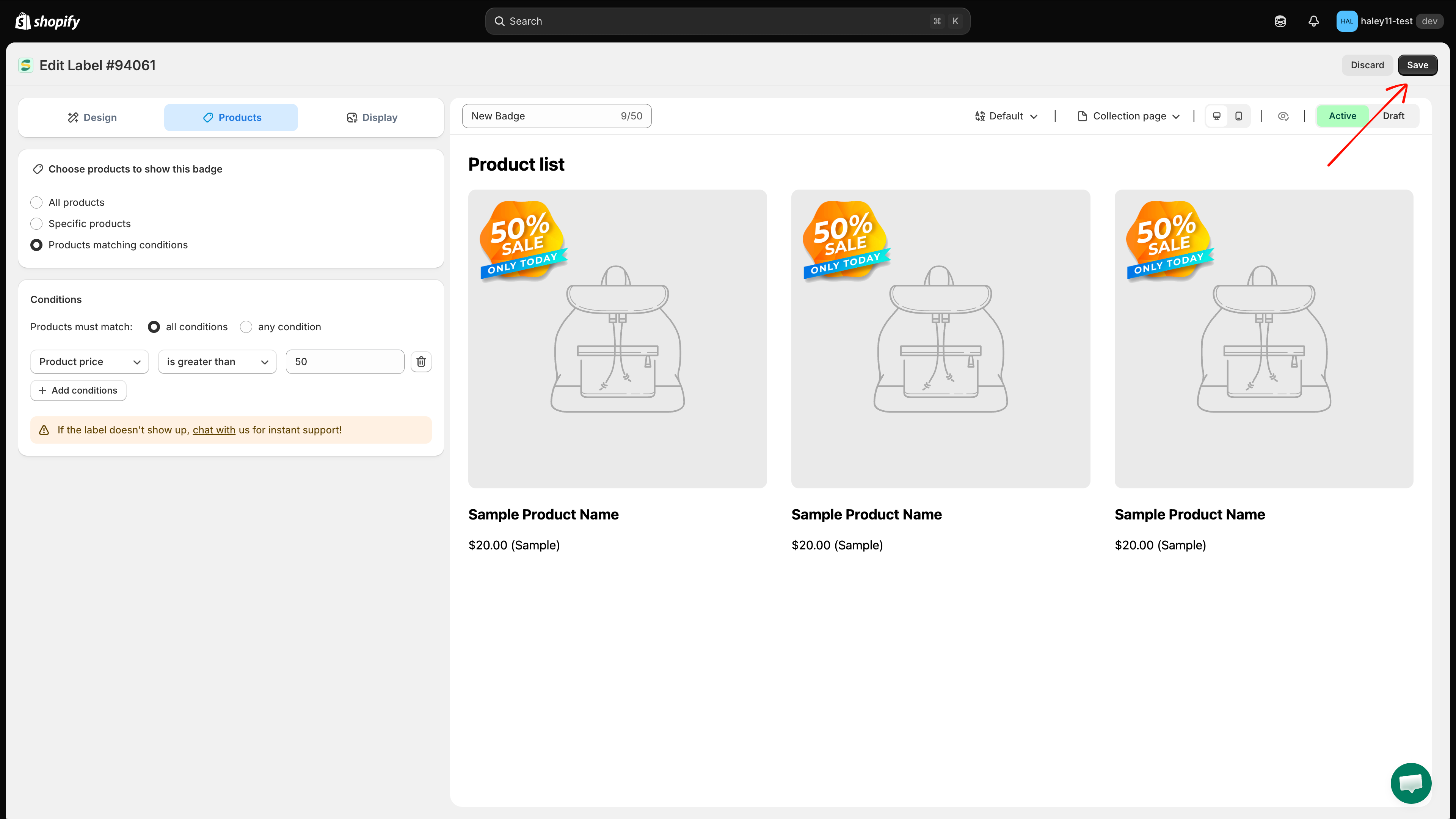
| **All conditions** (AND) | The product must match **every** rule for the badge to appear. Use this when products need to meet all criteria. |
| **Any condition** (OR)   | The product only needs to match **one** rule. Use this for broader targeting.                                    |

### Examples

**All conditions (AND):**

* Product type **is equal to** "T-Shirt" **AND** Product price **is greater than** 30
* Result: Only t-shirts priced above $30 show the badge.

**Any condition (OR):**

* Product vendor **is equal to** "Nike" **OR** Product vendor **is equal to** "Adidas"
* Result: All Nike and Adidas products show the badge.

<figure><img src="https://1598842017-files.gitbook.io/~/files/v0/b/gitbook-x-prod.appspot.com/o/spaces%2F1WRTlT5AcaLSAedbCJyZ%2Fuploads%2Fgit-blob-591a347e1acde9d661c16c46531877b80ad5e500%2Fimage_66.png?alt=media" alt="All conditions and Any condition toggle"><figcaption><p>Choose between All conditions (AND) or Any condition (OR) logic for your rules.</p></figcaption></figure>

## Common use cases

* **Sale badge on discounted items** — **Product compare price** `is greater than` 0 badges everything with an active sale.
* **Low stock warning** — **Product inventory** with `stock availability is less than` 5 shows an "Almost Gone" badge.
* **New arrivals** — **Product created** with `is less than` 30, which matches anything added in the last 30 days.
* **Collection-specific badge** — **Collections** `is equal to` "Summer Collection".

{% hint style="info" %}
**Product created** and **Product published** are measured in **day(s) counted back from today**, not as a calendar date. A smaller number means more recent.
{% endhint %}

## Next steps

* [Condition operators reference](/reference/condition-operators-reference.md) — every field and operator, and which values each accepts.
* [Target by customer](/badges-and-labels/target-by-customer.md) — show badges based on login status and customer tags.
* [Target by country and language](/badges-and-labels/target-by-country-language.md) — display badges for specific regions or languages.
* [Target products](/badges-and-labels/target-products.md) — return to the product targeting overview.

{% hint style="success" %}
**Need support?**

If you run into any difficulty while following these steps, contact us at <support@samita.io>.
{% endhint %}


---

# Agent Instructions
This documentation is published with GitBook. GitBook is the documentation platform designed so that both humans and AI agents can read, navigate, and reason over technical content effectively. Learn more at gitbook.com.

## Querying This Documentation
If you need additional information that is not directly available in this page, you can query the documentation dynamically by asking a question.

Perform an HTTP GET request on the current page URL with the `ask` query parameter, and the optional `goal` query parameter:

```
GET https://docs.samita.io/badges-and-labels/target-by-attribute.md?ask=<question>&goal=<endgoal>
```

`ask` is the immediate question: it should be specific, self-contained, and written in natural language.
`goal` is optional and describes the broader end goal you are ultimately trying to accomplish on behalf of the user. GitBook uses it to tailor the answer towards what is most useful for that goal.

The response will contain a direct answer to the question and relevant excerpts and sources from the documentation.

Use this mechanism when the answer is not explicitly present in the current page, you need clarification or additional context, or you want to retrieve related documentation sections.