> For the complete documentation index, see [llms.txt](https://docs.samita.io/llms.txt). Markdown versions of documentation pages are available by appending `.md` to page URLs; this page is available as [Markdown](https://docs.samita.io/badges-and-labels/target-by-country-language.md).

# Target by country or language

Display badges based on your visitor's country or the language they are viewing your store in.

Show badges based on where a visitor is located or which language version of your store they're browsing — useful for region-specific promotions and multilingual content.

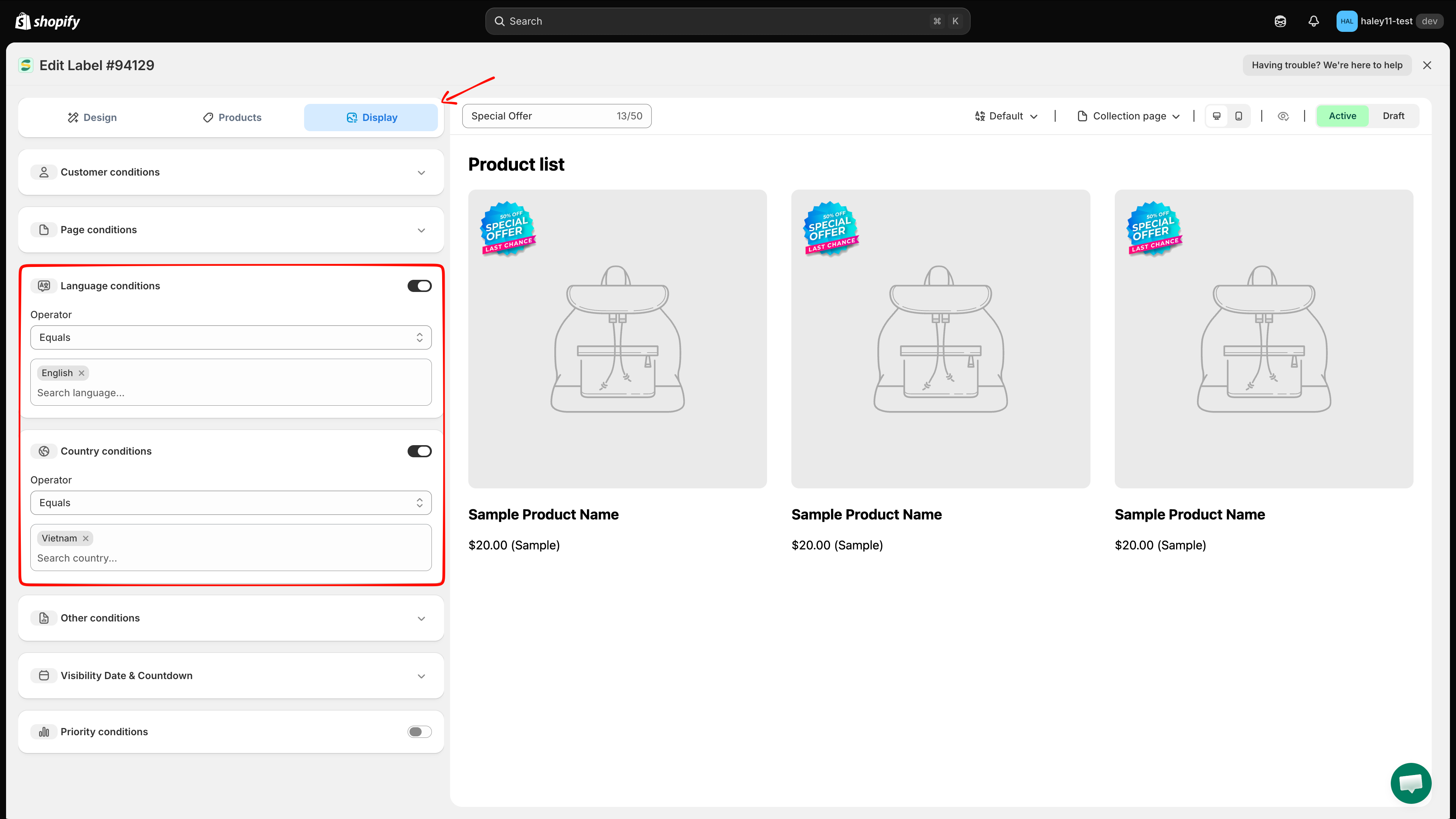
Both settings live in the **Display** tab of the badge editor, as two separate sections: **Language conditions** and **Country conditions**. Each one is a switch you turn on, not a rule you add.

<figure><img src="https://1598842017-files.gitbook.io/~/files/v0/b/gitbook-x-prod.appspot.com/o/spaces%2F1WRTlT5AcaLSAedbCJyZ%2Fuploads%2Fgit-blob-2e153632a51da8a587ef0d73df701973caaa3b79%2Fimage_71.png?alt=media" alt="Display tab showing the Language conditions and Country conditions sections"><figcaption><p>The Display tab: Language conditions and Country conditions each have their own on/off toggle.</p></figcaption></figure>

## Country targeting

### How to set up country targeting

{% stepper %}
{% step %}

## Open the Display tab

In the badge editor, open **Display**.
{% endstep %}

{% step %}

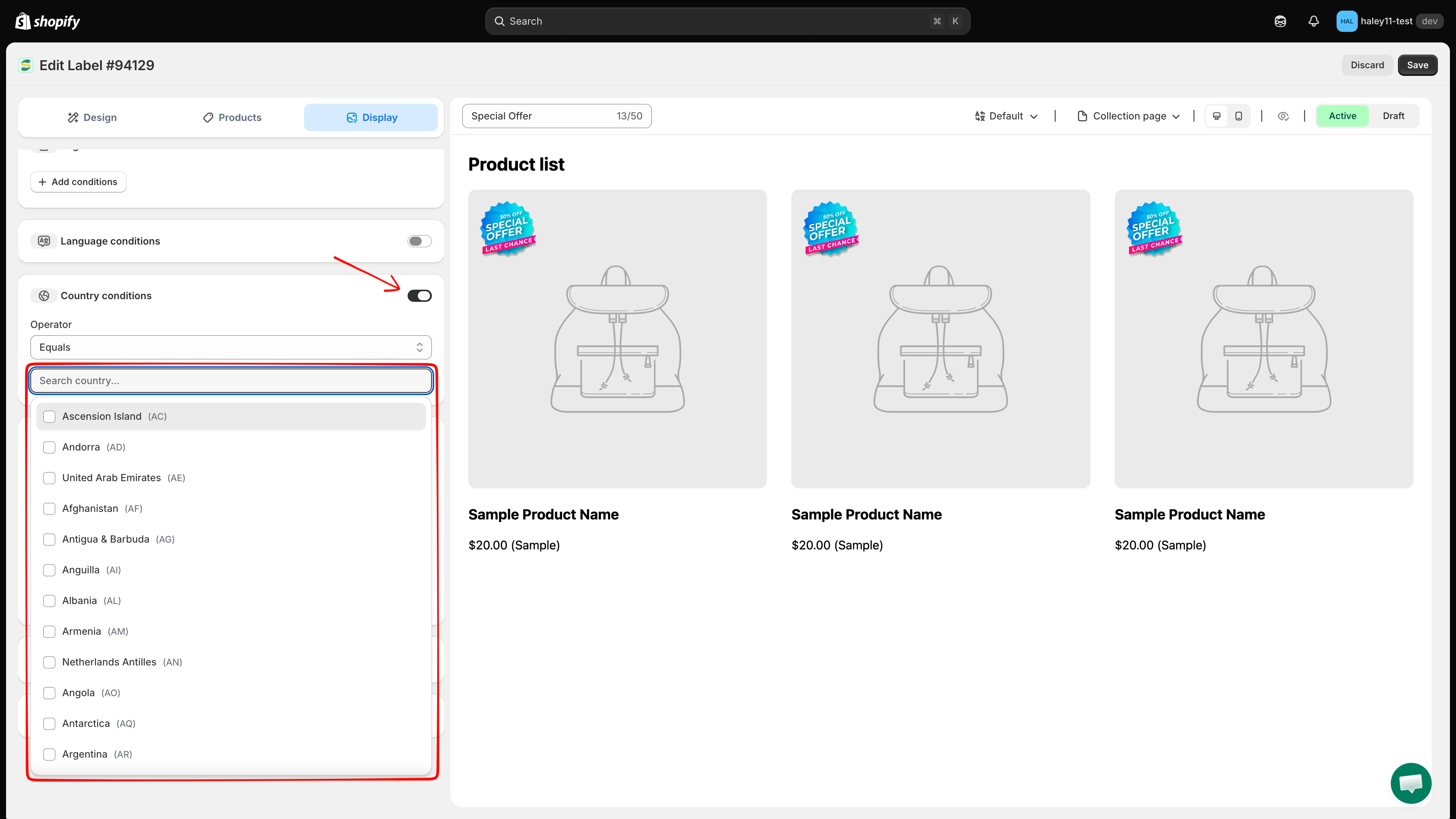
## Turn on Country conditions

Click the toggle on the right of the **Country conditions** row. The section expands to show an **Operator** dropdown and a country search field.
{% endstep %}

{% step %}

## Choose the operator

Leave **Operator** on **Equals** to show the badge only in the countries you pick, or switch it to the opposite option to exclude them instead.
{% endstep %}

{% step %}

## Select the countries

Click **Search country...** to open the country list. Every country is listed with its ISO code — for example `Vietnam (VN)`, `South Africa (ZA)` — and each has a checkbox. Type to filter the list, then tick the countries you want.

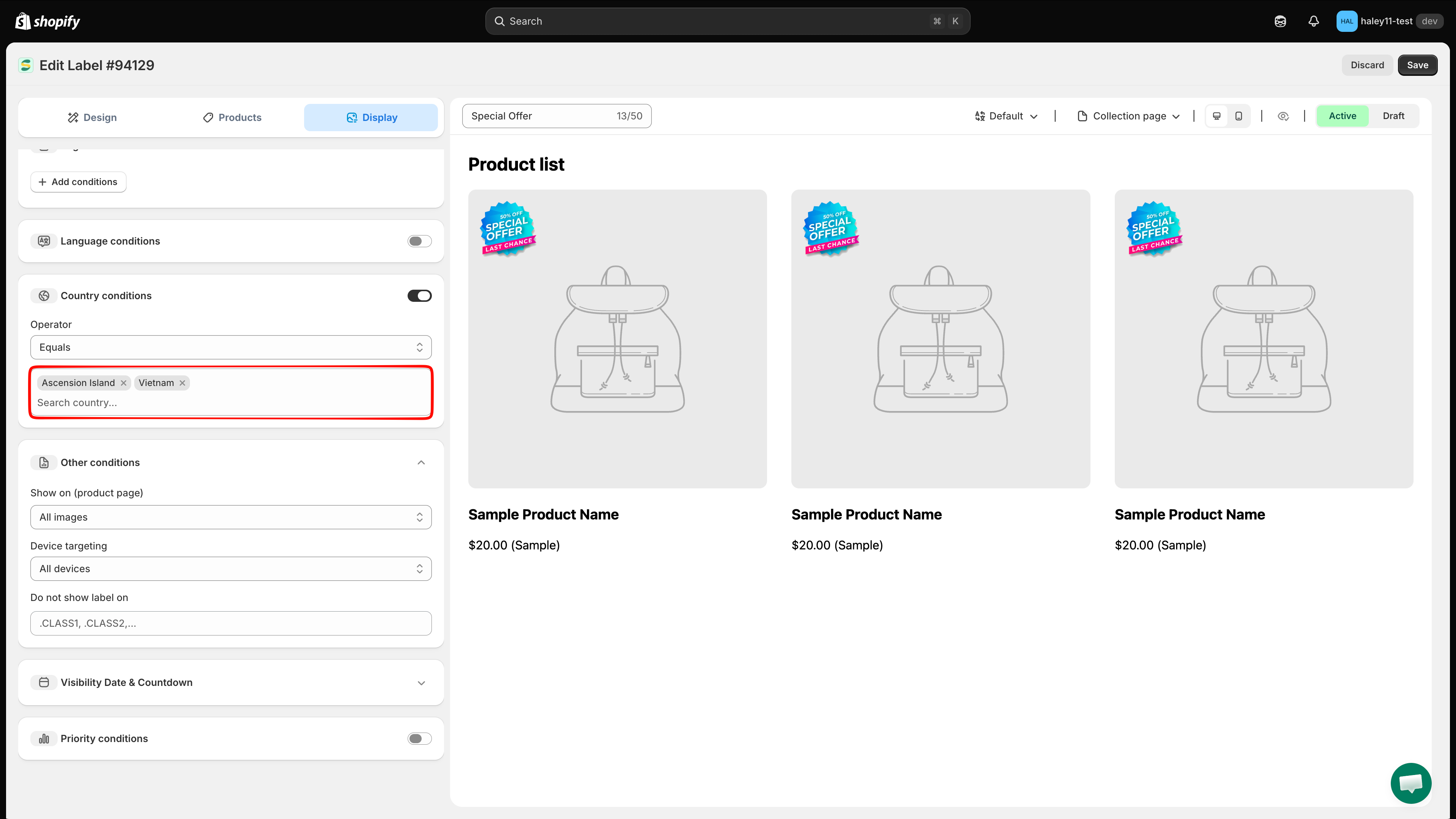
Selected countries appear as removable chips inside the field. The list stays open after each pick, so you can tick several countries in one go; remove one by clicking the **×** on its chip.

<figure><img src="https://1598842017-files.gitbook.io/~/files/v0/b/gitbook-x-prod.appspot.com/o/spaces%2F1WRTlT5AcaLSAedbCJyZ%2Fuploads%2Fgit-blob-6c0a74ebeae43ba9b5cf2b21d6a974ff43971296%2Fimage_72.png?alt=media" alt="Country list filtered to Vietnam with the checkbox ticked"><figcaption><p>Search the country list and tick one or more countries. Each entry shows the country name and its ISO code.</p></figcaption></figure>

<figure><img src="https://1598842017-files.gitbook.io/~/files/v0/b/gitbook-x-prod.appspot.com/o/spaces%2F1WRTlT5AcaLSAedbCJyZ%2Fuploads%2Fgit-blob-3fe5fd00ee40280e0a54a74a2ccb35ffc6f30107%2Fimage_73.png?alt=media" alt="Vietnam selected as a chip in the country field"><figcaption><p>Selected countries appear as chips you can remove with the × button.</p></figcaption></figure>
{% endstep %}

{% step %}

## Save

Click **Save** in the top-right corner. A **Badge/Label updated** confirmation appears, and the badge will only show for visitors detected in the selected countries.
{% endstep %}
{% endstepper %}

### Country targeting use cases

| Use case                          | Setup                                                               |
| --------------------------------- | ------------------------------------------------------------------- |
| **Region-specific promotion**     | Show a "Free Shipping to US" badge only for US visitors             |
| **Local holiday sale**            | Display a holiday badge only in countries where the holiday applies |
| **Compliance notice**             | Show a regulatory badge only in countries where it is required      |
| **Market-specific pricing badge** | Display "Best Price in EU" only for European customers              |

## Language targeting

Language targeting shows badges only when the storefront is viewed in a selected language.

### How to set up language targeting

{% stepper %}
{% step %}

## Open the Display tab

In the badge editor, open **Display**. **Language conditions** sits just above **Country conditions**.
{% endstep %}

{% step %}

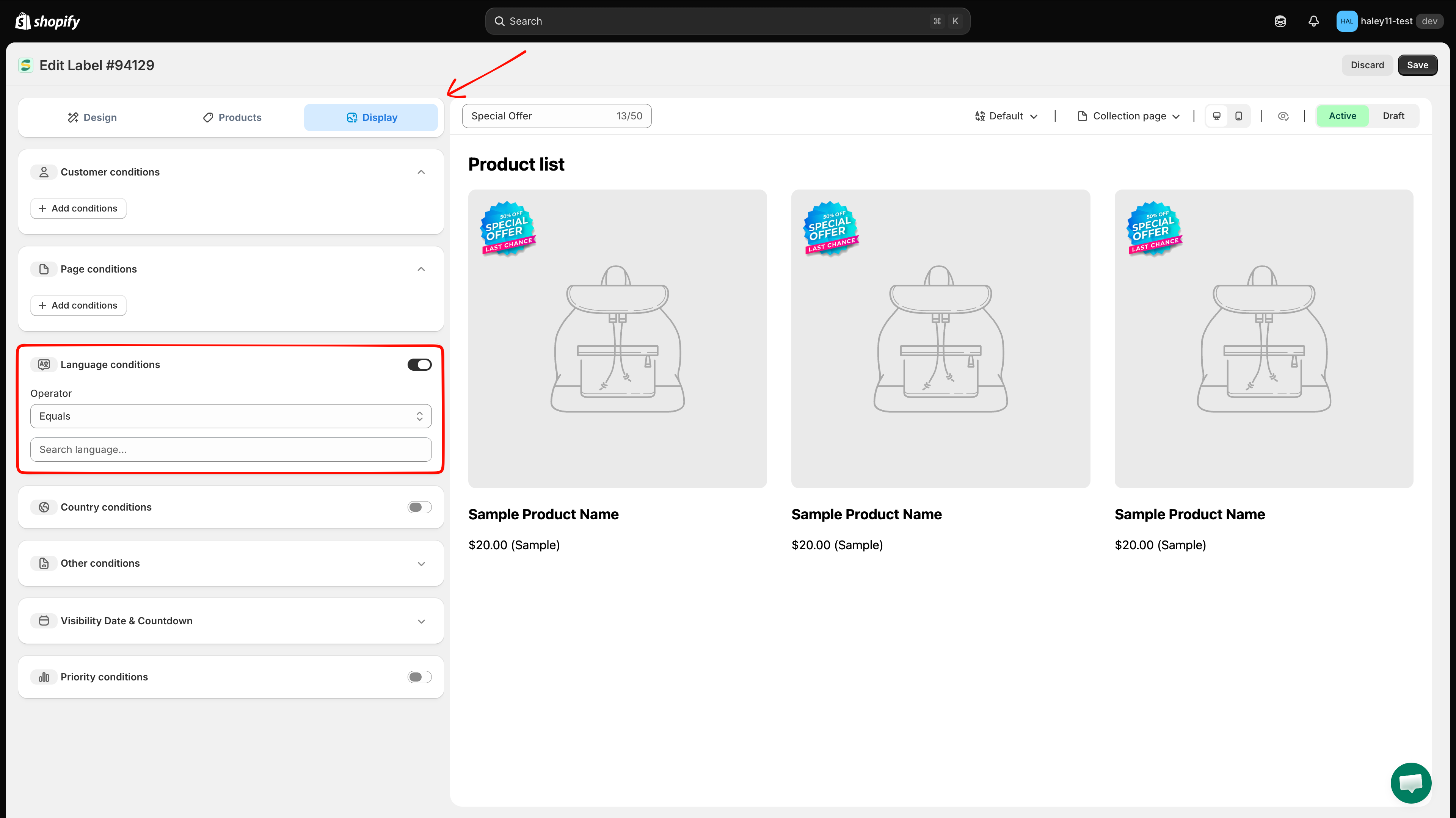
## Turn on Language conditions

Click the toggle on the **Language conditions** row. The section expands to show an **Operator** dropdown and a language search field.

<figure><img src="https://1598842017-files.gitbook.io/~/files/v0/b/gitbook-x-prod.appspot.com/o/spaces%2F1WRTlT5AcaLSAedbCJyZ%2Fuploads%2Fgit-blob-63bdcf707d1f57c2f152365088761227c4e341de%2Fimage_74.png?alt=media" alt="Language conditions toggle switched on"><figcaption><p>Turn on the Language conditions toggle to reveal the operator and language list.</p></figcaption></figure>
{% endstep %}

{% step %}

## Choose the operator

Leave **Operator** on **Equals** to show the badge only in the languages you pick, or switch it to the opposite option to exclude them instead.
{% endstep %}

{% step %}

## Select the languages

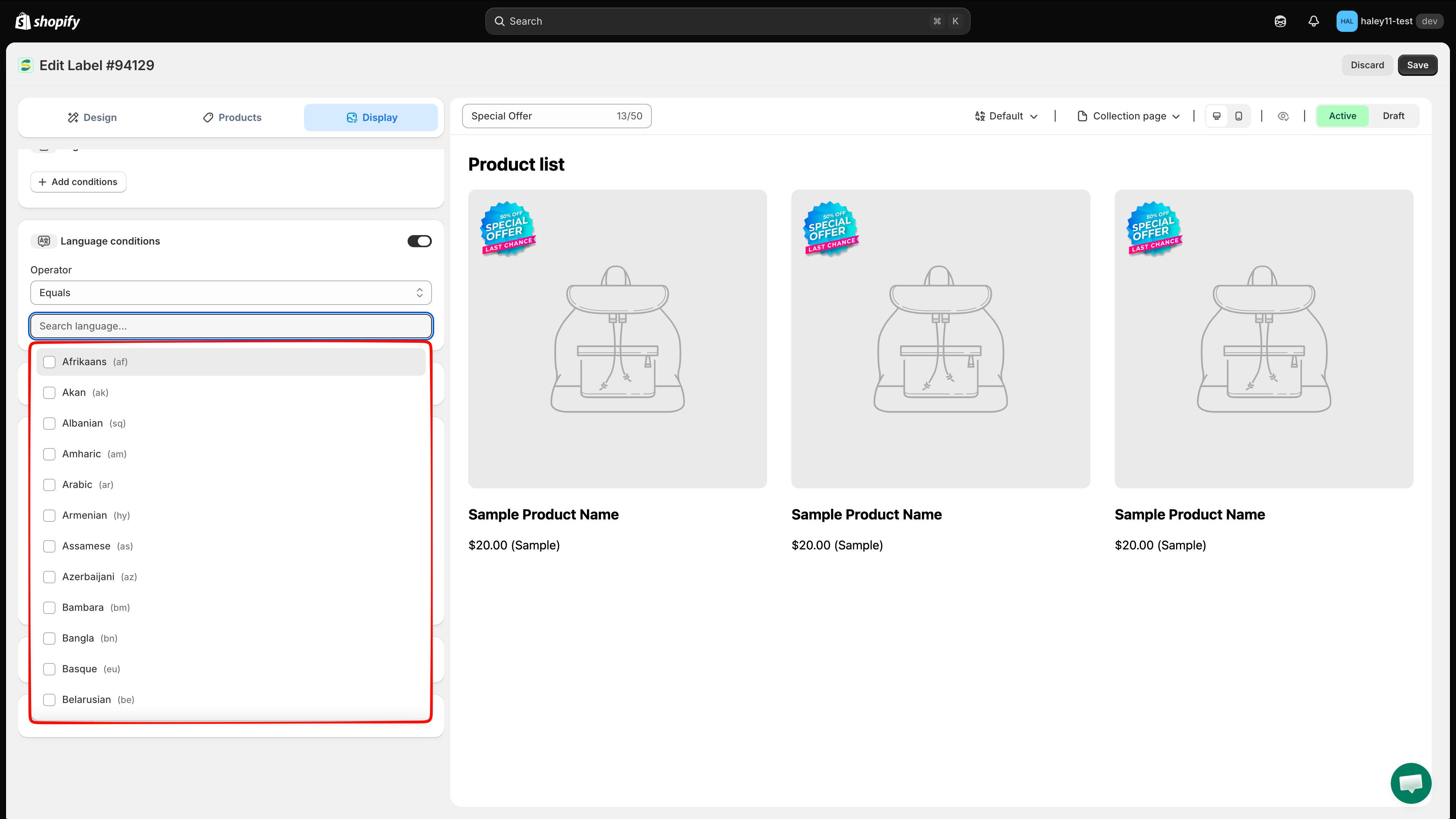
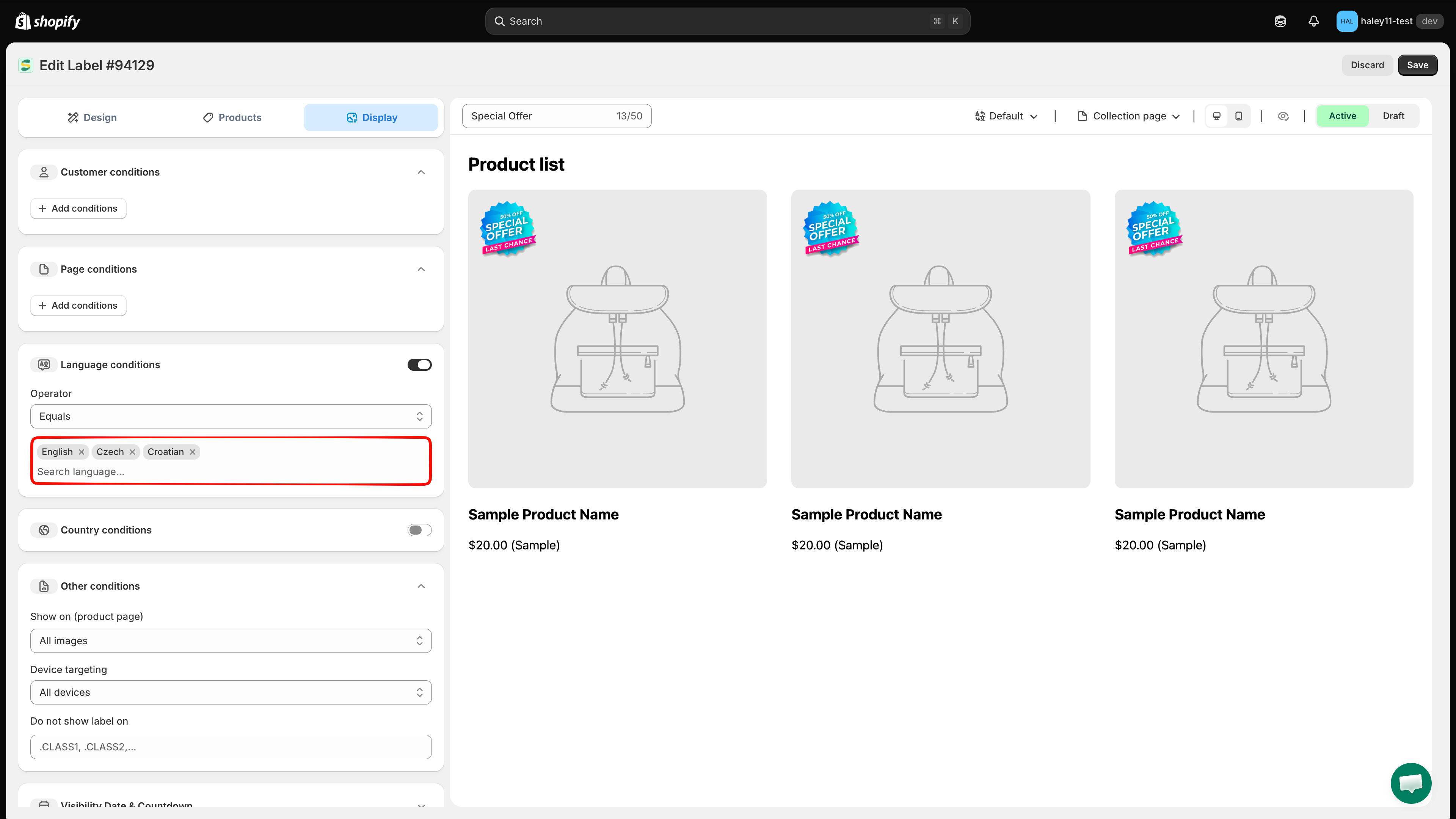
Click **Search language...** to open the language list. Languages are listed with their ISO codes — `English (en)`, `German (de)`, `Hindi (hi)` — with a checkbox each. Type to filter, then tick the languages you want.

Selected languages appear as removable chips inside the field.

<figure><img src="https://1598842017-files.gitbook.io/~/files/v0/b/gitbook-x-prod.appspot.com/o/spaces%2F1WRTlT5AcaLSAedbCJyZ%2Fuploads%2Fgit-blob-bdf77ded903cf5be7cdffbd5c62c7ae4b644355b%2Fimage_75.png?alt=media" alt="Language list showing languages with ISO codes"><figcaption><p>The language list covers all ISO languages, not only the ones published in your store.</p></figcaption></figure>

<figure><img src="https://1598842017-files.gitbook.io/~/files/v0/b/gitbook-x-prod.appspot.com/o/spaces%2F1WRTlT5AcaLSAedbCJyZ%2Fuploads%2Fgit-blob-45394a5a3b0edea80c4b0c20bb2d570b1c0a8c81%2Fimage_76.png?alt=media" alt="English selected as a chip in the language field"><figcaption><p>Example: target the badge to visitors browsing the English version of the store.</p></figcaption></figure>
{% endstep %}

{% step %}

## Save

Click **Save** in the top-right corner. The badge will only appear when the store is viewed in the selected languages.
{% endstep %}
{% endstepper %}

### Language targeting use cases

| Use case                       | Setup                                                                  |
| ------------------------------ | ---------------------------------------------------------------------- |
| **Localized promotion**        | Show a badge with French text only on the French version of your store |
| **Language-specific campaign** | Run a promotion visible only to Spanish-speaking customers             |
| **Translated badge content**   | Create separate badges for each language with matching translated text |

{% hint style="warning" %}
The language list contains every ISO language, not just the ones your store publishes. Picking a language you have not published means the badge will never appear — confirm the locale is live in your Shopify **Markets** and **Languages** settings first.
{% endhint %}

## Combining country and language conditions

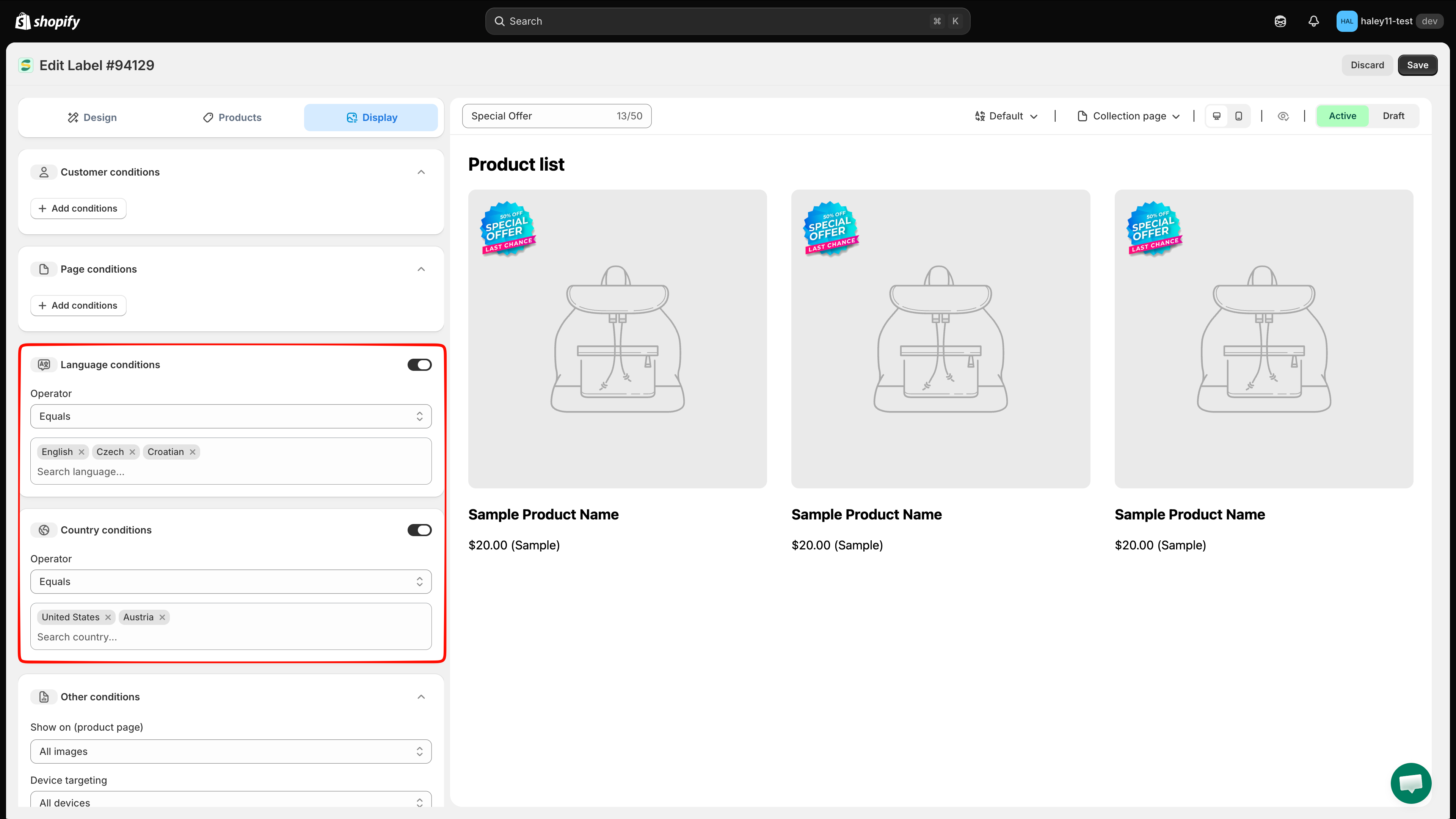
Country and language conditions can be turned on at the same time and are saved together. They also work alongside the product scope from the **Products** tab. For example:

* **Country** is "Canada" **AND** **Language** is "French"
* Result: The badge appears only for visitors in Canada who are viewing the store in French.

Useful for multilingual markets like Canada, Belgium, or Switzerland.

<figure><img src="https://1598842017-files.gitbook.io/~/files/v0/b/gitbook-x-prod.appspot.com/o/spaces%2F1WRTlT5AcaLSAedbCJyZ%2Fuploads%2Fgit-blob-1fa6dced661493ca6db2cdf25158b74731f2957f%2Fimage_77.png?alt=media" alt="Language and Country conditions both enabled in the Display tab"><figcaption><p>Both sections turned on at once: the visitor must match the language rule and the country rule.</p></figcaption></figure>

{% hint style="warning" %}
Turning a toggle off **clears** the countries or languages you had selected — switching it back on gives you an empty list. Don't use the toggle to pause a rule you plan to reuse; you would have to pick everything again.

If you turned a toggle off by mistake, click **Discard** (next to **Save**) and confirm **Discard changes** to restore the last saved setup.
{% endhint %}

## Next steps

* [Target by variant & metafield](/badges-and-labels/target-by-variant-metafield.md) — Target badges based on product variants and metafield values.
* [Target by product attribute](/badges-and-labels/target-by-attribute.md) — Filter badges by product title, type, vendor, price, and more.

{% hint style="success" %}
**Need support?**

If you run into any difficulty while following these steps, contact us at <support@samita.io>.
{% endhint %}


---

# Agent Instructions
This documentation is published with GitBook. GitBook is the documentation platform designed so that both humans and AI agents can read, navigate, and reason over technical content effectively. Learn more at gitbook.com.

## Querying This Documentation
If you need additional information that is not directly available in this page, you can query the documentation dynamically by asking a question.

Perform an HTTP GET request on the current page URL with the `ask` query parameter, and the optional `goal` query parameter:

```
GET https://docs.samita.io/badges-and-labels/target-by-country-language.md?ask=<question>&goal=<endgoal>
```

`ask` is the immediate question: it should be specific, self-contained, and written in natural language.
`goal` is optional and describes the broader end goal you are ultimately trying to accomplish on behalf of the user. GitBook uses it to tailor the answer towards what is most useful for that goal.

The response will contain a direct answer to the question and relevant excerpts and sources from the documentation.

Use this mechanism when the answer is not explicitly present in the current page, you need clarification or additional context, or you want to retrieve related documentation sections.