> For the complete documentation index, see [llms.txt](https://docs.samita.io/llms.txt). Markdown versions of documentation pages are available by appending `.md` to page URLs; this page is available as [Markdown](https://docs.samita.io/badges-and-labels/target-by-customer.md).

# Target by customer

Show badges to specific customer segments based on login status, order history, spending, tags, and more.

Customer-based targeting lets you show different badges depending on who is browsing your store — login status, order count, spend, and other customer attributes.

## Available customer conditions

| Condition type            | Operators                                                      | Value field                                              |
| ------------------------- | -------------------------------------------------------------- | -------------------------------------------------------- |
| **Customer**              | Is Logged In / Not Logged In                                   | —                                                        |
| **Customer tag**          | is equal to / is not equal to                                  | Multi-select list of your existing Shopify customer tags |
| **Customer order count**  | is equal to / is not equal to / is greater than / is less than | Number                                                   |
| **Customer total spent**  | is equal to / is not equal to / is greater than / is less than | Number                                                   |
| **Customer purchase**     | Product already purchased / Product not purchased              | —                                                        |
| **Customer company name** | is equal to / is not equal to                                  | Text                                                     |

{% hint style="info" %}
There is no **contains** or **starts with** operator for customer conditions. **Customer tag** and **Customer company name** only support exact matching (**is equal to** / **is not equal to**).
{% endhint %}

{% hint style="info" %}
**Customer purchase** checks whether the customer has ever placed an order in your store — it is not tied to any particular product. **Product already purchased** matches customers with at least one past purchase; **Product not purchased** matches customers who have never bought anything.
{% endhint %}

## How to set up customer targeting

{% stepper %}
{% step %}

## Open the Display tab

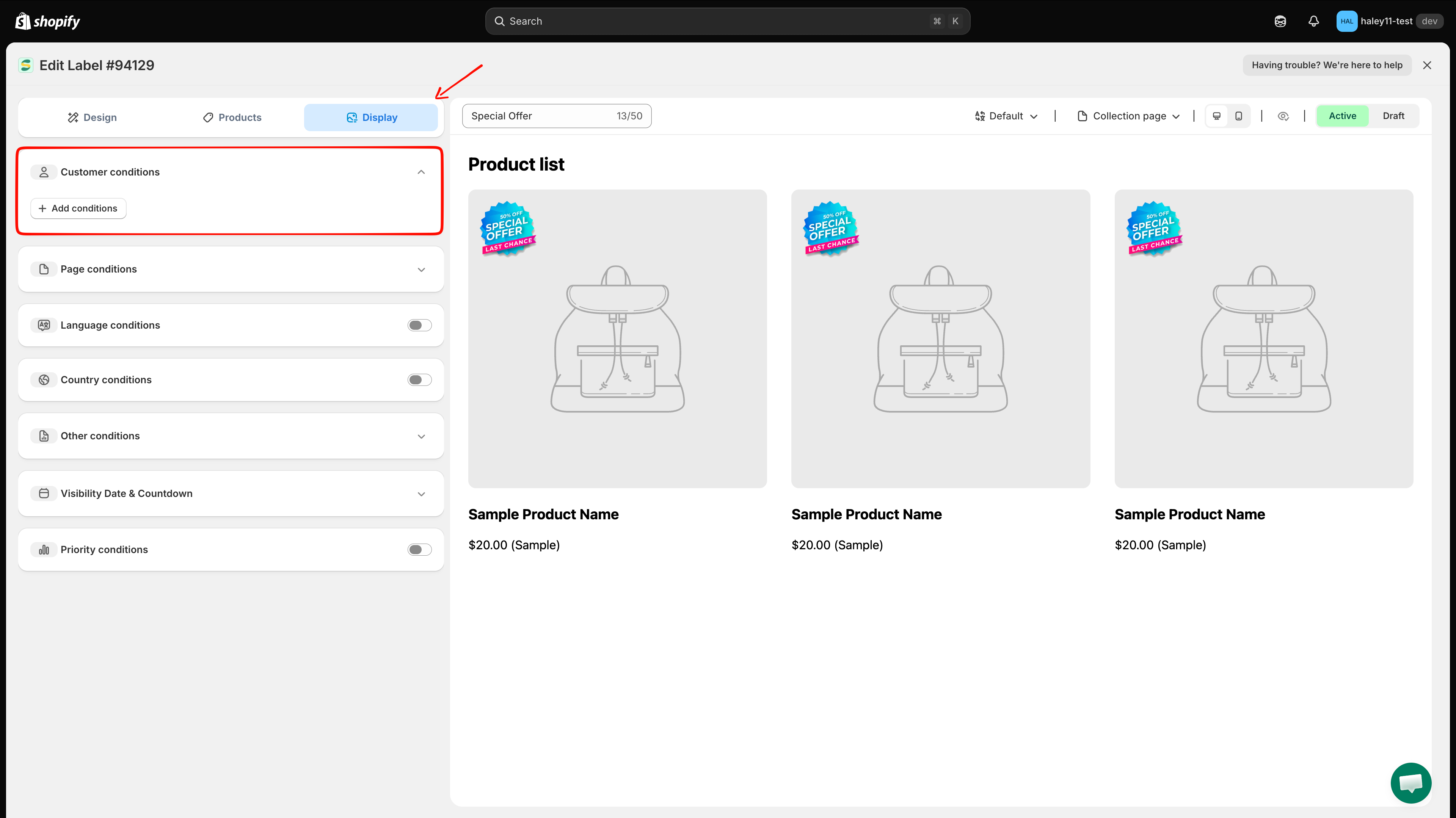
In the badge editor, open **Display**, then expand **Customer conditions**.

<figure><img src="https://1598842017-files.gitbook.io/~/files/v0/b/gitbook-x-prod.appspot.com/o/spaces%2F1WRTlT5AcaLSAedbCJyZ%2Fuploads%2Fgit-blob-1e443be91917cb529ee1e3919642a683ee01cc3c%2Fimage_67.png?alt=media" alt="Display tab with the Customer conditions section expanded"><figcaption><p>Open the Display tab and expand Customer conditions.</p></figcaption></figure>
{% endstep %}

{% step %}

## Add a customer condition

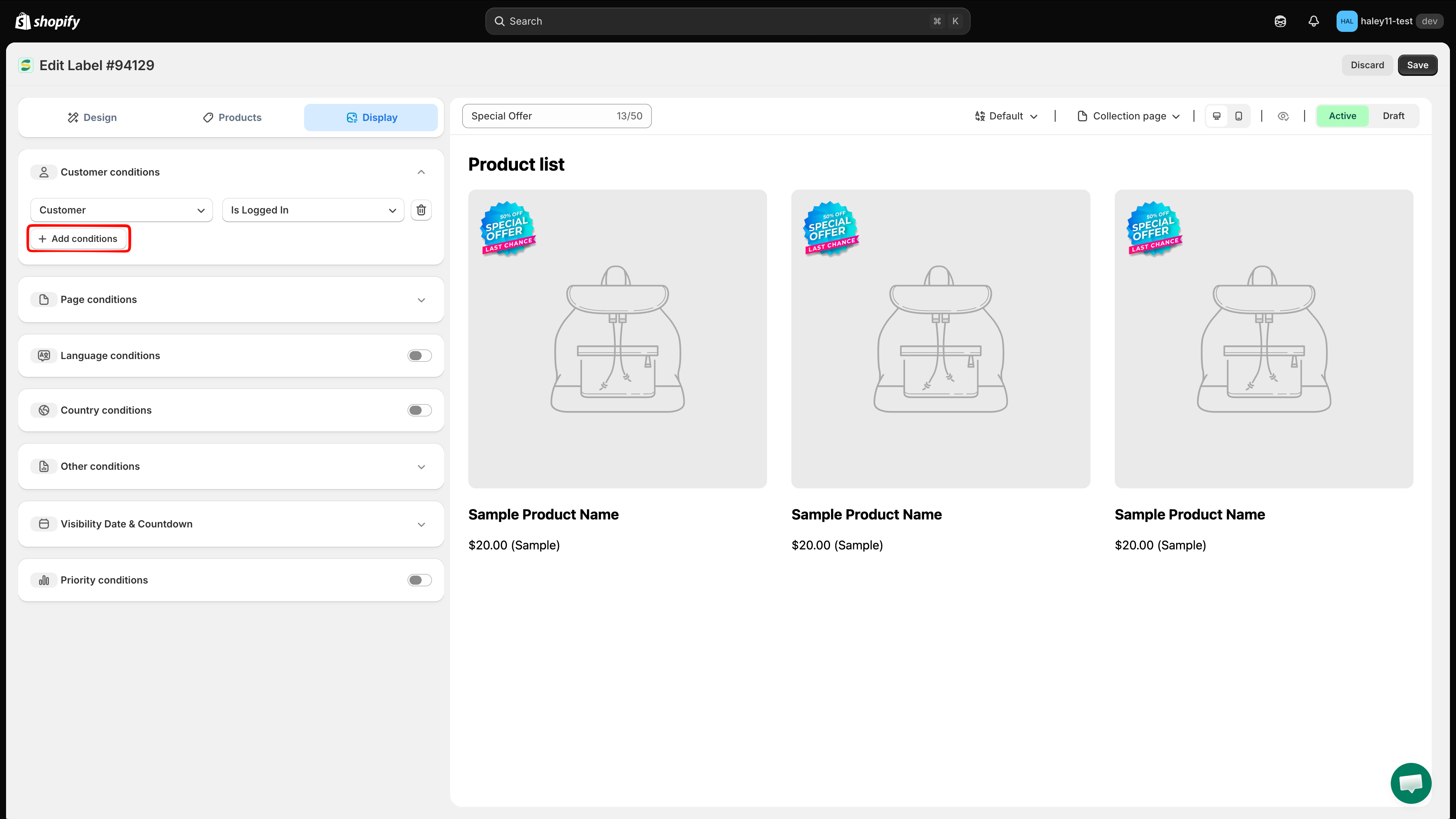
Click **Add conditions**. A new rule row appears, pre-filled with **Customer** / **Is Logged In**. Open the first dropdown to choose a different customer condition.

<figure><img src="https://1598842017-files.gitbook.io/~/files/v0/b/gitbook-x-prod.appspot.com/o/spaces%2F1WRTlT5AcaLSAedbCJyZ%2Fuploads%2Fgit-blob-eda45e93590102a06e4fe717e2abe9c9a96105f7%2Fimage_68.png?alt=media" alt="Customer condition menu in the Display tab"><figcaption><p>Choose Customer, Customer tag, Customer order count, Customer total spent, Customer purchase, or Customer company name.</p></figcaption></figure>
{% endstep %}

{% step %}

## Configure the operator and value

Choose the operator in the second dropdown, then enter or select the value in the third field. For example, set **Customer order count** to **is greater than** with a value of **10**.

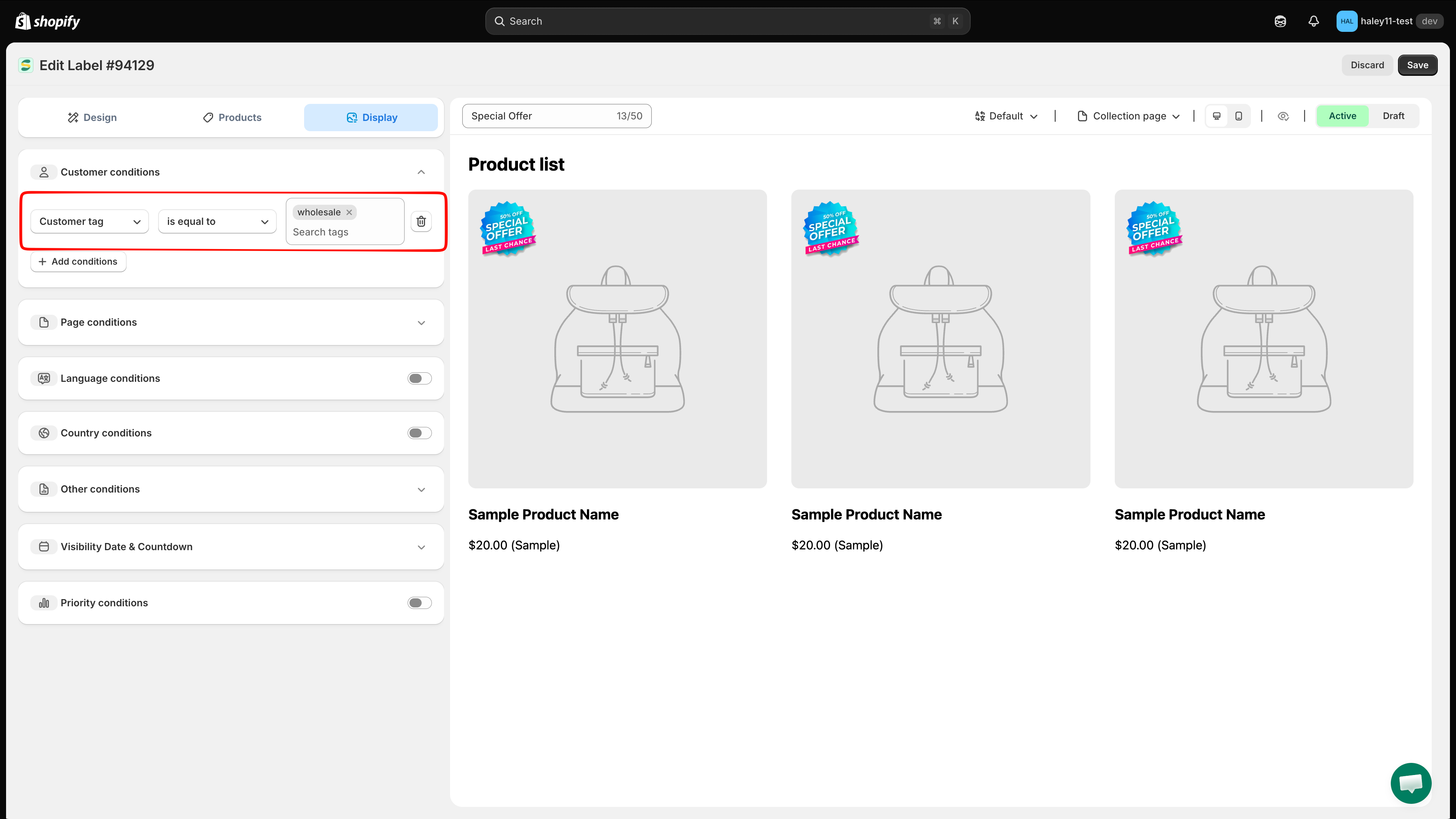
For **Customer tag**, the third field is a searchable list of the customer tags that already exist in your store — tick one or more tags instead of typing free text.

**Customer** and **Customer purchase** have no third field: the operator alone defines the rule. **Customer purchase** looks at whether the customer has bought anything before, so there is no product to pick.

<figure><img src="https://1598842017-files.gitbook.io/~/files/v0/b/gitbook-x-prod.appspot.com/o/spaces%2F1WRTlT5AcaLSAedbCJyZ%2Fuploads%2Fgit-blob-7531ed4100837301e547adaba6f5faf04b694179%2Fimage_69.png?alt=media" alt="Show the badge to customers whose tag equals wholesale"><figcaption><p>Example: show the badge to customers whose tag equals wholesale.</p></figcaption></figure>
{% endstep %}

{% step %}

## Add more conditions (optional)

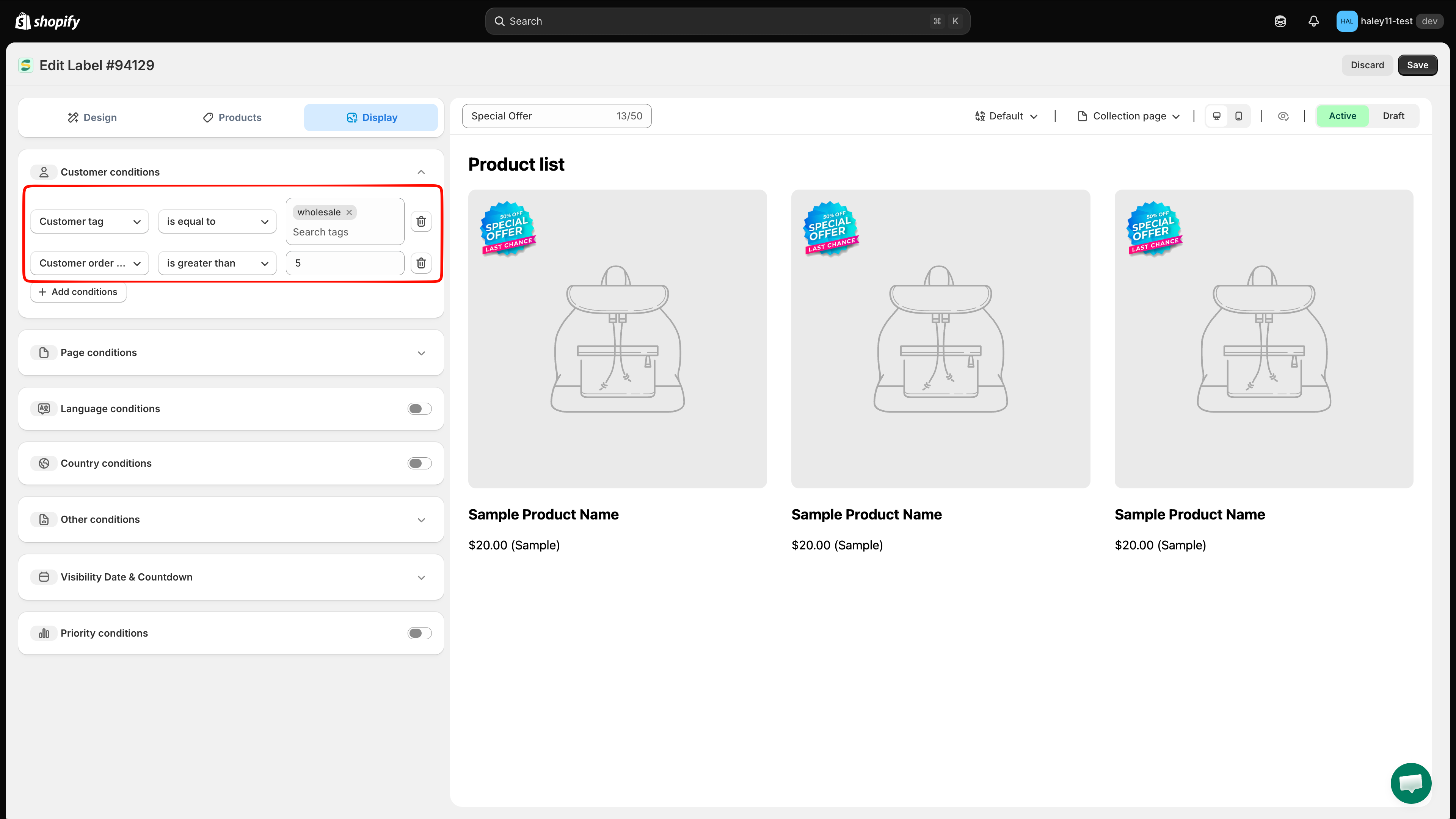
Click **Add conditions** again to stack more rules. Customer conditions are always combined with **AND** — a shopper must match **every** customer rule you add. There is no any/all switch in this section.

<figure><img src="https://1598842017-files.gitbook.io/~/files/v0/b/gitbook-x-prod.appspot.com/o/spaces%2F1WRTlT5AcaLSAedbCJyZ%2Fuploads%2Fgit-blob-613edcd3f67262b83910e63249aaff0db482c845%2Fimage_70.png?alt=media" alt="Two customer conditions stacked in the Customer conditions section"><figcaption><p>Multiple customer conditions must all match.</p></figcaption></figure>
{% endstep %}

{% step %}

## Save

Click **Save** to apply the customer targeting. The badge will only appear for visitors who match your conditions.
{% endstep %}
{% endstepper %}

{% hint style="warning" %}
Customer conditions that rely on account data (order count, total spent, purchase history, tags, company name) only work for **logged-in customers**. Visitors who are not logged in will not match these conditions.
{% endhint %}

## Use cases and examples

### VIP badge for loyal customers

Show a "VIP" or "Loyal Customer" badge to shoppers who have placed 10 or more orders:

* **Condition:** Customer order count **is greater than** 9
* **Result:** Logged-in customers with 10+ orders see the VIP badge on targeted products.

{% hint style="info" %}
There is no "greater than or equal to" operator, so use **is greater than** with the value one below your threshold.
{% endhint %}

### Welcome back badge for returning visitors

Display a "Welcome Back" badge for any customer who is logged in:

* **Condition:** Customer **Is Logged In**
* **Result:** All logged-in customers see a personalized welcome badge.

### Exclusive deal for high spenders

Show a "Special Price" badge to customers who have spent over $500:

* **Condition:** Customer total spent **is greater than** 500
* **Result:** High-value customers see exclusive pricing badges.

### Wholesale badge for B2B customers

Display wholesale pricing badges for customers who belong to a specific company:

* **Condition:** Customer company name **is equal to** "Wholesale Partners Ltd"
* **Result:** B2B customers from that company see relevant badges.

{% hint style="info" %}
The company name must match exactly. To cover several companies, add a separate badge for each one — customer conditions inside a single badge are combined with AND, so stacking two company names in one badge would never match.
{% endhint %}

### Tag-based targeting

Use Shopify customer tags to target a saved customer segment:

* **Condition:** Customer tag **is equal to**, then tick **VIP** in the tag list
* **Result:** Only customers tagged VIP in Shopify see the badge.

### Welcome offer for first-time buyers

Show a "First Order Discount" badge only to customers who have never bought from you:

* **Condition:** Customer purchase **Product not purchased**
* **Result:** The badge appears only for logged-in customers with no purchase history.

### Thank-you badge for existing customers

Show a "Thanks for coming back" badge to anyone who has ordered before:

* **Condition:** Customer purchase **Product already purchased**
* **Result:** The badge appears for logged-in customers with at least one past order.

## Combining customer and product conditions

You can combine customer conditions with product attribute conditions in the same badge. For example:

* **Customer order count** is greater than 5 **AND** **Product type** is equal to "Premium"
* Result: Only returning customers with 5+ orders see the badge, and only on premium products.

Set the product scope separately in **Products** and the customer rule in **Display**. A shopper must satisfy the customer rule while viewing a product included by the product scope. The **all conditions / any condition** selector described in [Target by product attribute](/badges-and-labels/target-by-attribute.md) belongs to product matching rules only — it does not apply to customer conditions.

## Next steps

* [Target by product attribute](/badges-and-labels/target-by-attribute.md) — Filter badges based on product title, type, vendor, price, and more.
* [Target by country & language](/badges-and-labels/target-by-country-language.md) — Show badges for visitors from specific countries or store languages.

{% hint style="success" %}
**Need support?**

If you run into any difficulty while following these steps, contact us at <support@samita.io>.
{% endhint %}


---

# Agent Instructions
This documentation is published with GitBook. GitBook is the documentation platform designed so that both humans and AI agents can read, navigate, and reason over technical content effectively. Learn more at gitbook.com.

## Querying This Documentation
If you need additional information that is not directly available in this page, you can query the documentation dynamically by asking a question.

Perform an HTTP GET request on the current page URL with the `ask` query parameter, and the optional `goal` query parameter:

```
GET https://docs.samita.io/badges-and-labels/target-by-customer.md?ask=<question>&goal=<endgoal>
```

`ask` is the immediate question: it should be specific, self-contained, and written in natural language.
`goal` is optional and describes the broader end goal you are ultimately trying to accomplish on behalf of the user. GitBook uses it to tailor the answer towards what is most useful for that goal.

The response will contain a direct answer to the question and relevant excerpts and sources from the documentation.

Use this mechanism when the answer is not explicitly present in the current page, you need clarification or additional context, or you want to retrieve related documentation sections.