For the complete documentation index, see llms.txt. This page is also available as Markdown.

Show badges from your review app

Show a badge only on the products that reach the rating or review count you pick, and print the live rating on the badge itself.

Your review app already knows which products customers love. The Product review app condition lets a badge read those numbers, so Top rated only appears on the products that earned it — and the badge can print the rating and review count itself.

Nothing to install or connect. The app reads the review data your review app already writes onto each product, so a badge starts working as soon as you save it.

Supported review apps

Review app

Judge.me Reviews

Loox Reviews

Junip

CWILL(Trustoo) Reviews

LAI Product Reviews

AG Product Reviews

What you can match on

The condition measures one of two things about a product:

Review condition
Meaning
Value you enter

Number of reviews

How many reviews the product has.

A whole number, such as 50.

Product rating

The product's average star rating.

0 to 5, in steps of 0.1 — such as 4.5.

Each one takes an operator: is equal to, is greater than, or is less than.

Set up a review badge

1

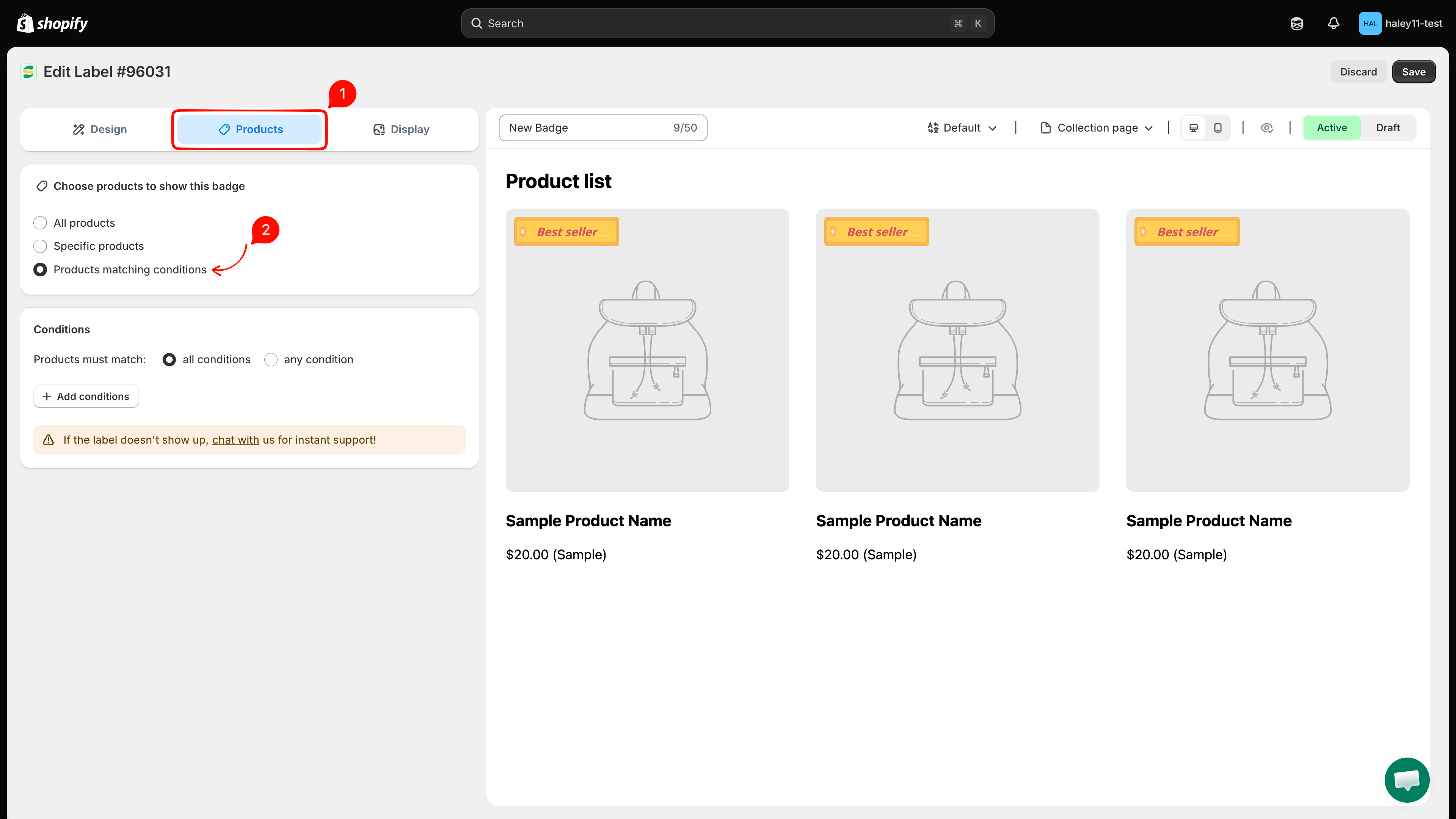
Open the badge and go to the Products tab

Open a badge from Badges and Labels, or create a new one, then click the Products tab.

Select Products matching conditions as the targeting mode — the review condition lives in the condition list, so the other two modes do not offer it.

The Products tab with the three targeting modes and Products matching conditions selected
The review condition is only available under Products matching conditions.
2

Add the Product review app condition

Click Add conditions, open the field dropdown, and pick Product review app from the Product review conditions group.

The condition field dropdown open, showing the Product review conditions group with Product review app
Product review app sits in its own group at the bottom of the field list.

The operator is fixed to is equal to — the comparison that decides the match is the one you set in the next step.

3

Choose your review app

The value dropdown starts empty and reads Select a review app. Open it and pick the app your store runs; each option carries the app's logo so it is easy to spot.

The review app dropdown listing Judge.me, Loox, Junip, CWILL(Trustoo), LAI, and AG Product Reviews with their logos
Pick the app that holds your reviews — the badge reads its data on your storefront.
One review app per badge. Once a badge uses the condition, Product review app is greyed out on every other condition row — a second one could only ever narrow or contradict the first. To badge two apps, create two badges.

4

Set the rating or review count

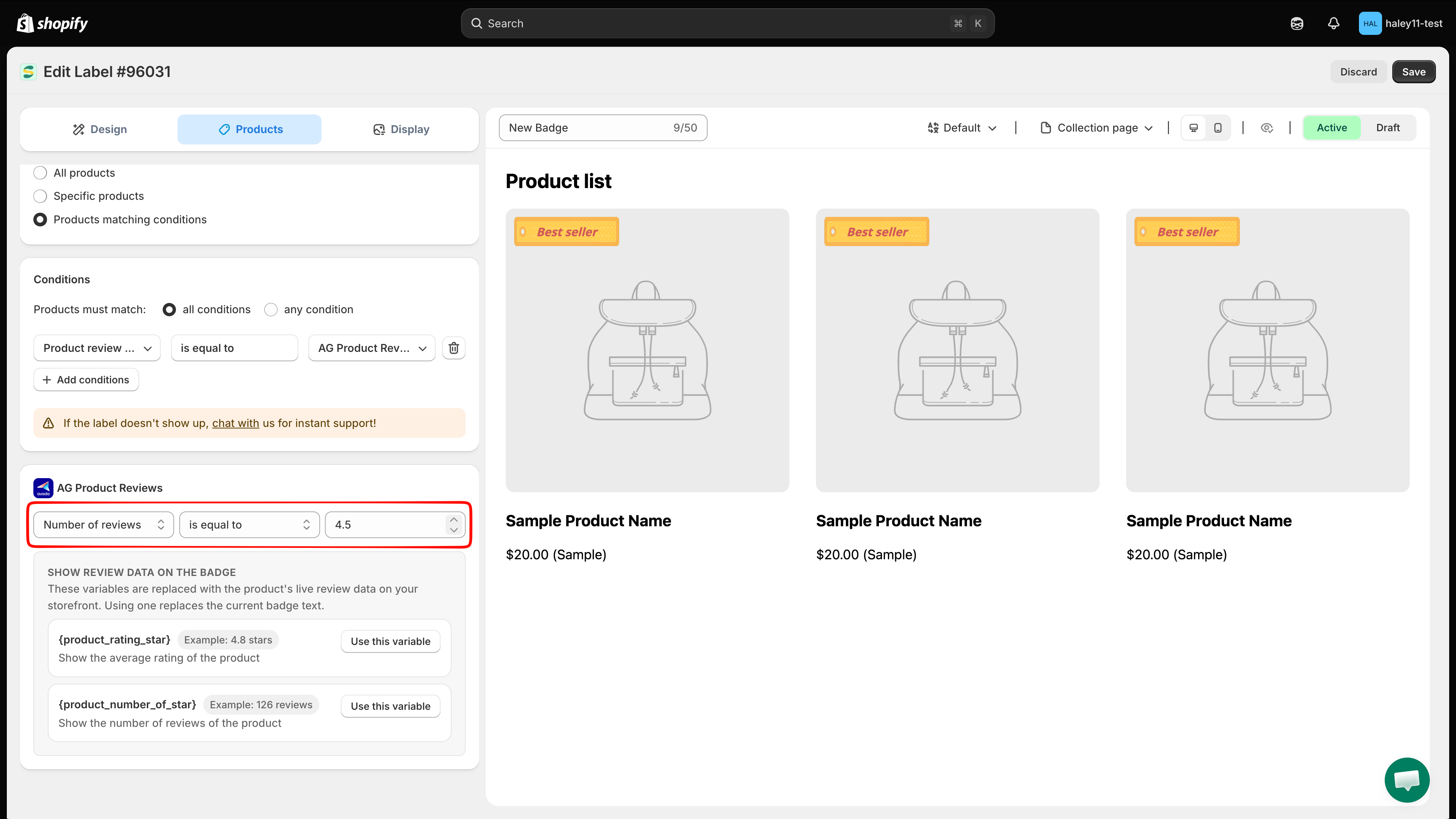
Picking an app reveals a new section below the conditions, headed by the app's name and logo. It holds three fields:

  • Review condition — Number of reviews or Product rating.

  • Operator — is equal to, is greater than, or is less than.

  • Enter value — the number to compare against.

The review settings section with the app logo and the Review condition, Operator, and Enter value fields
Read the three fields as a sentence: Product rating is greater than 4.5.

The value field adapts to what you are measuring: Product rating accepts 0 to 5 in steps of 0.1, while Number of reviews takes whole numbers.

5

Save and enable the badge

Click Save & Enable. The badge starts appearing on the matching products.

Two variables put the product's own review numbers into a text badge:

Variable
Prints
Example output

{product_rating_star}

The product's average rating, always to one decimal.

4.8

{product_number_of_star}

How many reviews the product has.

126

The quickest way: Use this variable

For a text badge, the review section itself carries a Show review data on the badge box with both variables and a Use this variable button beside each.

The Show review data on the badge box listing both review variables with a Use this variable button on each row
One click writes the variable into the badge, ready to preview.

Clicking it writes ready-made text into the badge — {product_rating_star} star or {product_number_of_star} reviews.

From Insert dynamic text

You can also open Insert dynamic text in the badge's text settings and find both variables under the Advanced tab — or search for review, rating, or star. Select one and click Insert text: it is added to the end of the badge text, so the wording you already wrote stays put.

The Insert dynamic text modal on the Advanced tab with the two review variables listed
Insert dynamic text keeps your existing wording and adds the variable to the end.

The variables need the condition

A review variable has no value on its own — the badge has to be scoped to a review app first, so the storefront knows which app to read from.

Use a review variable without the Product review app condition and the save is blocked, with a banner naming the variable:

{product_rating_star} only has a value when the badge/label is shown for a product reviewed with the app selected in the condition. Add the 'Product review app' condition in Products > Matching conditions, or remove the variable from the content.

The banner blocking the save because a review variable is used without the Product review app condition
Either add the condition on the Products tab, or take the variable out of the badge text.

The variables modal warns you earlier: a review variable's row carries the same note in red before you ever click Save.

What your customers see

  • Ratings are shown to one decimal. A perfect score prints as 5.0, the way review apps display an average themselves.

  • A product with no reviews shows no badge. Rather than printing stars with nothing in front of it, the app hides the whole badge. That also covers a product whose reviews were all deleted — review apps leave the old average behind, and advertising 4.0 stars for a product nobody has reviewed is worse than showing nothing.

  • In the editor preview the variables stand in with sample numbers, so you can judge the design before any real product is involved. Your storefront always shows the product's own figures.

Worked examples

Goal
Condition
Badge text

Badge your best sellers' credibility

Product rating is greater than 4.5

⭐ Top rated

Show the score on every reviewed product

Number of reviews is greater than 0

{product_rating_star} star

Highlight social proof

Number of reviews is greater than 100

Loved by {product_number_of_star} customers

Flag perfect scores only

Product rating is equal to 5

5.0 ⭐ Perfect score

Pair the review condition with any other condition on the tab — a collection, a tag, a price — and a product has to satisfy all of them. Top rated in Winter Sale is a Collections condition plus a Product rating condition on the same badge.

Plans

The Product review app condition is available on every plan. On FREE a badge may hold only one matching condition in total, so the review condition has to be that one; GOLD and DIAMOND let you combine it with as many others as you like. See Plan comparison.

Troubleshooting

The badge does not appear on any product
  • Check the Products tab is set to Products matching conditions — the condition is ignored in the other two modes.

  • Check the value field holds a number. A saved condition with no value matches nothing.

  • Try a looser threshold. is equal to on a rating is exact: a product averaging 4.7 does not match is equal to 4.5. Use is greater than for a minimum rating.

  • Confirm the app you picked is the one holding your reviews. A badge scoped to Loox finds nothing on a store running Judge.me.

The badge appears, but the rating or count is missing

The product has no reviews in the app you selected, so there is nothing to print — and the app hides the badge rather than showing a gap. Check the product in your review app: if it shows no reviews there, the badge is behaving as intended.

The numbers are right in the app but the badge still shows nothing

Make sure the badge is enabled, not just saved. The app publishes the review fields it needs to your store when you save an enabled badge, and that is what lets your storefront read the numbers. Saving again after enabling the badge is enough; give it a moment and refresh your storefront.

I cannot select Product review app on a second condition row

That is deliberate — a badge uses one review app. The row that already holds the condition keeps it; every other row has the option greyed out. Create a second badge for a second app.

Next steps

Last updated

Was this helpful?