> For the complete documentation index, see [llms.txt](https://docs.samita.io/llms.txt). Markdown versions of documentation pages are available by appending `.md` to page URLs; this page is available as [Markdown](https://docs.samita.io/badges-and-labels/target-by-variant-metafield.md).

# Target by variant or metafield

Target badges by product variants, variant inventory, or the metafield values you have defined in Shopify.

Variant and metafield targeting gives you the most granular control over which products display your badge — target products by their variants and stock levels, or match them against custom metafield attributes you have defined in Shopify.

Both are condition types inside the **Products** tab of the badge editor, so the setup is the same as any other product condition — only the fields you fill in are different.

{% hint style="info" %}
New to condition-based targeting? Read [Target by product attribute](/badges-and-labels/target-by-attribute.md) first — it explains the condition builder, operators, and AND/OR logic that this page builds on.
{% endhint %}

## Before you start

* Open the badge you want to edit from **Badges & Labels**, or create a new one. See [Target products](/badges-and-labels/target-products.md) if you are not sure how to open the editor.
* For metafield targeting, the metafield must already exist in Shopify. Create it under **Settings → Custom data** first — see [Finding your metafield namespace and key](#finding-your-metafield-namespace-and-key).

## Available conditions

| Condition                    | What it targets                       | Typical options                                                                              |
| ---------------------------- | ------------------------------------- | -------------------------------------------------------------------------------------------- |
| **Select specific variants** | Individual variants you pick by hand  | search or browse · tick the variants that should show the badge                              |
| **Product variants**         | Whether a product has variants at all | products with variants · product has no variants                                             |
| **Variant inventory**        | Stock level of individual variants    | in stock · out of stock · stock availability greater than · stock availability less than     |
| **Product metafield**        | A metafield defined on the product    | is equal to · is not equal to · contains · does not contain · is greater than · is less than |
| **Variant metafield**        | A metafield defined on the variant    | is equal to · is not equal to · contains · does not contain · is greater than · is less than |

{% hint style="info" %}
The option list changes with the condition you pick: **Select specific variants** opens a picker so you can tick individual variants, **Product variants** offers only the two yes/no choices, inventory conditions offer stock-specific choices, and metafield conditions offer the full text and number operators.
{% endhint %}

## Product variant targeting

Show badges based on variant-level data rather than product-level data — useful when only certain sizes, colors, or configurations should trigger the badge.

### How to set up variant targeting

{% stepper %}
{% step %}

## Open the Products tab

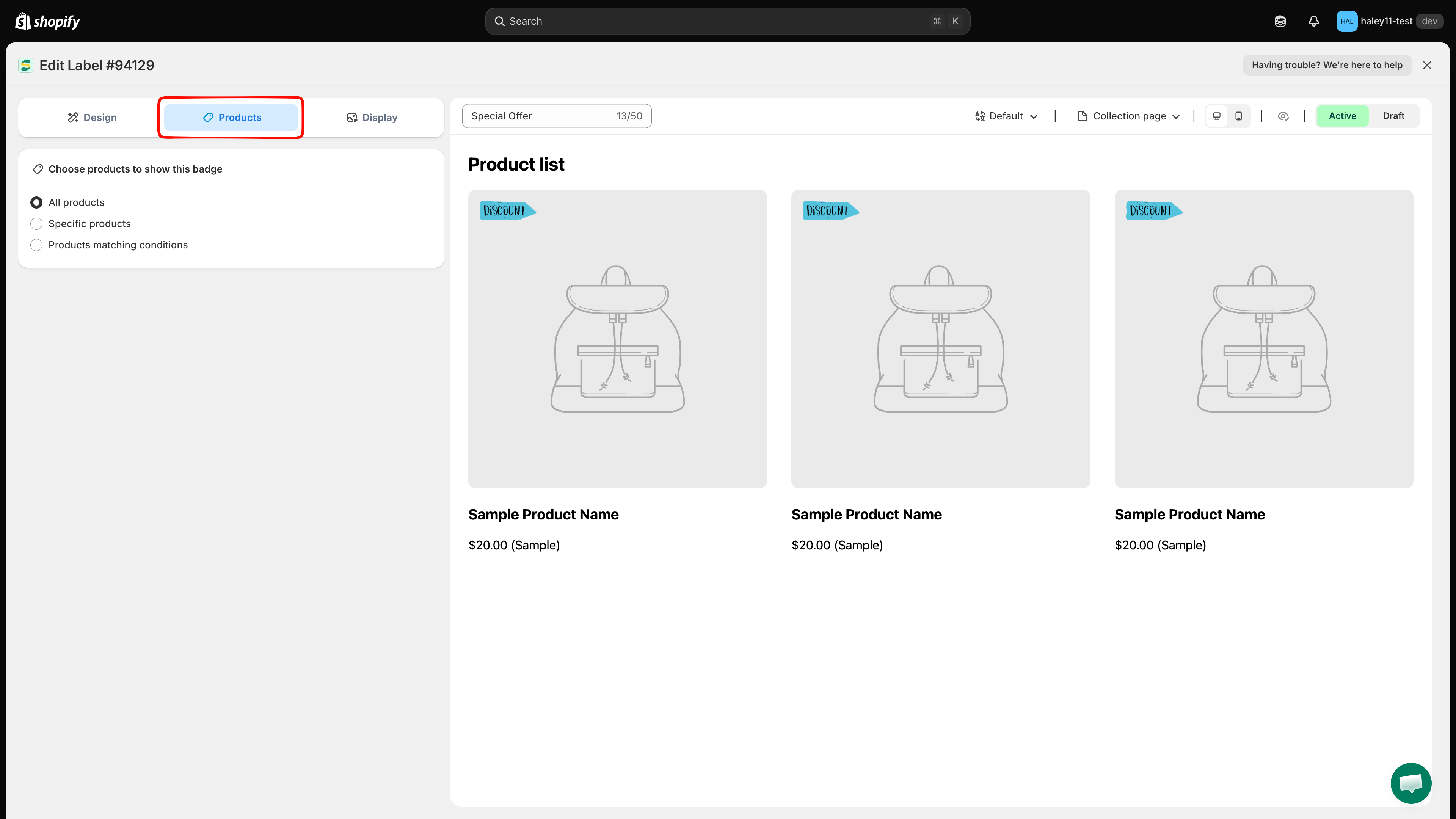
In the badge editor, click **Products** in the tab row at the top of the left panel (next to **Design** and **Display**).

<figure><img src="https://1598842017-files.gitbook.io/~/files/v0/b/gitbook-x-prod.appspot.com/o/spaces%2F1WRTlT5AcaLSAedbCJyZ%2Fuploads%2Fgit-blob-8bee4220a89305b28ac86e0cc2302236e106d21e%2Fimage_85.png?alt=media" alt="Products tab in the badge editor"><figcaption><p>The badge editor tabs: Design, Products, and Display.</p></figcaption></figure>
{% endstep %}

{% step %}

## Select "Products matching conditions"

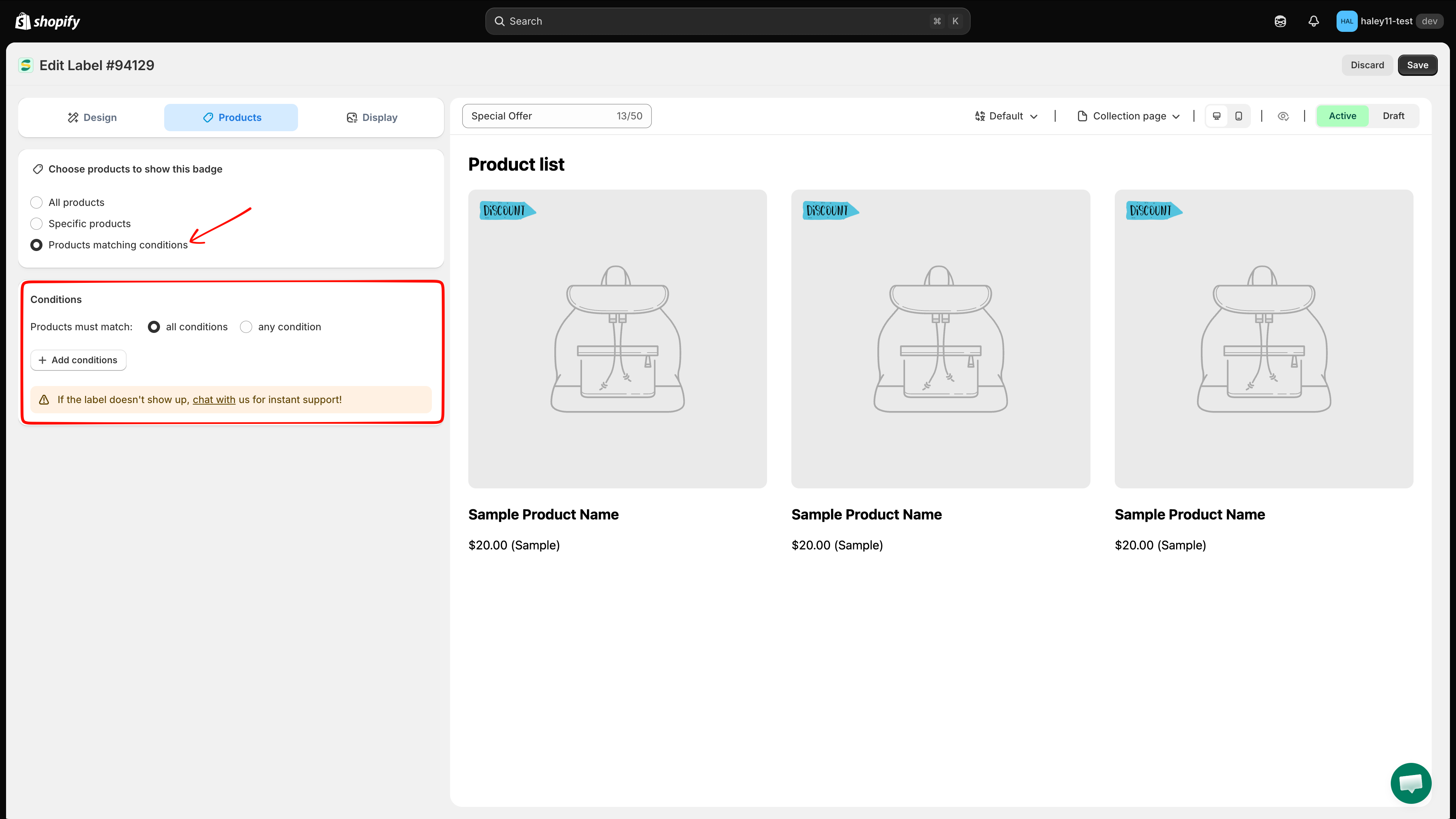
Under **Choose products to show this badge**, select **Products matching conditions**. A **Conditions** card appears below.

<figure><img src="https://1598842017-files.gitbook.io/~/files/v0/b/gitbook-x-prod.appspot.com/o/spaces%2F1WRTlT5AcaLSAedbCJyZ%2Fuploads%2Fgit-blob-27a882790176dde702d6fe4ff0f2ca74261f15d0%2Fimage_86.png?alt=media" alt="Products matching conditions selected, with the Conditions card below"><figcaption><p>Choosing Products matching conditions reveals the Conditions card.</p></figcaption></figure>
{% endstep %}

{% step %}

## Choose how the rules combine

Next to **Products must match**, pick **all conditions** (AND) or **any condition** (OR). Leave it on **all conditions** if you are adding a single rule.
{% endstep %}

{% step %}

## Add the condition

Click **+ Add conditions**, then choose **Product variants** or **Variant inventory** from the condition dropdown.
{% endstep %}

{% step %}

## Configure the condition

For **Product variants**, choose **products with variants** or **product has no variants**.

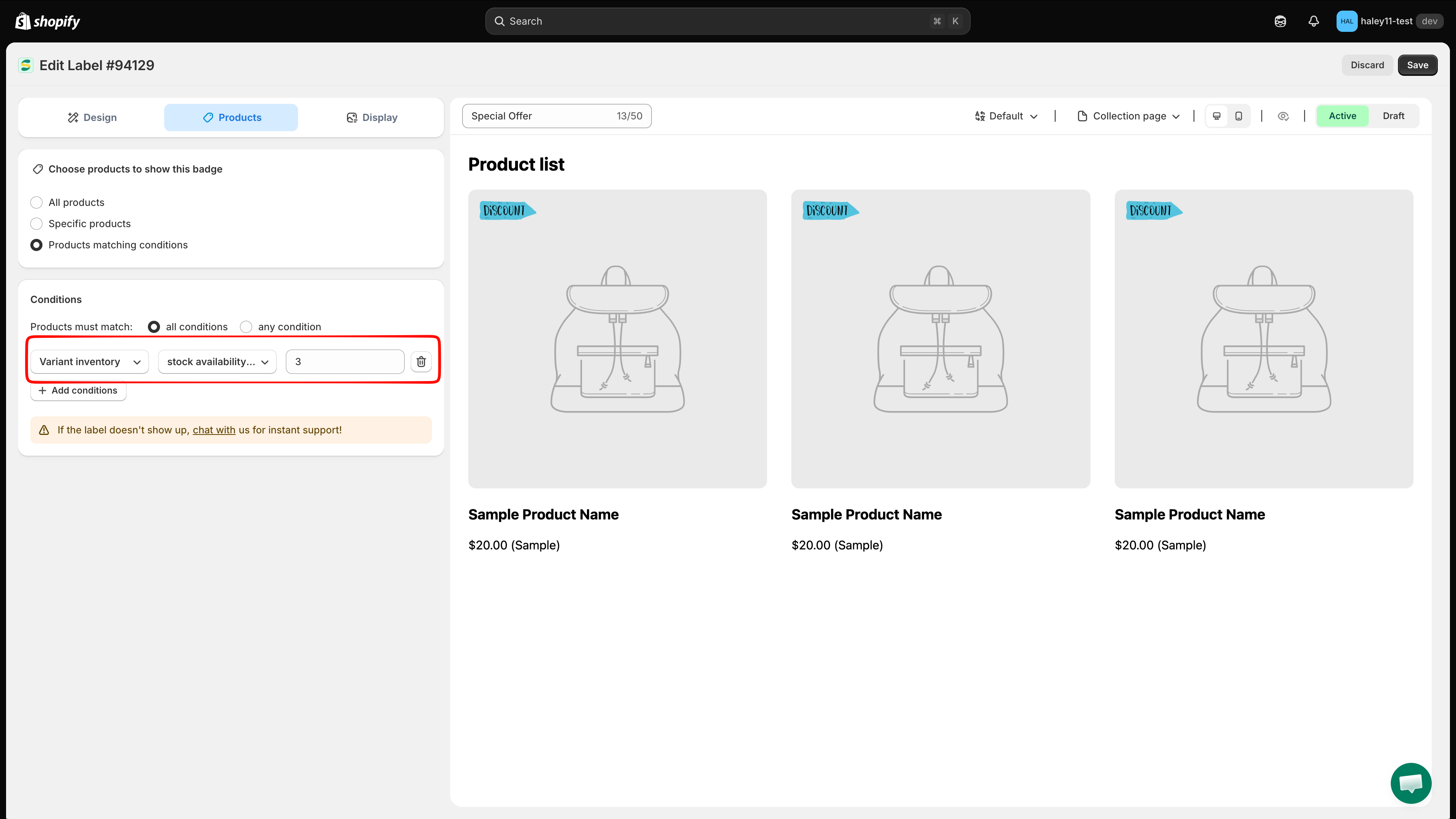
For **Variant inventory**, choose the stock operator and — for the "greater than" and "less than" operators — enter the stock threshold.

<figure><img src="https://1598842017-files.gitbook.io/~/files/v0/b/gitbook-x-prod.appspot.com/o/spaces%2F1WRTlT5AcaLSAedbCJyZ%2Fuploads%2Fgit-blob-b3833298cf15a6d1c6e80780407035cf171b1cc9%2Fimage_87.png?alt=media" alt="Variant inventory condition set to stock availability less than 3"><figcaption><p>Example: target variants with fewer than 3 units left in stock.</p></figcaption></figure>
{% endstep %}

{% step %}

## Save

Click **Save** in the top-right corner. A **Badge/Label updated** confirmation appears and the rule takes effect on your storefront.
{% endstep %}
{% endstepper %}

## Metafield targeting

Metafield conditions target products based on custom data stored in Shopify metafields — any custom attribute you have defined for your products or variants.

### Finding your metafield namespace and key

You need the metafield's reference before you can target it:

1. In Shopify admin, go to **Settings → Custom data**.
2. Select **Products** (or **Variants** for a variant metafield).
3. Open the metafield definition you want to use.
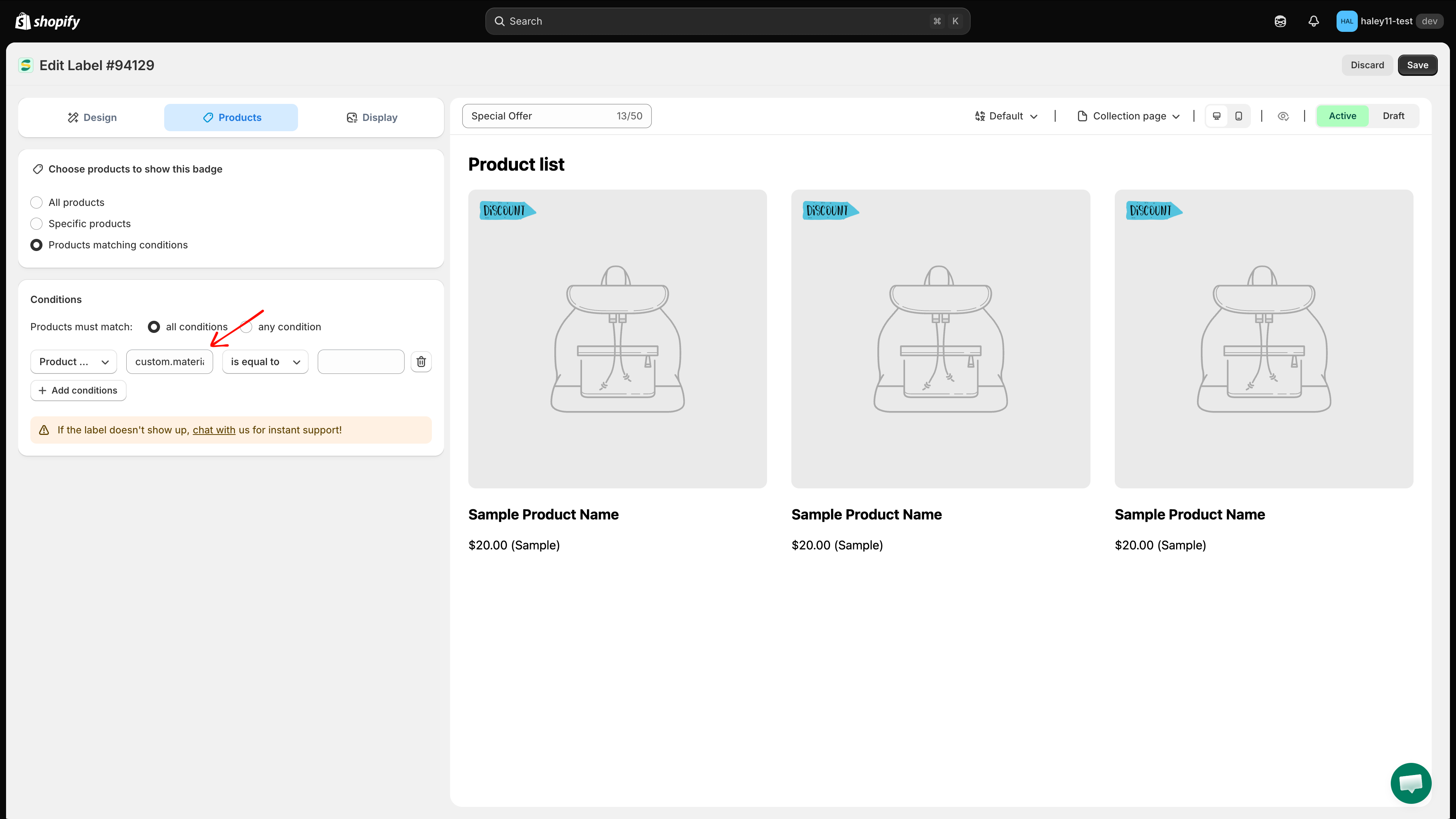
4. Copy its **namespace** and **key** — the app expects them together as `namespace.key`, for example `custom.material`.

<figure><img src="https://1598842017-files.gitbook.io/~/files/v0/b/gitbook-x-prod.appspot.com/o/spaces%2F1WRTlT5AcaLSAedbCJyZ%2Fuploads%2Fgit-blob-645c87246bdb268e0929e7382682d03cf30b769b%2Fimage_88.png?alt=media" alt="Shopify Settings, Custom data, product metafield definition showing its namespace and key"><figcaption><p>The namespace and key are shown on the metafield definition page in Shopify admin.</p></figcaption></figure>

{% hint style="warning" %}
The app does not autocomplete metafield names. If the namespace, the key, or the value does not match exactly — including capitalization — the condition matches nothing and the badge simply will not appear.
{% endhint %}

### How to set up metafield targeting

{% stepper %}
{% step %}

## Open the Products tab and select "Products matching conditions"

Same as for variant targeting: **Products** tab → **Products matching conditions** → choose **all conditions** or **any condition**.
{% endstep %}

{% step %}

## Add the condition

Click **+ Add conditions**, then choose **Product metafield** or **Variant metafield**.
{% endstep %}

{% step %}

## Enter the namespace and key

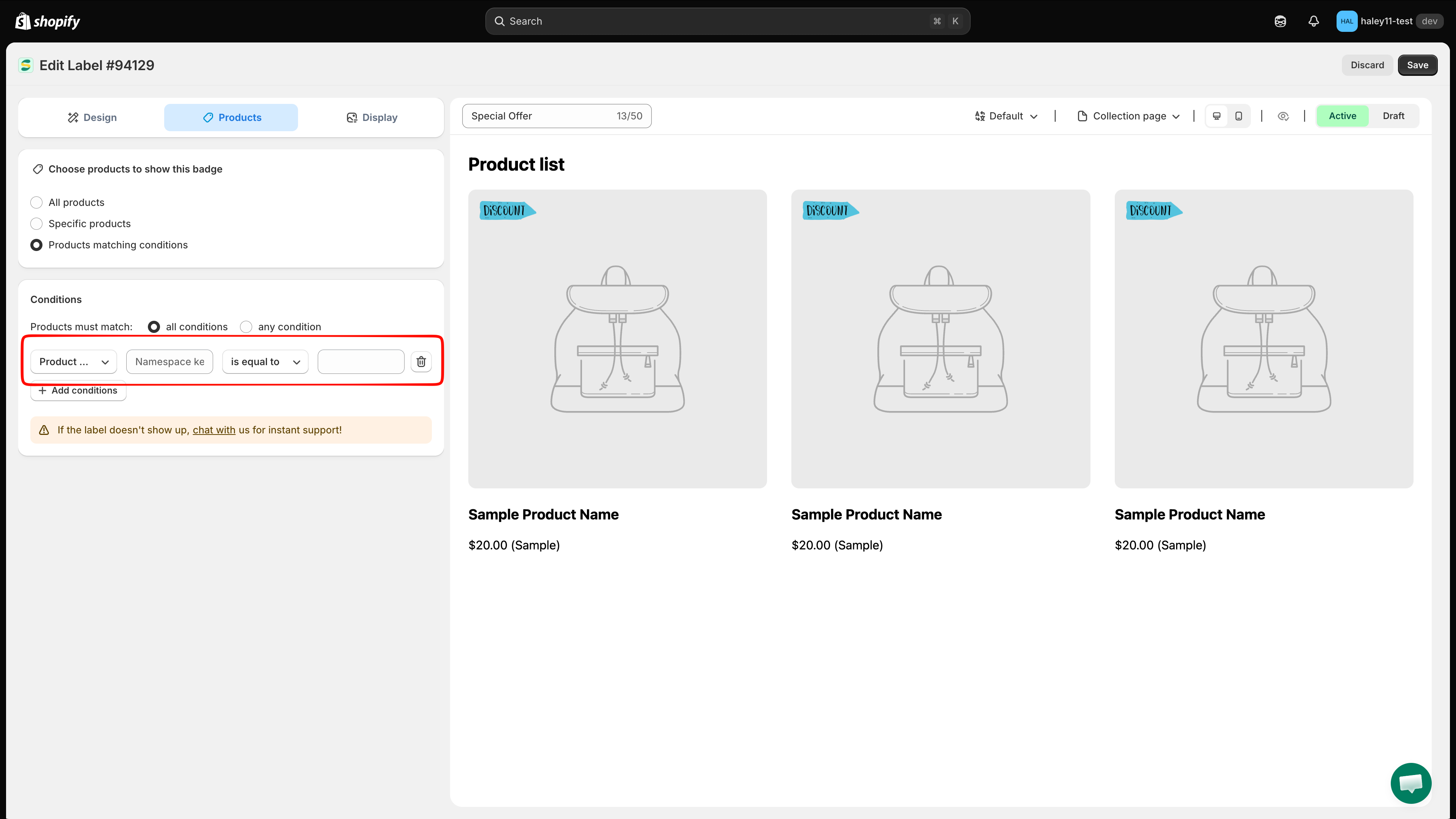
Type the metafield reference in the **namespace.key** format. For example:

* `custom.material` — a custom material metafield
* `custom.certification` — a certification status metafield
* `descriptors.subtitle` — a product subtitle metafield

<figure><img src="https://1598842017-files.gitbook.io/~/files/v0/b/gitbook-x-prod.appspot.com/o/spaces%2F1WRTlT5AcaLSAedbCJyZ%2Fuploads%2Fgit-blob-153f9ed70c6d16463f97f285d915804b26e3e9a6%2Fimage_90.png?alt=media" alt="Product metafield condition with the namespace key field filled in"><figcaption><p>Enter the metafield reference using the namespace.key format.</p></figcaption></figure>
{% endstep %}

{% step %}

## Select the operator and value

Choose the operator (**is equal to**, **contains**, **is greater than**, and so on) and type the value to match against. Use the number operators only for metafields that store numbers.

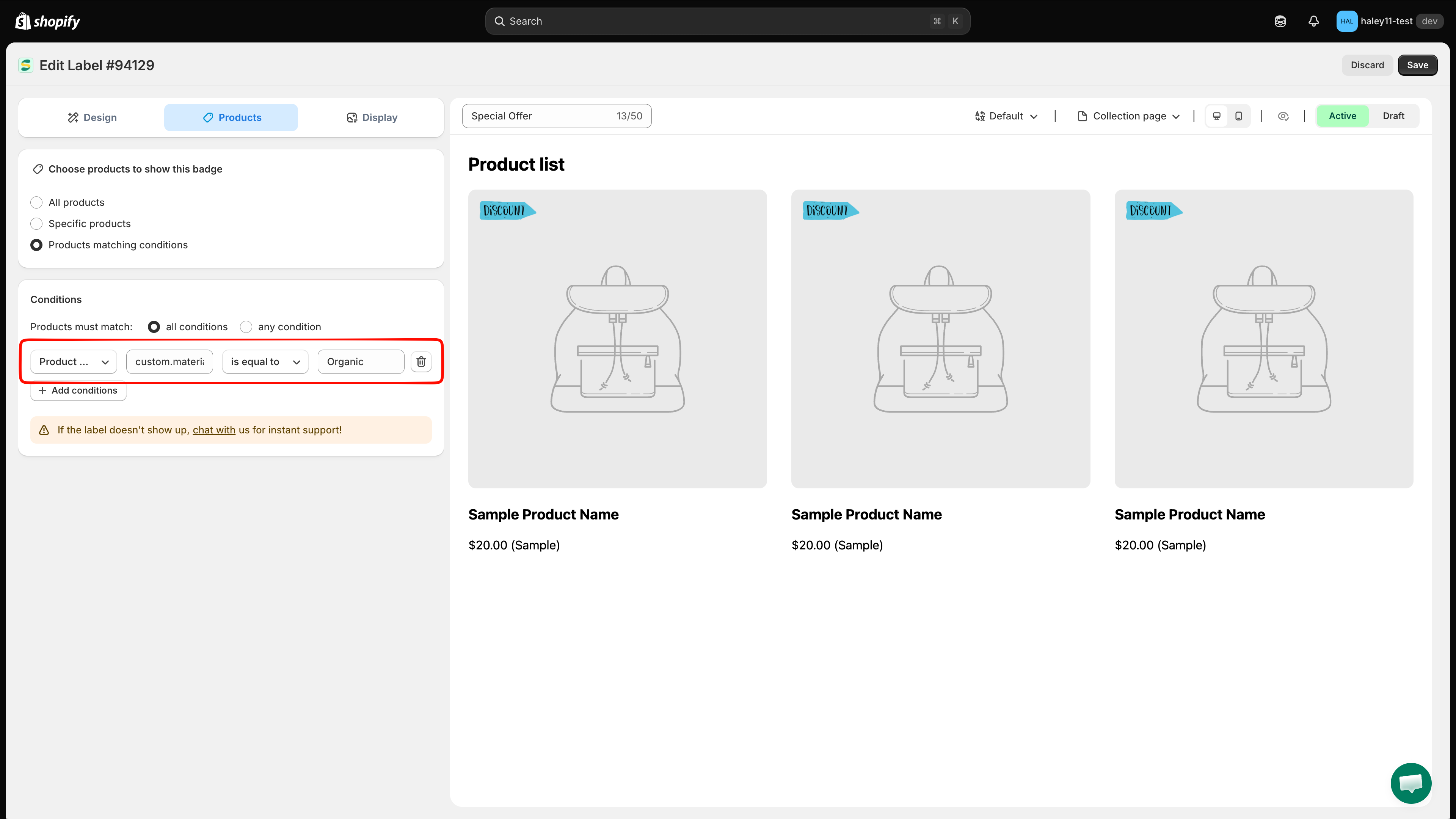
<figure><img src="https://1598842017-files.gitbook.io/~/files/v0/b/gitbook-x-prod.appspot.com/o/spaces%2F1WRTlT5AcaLSAedbCJyZ%2Fuploads%2Fgit-blob-06871bd789aa8bf30f539faaa68fc59a6991ea22%2Fimage_89.png?alt=media" alt="Metafield condition with operator and value set"><figcaption><p>A finished metafield rule: custom.material is equal to Organic.</p></figcaption></figure>
{% endstep %}

{% step %}

## Save

Click **Save** in the top-right corner. A **Badge/Label updated** confirmation appears.
{% endstep %}
{% endstepper %}

### Metafield targeting examples

| Metafield (namespace.key)  | Operator        | Value   | Use case                                       |
| -------------------------- | --------------- | ------- | ---------------------------------------------- |
| `custom.material`          | is equal to     | Organic | Show an "Organic" badge on organic products    |
| `custom.certification`     | contains        | ISO     | Badge all ISO-certified products               |
| `custom.country_of_origin` | is equal to     | Italy   | Show a "Made in Italy" badge                   |
| `custom.is_bestseller`     | is equal to     | true    | Display a "Bestseller" badge                   |
| `custom.rating`            | is greater than | 4       | Show a "Top Rated" badge on highly rated items |

## Combining variant and metafield conditions

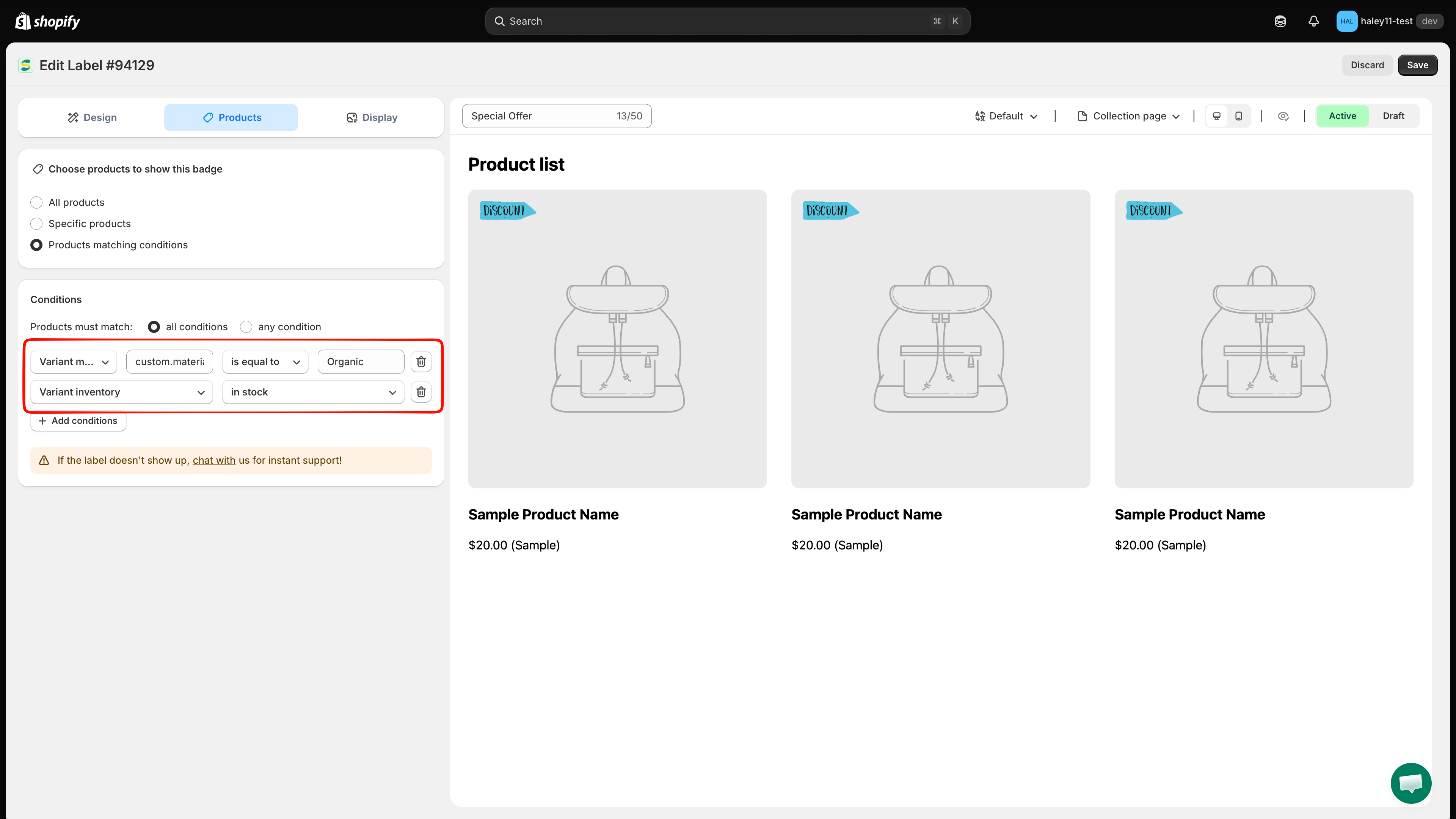
Variant and metafield conditions can be combined with each other and with any other product condition. Add each rule with **+ Add conditions**, then set **Products must match** to **all conditions** so every rule has to be true.

* **Variant inventory** stock availability less than 3 **AND** **Product metafield** `custom.is_featured` is equal to `true`
* Result: a "Last Few Left" badge that appears only on featured products with fewer than 3 units left at the variant level.

<figure><img src="https://1598842017-files.gitbook.io/~/files/v0/b/gitbook-x-prod.appspot.com/o/spaces%2F1WRTlT5AcaLSAedbCJyZ%2Fuploads%2Fgit-blob-858c331cecb1ffd5664fc010ffa51c308e751359%2Fimage_91.png?alt=media" alt="Two conditions combined with all conditions selected"><figcaption><p>Two rules combined with all conditions (AND) logic.</p></figcaption></figure>

{% hint style="warning" %}
If the badge does not appear after saving, check the metafield reference and value first, then confirm the products really match the rule. You can also click **Discard** next to **Save** to roll back to the last saved setup.
{% endhint %}

## Next steps

* [Target by product attribute](/badges-and-labels/target-by-attribute.md) — Filter badges by product title, type, vendor, price, and more.
* [Target by country & language](/badges-and-labels/target-by-country-language.md) — Show badges to visitors in specific countries or languages.
* [Dynamic variables](/badges-and-labels/dynamic-variables.md) — Use live data like price, discount, and inventory count in your badge text.

{% hint style="success" %}
**Need support?**

If you run into any difficulty while following these steps, contact us at <support@samita.io>.
{% endhint %}


---

# Agent Instructions
This documentation is published with GitBook. GitBook is the documentation platform designed so that both humans and AI agents can read, navigate, and reason over technical content effectively. Learn more at gitbook.com.

## Querying This Documentation
If you need additional information that is not directly available in this page, you can query the documentation dynamically by asking a question.

Perform an HTTP GET request on the current page URL with the `ask` query parameter, and the optional `goal` query parameter:

```
GET https://docs.samita.io/badges-and-labels/target-by-variant-metafield.md?ask=<question>&goal=<endgoal>
```

`ask` is the immediate question: it should be specific, self-contained, and written in natural language.
`goal` is optional and describes the broader end goal you are ultimately trying to accomplish on behalf of the user. GitBook uses it to tailor the answer towards what is most useful for that goal.

The response will contain a direct answer to the question and relevant excerpts and sources from the documentation.

Use this mechanism when the answer is not explicitly present in the current page, you need clarification or additional context, or you want to retrieve related documentation sections.