For the complete documentation index, see llms.txt. This page is also available as Markdown.

Target specific products

Learn how to select which products display your badge or label in Sami Product Labels.

Every badge needs a product scope. You can apply it to all products, pick products manually, or use conditions that update the matched set automatically.

Targeting modes

The Products tab offers three targeting modes:

Mode
Description

All products

Show the badge on every product.

Specific products

Search or browse the Shopify product picker and select individual products.

Products matching conditions

Match products automatically by title, type, vendor, price, inventory, metafield, variant data, collection, and other supported attributes.

How to set product targeting

1

Open the badge editor

From Sami Product Labels, open a badge or create a new one.

2

Go to the Products tab

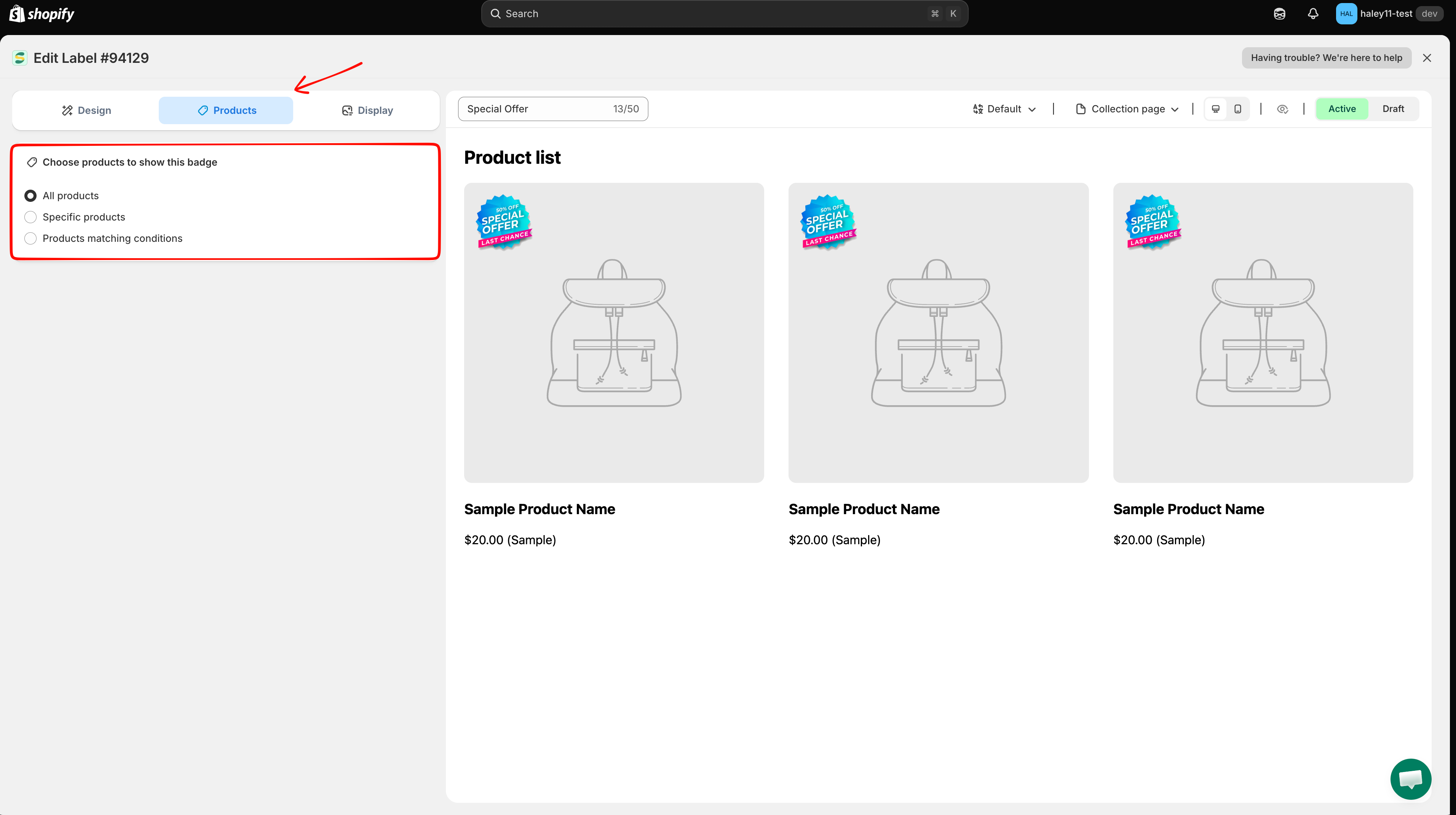
Click the Products tab in the badge editor to access targeting settings.

Products tab in the badge editor
The Products tab lets you choose which products display your badge.
3

Choose your targeting mode

Select one of the three targeting modes:

  • All products — Apply the badge store-wide.

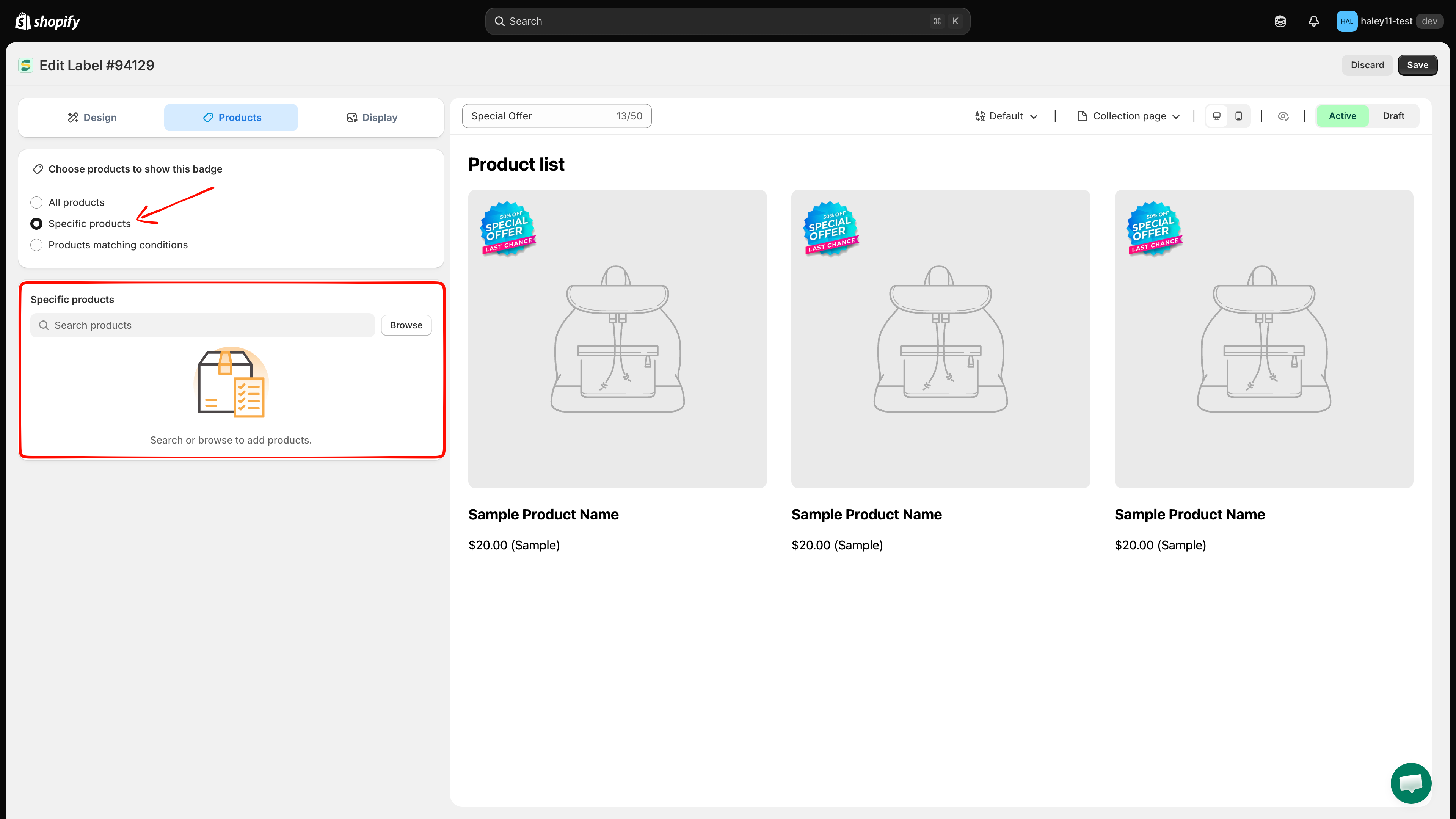
  • Specific products — Manually search and select individual products from your catalog.

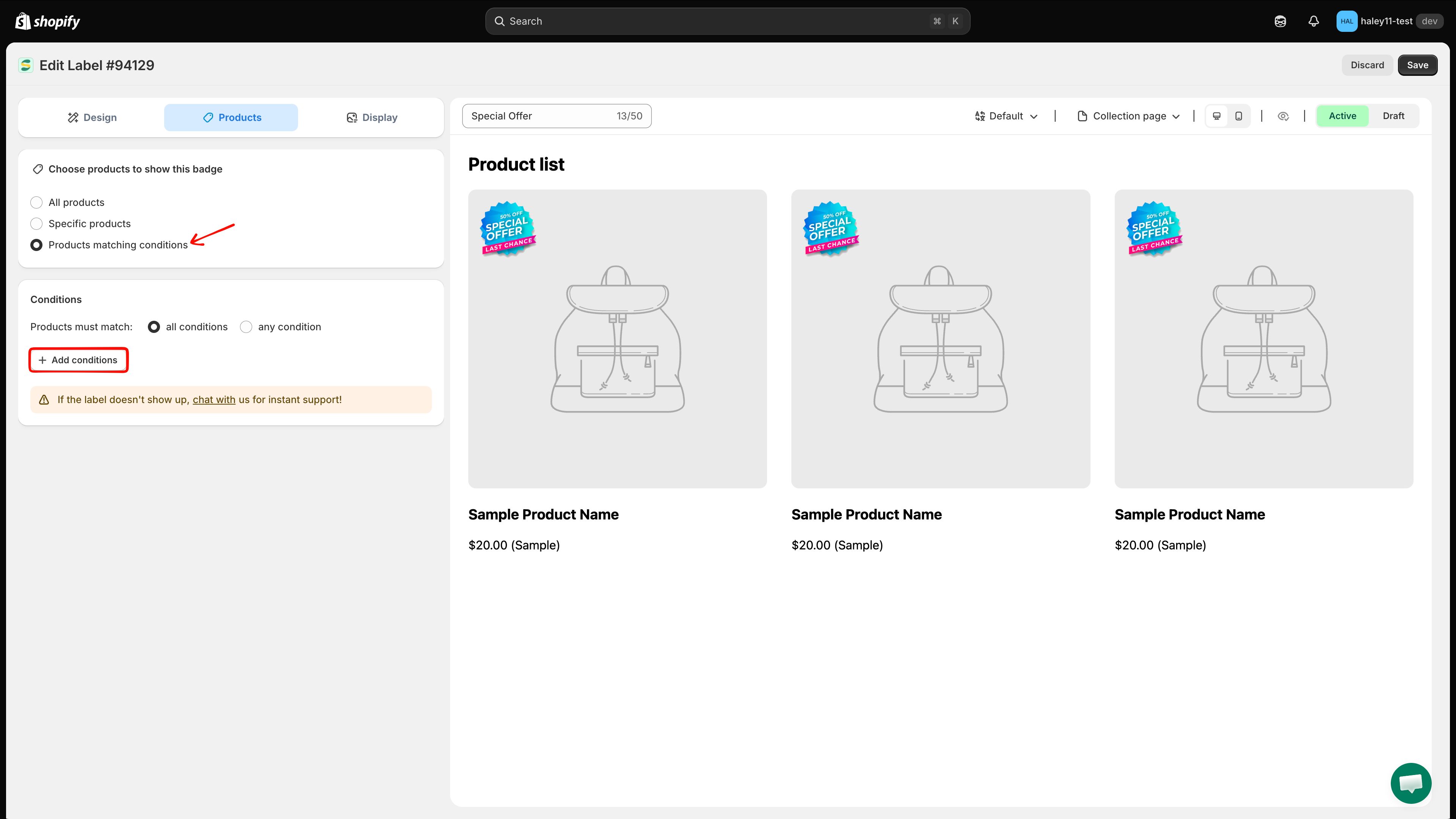
  • Products matching conditions — Define rules that automatically target products based on their attributes.

4

For Specific products: search or browse

Search for products by name in the search field, or click Browse to open the Shopify product picker and select from your full catalog.

Specific products section with search field and Browse button
Search by name or click Browse to find products from your catalog.
5

For Products matching conditions: add rules

Select whether products must match all conditions or any condition, then click Add conditions to create a rule. Choose the condition, operator, and value. Add more rows as needed.

Conditions section with all/any selector and Add conditions button
Choose the match mode and click Add conditions to define targeting rules.
6

Save your badge

Click Save to apply your targeting. The badge appears immediately on the targeted products in your storefront.

Choose All products explicitly for a store-wide promotion. An empty Specific products selection is not the same as choosing all products.

Next steps

Last updated

Was this helpful?