> For the complete documentation index, see [llms.txt](https://docs.samita.io/llms.txt). Markdown versions of documentation pages are available by appending `.md` to page URLs; this page is available as [Markdown](https://docs.samita.io/bulk-price-editor-sami/create-a-task/overview.md).
# How a task works
What a bulk edit task is made of and how the task form is organised.
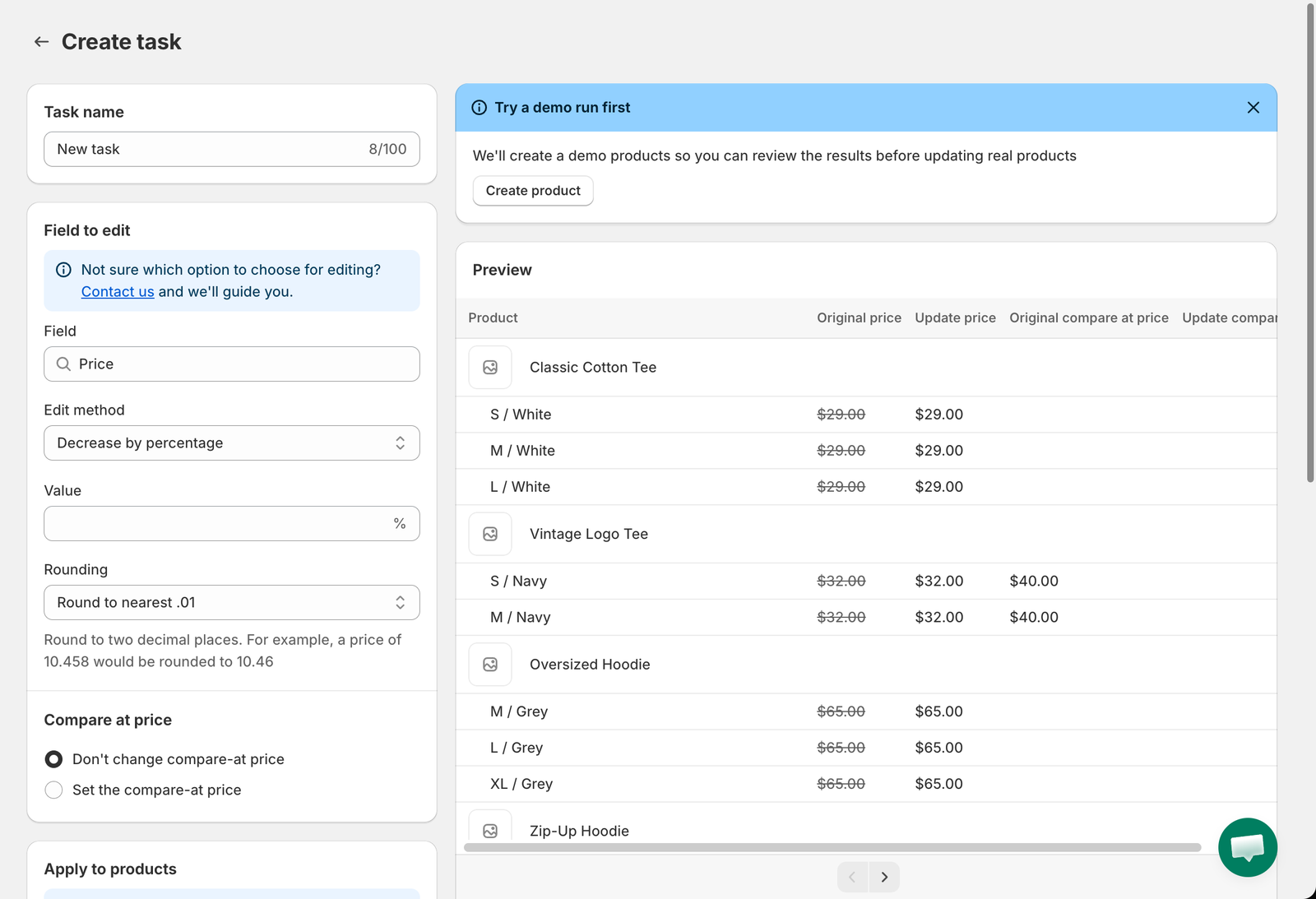
A **task** is one bulk edit. It has four parts:
| Part | Where you set it | What it controls |
| ---------------------------------- | -------------------------------------------------------------------------------------------- | ------------------------------------------------------------------------------------------- |
| **Field to edit** | Chosen on the **Choose a Field to Edit** page, then configured in the **Field to edit** card | Which product or variant field changes, and how (for example *Decrease by percentage 20%*). |
| **Apply to products** | The **Apply to products** card, plus **Exclude products** and **Apply to variants** | Which products, and optionally which variants, receive the change. |
| **Start time** and **Revert time** | The schedule card | When the change runs, whether it repeats, and whether it is undone automatically. |
| **Preview** | The right-hand column | A live look at the current value and the new value for each matching product. |
The Create task page
## The flow
{% stepper %}
{% step %}
### Choose a field
Click **New bulk edit** and pick a field. Every task edits exactly one field. See [Choose a field to edit](/bulk-price-editor-sami/create-a-task/choose-a-field.md).
{% endstep %}
{% step %}
### Configure the edit
Name the task, choose an **Edit method** and enter the value. Some fields have extra options such as rounding or a linked compare-at price. See [Configure the edit](/bulk-price-editor-sami/create-a-task/configure-the-edit.md).
{% endstep %}
{% step %}
### Select products
Choose **All products**, **Collections**, **Specific products** or **Match conditions**. For variant fields you can also filter variants. See [Select products and variants](/bulk-price-editor-sami/create-a-task/select-products.md).
{% endstep %}
{% step %}
### Check the preview
Confirm that the **Preview** shows the products you expect with the right new values. See [Preview the changes](/bulk-price-editor-sami/create-a-task/preview.md).
{% endstep %}
{% step %}
### Schedule and save
Decide when the task starts, whether it reverts, and click **Save**. See [Schedule, revert and save](/bulk-price-editor-sami/create-a-task/schedule-and-save.md).
{% endstep %}
{% endstepper %}
## Good to know
* **Task name** can be up to 100 characters. It is shown in the task list and in notification emails. You can rename a task later.
* Everything you enter is applied only when you click **Save**. Leaving the page discards unsaved changes.
* After a task has run you cannot change its rules. Use **Duplicate** to create an editable copy. Tasks that are saved with **Manual** start or that are **Scheduled** can still be edited. See [Edit a scheduled or manual task](/bulk-price-editor-sami/manage-tasks/edit-a-task.md).
* The number of products a single task can update depends on your plan. See [Plans and pricing](/bulk-price-editor-sami/settings-and-plans/plans-and-pricing.md).
---
# Agent Instructions
This documentation is published with GitBook. GitBook is the documentation platform designed so that both humans and AI agents can read, navigate, and reason over technical content effectively. Learn more at gitbook.com.
## Querying This Documentation
If you need additional information that is not directly available in this page, you can query the documentation by asking a question.
Perform an HTTP GET request on the following URL with the `ask` and `goal` query parameters:
```
GET https://docs.samita.io/bulk-price-editor-sami/create-a-task/overview.md?ask=&goal=
```
`ask` is the immediate question: it should be specific, self-contained, and written in natural language.
`goal` is what the user is ultimately trying to achieve, the reason they need the answer. Sharing it helps GitBook give you a better, more relevant answer. A goal is most helpful when it describes the outcome the user wants rather than restating the question. For example, with `ask=how do I create an API token`, a goal like `automate deployments from our CI pipeline` lets GitBook tailor the answer to that use case.
The response will contain a direct answer to the question and relevant excerpts and sources from the documentation.
Use this mechanism when the answer is not explicitly present in the current page, you need clarification or additional context, or you want to retrieve related documentation sections.