> For the complete documentation index, see [llms.txt](https://docs.samita.io/llms.txt). Markdown versions of documentation pages are available by appending `.md` to page URLs; this page is available as [Markdown](https://docs.samita.io/bulk-price-editor-sami/create-a-task/preview.md).
# Preview the changes
Check the current and new values for each product before you save a task.
The **Preview** card on the right of the task form shows, for every matching product, the value the field has now and the value it will have after the task runs. Nothing is written to Shopify until you save and the task starts.
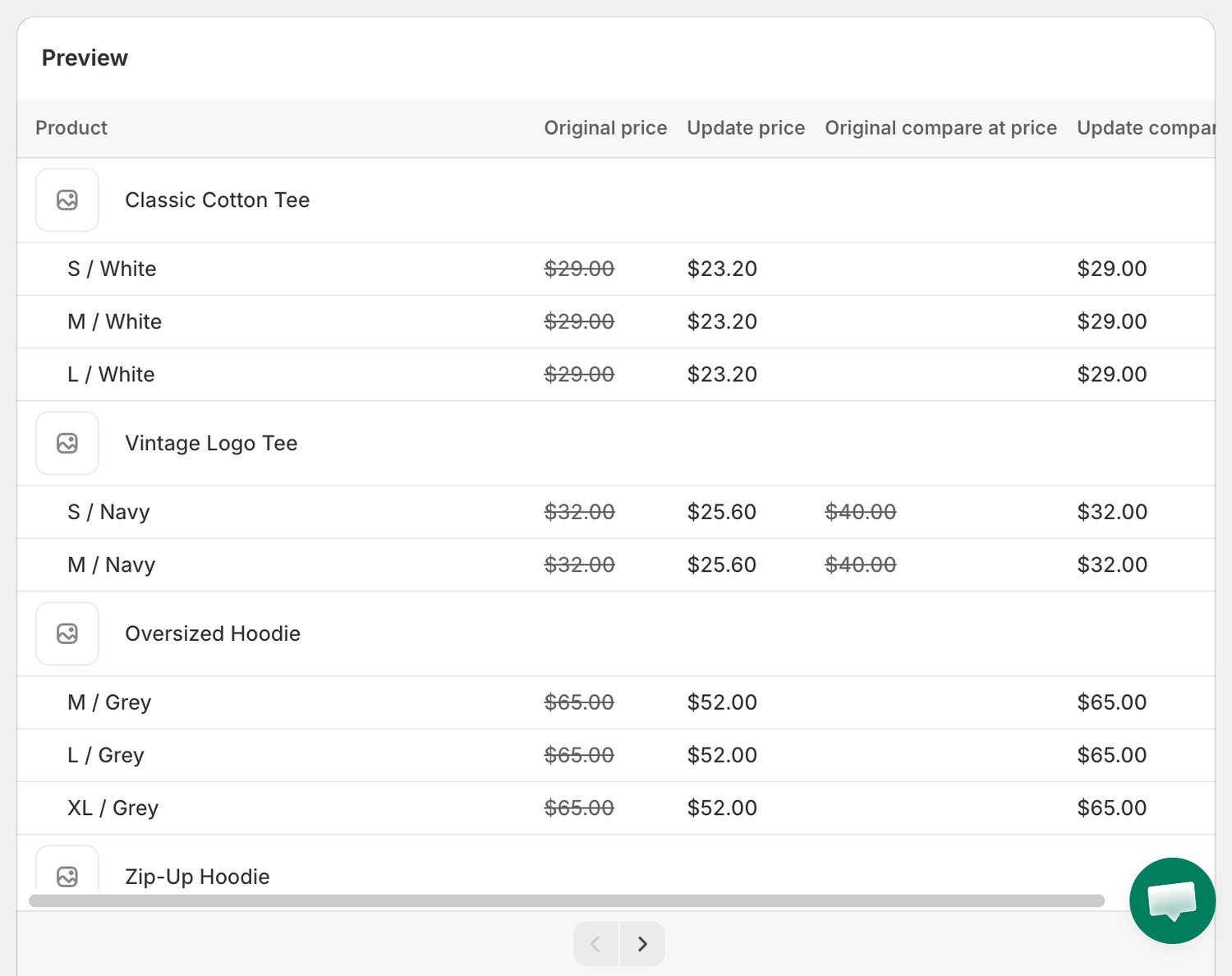
Preview for a Price task
## Reading the preview
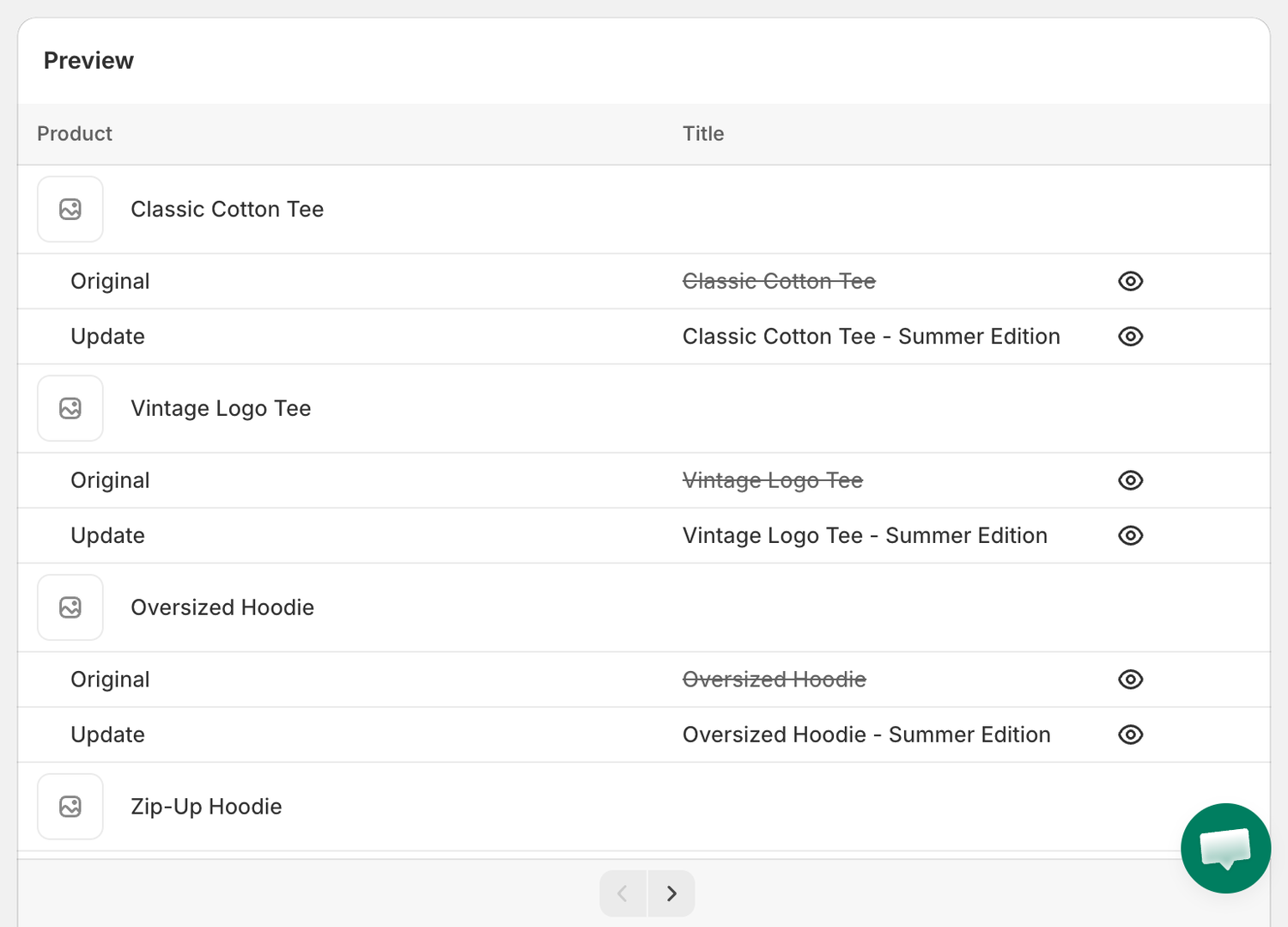
* **Columns** depend on the field. A Price task shows **Original price**, **Update price**, **Original compare at price** and **Update compare at price**. A Title task shows an **Original** and an **Update** row for each product.
* The current value is struck through; the new value is shown in full.
* **Variant fields** list one row per variant under each product. Up to 10 variants are shown per product; use the up and down chevrons to see more. **Showing 3/12 variants** tells you how many are visible.
* **Greyed-out rows** are products or variants that are excluded or do not match your variant conditions. They will not be changed.
* The preview shows 10 products per page. Use the arrows below the table to page through.
Preview for a Title task
## Title and description preview
For Title and Description tasks, click the eye icon next to a row to open a side-by-side view of the original and updated text.
## When the preview is empty
**No products found** means no product matches your current selection. Check the collection, the picked products or the condition values. If you save anyway, the confirmation dialog warns *No eligible products were found for editing based on the selected conditions*.
**Preview unavailable** appears when the selected collections are too large to preview quickly. You can still save and run the task.
{% hint style="info" %}
The preview is a calculation made in your browser from the products it can load. The values written when the task runs are calculated again on the server from the live product data, so a product that changed between preview and run may end with a slightly different value.
{% endhint %}
## Try a demo run first
The blue banner above the preview offers **Create product**. The app creates a demo product in your store and switches **Apply to products** to **Specific products** with only the demo product selected. Run the task on that product, check the result on the task details page, then reopen the task settings for your real products. Dismiss the banner with the **×**.
---
# Agent Instructions
This documentation is published with GitBook. GitBook is the documentation platform designed so that both humans and AI agents can read, navigate, and reason over technical content effectively. Learn more at gitbook.com.
## Querying This Documentation
If you need additional information that is not directly available in this page, you can query the documentation by asking a question.
Perform an HTTP GET request on the following URL with the `ask` and `goal` query parameters:
```
GET https://docs.samita.io/bulk-price-editor-sami/create-a-task/preview.md?ask=&goal=
```
`ask` is the immediate question: it should be specific, self-contained, and written in natural language.
`goal` is what the user is ultimately trying to achieve, the reason they need the answer. Sharing it helps GitBook give you a better, more relevant answer. A goal is most helpful when it describes the outcome the user wants rather than restating the question. For example, with `ask=how do I create an API token`, a goal like `automate deployments from our CI pipeline` lets GitBook tailor the answer to that use case.
The response will contain a direct answer to the question and relevant excerpts and sources from the documentation.
Use this mechanism when the answer is not explicitly present in the current page, you need clarification or additional context, or you want to retrieve related documentation sections.