> For the complete documentation index, see [llms.txt](https://docs.samita.io/llms.txt). Markdown versions of documentation pages are available by appending `.md` to page URLs; this page is available as [Markdown](https://docs.samita.io/bulk-price-editor-sami/create-a-task/schedule-and-save.md).
# Schedule, revert and save
Run a task now, save it for a manual start, schedule it, repeat it, and set an automatic revert.
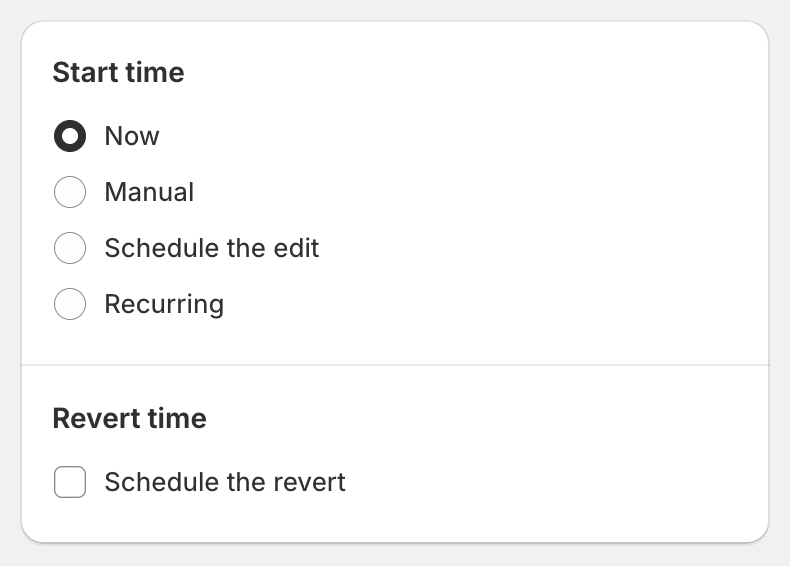
The schedule card has two parts: **Start time** and **Revert time**. When a scheduled date is involved, the card footer shows the **Timezone** the app uses and a **Change timezone** link.
Start time and Revert time
## Start time
| Option | What happens when you save |
| --------------------- | -------------------------------------------------------------------------------------------------------------------------------------------------------- |
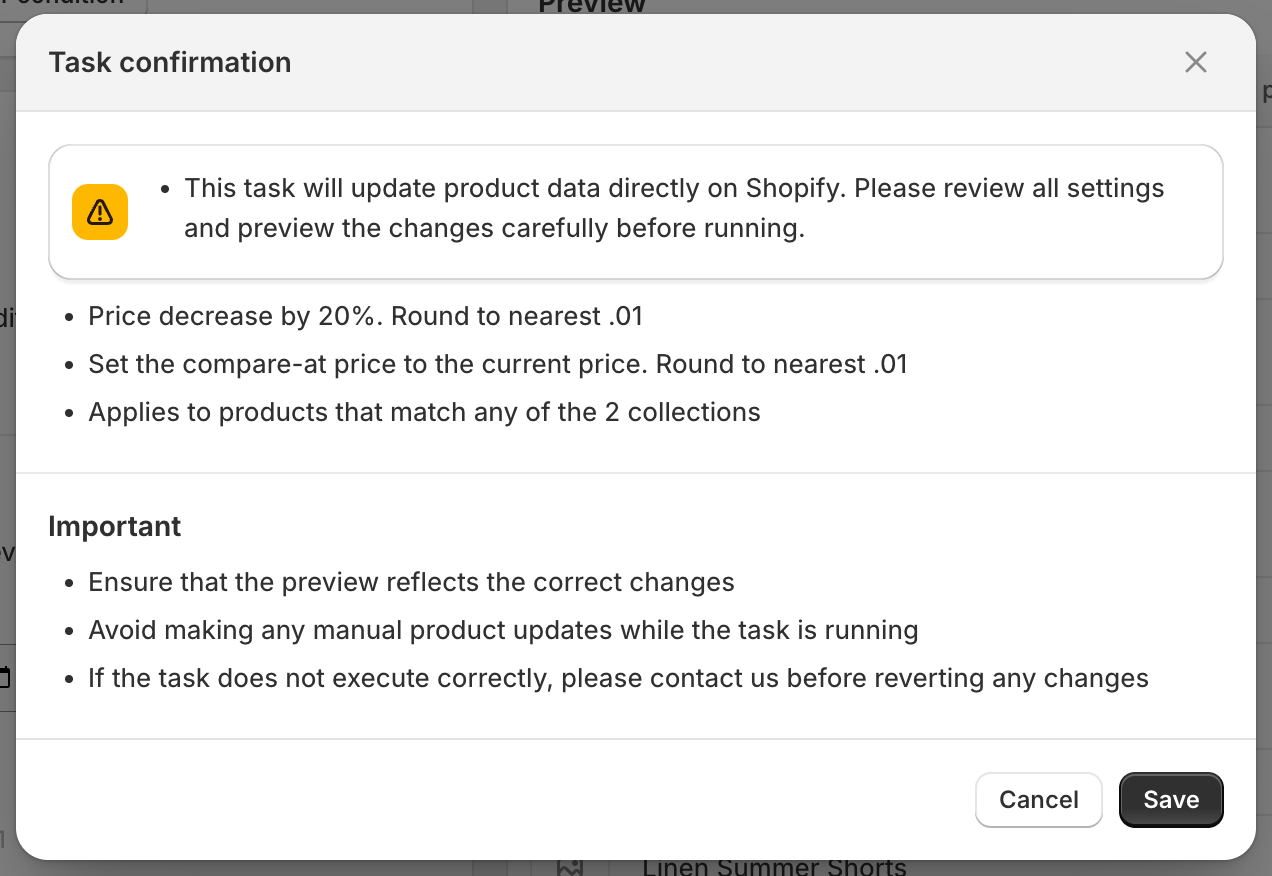
| **Now** | A **Task confirmation** dialog opens. After you confirm, the task starts immediately and you are taken to the task details page. |
| **Manual** | The task is saved with the status **Manual start**. Nothing runs. Start it later with **Apply change now**, and edit it as often as you like until then. |
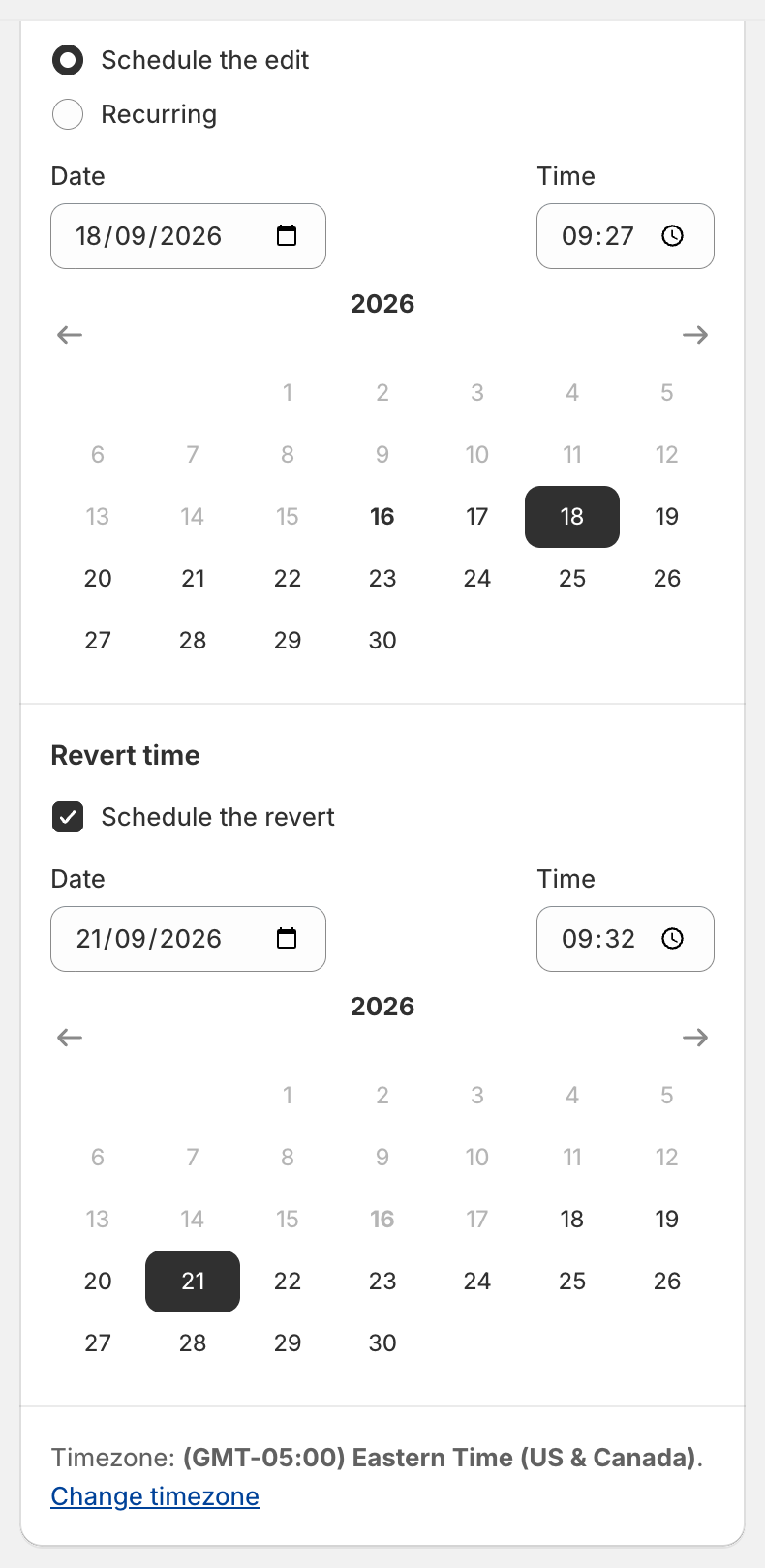
| **Schedule the edit** | Pick a **Date** and **Time**. The task shows as **Scheduled** and starts at that time. You can still edit or reschedule it before it starts. |
| **Recurring** | The task runs and reverts on a repeating schedule. See [Recurring tasks](/bulk-price-editor-sami/manage-tasks/recurring-tasks.md). |
### Schedule the edit
Select the date in the calendar or type it, then set the time. Past dates are disabled. The time is interpreted in the timezone shown in the card footer.
Scheduled edit with a scheduled revert
{% hint style="info" %}
How far ahead you can schedule depends on your plan's task history window (for example 30 days on Free, 180 days on Advanced). Dates beyond it are disabled and the form shows *This date is beyond what your current plan allows*. See [Plans and pricing](/bulk-price-editor-sami/settings-and-plans/plans-and-pricing.md).
{% endhint %}
## Revert time
Tick **Schedule the revert** to undo the task automatically. Pick the **Date** and **Time**. Rules:
* The revert must be at least **5 minutes** after the start time (or after now, for **Now** and **Manual** tasks).
* If you move the start date later, the revert date moves with it.
* You can still revert manually at any time, whether or not a revert is scheduled. See [Revert changes](/bulk-price-editor-sami/manage-tasks/revert-changes.md).
The revert section is hidden for **Recurring** tasks, because each recurrence has its own end time, and for the delete fields, because deletions cannot be undone.
## Timezone
Scheduled times use the timezone set in **Settings › Timezone**. If you have not changed it, the app uses your Shopify store timezone. Click **Change timezone** in the card footer to open Settings. See [Set your timezone](/bulk-price-editor-sami/settings-and-plans/timezone.md).
## Save
Click **Save** in the Shopify top bar (the bar appears as soon as you change something).
* **Now**: the **Task confirmation** dialog lists the edit, the rounding, the connected field (if any) and the products it applies to. It also reminds you to check the preview, avoid manual product edits while the task runs, and contact support before reverting if something looks wrong. Click **Save** to run.
* **Manual**, **Schedule the edit** and **Recurring**: the task is saved directly and the task page reopens so you can review or edit it.
Task confirmation
If your selection contains more products than your plan allows, the dialog also says how many will be updated in this run.
{% hint style="warning" %}
Scheduling and recurring tasks require a paid plan. On the Free plan these options are disabled and show *This option is available with the Basic plan*.
{% endhint %}
---
# Agent Instructions
This documentation is published with GitBook. GitBook is the documentation platform designed so that both humans and AI agents can read, navigate, and reason over technical content effectively. Learn more at gitbook.com.
## Querying This Documentation
If you need additional information that is not directly available in this page, you can query the documentation by asking a question.
Perform an HTTP GET request on the following URL with the `ask` and `goal` query parameters:
```
GET https://docs.samita.io/bulk-price-editor-sami/create-a-task/schedule-and-save.md?ask=&goal=
```
`ask` is the immediate question: it should be specific, self-contained, and written in natural language.
`goal` is what the user is ultimately trying to achieve, the reason they need the answer. Sharing it helps GitBook give you a better, more relevant answer. A goal is most helpful when it describes the outcome the user wants rather than restating the question. For example, with `ask=how do I create an API token`, a goal like `automate deployments from our CI pipeline` lets GitBook tailor the answer to that use case.
The response will contain a direct answer to the question and relevant excerpts and sources from the documentation.
Use this mechanism when the answer is not explicitly present in the current page, you need clarification or additional context, or you want to retrieve related documentation sections.