> For the complete documentation index, see [llms.txt](https://docs.samita.io/llms.txt). Markdown versions of documentation pages are available by appending `.md` to page URLs; this page is available as [Markdown](https://docs.samita.io/bulk-price-editor-sami/create-a-task/select-products.md).
# Select products and variants
Choose which products and variants a task applies to, and exclude the ones you want to keep unchanged.
The **Apply to products** card decides which products the task changes. The **Preview** on the right updates a moment after you change anything here.
Apply to products
## The four ways to pick products
| Option | Use it when |
| --------------------- | ----------------------------------------------------------------------------- |
| **All products** | Every product in the store should change. |
| **Collections** | You want everything inside one or more collections. |
| **Specific products** | You want to hand-pick products. |
| **Match conditions** | You want products that match rules such as tag, vendor, type, status or date. |
### All products
No further settings. You can still exclude products (see below) and, for variant fields, filter variants.
### Collections
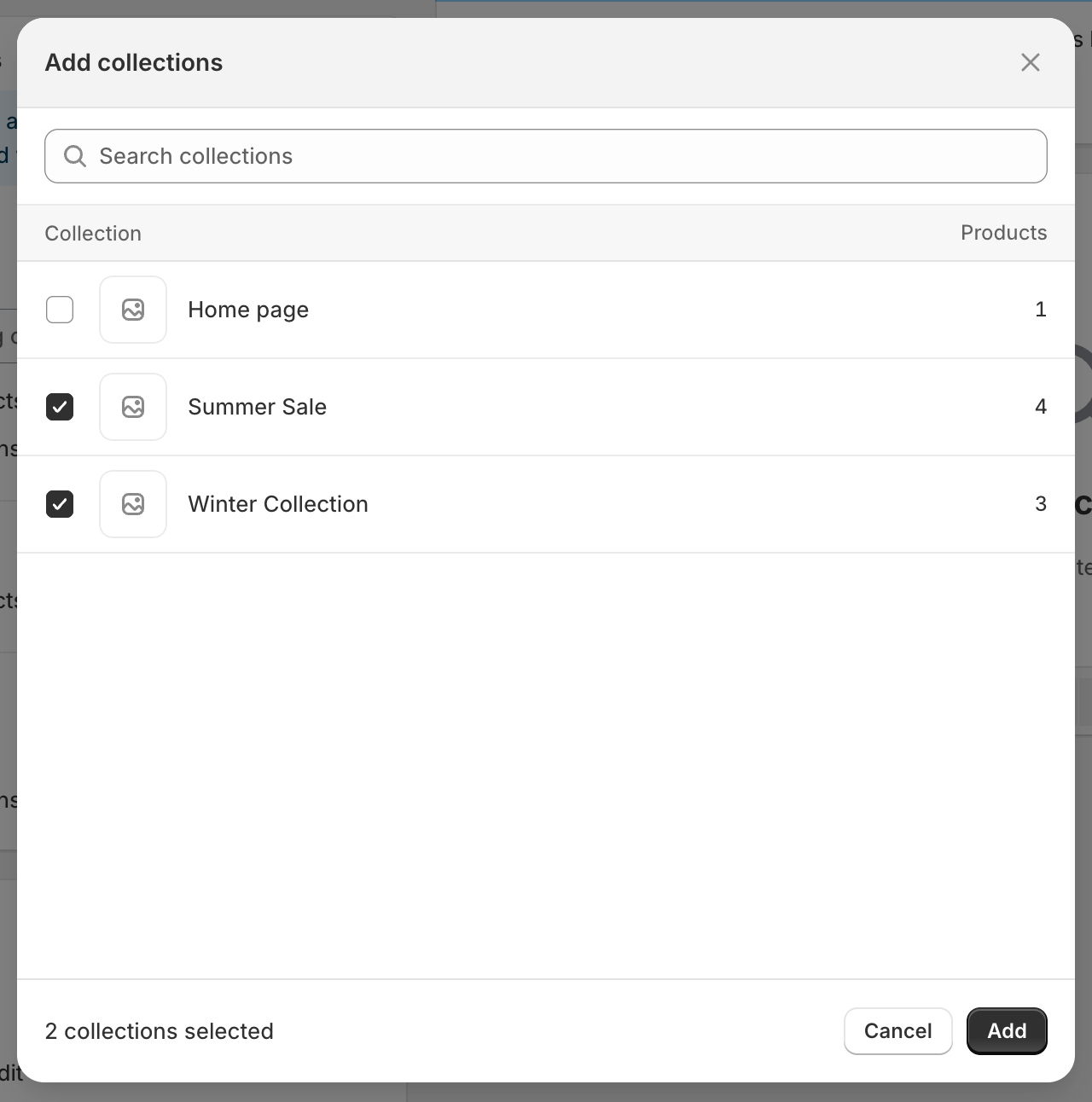
Type in **Searching collections** or click **Browser** to open Shopify's collection picker. Tick the collections you want and click **Add**. Both manual and automated collections work.
The collection picker
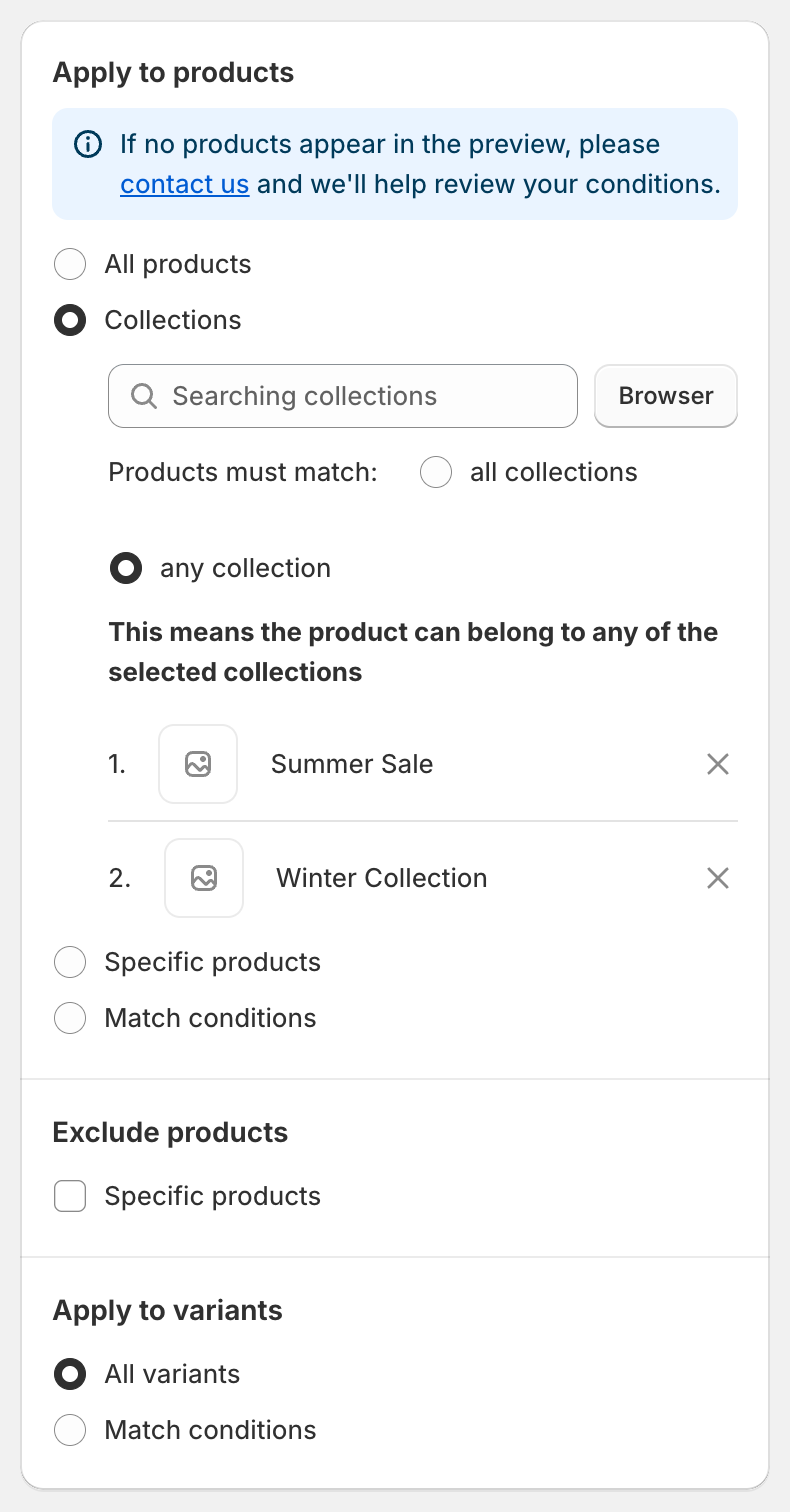
When you have picked more than one collection, choose how they combine under **Products must match**:
* **any collection**: a product is included if it belongs to at least one of the selected collections.
* **all collections**: a product is included only if it belongs to every selected collection.
Collections mode
{% hint style="warning" %}
For very large collections the preview may show **Preview unavailable**. You can still save and run the task, or split the work into several tasks with fewer collections each.
{% endhint %}
### Specific products
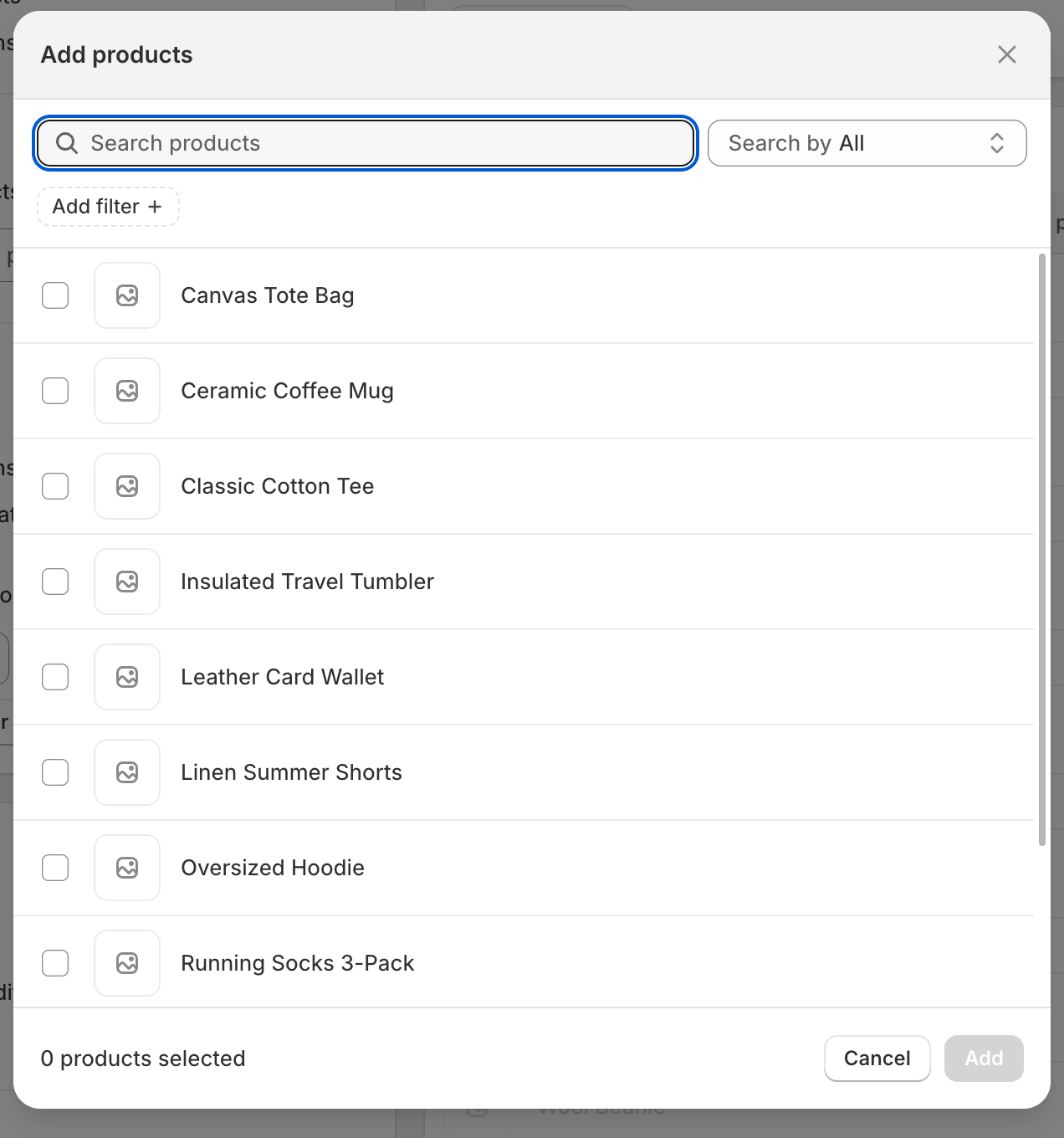
Type in **Searching products** or click **Browser** to open Shopify's product picker. You can search by title, product ID, barcode or SKU, tick as many products as you need and click **Add**. Selected products are listed under the search box; click the **×** next to a product to remove it.
The product picker
### Match conditions
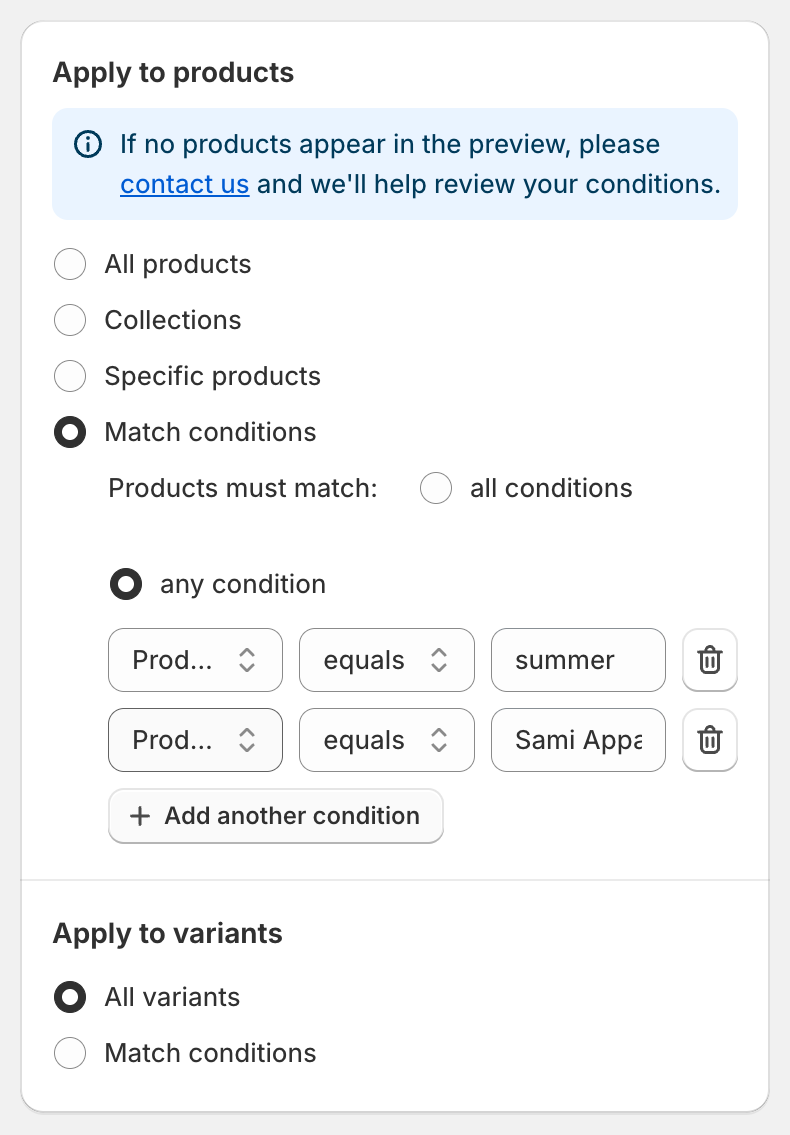
Build one or more rules. Each rule is a **field**, a **comparator** and a **value**. Click **Add another condition** to add a rule and the trash icon to remove one. Under **Products must match** choose **all conditions** (every rule must be true) or **any condition** (one rule is enough).
Match conditions
| Field | Comparators | Value |
| -------------- | --------------------------------------------- | ---------------------------------------------- |
| Title | equals, not equal, contains, does not contain | Text |
| Status | is | Active, Draft or Archived |
| Handle | equals, not equal, contains, does not contain | Text |
| Collection | is | Pick one collection with **Select collection** |
| Product type | equals, not equal, contains, does not contain | Text |
| Product vendor | equals, not equal, contains, does not contain | Text |
| Product tag | equals, not equal, contains, does not contain | Text |
| Created at | is before, is after | Date |
| Updated at | is before, is after | Date |
## Exclude products
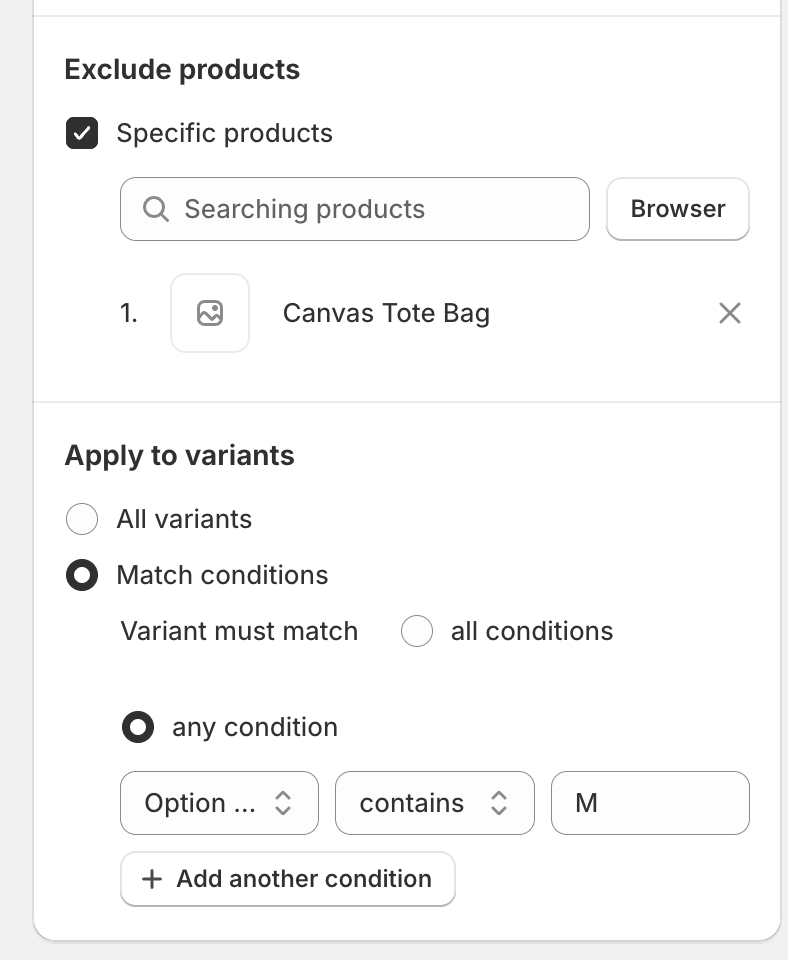
When **All products** or **Collections** is selected, an **Exclude products** card appears. Tick **Specific products** and pick the products that must stay unchanged. Excluded products still appear in the preview, greyed out, so you can see they are skipped.
Exclude products and Apply to variants
## Apply to variants
For variant fields such as Price, SKU or Weight, an **Apply to variants** card appears.
* **All variants**: every variant of each matching product changes.
* **Match conditions**: only variants that match your rules change. The other variants of the same product are left alone and shown greyed out in the preview.
| Field | Comparators |
| ---------------- | ------------------------------------------------------------------------------------------------------------------------------------------------- |
| SKU | equals, contains, does not contain, is empty, is not empty |
| Price | equals, not equal, less than, less than or equal, greater than, greater than or equal |
| Compare at price | the same as Price, plus: is not set, is greater than price, is less than price, is greater than or equal to price, is less than or equal to price |
| Option name | equals, contains, does not contain |
| Option value | equals, contains, does not contain |
Choose **all conditions** or **any condition** under **Variant must match**, exactly like product conditions.
{% hint style="info" %}
**Example.** To put only the medium size on sale: select the field **Price**, keep **All products**, then under **Apply to variants** choose **Match conditions** with **Option value** **equals** `M`.
{% endhint %}
## How many products can a task update?
The number of products one task can process depends on your plan. If your selection is larger than the limit, the confirmation dialog tells you how many products will be updated and the task finishes as **Partially complete**. After upgrading you can press **Continue change** to process the rest. See [Plans and pricing](/bulk-price-editor-sami/settings-and-plans/plans-and-pricing.md).
---
# Agent Instructions
This documentation is published with GitBook. GitBook is the documentation platform designed so that both humans and AI agents can read, navigate, and reason over technical content effectively. Learn more at gitbook.com.
## Querying This Documentation
If you need additional information that is not directly available in this page, you can query the documentation by asking a question.
Perform an HTTP GET request on the following URL with the `ask` and `goal` query parameters:
```
GET https://docs.samita.io/bulk-price-editor-sami/create-a-task/select-products.md?ask=&goal=
```
`ask` is the immediate question: it should be specific, self-contained, and written in natural language.
`goal` is what the user is ultimately trying to achieve, the reason they need the answer. Sharing it helps GitBook give you a better, more relevant answer. A goal is most helpful when it describes the outcome the user wants rather than restating the question. For example, with `ask=how do I create an API token`, a goal like `automate deployments from our CI pipeline` lets GitBook tailor the answer to that use case.
The response will contain a direct answer to the question and relevant excerpts and sources from the documentation.
Use this mechanism when the answer is not explicitly present in the current page, you need clarification or additional context, or you want to retrieve related documentation sections.