> For the complete documentation index, see [llms.txt](https://docs.samita.io/llms.txt). Markdown versions of documentation pages are available by appending `.md` to page URLs; this page is available as [Markdown](https://docs.samita.io/bulk-price-editor-sami/field-guides/price-and-compare-at-price.md).
# Price and compare-at price
Increase, decrease or set prices and compare-at prices in bulk, with rounding and a linked compare-at price.
**Price** is the selling price of a variant. **Compare at price** is the original price shown struck through next to a sale price. Both are variant fields, so you can limit the change to specific variants with **Apply to variants**.
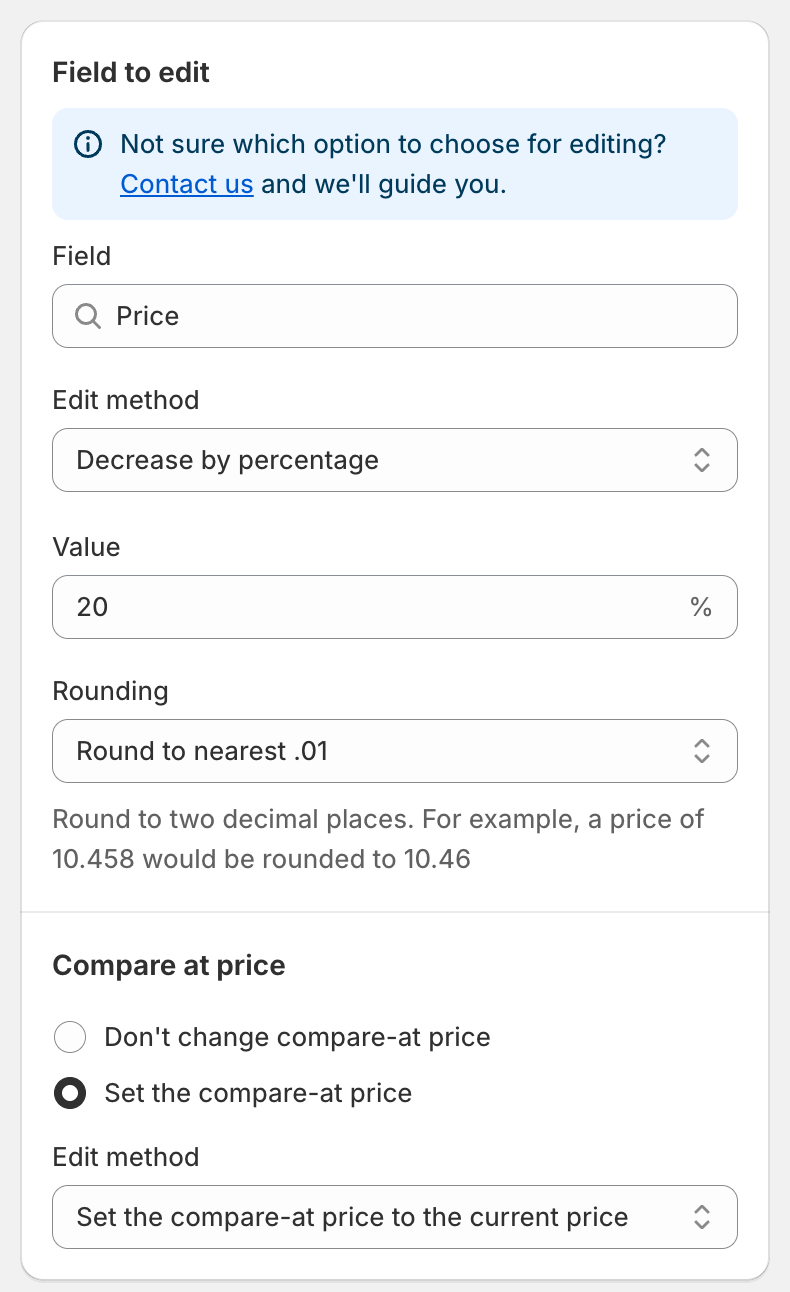
The Price field
## Edit methods for Price
| Edit method | Result | Example (price 50.00) |
| --------------------------------------------- | --------------------------- | ---------------------------- |
| Decrease by percentage | price − *n*% | 20 → 40.00 |
| Increase by percentage | price + *n*% | 20 → 60.00 |
| Set to fixed value | the value you enter | 45 → 45.00 |
| Decrease by amount | price − *n* | 5 → 45.00 |
| Increase by amount | price + *n* | 5 → 55.00 |
| Set as percentage of price | price × *n*% | 80 → 40.00 |
| Set the price to the current compare-at price | copies the compare-at price | compare-at 70.00 → 70.00 |
| Set as percentage of compare at price | compare-at × *n*% | compare-at 70.00, 50 → 35.00 |
| Set the price to the current cost price | copies the cost per item | cost 30.00 → 30.00 |
| Set as percentage of cost price | cost × *n*% | cost 30.00, 150 → 45.00 |
| Decrease by percentage of cost price | cost − *n*% | cost 30.00, 10 → 27.00 |
| Increase by percentage of cost price | cost + *n*% | cost 30.00, 50 → 45.00 |
Notes:
* The **Value** box accepts positive numbers. Methods based on the compare-at price or cost skip variants where that source value is empty.
* A result below zero is set to 0.
* Every method except the two *Set the price to the current …* options has a **Rounding** rule. See [Rounding rules](/bulk-price-editor-sami/field-guides/rounding-rules.md).
## Linked compare-at price
Below the price settings, the **Compare at price** section lets you change the compare-at price in the same task:
* **Don't change compare-at price** (default).
* **Set the compare-at price**: opens its own **Edit method**, **Value** and **Rounding**. The default method, **Set the compare-at price to the current price**, stores the price *before* your change as the compare-at price, which is the usual way to show a discount.
{% hint style="info" %}
**Typical sale setup.** Price: **Decrease by percentage** 20. Compare at price: **Set the compare-at price to the current price**. A variant at 50.00 becomes 40.00 with a struck-through 50.00. Reverting the task restores both values.
{% endhint %}
## Edit methods for Compare at price
When you start a task on the **Compare at price** field, the methods are:
Set the compare-at price to the current price (default), Set to fixed value, Decrease by amount, Increase by amount, Decrease by percentage, Increase by percentage, Set as percentage of price, Set as percentage of compare at price, Set the compare-at price to the current cost price, Set as percentage of cost price, Decrease by percentage of cost price, Increase by percentage of cost price, **Set to null/blank**.
**Set to null/blank** removes the compare-at price so the storefront no longer shows a strike-through.
The linked section on this field is **Price**: **Don't change price** or **Set the price**, with the full list of price methods.
## Quick Discount Campaign Setup
The dashboard card **Quick Discount Campaign Setup** builds a price task for you:
1. Enter the **Discount** and choose **Percentage** or **Amount**.
2. Tick **Update compare-at price only** if you want to keep the current price and instead raise the compare-at price so the storefront shows a discount.
3. Click **Quick Create**. The task form opens pre-filled; review the products and schedule, then save.
## What is reverted
Reverting a price task restores the original price and, if the task changed it, the original compare-at price of every variant it updated. See [Revert changes](/bulk-price-editor-sami/manage-tasks/revert-changes.md).
---
# Agent Instructions
This documentation is published with GitBook. GitBook is the documentation platform designed so that both humans and AI agents can read, navigate, and reason over technical content effectively. Learn more at gitbook.com.
## Querying This Documentation
If you need additional information that is not directly available in this page, you can query the documentation by asking a question.
Perform an HTTP GET request on the following URL with the `ask` and `goal` query parameters:
```
GET https://docs.samita.io/bulk-price-editor-sami/field-guides/price-and-compare-at-price.md?ask=&goal=
```
`ask` is the immediate question: it should be specific, self-contained, and written in natural language.
`goal` is what the user is ultimately trying to achieve, the reason they need the answer. Sharing it helps GitBook give you a better, more relevant answer. A goal is most helpful when it describes the outcome the user wants rather than restating the question. For example, with `ask=how do I create an API token`, a goal like `automate deployments from our CI pipeline` lets GitBook tailor the answer to that use case.
The response will contain a direct answer to the question and relevant excerpts and sources from the documentation.
Use this mechanism when the answer is not explicitly present in the current page, you need clarification or additional context, or you want to retrieve related documentation sections.