> For the complete documentation index, see [llms.txt](https://docs.samita.io/llms.txt). Markdown versions of documentation pages are available by appending `.md` to page URLs; this page is available as [Markdown](https://docs.samita.io/bulk-price-editor-sami/manage-tasks/recurring-tasks.md).
# Recurring tasks
Run and revert a task automatically every day, week or month.
A recurring task applies its change at the start of each occurrence and reverts it at the end. Typical uses: a daily happy-hour price, a weekend sale every week, a payday promotion on a set day of the month.
Choose **Recurring** under **Start time** when creating the task, then pick **Daily**, **Weekly** or **Monthly**.
## Daily
Daily recurrence
Each condition has its own **Start date** and **End date**, a **Start time** and an **End time**. Between the two dates, the task runs every day at the start time and reverts at the end time. The summary under the condition reads, for example, *Repeat: Every day at 6:00 AM / Revert: Every day at 6:00 PM*.
## Weekly
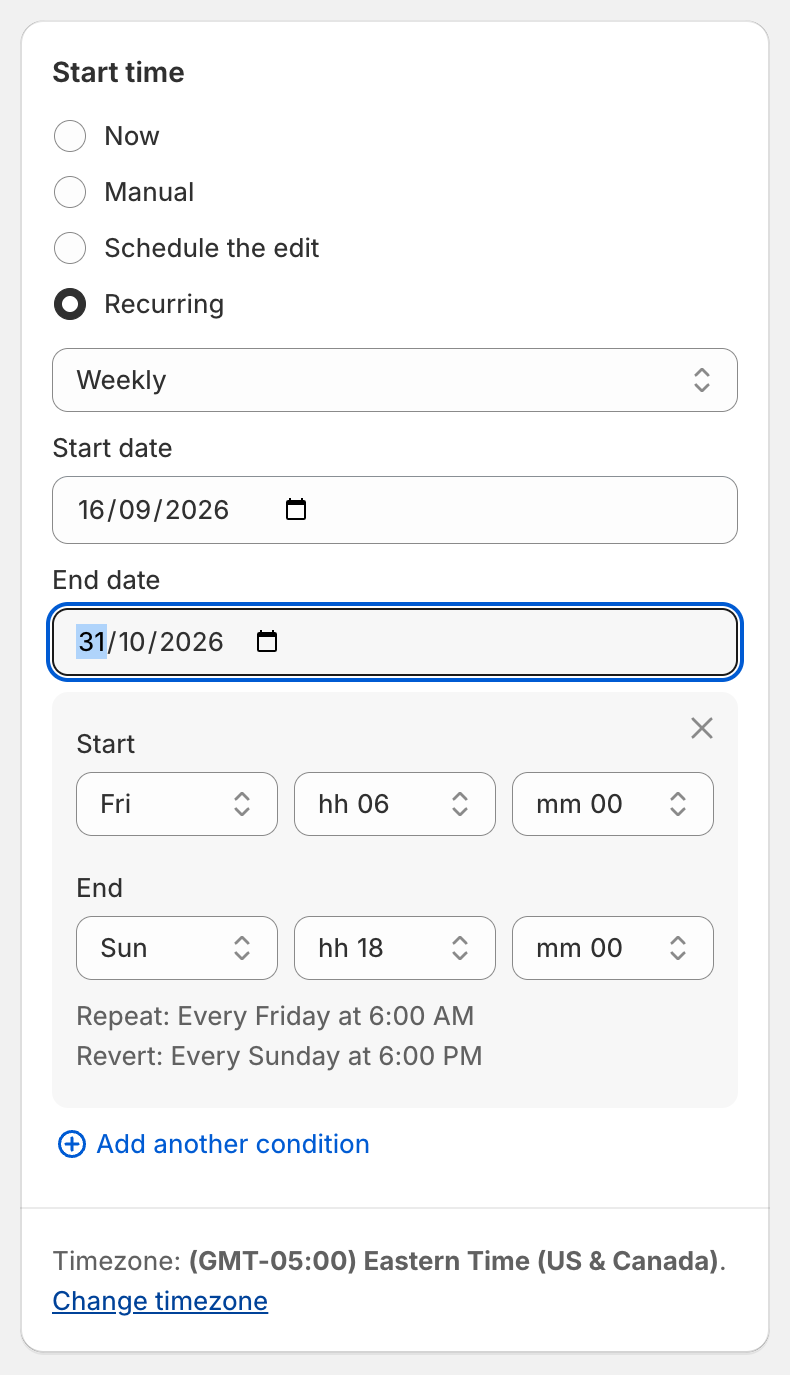
Weekly recurrence
Set one **Start date** and **End date** for the whole schedule, then for each condition choose the **Start** weekday and time and the **End** weekday and time. The end weekday must be the same as or after the start weekday, so a window can span several days (Friday 06:00 to Sunday 18:00) but not wrap past Sunday.
## Monthly
Same as weekly, but you choose a **day of the month** (1 to 31, or **Last day of month**) for the start and the end.
## Rules
* Times are chosen in 10-minute steps (00, 10, 20, 30, 40, 50) in your app timezone.
* When start and end fall on the same day, the end time must be later than the start time.
* You can add several conditions with **Add another condition**. They must not overlap: each condition must start after the previous one ends.
* There is no separate **Revert time** section. The end of each occurrence is the revert.
* Recurring tasks are not available for the delete fields.
* Recurring tasks require a paid plan.
## Timing
Recurring occurrences are checked every 10 minutes, so a run or revert may start up to about 10 minutes after the time you set. One-time scheduled tasks are not affected by this.
## Managing a recurring task
On the Tasks list the **Recurring** column shows **Daily**, **Weekly** or **Monthly**, and the progress column shows **Next run on …** and **Next revert on …**. On the task details page the **Recurring** card lists the schedule.
* **Reschedule** (in the **Recurring** card) changes future occurrences. Dates that have already passed are locked.
* **Cancel recurring task** stops all future runs. The task keeps the status **Manual start**.
* **Finish recurring** ends the schedule after the current cycle; the status becomes **Recurring completed**.
* A recurring task with no next occurrence and an unfinished cycle shows **Due**. Reschedule it or cancel it.
Recurring tasks cannot be duplicated.
---
# Agent Instructions
This documentation is published with GitBook. GitBook is the documentation platform designed so that both humans and AI agents can read, navigate, and reason over technical content effectively. Learn more at gitbook.com.
## Querying This Documentation
If you need additional information that is not directly available in this page, you can query the documentation by asking a question.
Perform an HTTP GET request on the following URL with the `ask` and `goal` query parameters:
```
GET https://docs.samita.io/bulk-price-editor-sami/manage-tasks/recurring-tasks.md?ask=&goal=
```
`ask` is the immediate question: it should be specific, self-contained, and written in natural language.
`goal` is what the user is ultimately trying to achieve, the reason they need the answer. Sharing it helps GitBook give you a better, more relevant answer. A goal is most helpful when it describes the outcome the user wants rather than restating the question. For example, with `ask=how do I create an API token`, a goal like `automate deployments from our CI pipeline` lets GitBook tailor the answer to that use case.
The response will contain a direct answer to the question and relevant excerpts and sources from the documentation.
Use this mechanism when the answer is not explicitly present in the current page, you need clarification or additional context, or you want to retrieve related documentation sections.