> For the complete documentation index, see [llms.txt](https://docs.samita.io/llms.txt). Markdown versions of documentation pages are available by appending `.md` to page URLs; this page is available as [Markdown](https://docs.samita.io/bulk-price-editor-sami/manage-tasks/run-pause-continue.md).
# Run, pause and continue a task
Start a manual task, pause a running task and continue a paused or partially complete task.
These actions are in the **⋮** menu on the Tasks list and in the top-right buttons of the task details page.
## Apply change now
Available for tasks in **Manual start**, **Scheduled** and **Failed** status (one-time tasks only). A **Confirm change** dialog asks *Are you sure you want to apply this edit? This will commence the editing process.* Click **Run** and the task starts immediately, regardless of its schedule.
Use this to start a manual task, to run a scheduled task early, or to retry a failed task after fixing the cause.
## Pause change
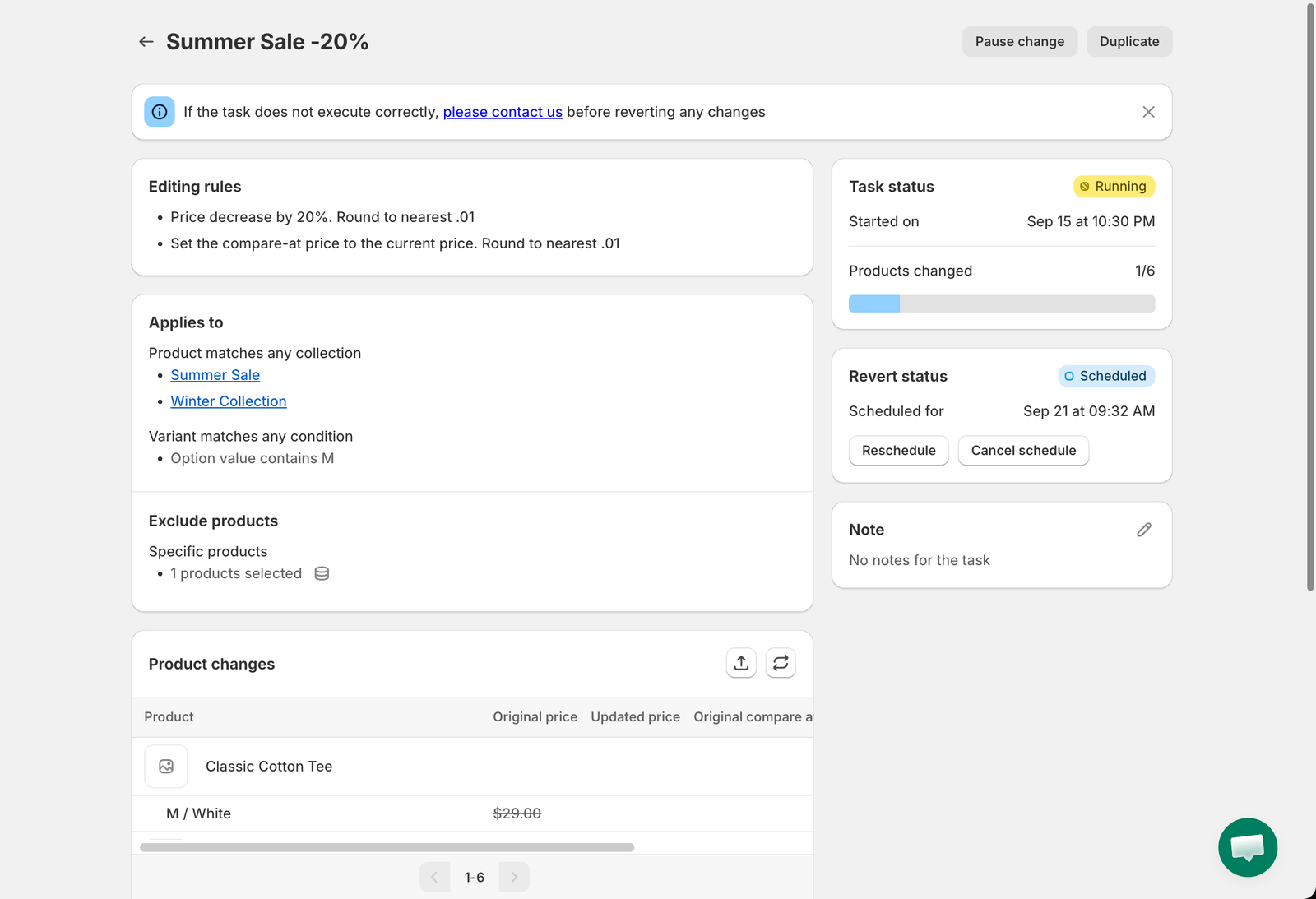
Available while a task is **Running**. A **Confirm pause edit** dialog appears. Products already updated stay updated; the status becomes **Paused**.
## Continue change
Available for **Paused** and **Partially complete** tasks. A **Confirm continue edit** dialog appears and the task resumes with the remaining products.
For a task that stopped because of the plan's products-per-task limit, **Continue change** becomes available after you upgrade, and processes the products that were left out. If the task has already been reverted, continuing is not possible; create a new task instead.
## Pause revert and Continue revert
The same two actions exist for the revert phase: **Pause revert** while a revert is in progress, and **Continue revert** when the revert is paused or partially complete.
## How long does a task take?
A running task
The app sends your changes to Shopify in batches through Shopify's bulk operations. Shopify processes one bulk operation per store at a time, so a task with many products, or several tasks started together, takes longer. Most tasks finish within minutes; very large catalogs can take longer. Keep the task page open or come back later; the status refreshes automatically.
{% hint style="warning" %}
Avoid editing the same products manually, or with another app, while a task is running or reverting. The task writes the values it calculated when it started, so later manual edits can be overwritten.
{% endhint %}
---
# Agent Instructions
This documentation is published with GitBook. GitBook is the documentation platform designed so that both humans and AI agents can read, navigate, and reason over technical content effectively. Learn more at gitbook.com.
## Querying This Documentation
If you need additional information that is not directly available in this page, you can query the documentation by asking a question.
Perform an HTTP GET request on the following URL with the `ask` and `goal` query parameters:
```
GET https://docs.samita.io/bulk-price-editor-sami/manage-tasks/run-pause-continue.md?ask=&goal=
```
`ask` is the immediate question: it should be specific, self-contained, and written in natural language.
`goal` is what the user is ultimately trying to achieve, the reason they need the answer. Sharing it helps GitBook give you a better, more relevant answer. A goal is most helpful when it describes the outcome the user wants rather than restating the question. For example, with `ask=how do I create an API token`, a goal like `automate deployments from our CI pipeline` lets GitBook tailor the answer to that use case.
The response will contain a direct answer to the question and relevant excerpts and sources from the documentation.
Use this mechanism when the answer is not explicitly present in the current page, you need clarification or additional context, or you want to retrieve related documentation sections.