> For the complete documentation index, see [llms.txt](https://docs.samita.io/llms.txt). Markdown versions of documentation pages are available by appending `.md` to page URLs; this page is available as [Markdown](https://docs.samita.io/bulk-price-editor-sami/manage-tasks/task-details.md).
# Task details and product changes
Read the task details page, the product-by-product change log, and the status cards.
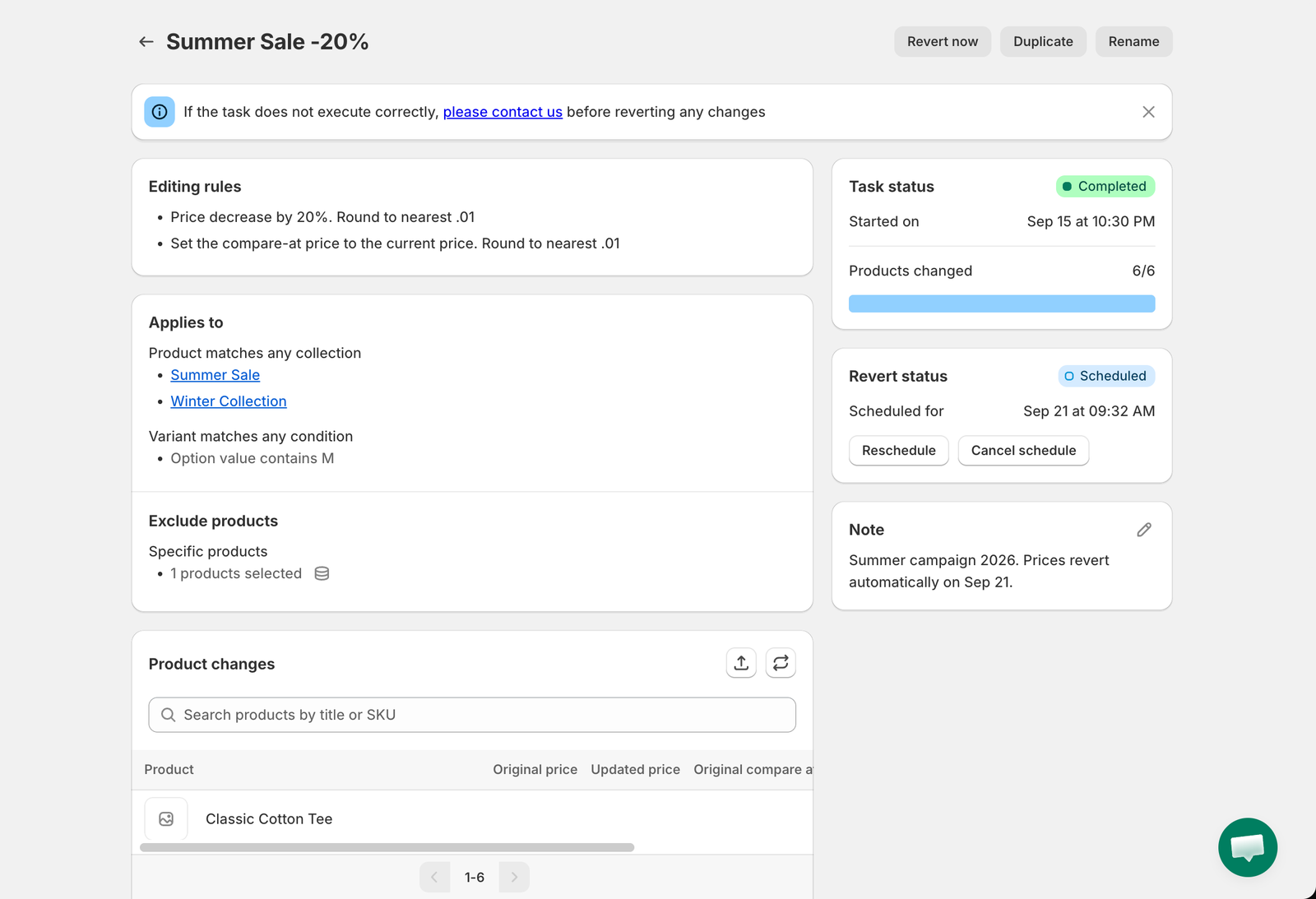
Open a task that has run to see its details page. The page title is the task name; the buttons in the top-right are the actions available in the current status.
Task details
## Left column
### Editing rules
The change the task makes, including the rounding rule and the linked field, for example *Price decrease by 20%. Round to nearest .01* and *Set the compare-at price to the current price*.
### Applies to
How products were selected: **All products**, the number of products picked, the collections (each a link to Shopify), or the list of conditions. Variant rules appear underneath, for example *Variant matches any condition: Option value contains M*. If products were excluded, an **Exclude products** section shows how many and lets you expand the list.
### Product changes
Product changes
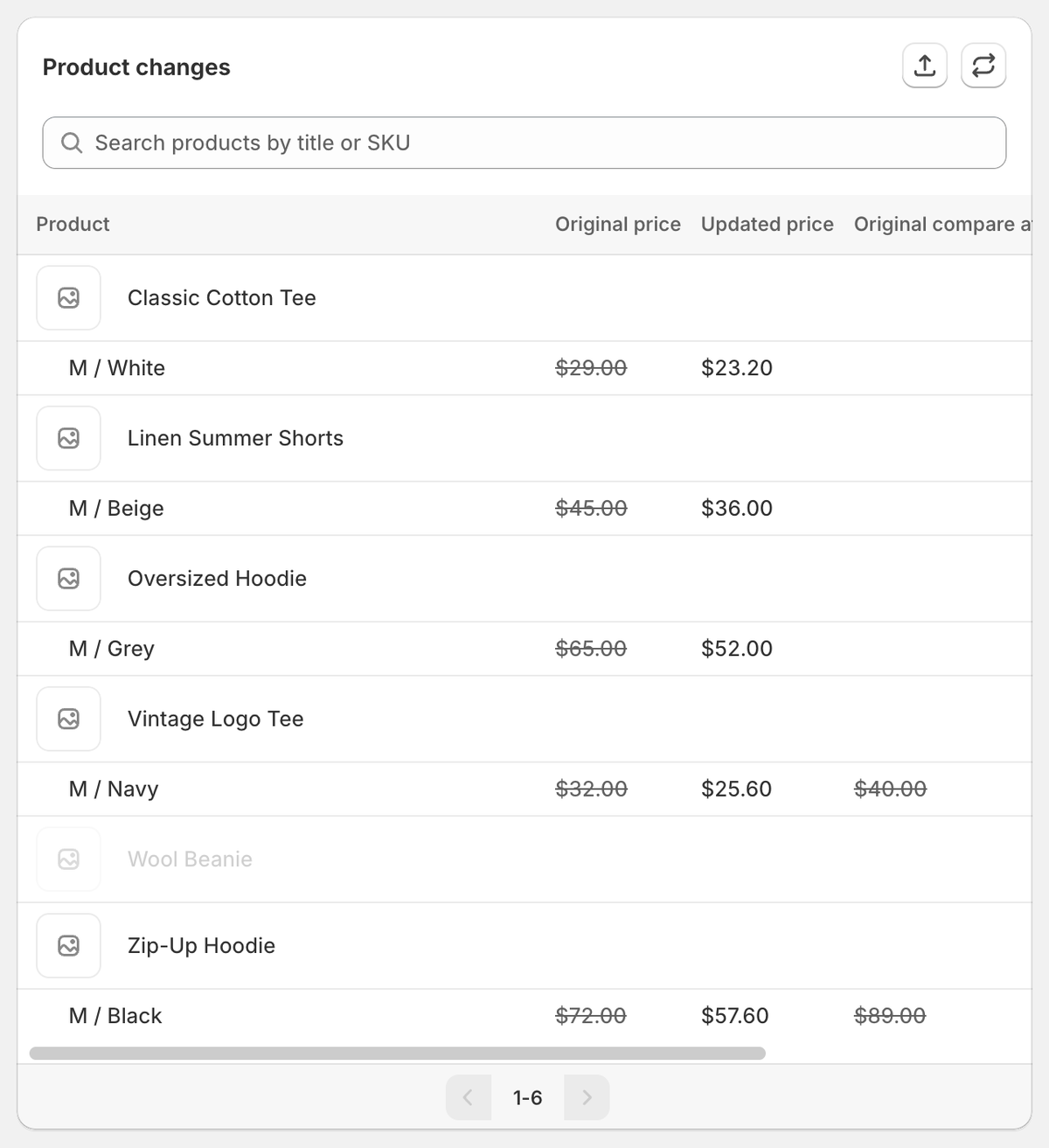
One row per product (and per changed variant) with the **original** value struck through and the **updated** value. Columns depend on the field; a price task shows original and updated price and compare-at price.
* **Search** by product title or SKU. The search also matches product ID, handle, variant title and variant ID.
* Product titles link to the product in your Shopify admin.
* For Title and Description tasks, the eye icon opens a side-by-side comparison.
* Products that were not changed (excluded, or no matching variant) are greyed out.
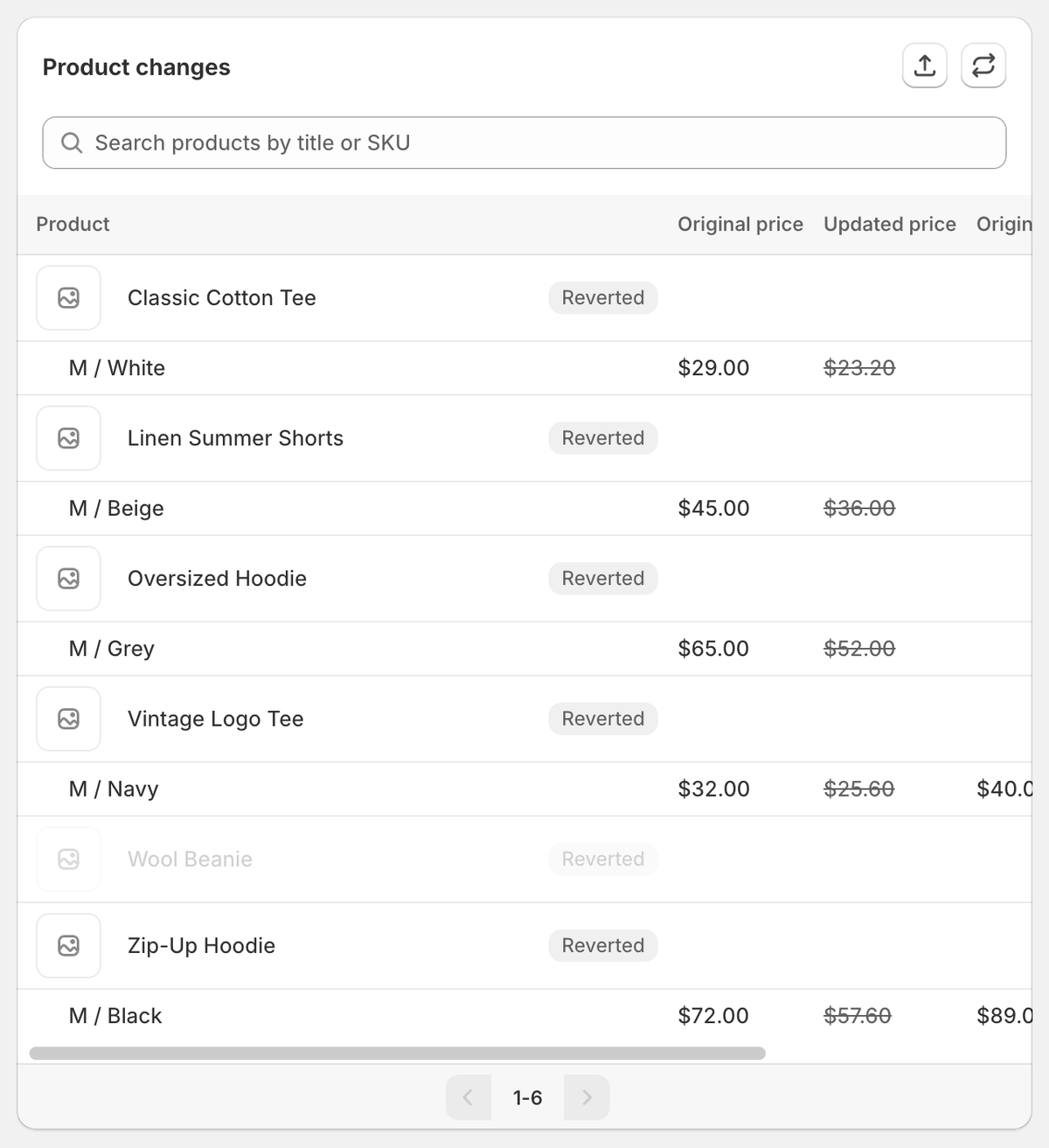
* After a revert, each reverted row shows a **Reverted** badge and the updated value is struck through instead.
* The table shows 20 rows per page. The refresh icon reloads it; the export icon downloads it. See [Export product changes](/bulk-price-editor-sami/manage-tasks/export.md).
After a revert
While the task is running, the table and the status cards refresh automatically every 10 seconds.
## Right column
### Task status
Task status
The status badge, **Started on** (or **Scheduled for**), and **Products changed** as a count and progress bar. For a scheduled task the card has **Reschedule** and **Cancel schedule** buttons; for a manual-start task it has **Schedule**. If the task failed or is partially complete, an error banner explains why. See [Task errors and warnings](/bulk-price-editor-sami/manage-tasks/errors.md).
### Revert status
Revert status
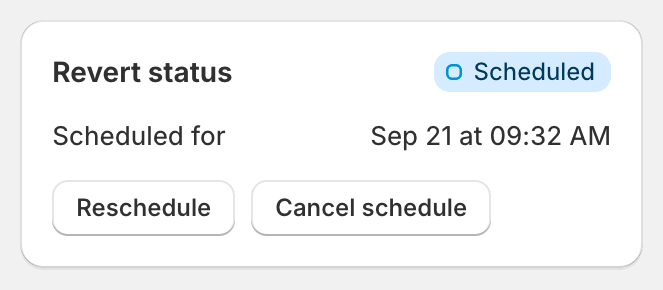
**Not reverted**, **Scheduled** (with **Reschedule** and **Cancel schedule**), **Revert in progress**, or **Completed** with **Reverted on** and **Products reverted**. When no revert is scheduled you can set one with **Schedule**. This card is hidden for delete tasks.
### Recurring
Shown for recurring tasks only: the repeat and revert schedule, the next run, and a **Reschedule** button. See [Recurring tasks](/bulk-price-editor-sami/manage-tasks/recurring-tasks.md).
### Note
Note
A free-text note for your team. Click the pencil to edit. See [Rename, notes and archive](/bulk-price-editor-sami/manage-tasks/rename-note-archive.md).
## Banners
* *If the task does not execute correctly, please contact us before reverting any changes*: shown on every task page as a reminder. Dismiss it with the **×**.
* **Task archived**: shown when the task is archived. Archived tasks offer only **Unarchive** and **Note**.
---
# Agent Instructions
This documentation is published with GitBook. GitBook is the documentation platform designed so that both humans and AI agents can read, navigate, and reason over technical content effectively. Learn more at gitbook.com.
## Querying This Documentation
If you need additional information that is not directly available in this page, you can query the documentation by asking a question.
Perform an HTTP GET request on the following URL with the `ask` and `goal` query parameters:
```
GET https://docs.samita.io/bulk-price-editor-sami/manage-tasks/task-details.md?ask=&goal=
```
`ask` is the immediate question: it should be specific, self-contained, and written in natural language.
`goal` is what the user is ultimately trying to achieve, the reason they need the answer. Sharing it helps GitBook give you a better, more relevant answer. A goal is most helpful when it describes the outcome the user wants rather than restating the question. For example, with `ask=how do I create an API token`, a goal like `automate deployments from our CI pipeline` lets GitBook tailor the answer to that use case.
The response will contain a direct answer to the question and relevant excerpts and sources from the documentation.
Use this mechanism when the answer is not explicitly present in the current page, you need clarification or additional context, or you want to retrieve related documentation sections.