> For the complete documentation index, see [llms.txt](https://docs.samita.io/llms.txt). Markdown versions of documentation pages are available by appending `.md` to page URLs; this page is available as [Markdown](https://docs.samita.io/bulk-price-editor-sami/manage-tasks/tasks-list-and-statuses.md).
# Tasks list and statuses
Find your tasks, read their status and progress, and open the per-task action menu.
Open **Tasks** in the app menu to see every task in your store. The page title is **Bulk Edit Tasks**.
Bulk Edit Tasks
## Filter, search and sort
* **Tabs** filter by status: **All**, **Pending**, **Running**, **Completed**, **Scheduled**, **Partially complete**, **Revert completed**, **Pause** and **Archived**. Archived tasks appear only in the **Archived** tab.
* The **search** icon opens a box that searches by task name.
* The **sort** icon offers **Created at** (newest or oldest first) and **Name** (A to Z or Z to A).
* The list shows 15 tasks per page. Use the arrows below the table, or the left and right arrow keys, to change page.
* While a task is running or reverting, the list refreshes itself every 10 seconds.
## Columns
| Column | Content |
| ----------------- | ------------------------------------------------------------------------------------------------------------------------------------------------------------------------- |
| **ID** | The task number, for example #79985. Quote it when you contact support. |
| **Name** | The task name. A note icon appears if the task has a note; hover it to read the note. |
| **Recurring** | **One-time**, **Daily**, **Weekly** or **Monthly**. |
| **Status** | The status badge (see below). |
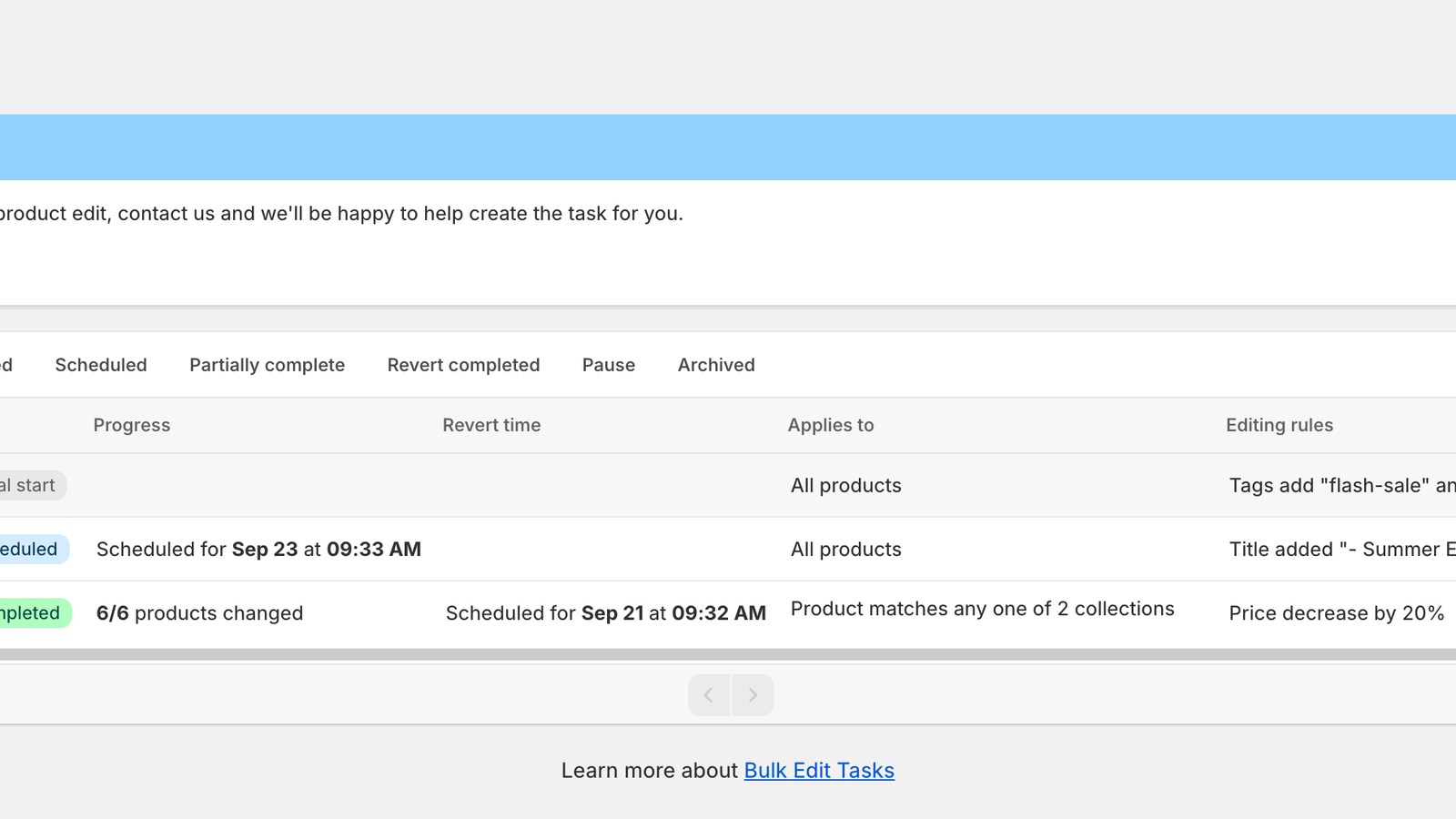
| **Progress** | Products changed so far, for example **6/6 products changed**, or the scheduled start. |
| **Revert time** | When the revert is scheduled, or when it happened. Shown only when at least one task on the page has a revert. |
| **Applies to** | **All products**, **3 products selected**, **Product matches any one of 2 collections** or **… conditions**. Click the chevron to see the products, collections or rules. |
| **Editing rules** | A one-line summary, for example *Price decrease by 20%*. |
| **Created at** | Date and time the task was created, followed by the **⋮** action menu. |
Clicking a row opens the task. Scheduled and manual-start tasks open in the task editor; tasks that have run open the task details page.
## Statuses
| Badge | Meaning |
| ----------------------- | ------------------------------------------------------------------------------------------------------------------------------------------------------------------------------------------------------------------- |
| **Manual start** | Saved with **Start time: Manual**, or its schedule was cancelled. It runs only when you choose **Apply change now**. |
| **Scheduled** | Waiting for its start time. Progress shows **Scheduled for \ at \