> For the complete documentation index, see [llms.txt](https://docs.samita.io/llms.txt). Markdown versions of documentation pages are available by appending `.md` to page URLs; this page is available as [Markdown](https://docs.samita.io/discounts/create-automatic-discount.md).

# Create an automatic discount

Build a discount that applies itself at checkout — set the value, the schedule, the products it covers, and show the new price on your storefront.

An automatic discount needs no code: Shopify applies it at checkout as soon as the cart contains a product that matches your conditions. It is also the only type that can show its discounted price on your storefront.

{% stepper %}
{% step %}

## Open the Discounts page

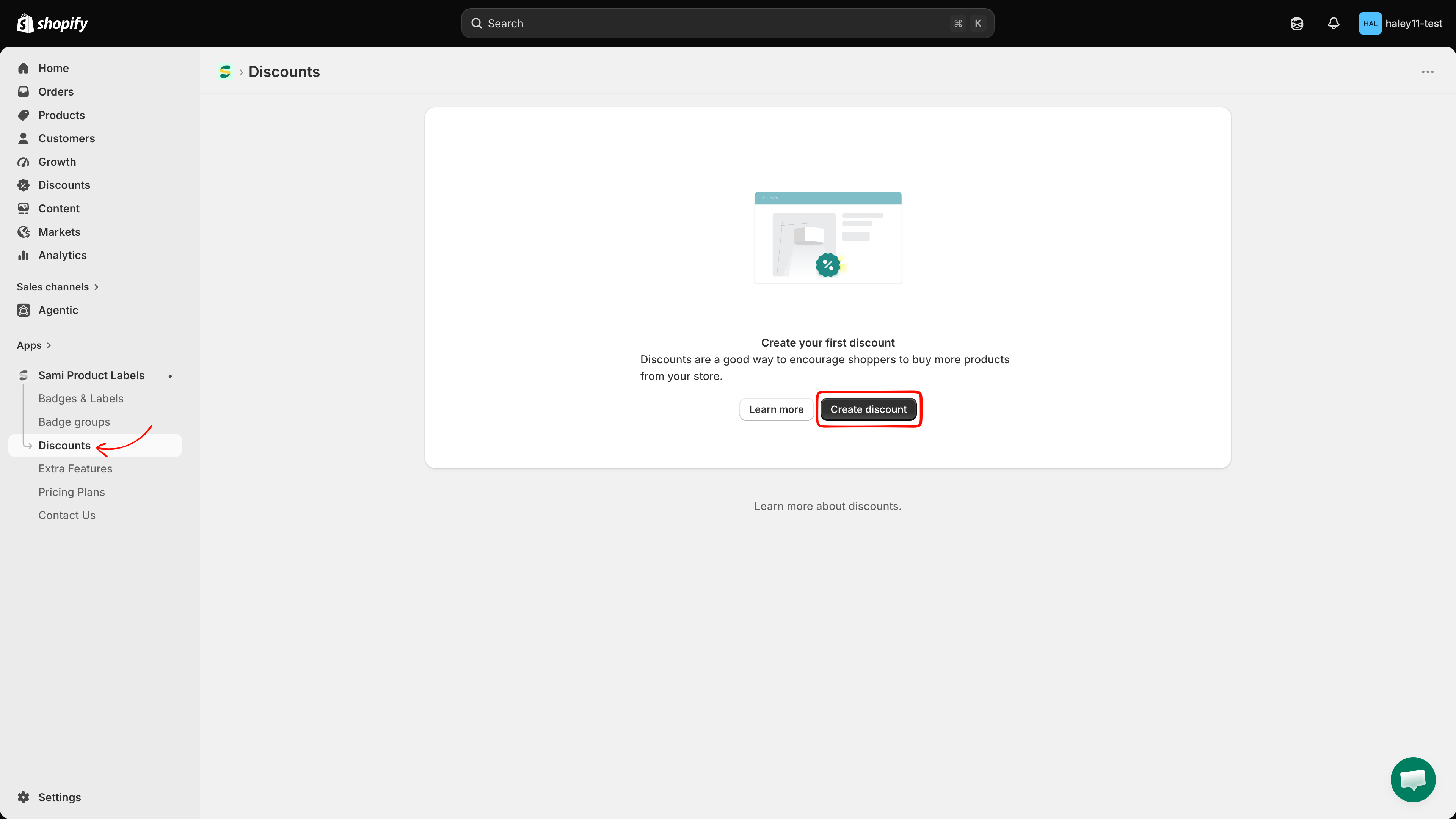
In your Shopify admin, open the **Sami Product Labels** app and click **Discounts** in the app sidebar.

<figure><img src="https://1598842017-files.gitbook.io/~/files/v0/b/gitbook-x-prod.appspot.com/o/spaces%2F1WRTlT5AcaLSAedbCJyZ%2Fuploads%2Fgit-blob-4088514134d9b1a9574c02d8df56293123159de2%2Fimage_229.png?alt=media" alt="The Discounts entry in the Sami Product Labels app sidebar"><figcaption><p>Discounts sits between Badge groups and Extra Features in the sidebar.</p></figcaption></figure>
{% endstep %}

{% step %}

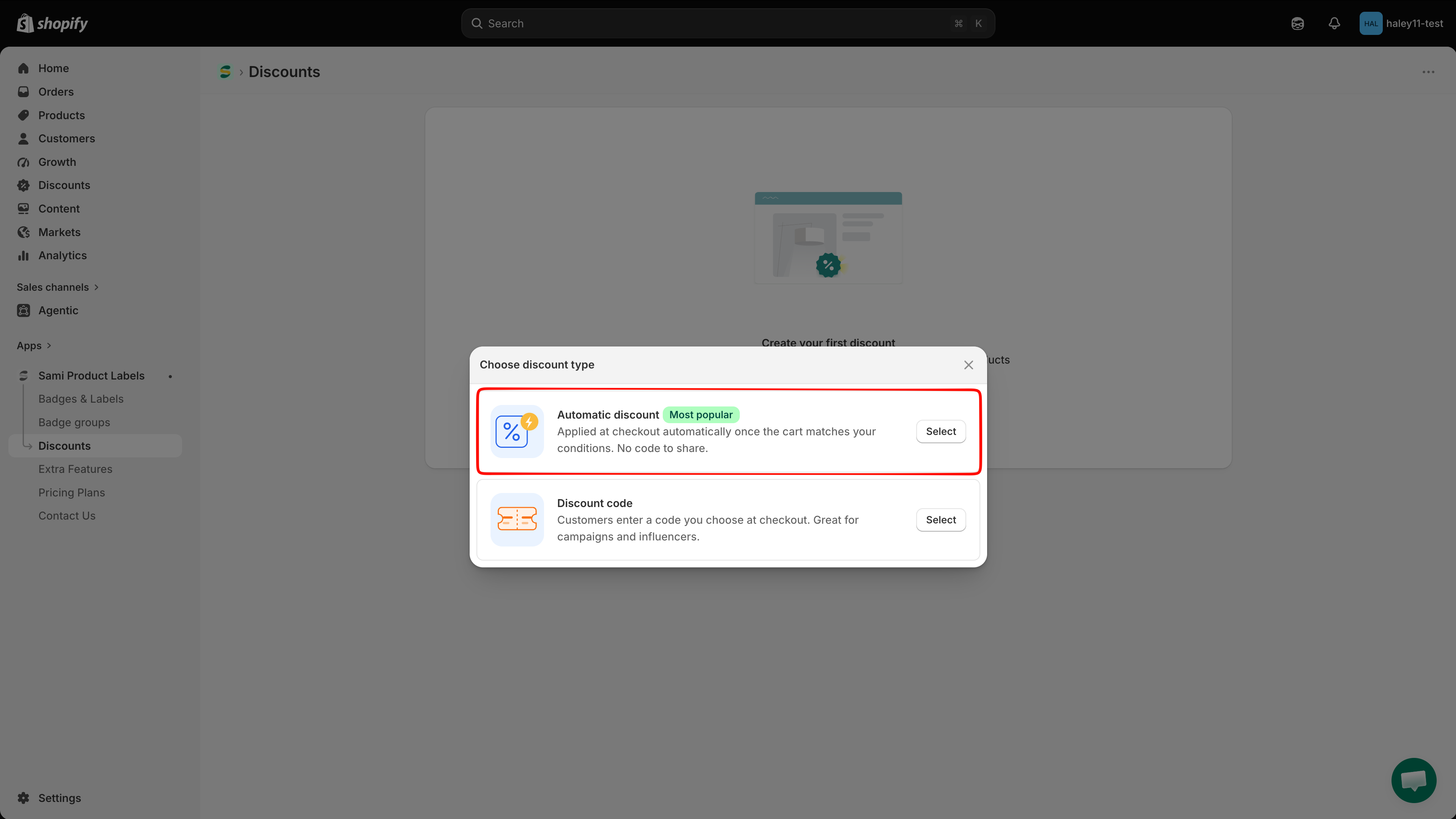
## Click Create discount, then choose Automatic discount

Click **Create discount**. In the **Choose discount type** dialog, click **Select** next to **Automatic discount**.

<figure><img src="https://1598842017-files.gitbook.io/~/files/v0/b/gitbook-x-prod.appspot.com/o/spaces%2F1WRTlT5AcaLSAedbCJyZ%2Fuploads%2Fgit-blob-ceaa27d9a405380e419e1f0e21d8b2f074f99dd8%2Fimage_230.png?alt=media" alt="The Choose discount type dialog with Select highlighted next to Automatic discount"><figcaption><p>Automatic discount applies at checkout on its own — there is no code to share.</p></figcaption></figure>

{% hint style="info" %}
The type cannot be changed later. If you need a code instead, see [Create a discount code](/discounts/create-discount-code.md).
{% endhint %}
{% endstep %}

{% step %}

## Name the discount and set its status

The editor opens on the **Discount configurations** tab. In **General information**:

* Type a **Discount name**. It is internal — shoppers never see it — and must be unique in your store.
* Use the selector beside the name to set the status to **Active** or **Draft**. The badge next to the section heading follows your choice.

<figure><img src="https://1598842017-files.gitbook.io/~/files/v0/b/gitbook-x-prod.appspot.com/o/spaces%2F1WRTlT5AcaLSAedbCJyZ%2Fuploads%2Fgit-blob-68e0237a92c04f7644e6f6755cf39a50f660e4a0%2Fimage_231.png?alt=media" alt="The General information section with the discount name field and the Active/Draft selector"><figcaption><p>The name identifies the discount in your list and in the Shopify admin.</p></figcaption></figure>

{% hint style="info" %}
Leave it on **Draft** while you are still setting things up. A Draft discount is deactivated in Shopify and applies to nobody.
{% endhint %}
{% endstep %}

{% step %}

## (Optional) Show the discounted price on the storefront

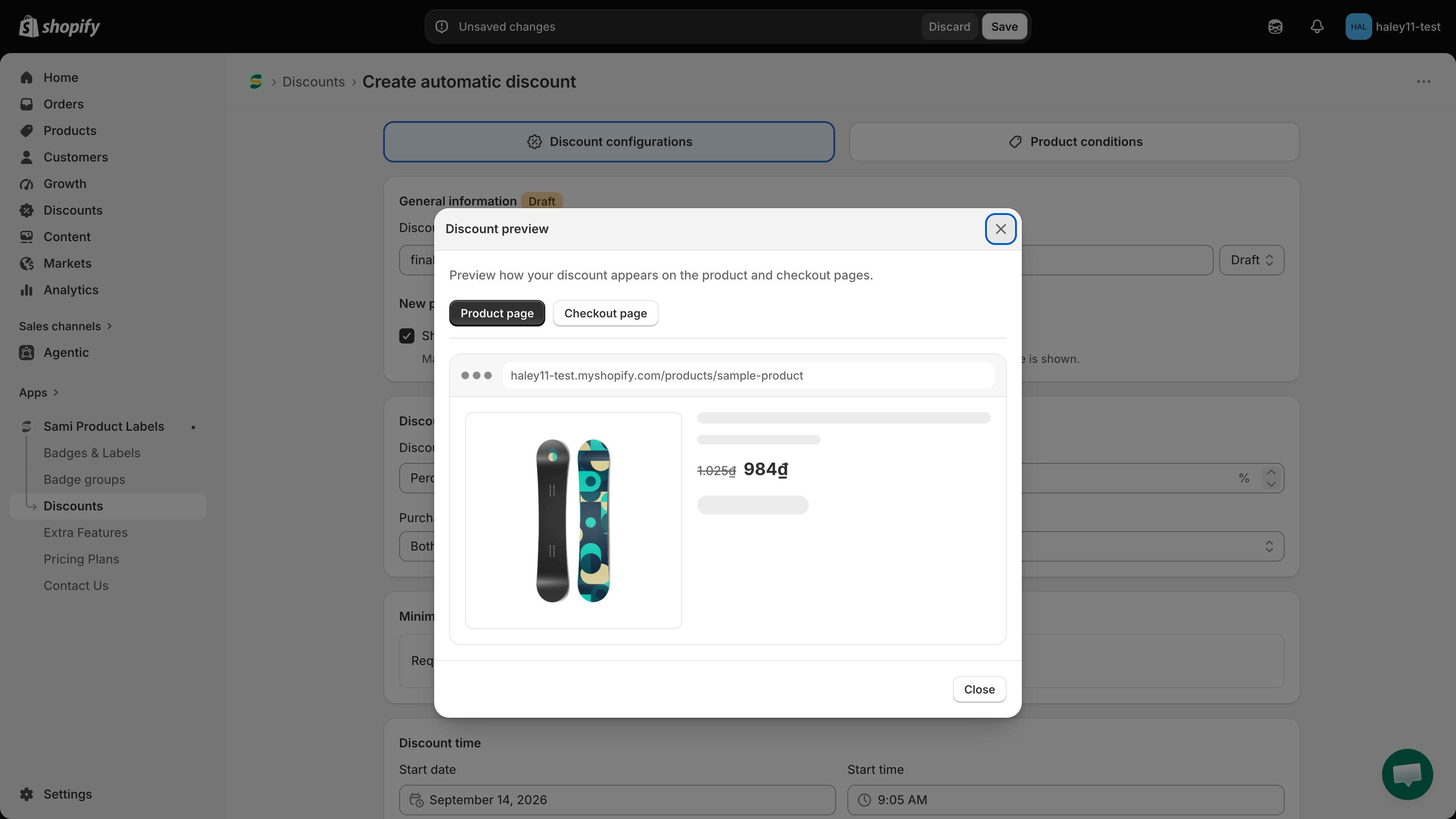
Still in **General information**, tick **Show the discounted price on the storefront**. Matching products then show their original price crossed out next to the discounted one, the way a compare-at price is shown.

Click the eye icon next to **New price display** to open **Discount preview** and check the result on the **Product page** and the **Checkout page**.

<figure><img src="https://1598842017-files.gitbook.io/~/files/v0/b/gitbook-x-prod.appspot.com/o/spaces%2F1WRTlT5AcaLSAedbCJyZ%2Fuploads%2Fgit-blob-a3776dfce37dfd213800221cbb40f0b56ab0e996%2Fimage_232.png?alt=media" alt="The Discount preview dialog with the Product page and Checkout page tabs"><figcaption><p>Preview how the discount reads before you publish it.</p></figcaption></figure>

{% hint style="warning" %}
The checkbox is disabled while a minimum purchase requirement is set — a minimum is only met by a whole cart, so the price cannot be shown on a product page.
{% endhint %}
{% endstep %}

{% step %}

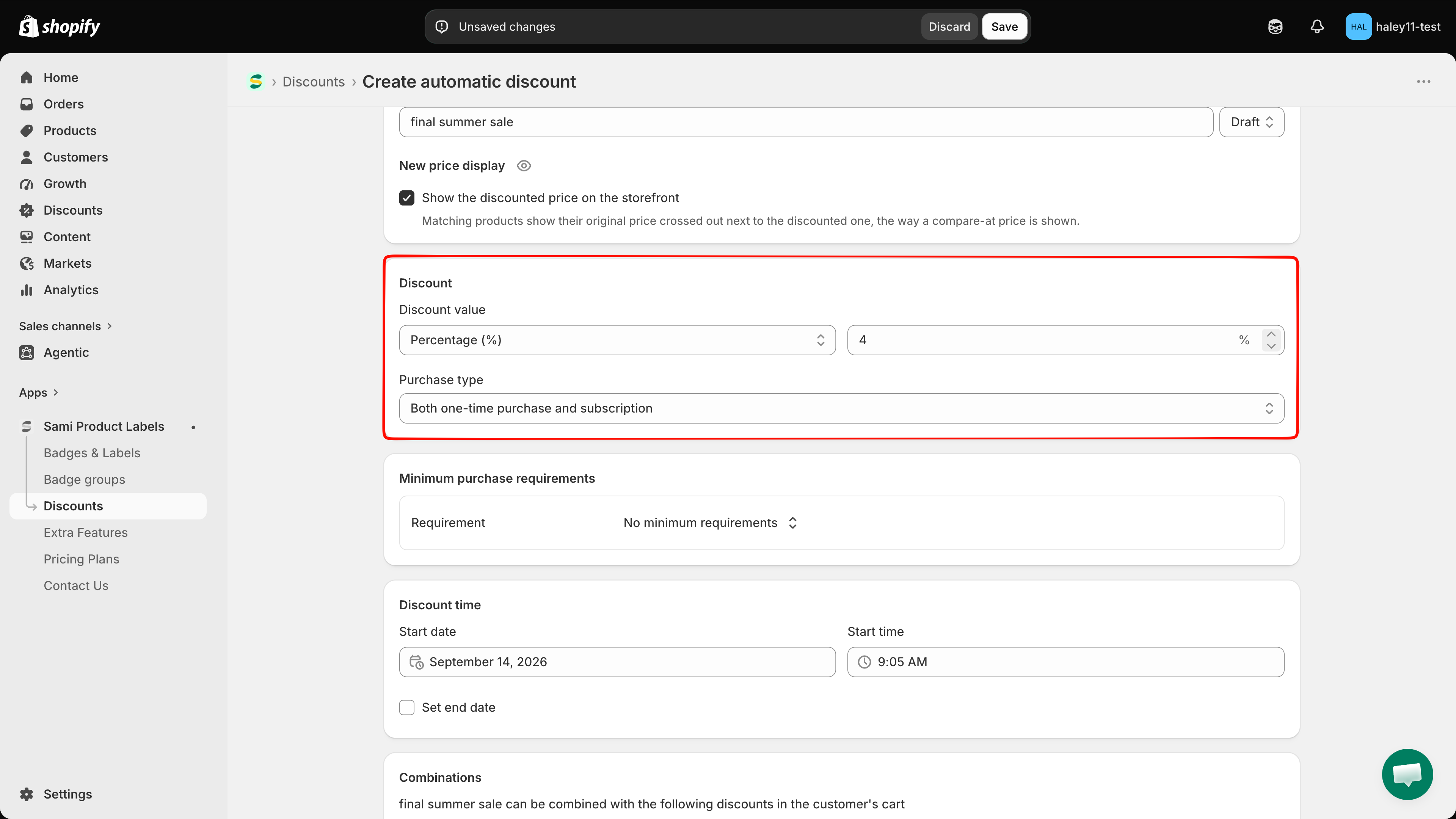
## Set the discount value

In the **Discount** section, pick a **Discount value** type and enter the number:

| Type               | What it does                                                              |
| ------------------ | ------------------------------------------------------------------------- |
| **Percentage (%)** | Takes that percentage off each matching item. Maximum 100%.               |
| **Fixed amount**   | Takes that amount off each matching item, in your store currency.         |
| **New price**      | Sells each matching item at the price you type, instead of its own price. |

Then choose a **Purchase type**: **One-time purchase**, **Subscription**, or **Both one-time purchase and subscription**.

<figure><img src="https://1598842017-files.gitbook.io/~/files/v0/b/gitbook-x-prod.appspot.com/o/spaces%2F1WRTlT5AcaLSAedbCJyZ%2Fuploads%2Fgit-blob-29868cb29687ad08646f62c59556c4631ec6f1a6%2Fimage_233.png?alt=media" alt="The Discount section with the discount value type, the value field, and the purchase type selector"><figcaption><p>The value field switches between a % suffix and your currency prefix.</p></figcaption></figure>

{% hint style="warning" %}
The value has to be greater than 0, and a percentage cannot be greater than 100%.
{% endhint %}
{% endstep %}

{% step %}

## (Optional) Add a minimum purchase requirement

Open the **Requirement** selector in **Minimum purchase requirements** and choose one of:

| Option                        | What the cart must reach                    |
| ----------------------------- | ------------------------------------------- |
| **No minimum requirements**   | Nothing — the discount always applies.      |
| **Minimum purchase amount**   | A subtotal you set, in your store currency. |
| **Minimum quantity of items** | A number of items you set.                  |

Picking either of the last two adds a **Requirement value** field below. The requirement counts only the products this discount applies to.

<figure><img src="https://1598842017-files.gitbook.io/~/files/v0/b/gitbook-x-prod.appspot.com/o/spaces%2F1WRTlT5AcaLSAedbCJyZ%2Fuploads%2Fgit-blob-3caae5e6e623189dd23a65b64df02ac706da3493%2Fimage_234.png?alt=media" alt="The Minimum purchase requirements section with Minimum purchase amount selected and a requirement value field"><figcaption><p>The value counts only the products the discount applies to.</p></figcaption></figure>
{% endstep %}

{% step %}

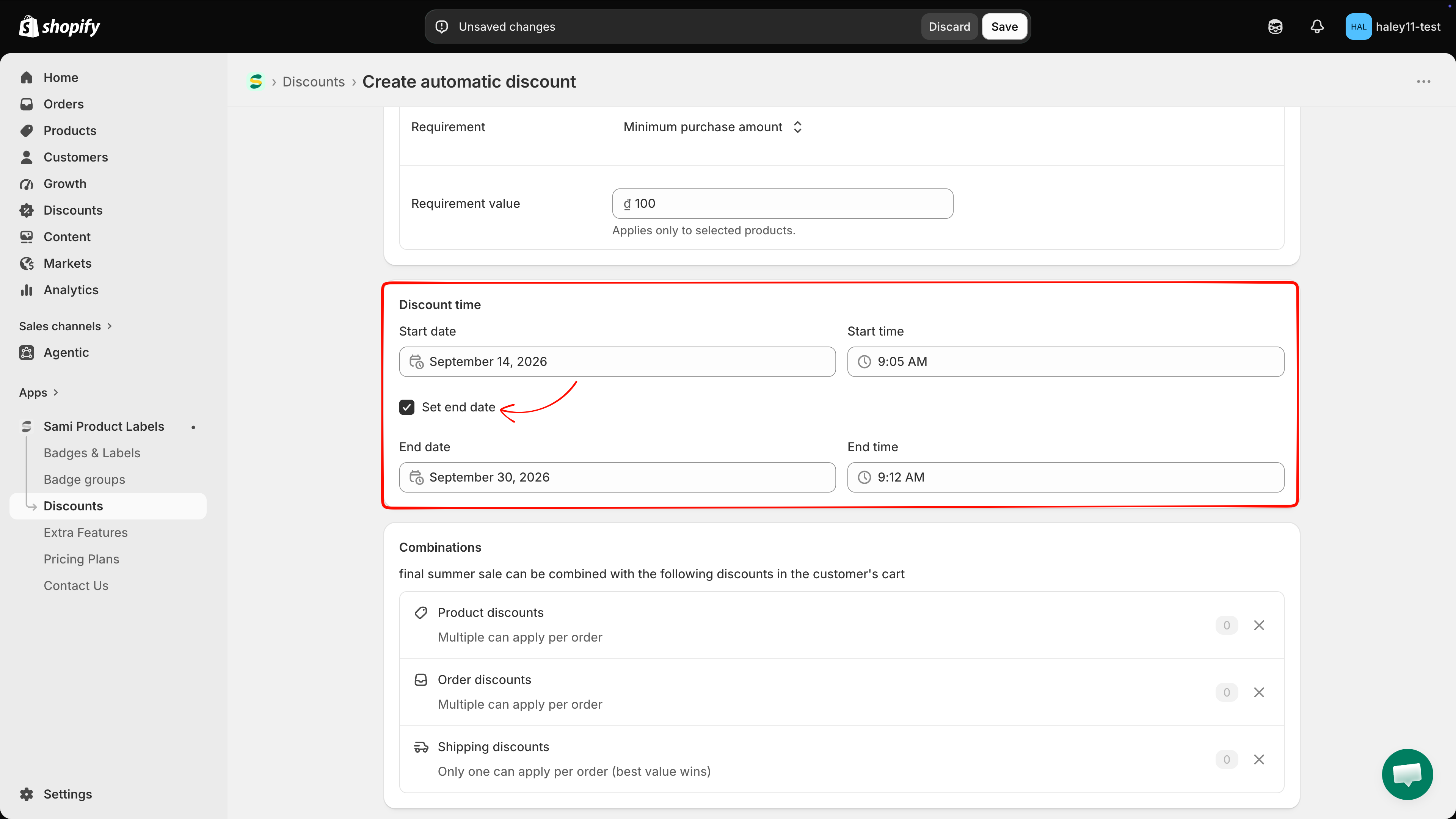
## Schedule the discount

In **Discount time**, set the **Start date** and **Start time**. The fields are pre-filled with the current date and time.

Tick **Set end date** to add **End date** and **End time** fields. Leave it unticked to run the discount until you deactivate it.

<figure><img src="https://1598842017-files.gitbook.io/~/files/v0/b/gitbook-x-prod.appspot.com/o/spaces%2F1WRTlT5AcaLSAedbCJyZ%2Fuploads%2Fgit-blob-f9d6a88fb5e5860fc12c068d16ee55e455dbccc3%2Fimage_235.png?alt=media" alt="The Discount time section with start date, start time, and the Set end date checkbox"><figcaption><p>A discount with a start date in the future is listed as Scheduled.</p></figcaption></figure>

{% hint style="warning" %}
The end time must be later than the start time.
{% endhint %}
{% endstep %}

{% step %}

## Choose which discounts it can combine with

**Combinations** starts with all three types allowed. Each row shows how many active discounts of that type your store has — click the counter to list them.

| Row                    | Behaviour                                       |
| ---------------------- | ----------------------------------------------- |
| **Product discounts**  | Multiple can apply per order.                   |
| **Order discounts**    | Multiple can apply per order.                   |
| **Shipping discounts** | Only one can apply per order (best value wins). |

Click the **x** on a row to stop this discount from combining with that type. Once a row is removed, a pencil icon appears in the section header — use it to tick the types back on.

<figure><img src="https://1598842017-files.gitbook.io/~/files/v0/b/gitbook-x-prod.appspot.com/o/spaces%2F1WRTlT5AcaLSAedbCJyZ%2Fuploads%2Fgit-blob-ebed7ee3b898b3be57fdf61b998583c15200d537%2Fimage_236.png?alt=media" alt="The Combinations popover with checkboxes for product, order, and shipping discounts"><figcaption><p>The pencil icon reopens the full list of combination types.</p></figcaption></figure>
{% endstep %}

{% step %}

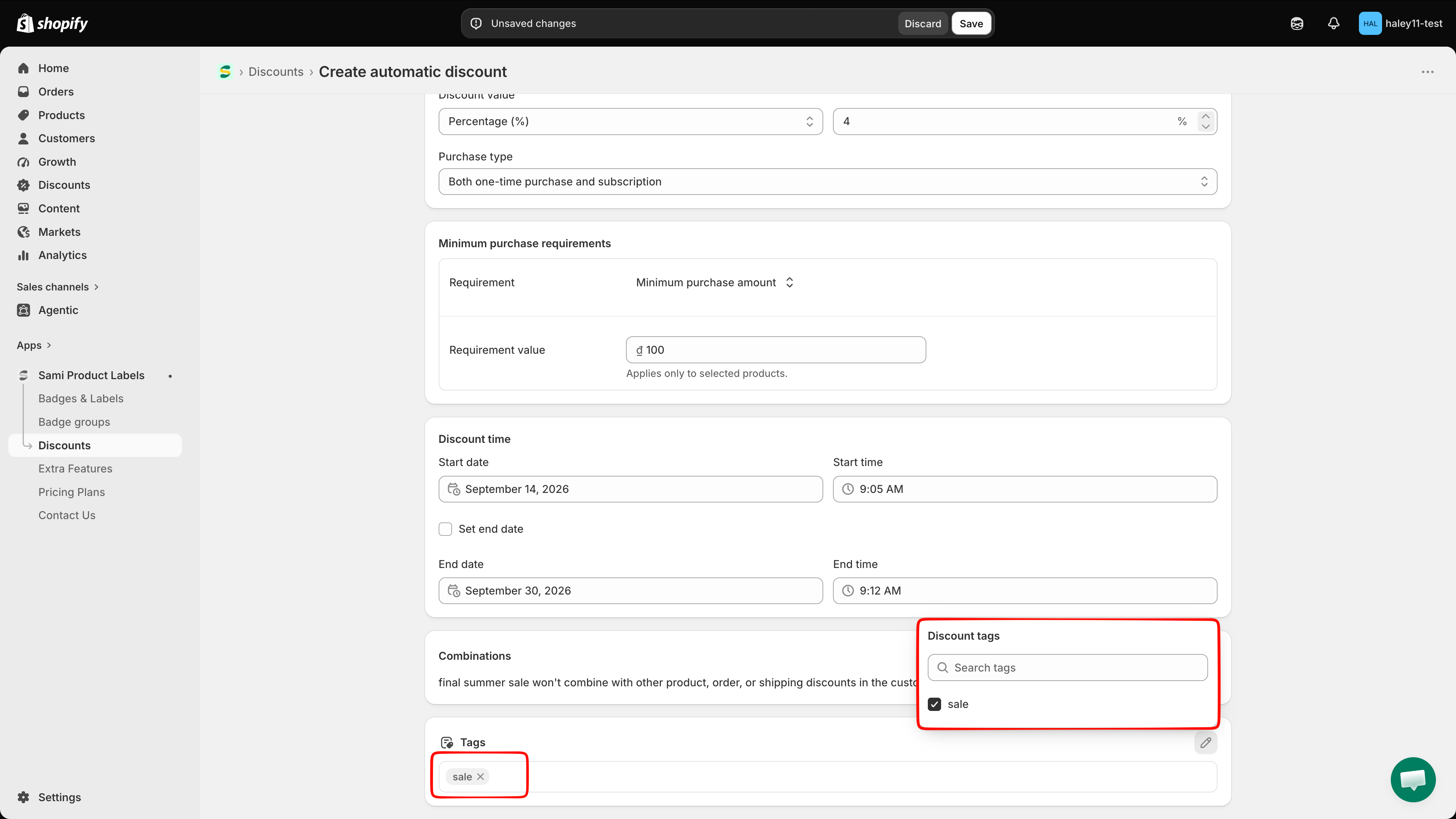
## (Optional) Add tags

In the **Tags** section, click **Add tags** to open the **Discount tags** popover. Tick an existing tag, or type a new one and click **Add tag "…"**.

Tags are internal. They are shared across the discounts in your store and are used to filter the combination list.

<figure><img src="https://1598842017-files.gitbook.io/~/files/v0/b/gitbook-x-prod.appspot.com/o/spaces%2F1WRTlT5AcaLSAedbCJyZ%2Fuploads%2Fgit-blob-75564e6576b874f3e4584b38e52ec74d07c22428%2Fimage_237.png?alt=media" alt="The Discount tags popover with a search field and the option to add a new tag"><figcaption><p>Tags group related campaigns without affecting what shoppers see.</p></figcaption></figure>
{% endstep %}

{% step %}

## Choose which products the discount applies to

Switch to the **Product conditions** tab and pick a mode:

| Mode                    | What it covers                                                       |
| ----------------------- | -------------------------------------------------------------------- |
| **All products**        | Every product in the cart gets this discount.                        |
| **Specific products**   | Only the products or variants you pick.                              |
| **Matching conditions** | Every product that matches the collections, titles, or tags you set. |

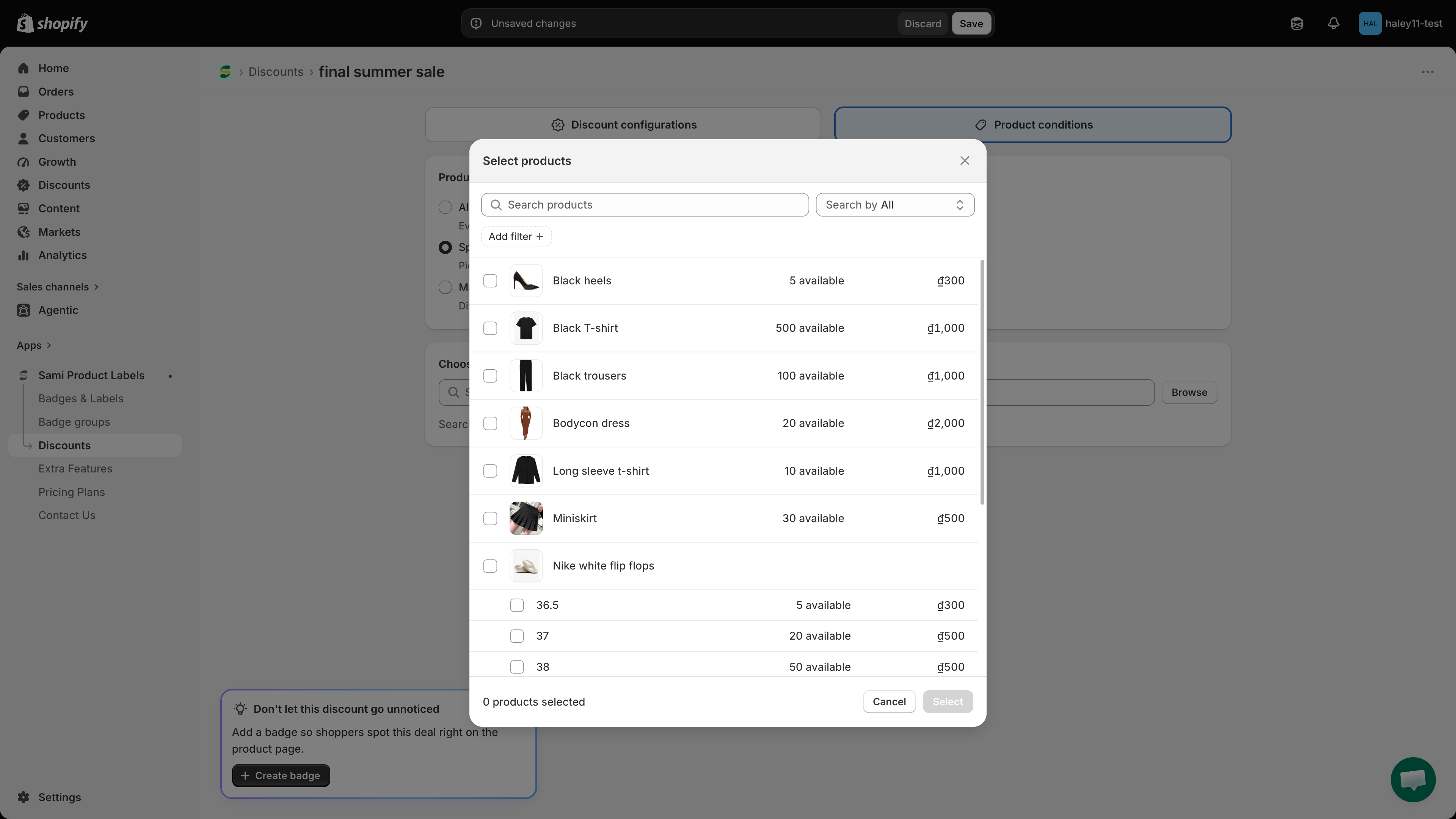
For **Specific products**, type in the **Search products** field or click **Browse** to open the Shopify product picker. Selected products are listed with a thumbnail; a product with several variants shows how many are selected and an **Edit** link to change them. The **x** removes a product from the list.

<figure><img src="https://1598842017-files.gitbook.io/~/files/v0/b/gitbook-x-prod.appspot.com/o/spaces%2F1WRTlT5AcaLSAedbCJyZ%2Fuploads%2Fgit-blob-b487eb1f955ee69351491e080cacfc49b5e6109f%2Fimage_238.png?alt=media" alt="The Product conditions tab with the three modes and the Choose specific products section"><figcaption><p>Specific products opens the Shopify picker, down to individual variants.</p></figcaption></figure>

{% hint style="info" %}
For the third mode, see [Use matching conditions](/discounts/matching-conditions.md).
{% endhint %}
{% endstep %}

{% step %}

## Save

Click **Save** in the bar at the top of the screen. **Discard** throws away your changes after a confirmation.

If anything is missing, a red banner lists every problem and the editor switches to the tab that owns the first one.

Once saved, the page heading changes to your discount name and the **Don't let this discount go unnoticed** card appears — click **Create badge** to build a badge for this discount, or dismiss it with the **x**.

<figure><img src="https://1598842017-files.gitbook.io/~/files/v0/b/gitbook-x-prod.appspot.com/o/spaces%2F1WRTlT5AcaLSAedbCJyZ%2Fuploads%2Fgit-blob-a59a8747323e6ab3eeb8c66558d03275039d5d8a%2Fimage_239.png?alt=media" alt="The saved discount with the badge suggestion card at the bottom of the screen"><figcaption><p>The badge editor opens pre-filled with this discount's value.</p></figcaption></figure>
{% endstep %}
{% endstepper %}

## Next steps

* [Use matching conditions](/discounts/matching-conditions.md) — match products by collection, title, or tag instead of picking them one by one.
* [Create a discount code](/discounts/create-discount-code.md) — the same setup, with a code the shopper types at checkout.
* [Discounts overview](/discounts/overview.md) — statuses, plan limits, and how discounts connect to badges.

{% hint style="success" %}
**Need support?**

If you run into any difficulty while following these steps, contact us at <support@samita.io>.
{% endhint %}


---

# Agent Instructions
This documentation is published with GitBook. GitBook is the documentation platform designed so that both humans and AI agents can read, navigate, and reason over technical content effectively. Learn more at gitbook.com.

## Querying This Documentation
If you need additional information that is not directly available in this page, you can query the documentation by asking a question.

Perform an HTTP GET request on the following URL with the `ask` and `goal` query parameters:

```
GET https://docs.samita.io/discounts/create-automatic-discount.md?ask=<question>&goal=<user_goal>
```

`ask` is the immediate question: it should be specific, self-contained, and written in natural language.
`goal` is what the user is ultimately trying to achieve, the reason they need the answer. Sharing it helps GitBook give you a better, more relevant answer. A goal is most helpful when it describes the outcome the user wants rather than restating the question. For example, with `ask=how do I create an API token`, a goal like `automate deployments from our CI pipeline` lets GitBook tailor the answer to that use case.

The response will contain a direct answer to the question and relevant excerpts and sources from the documentation.

Use this mechanism when the answer is not explicitly present in the current page, you need clarification or additional context, or you want to retrieve related documentation sections.