Discounts overview
Create automatic discounts and discount codes for your store directly inside Sami Product Labels, then show the deal on your product pages.
Discounts lets you build a store discount without leaving Sami Product Labels. You set the value, the schedule, and which products it applies to; the app creates the matching discount in Shopify for you and keeps the two in sync.
Because the discount is created and edited here, the app also knows what each product's discounted price is — so it can cross out the original price on your storefront and fill the number straight into a badge.

Discount types
Clicking Create discount asks you to choose one of two types. The choice is made up front and cannot be switched afterwards — create a new discount instead.
Automatic discount
Applied at checkout automatically once the cart matches your conditions. No code to share.
Site-wide or category sales that everyone should get.
Discount code
The shopper enters a code you choose at checkout.
Campaigns, newsletters, and influencer codes.

What you can configure
Every discount has the same two tabs.
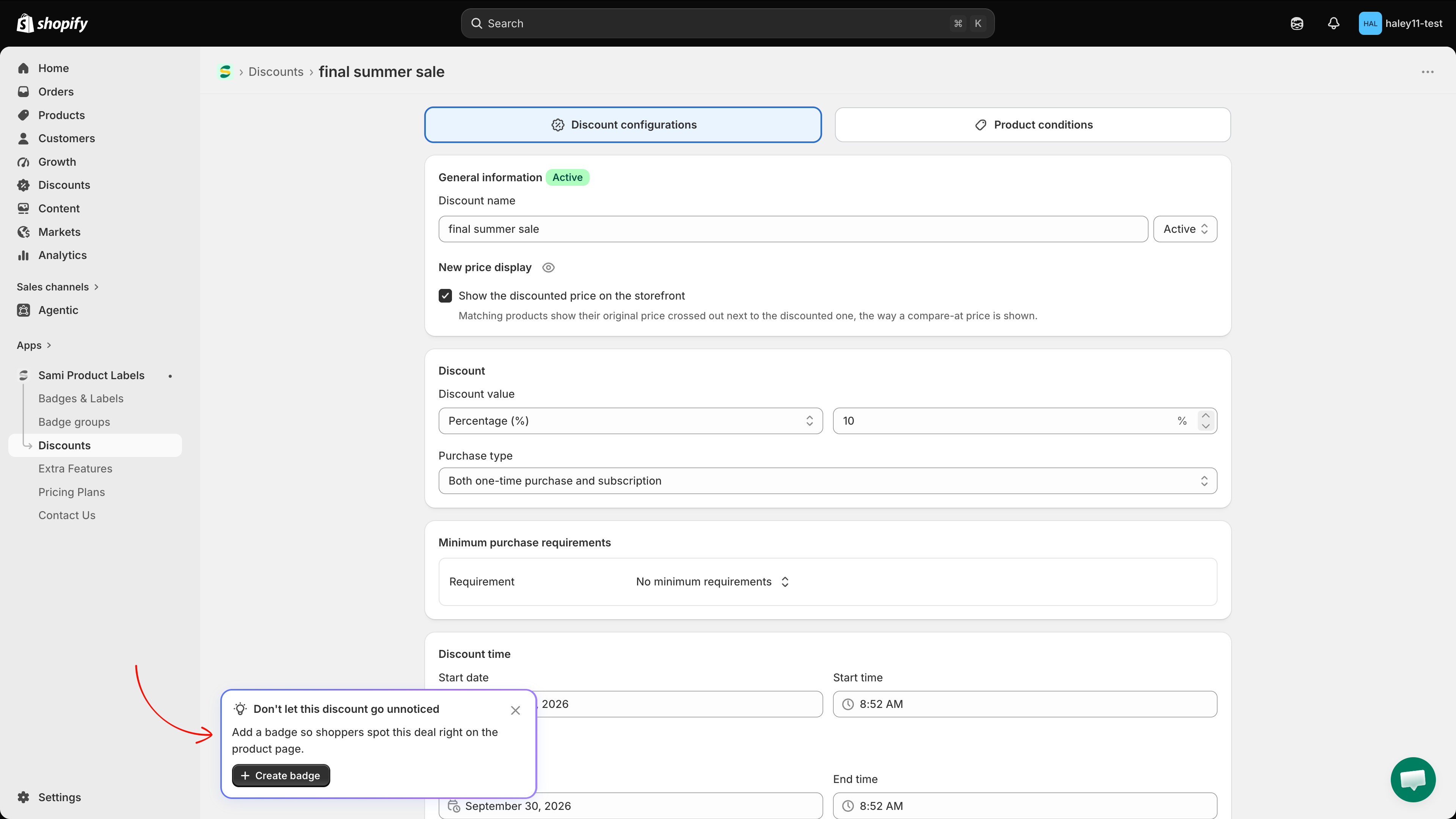
Discount configurations
General information
The discount name, its Active / Draft status, and — for automatic discounts — whether the discounted price is shown on the storefront.
Discount
The discount code (code discounts only), the discount value, and the purchase type.
Minimum purchase requirements
No minimum, a minimum purchase amount, or a minimum quantity of items.
Discount time
The start date and time, and an optional end date and time.
Combinations
Whether this discount can stack with product, order, and shipping discounts in the cart.
Tags
Internal labels used to find and filter discounts.
Product conditions
All products
Every product in the cart.
Specific products
Only the products — or individual variants — you pick.
Matching conditions
Every product that matches the collections, titles, or tags you set.
See Use matching conditions for the third mode in full.
Discount value
The Discount value row has a type and a number:
Percentage (%)
The item price minus that percentage. Maximum 100%.
Fixed amount
The item price minus that amount, in your store currency.
New price
The item is sold at the price you type, whatever its own price is.
Show the new price on your storefront
Automatic discounts have a New price display option. Tick Show the discounted price on the storefront and matching products show their original price crossed out next to the discounted one, the way a compare-at price is shown. The eye icon next to the heading opens a preview of the product page and the checkout page.

Turn a discount into a badge
After you save a discount, the app offers to build a badge for it. Click Create badge on the Don't let this discount go unnoticed card and the badge editor opens already scoped to this discount: the Products tab holds the condition Sami discount is equal to your discount, and the badge text starts as Save {sami_discount_value_percent}.

Four dynamic variables read their value from the discount:
{sami_discount_value_percent}
The discount percentage applied to the product.
{sami_discount_value_amount}
The discount amount applied to the product.
{sami_discount_code}
The discount code (code discounts only).
{sami_new_price}
The product price after the discount is applied.
Statuses
The Status column reflects both the switch you set and the schedule:
Active
Running now.
Draft
Switched off. It stays deactivated in Shopify until you set it back to Active.
Scheduled
Active, but the start date is still in the future.
Expired
Active, but the end date has passed.
Discounts also appear in Shopify
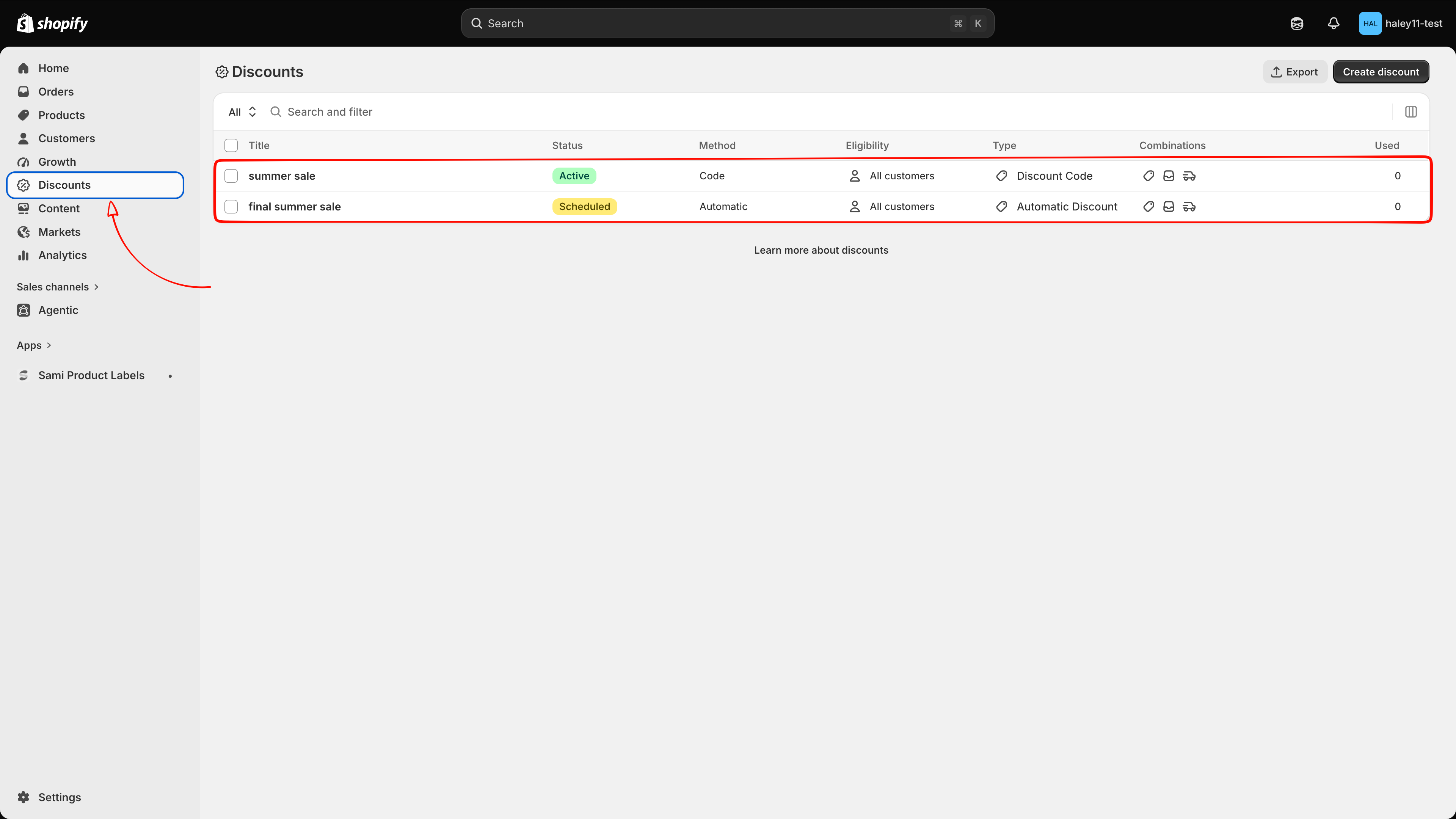
Each discount you create here is a real Shopify discount, so it is listed on your Shopify Discounts page as well, with Automatic Discount or Discount Code as its type.

Manage your discounts
The Discounts page lists everything you have created and gives you:
Status filter — show All, Active, or Draft discounts.
Search — find a discount by name.
Sort — by Date (newest or oldest first) or Discount name (A–Z, Z–A).
Row actions — the pencil opens the discount, the bin deletes it.
Bulk actions — tick one or more rows to Activate, Deactivate, or Delete them together.
For a discount code, the list also shows the code itself next to the type, with a copy button.
Plan availability
Discounts
2
Unlimited
Unlimited
Next steps
Create an automatic discount — a discount that applies itself at checkout.
Create a discount code — a code your shoppers type in.
Use matching conditions — discount every product that matches the rules you set.
Last updated
Was this helpful?