> For the complete documentation index, see [llms.txt](https://docs.samita.io/llms.txt). Markdown versions of documentation pages are available by appending `.md` to page URLs; this page is available as [Markdown](https://docs.samita.io/discounts/overview.md).

# Discounts overview

Create automatic discounts and discount codes for your store directly inside Sami Product Labels, then show the deal on your product pages.

**Discounts** lets you build a store discount without leaving **Sami Product Labels**. You set the value, the schedule, and which products it applies to; the app creates the matching discount in Shopify for you and keeps the two in sync.

Because the discount is created and edited here, the app also knows what each product's discounted price is — so it can cross out the original price on your storefront and fill the number straight into a badge.

<figure><img src="https://1598842017-files.gitbook.io/~/files/v0/b/gitbook-x-prod.appspot.com/o/spaces%2F1WRTlT5AcaLSAedbCJyZ%2Fuploads%2Fgit-blob-3f7213c567daf5a946305db21991f3599a81b713%2Fimage_224.png?alt=media" alt="The Discounts page listing one discount with its id, title, type, value, minimum requirement, and status"><figcaption><p>Every discount you create is listed with its type, value, and status.</p></figcaption></figure>

## Discount types

Clicking **Create discount** asks you to choose one of two types. The choice is made up front and cannot be switched afterwards — create a new discount instead.

| Type                   | How the shopper gets it                                                                    | Use it for                                            |
| ---------------------- | ------------------------------------------------------------------------------------------ | ----------------------------------------------------- |
| **Automatic discount** | Applied at checkout automatically once the cart matches your conditions. No code to share. | Site-wide or category sales that everyone should get. |
| **Discount code**      | The shopper enters a code you choose at checkout.                                          | Campaigns, newsletters, and influencer codes.         |

<figure><img src="https://1598842017-files.gitbook.io/~/files/v0/b/gitbook-x-prod.appspot.com/o/spaces%2F1WRTlT5AcaLSAedbCJyZ%2Fuploads%2Fgit-blob-e69e70494bd8ddb7cd83fdf4143d131e52f72b7c%2Fimage_225.png?alt=media" alt="The Choose discount type dialog with the Automatic discount and Discount code options"><figcaption><p>Pick the type before the editor opens.</p></figcaption></figure>

## What you can configure

Every discount has the same two tabs.

### Discount configurations

| Section                           | What it sets                                                                                                                                   |
| --------------------------------- | ---------------------------------------------------------------------------------------------------------------------------------------------- |
| **General information**           | The discount name, its **Active** / **Draft** status, and — for automatic discounts — whether the discounted price is shown on the storefront. |
| **Discount**                      | The discount code (code discounts only), the discount value, and the purchase type.                                                            |
| **Minimum purchase requirements** | No minimum, a minimum purchase amount, or a minimum quantity of items.                                                                         |
| **Discount time**                 | The start date and time, and an optional end date and time.                                                                                    |
| **Combinations**                  | Whether this discount can stack with product, order, and shipping discounts in the cart.                                                       |
| **Tags**                          | Internal labels used to find and filter discounts.                                                                                             |

### Product conditions

| Mode                    | Which products get the discount                                      |
| ----------------------- | -------------------------------------------------------------------- |
| **All products**        | Every product in the cart.                                           |
| **Specific products**   | Only the products — or individual variants — you pick.               |
| **Matching conditions** | Every product that matches the collections, titles, or tags you set. |

See [Use matching conditions](/discounts/matching-conditions.md) for the third mode in full.

## Discount value

The **Discount value** row has a type and a number:

| Discount type      | What the shopper pays                                              |
| ------------------ | ------------------------------------------------------------------ |
| **Percentage (%)** | The item price minus that percentage. Maximum 100%.                |
| **Fixed amount**   | The item price minus that amount, in your store currency.          |
| **New price**      | The item is sold at the price you type, whatever its own price is. |

## Show the new price on your storefront

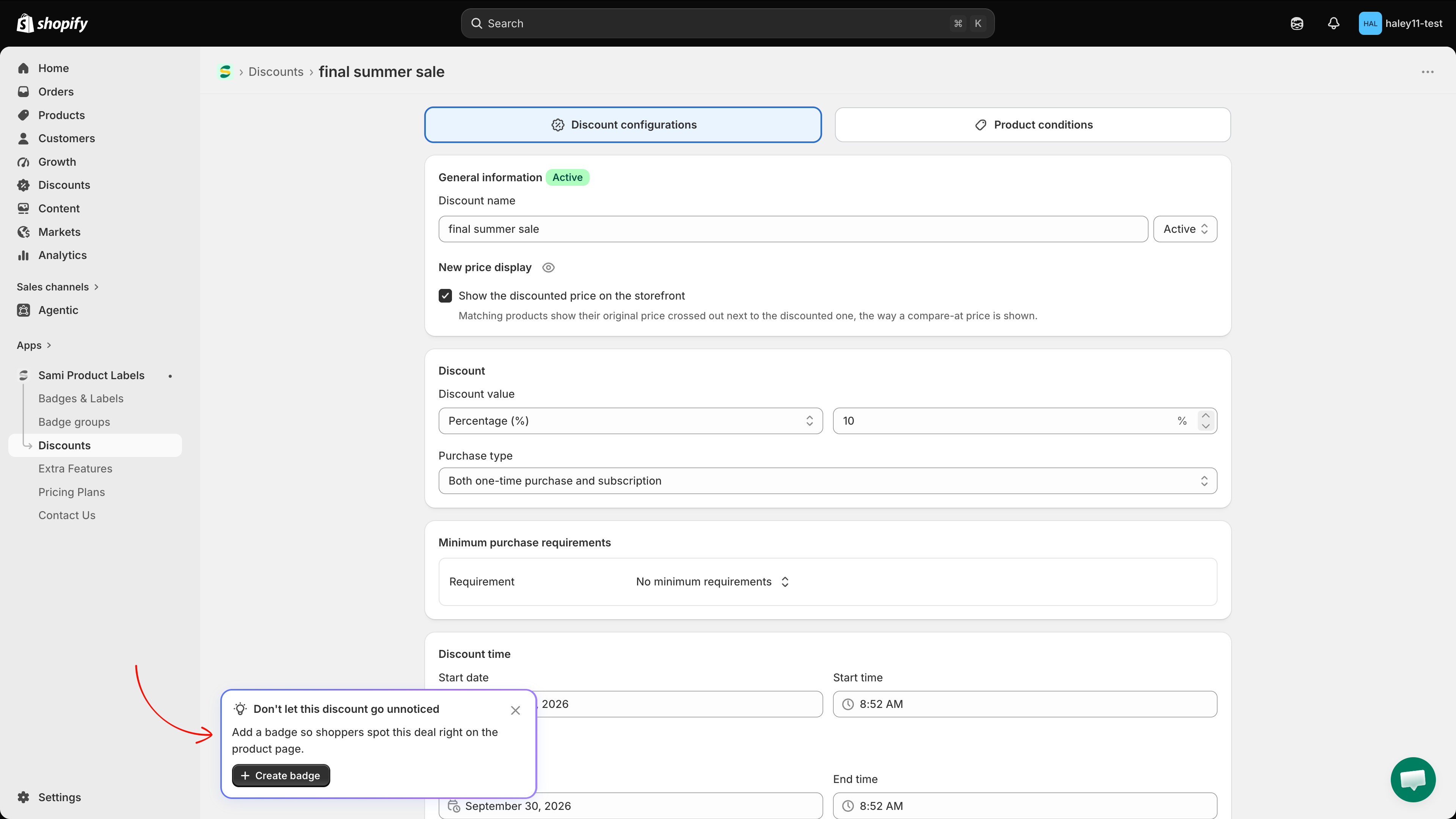
Automatic discounts have a **New price display** option. Tick **Show the discounted price on the storefront** and matching products show their original price crossed out next to the discounted one, the way a compare-at price is shown. The eye icon next to the heading opens a preview of the product page and the checkout page.

<figure><img src="https://1598842017-files.gitbook.io/~/files/v0/b/gitbook-x-prod.appspot.com/o/spaces%2F1WRTlT5AcaLSAedbCJyZ%2Fuploads%2Fgit-blob-ef331115c1e369d8aa9d151671b0d354cbd87d8b%2Fimage_226.png?alt=media" alt="The Discount preview dialog showing a product page with the discounted price"><figcaption><p>The preview shows how the discount reads on the product page and at checkout.</p></figcaption></figure>

{% hint style="info" %}
The option is not available for discount codes — a code does not exist until the shopper types it at checkout — and it is switched off while a minimum purchase requirement is set, because a minimum is only met by a whole cart.
{% endhint %}

{% hint style="warning" %}
The crossed-out price is drawn by the app on your storefront, so it needs the app embed turned on in your theme. See [Enable the app in your theme](/getting-started/enable-app-in-theme.md). The discount itself is applied by Shopify at checkout either way.
{% endhint %}

## Turn a discount into a badge

After you save a discount, the app offers to build a badge for it. Click **Create badge** on the **Don't let this discount go unnoticed** card and the badge editor opens already scoped to this discount: the **Products** tab holds the condition **Sami discount** *is equal to* your discount, and the badge text starts as `Save {sami_discount_value_percent}`.

<figure><img src="https://1598842017-files.gitbook.io/~/files/v0/b/gitbook-x-prod.appspot.com/o/spaces%2F1WRTlT5AcaLSAedbCJyZ%2Fuploads%2Fgit-blob-b9bbd7e38684eaf54332274b6b903469bc049ed4%2Fimage_227.png?alt=media" alt="The card suggesting to create a badge for the discount, with a Create badge button"><figcaption><p>The suggestion appears once the discount is saved, and can be dismissed with the x.</p></figcaption></figure>

Four dynamic variables read their value from the discount:

| Variable                        | Shows                                            |
| ------------------------------- | ------------------------------------------------ |
| `{sami_discount_value_percent}` | The discount percentage applied to the product.  |
| `{sami_discount_value_amount}`  | The discount amount applied to the product.      |
| `{sami_discount_code}`          | The discount code (code discounts only).         |
| `{sami_new_price}`              | The product price after the discount is applied. |

{% hint style="info" %}
These variables only resolve on a badge that uses the **Sami discount** condition. See [Dynamic variables reference](/reference/dynamic-variables-reference.md).
{% endhint %}

## Statuses

The **Status** column reflects both the switch you set and the schedule:

| Badge         | Meaning                                                                        |
| ------------- | ------------------------------------------------------------------------------ |
| **Active**    | Running now.                                                                   |
| **Draft**     | Switched off. It stays deactivated in Shopify until you set it back to Active. |
| **Scheduled** | Active, but the start date is still in the future.                             |
| **Expired**   | Active, but the end date has passed.                                           |

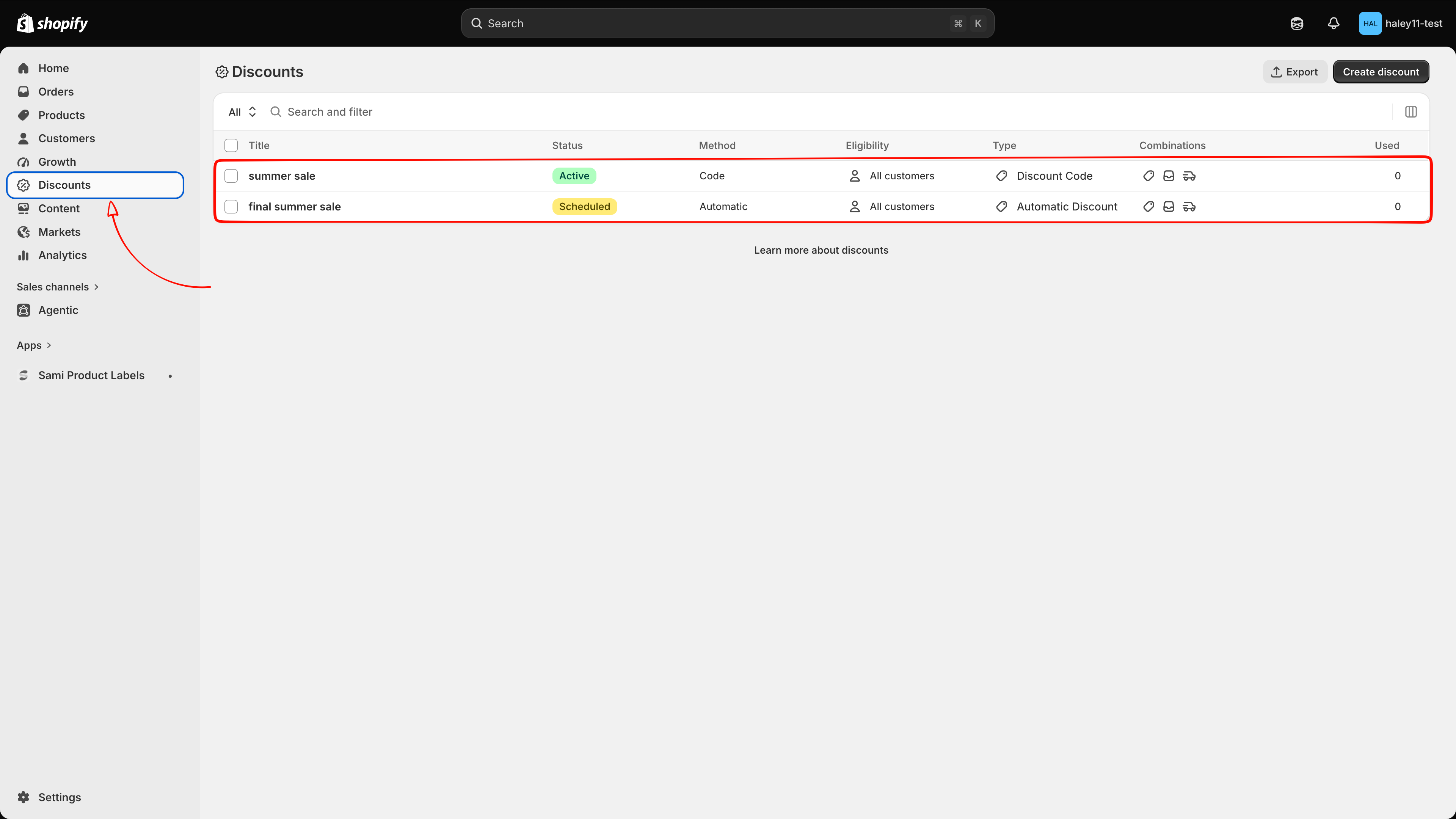
## Discounts also appear in Shopify

Each discount you create here is a real Shopify discount, so it is listed on your Shopify **Discounts** page as well, with **Automatic Discount** or **Discount Code** as its type.

{% hint style="info" %}
Edit these discounts from **Sami Product Labels**, not from the Shopify Discounts page — the app holds the product conditions and the price display settings that Shopify does not show. A discount set to **Draft** here is deactivated in Shopify and appears there as **Expired**.
{% endhint %}

<figure><img src="https://1598842017-files.gitbook.io/~/files/v0/b/gitbook-x-prod.appspot.com/o/spaces%2F1WRTlT5AcaLSAedbCJyZ%2Fuploads%2Fgit-blob-b914910092132d8b30717036590f099ef0ae1dff%2Fimage_228.png?alt=media" alt="The Shopify Discounts page listing the discount created in the app"><figcaption><p>The same discount, seen from the Shopify admin.</p></figcaption></figure>

## Manage your discounts

The Discounts page lists everything you have created and gives you:

* **Status filter** — show **All**, **Active**, or **Draft** discounts.
* **Search** — find a discount by name.
* **Sort** — by **Date** (newest or oldest first) or **Discount name** (A–Z, Z–A).
* **Row actions** — the pencil opens the discount, the bin deletes it.
* **Bulk actions** — tick one or more rows to **Activate**, **Deactivate**, or **Delete** them together.

For a discount code, the list also shows the code itself next to the type, with a copy button.

## Plan availability

| Feature   | FREE | GOLD      | DIAMOND   |
| --------- | ---- | --------- | --------- |
| Discounts | 2    | Unlimited | Unlimited |

{% hint style="warning" %}
On FREE, deleted discounts still count toward the limit of 2.
{% endhint %}

## Next steps

* [Create an automatic discount](/discounts/create-automatic-discount.md) — a discount that applies itself at checkout.
* [Create a discount code](/discounts/create-discount-code.md) — a code your shoppers type in.
* [Use matching conditions](/discounts/matching-conditions.md) — discount every product that matches the rules you set.

{% hint style="success" %}
**Need support?**

If you run into any difficulty while following these steps, contact us at <support@samita.io>.
{% endhint %}


---

# Agent Instructions
This documentation is published with GitBook. GitBook is the documentation platform designed so that both humans and AI agents can read, navigate, and reason over technical content effectively. Learn more at gitbook.com.

## Querying This Documentation
If you need additional information that is not directly available in this page, you can query the documentation by asking a question.

Perform an HTTP GET request on the following URL with the `ask` and `goal` query parameters:

```
GET https://docs.samita.io/discounts/overview.md?ask=<question>&goal=<user_goal>
```

`ask` is the immediate question: it should be specific, self-contained, and written in natural language.
`goal` is what the user is ultimately trying to achieve, the reason they need the answer. Sharing it helps GitBook give you a better, more relevant answer. A goal is most helpful when it describes the outcome the user wants rather than restating the question. For example, with `ask=how do I create an API token`, a goal like `automate deployments from our CI pipeline` lets GitBook tailor the answer to that use case.

The response will contain a direct answer to the question and relevant excerpts and sources from the documentation.

Use this mechanism when the answer is not explicitly present in the current page, you need clarification or additional context, or you want to retrieve related documentation sections.