> For the complete documentation index, see [llms.txt](https://docs.samita.io/llms.txt). Markdown versions of documentation pages are available by appending `.md` to page URLs; this page is available as [Markdown](https://docs.samita.io/extra-features/place-highlight-with-shortcode.md).

# Place a highlight with shortcode

Place a highlight block at an exact position in your theme using its shortcode.

By default a highlight block is shown at the app's built-in position on your product pages. When you need it somewhere else — above the description, further down the page, on another template — copy the block's shortcode and place it there yourself.

## Where to find the shortcode

The shortcode is available in two places:

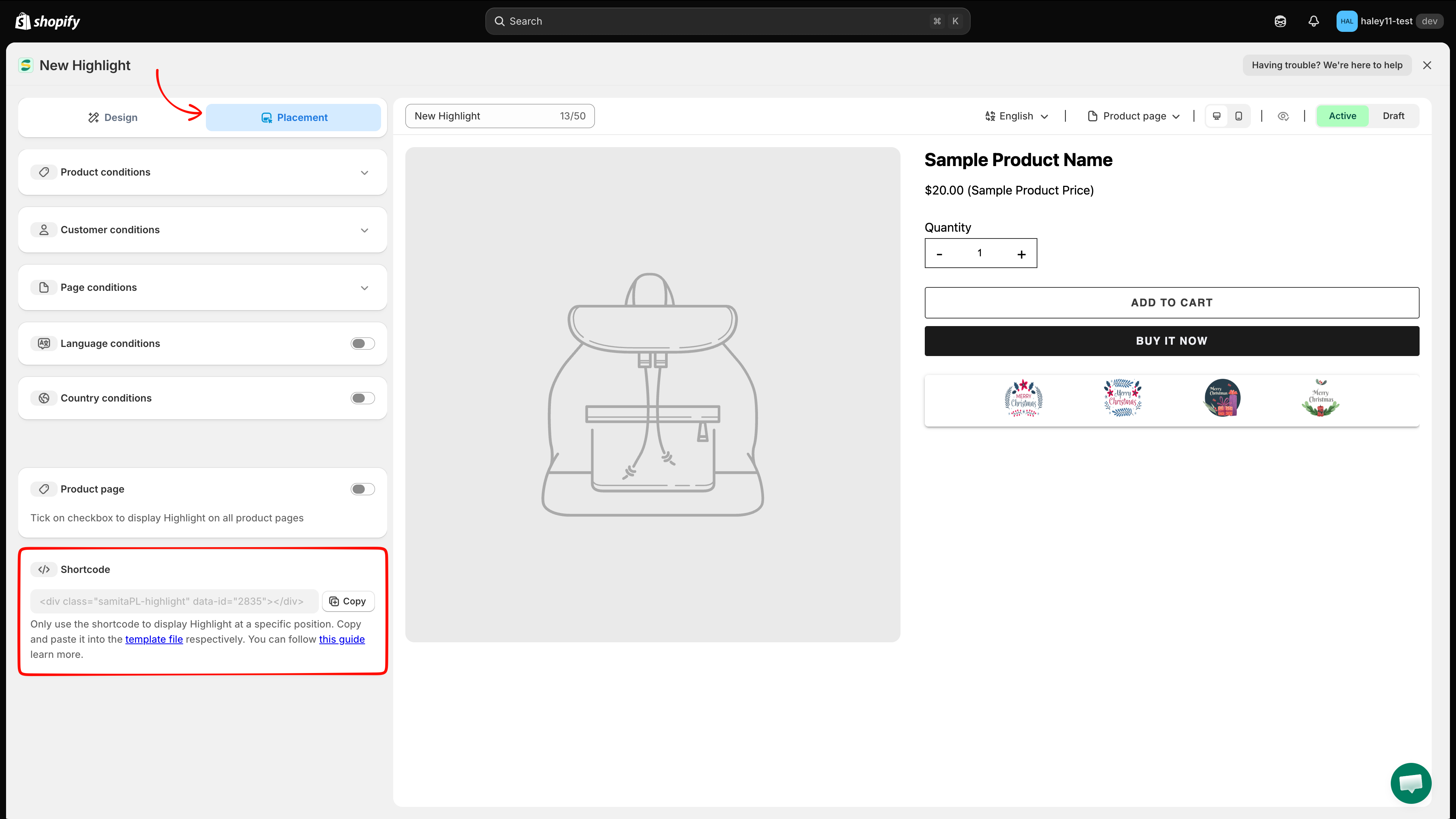
* **In the editor** — open the highlight and go to the **Placement** tab. The **Shortcode** card at the bottom shows the snippet with a **Copy** button.
* **In the list** — on the **Extra Features** page, the **Highlights** tab has a **Shortcode** column with a copy icon for each block.

<figure><img src="https://1598842017-files.gitbook.io/~/files/v0/b/gitbook-x-prod.appspot.com/o/spaces%2F1WRTlT5AcaLSAedbCJyZ%2Fuploads%2Fgit-blob-e8911f8bbf9f612c19819422deb3380f5eda94bf%2Fimage_149.png?alt=media" alt="Placement tab of the highlight editor showing the Shortcode card with a Copy button"><figcaption><p>The Shortcode card sits below the Product page toggle on the Placement tab.</p></figcaption></figure>

{% hint style="warning" %}
Save the highlight before copying its shortcode. On an unsaved block the snippet reads `data-id="new"`, which will not render anything on your storefront.
{% endhint %}

## Place the shortcode in your theme

{% stepper %}
{% step %}

## Copy the shortcode

Open the highlight, switch to the **Placement** tab, and click **Copy**. The snippet looks like this, with your block's own ID:

```html
<div class="samitaPL-highlight" data-id="4482"></div>
```

Each highlight has its own `data-id`, so copy the snippet from the block you actually want to display.
{% endstep %}

{% step %}

## Open the theme editor

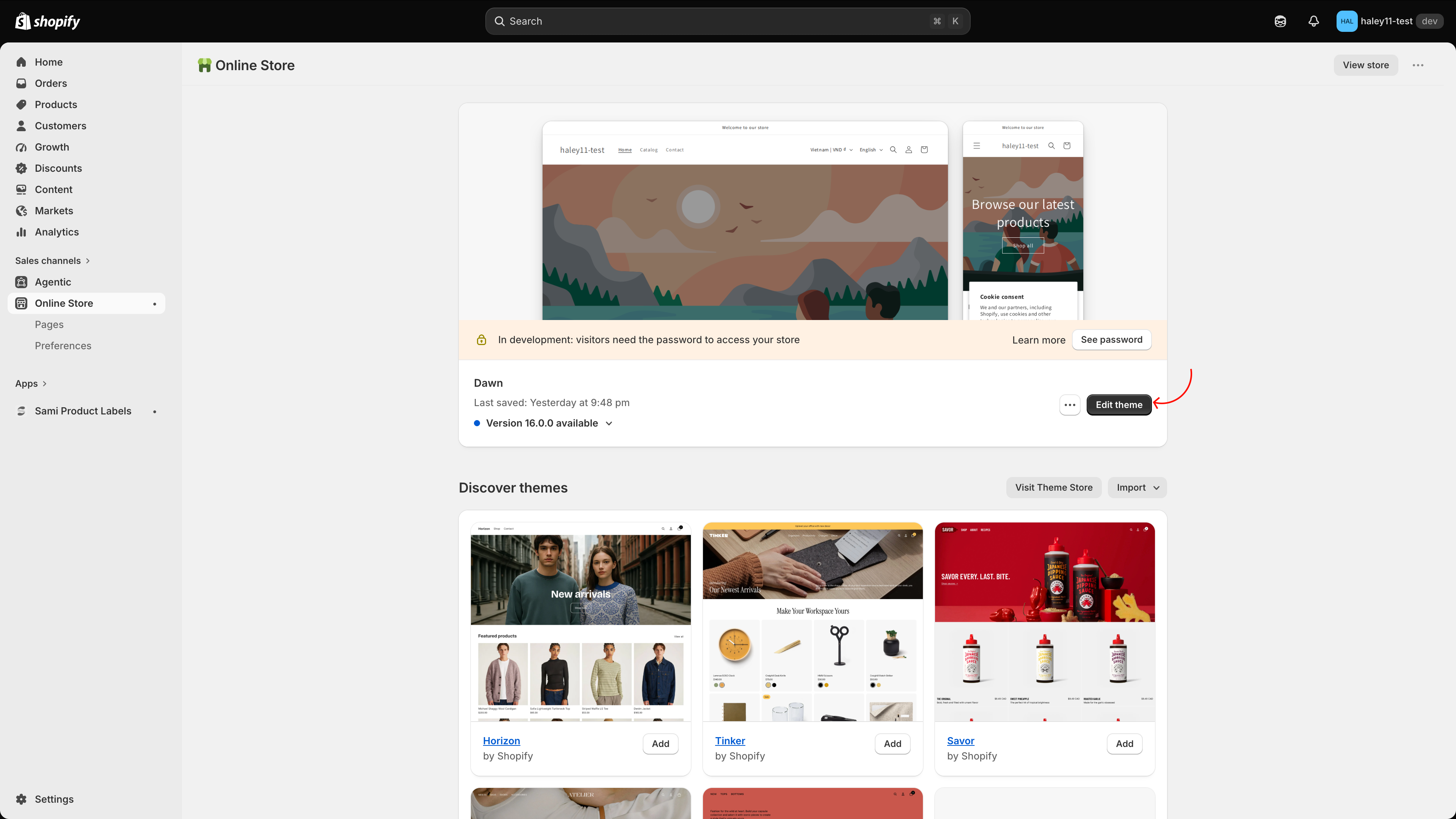
In your Shopify admin, go to **Online Store** and click **Edit theme** on the theme you want to change.

<figure><img src="https://1598842017-files.gitbook.io/~/files/v0/b/gitbook-x-prod.appspot.com/o/spaces%2F1WRTlT5AcaLSAedbCJyZ%2Fuploads%2Fgit-blob-bfe37bfe1e3aa24b2dc9337808468f541ffc09d0%2Fimage_150.png?alt=media" alt="Online Store page with the Edit theme button on the live theme"><figcaption><p>Open the theme you want to add the highlight to with Edit theme.</p></figcaption></figure>
{% endstep %}

{% step %}

## Add the Samita Highlight block

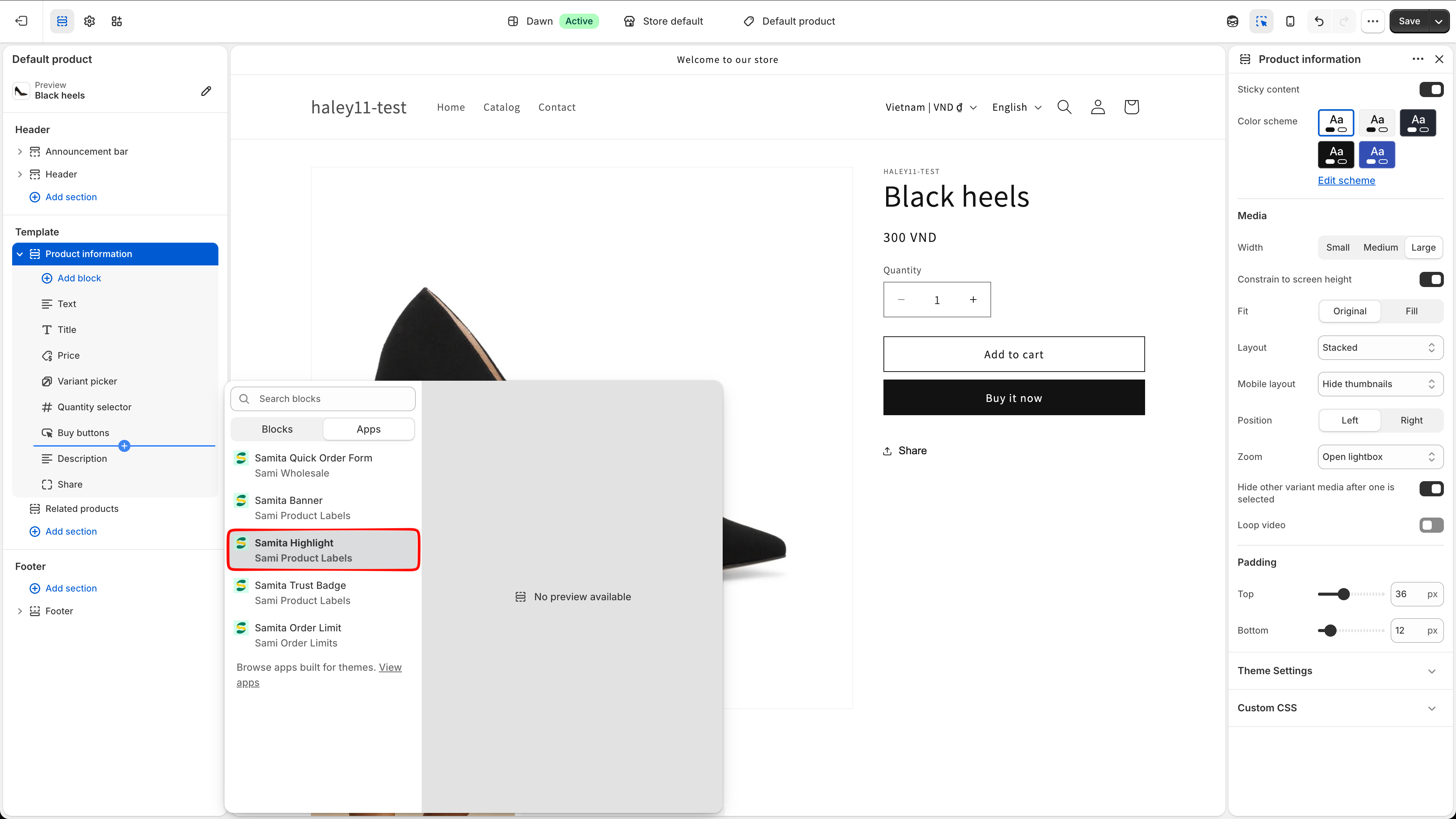
Navigate to the page and section where you want the block — for example **Product information** on the product template. Click **Add block**, switch to the **Apps** tab, and choose **Samita Highlight** (from Sami Product Labels). Drag the block to the exact position you want, such as between **Buy buttons** and **Description**.

<figure><img src="https://1598842017-files.gitbook.io/~/files/v0/b/gitbook-x-prod.appspot.com/o/spaces%2F1WRTlT5AcaLSAedbCJyZ%2Fuploads%2Fgit-blob-921510346bd2384fdd3c36fb726f225aab1fd173%2Fimage_151.png?alt=media" alt="Add block menu on the Apps tab with Samita Highlight selected"><figcaption><p>Pick Samita Highlight from the Apps tab of the Add block menu.</p></figcaption></figure>
{% endstep %}

{% step %}

## Paste the shortcode into the block

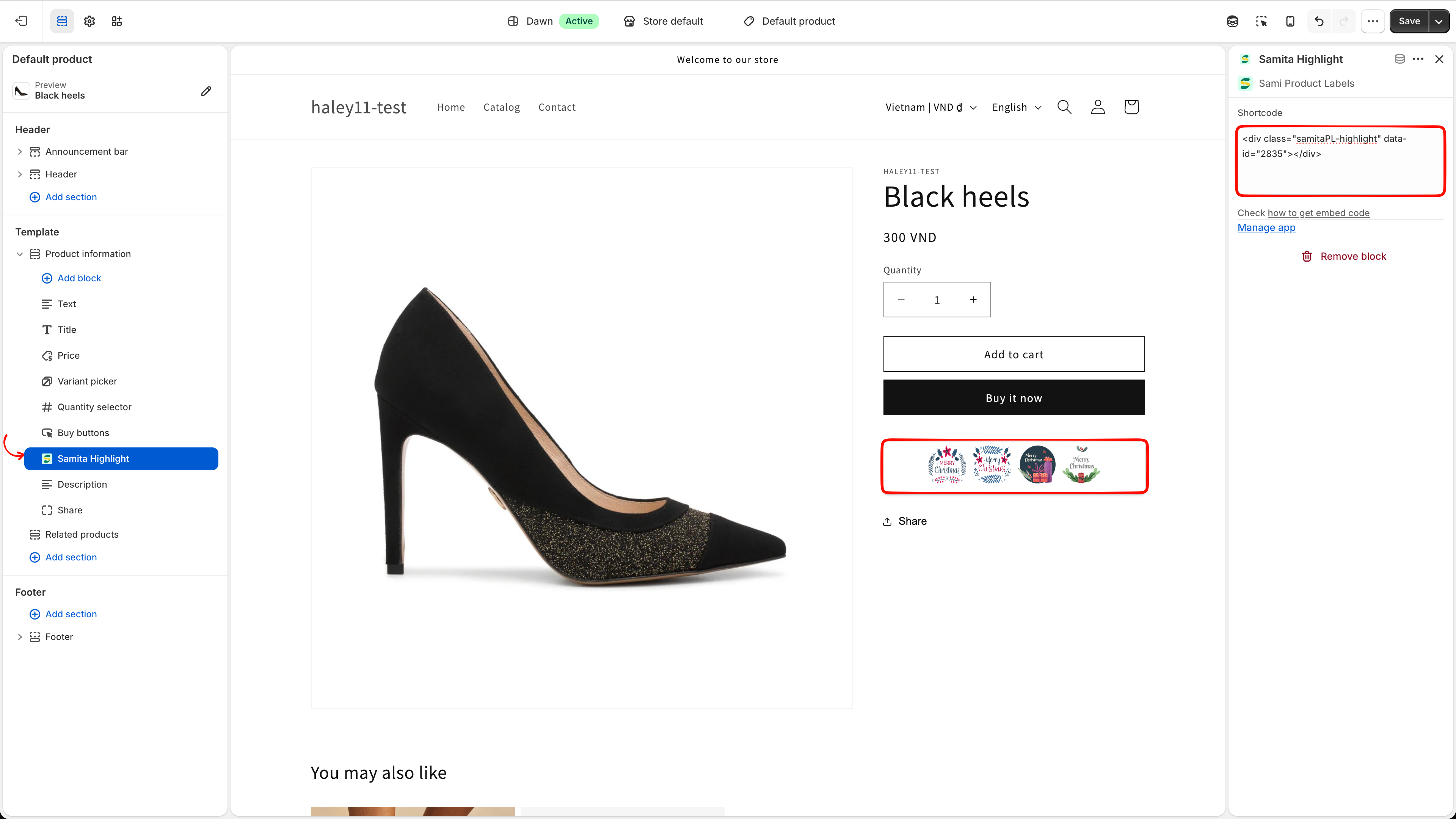
With the block selected, paste the snippet into its **Shortcode** field, then click **Save**.

<figure><img src="https://1598842017-files.gitbook.io/~/files/v0/b/gitbook-x-prod.appspot.com/o/spaces%2F1WRTlT5AcaLSAedbCJyZ%2Fuploads%2Fgit-blob-9a2ebb72f636ecd8444ec163398304f7eca25102%2Fimage_152.png?alt=media" alt="App block settings with the highlight shortcode pasted into the Shortcode field"><figcaption><p>Paste the highlight shortcode into the block's Shortcode field and save.</p></figcaption></figure>
{% endstep %}

{% step %}

## Check your storefront

Open the page on your storefront and confirm the block renders in the right place. If nothing appears, check that:

* the highlight status is **Active**, not Draft;
* the `data-id` in the block matches the highlight;
* the conditions on the **Placement** tab do not exclude this page — see [Target highlight display](/extra-features/target-highlight-display.md).
  {% endstep %}
  {% endstepper %}

## Built-in placement vs. shortcode

| Method                  | How it works                                                                                                                                |
| ----------------------- | ------------------------------------------------------------------------------------------------------------------------------------------- |
| **Product page toggle** | Turn on **Product page** on the Placement tab to show the highlight at the app's built-in position on every product page. No theme editing. |
| **Shortcode**           | Paste the snippet into an app block for an exact position. Use it when the built-in position isn't where you want the block.                |

Display conditions still apply either way — the shortcode controls *where* the block sits, the conditions control *whether* it shows.

## Next steps

* [Create a highlight](/extra-features/create-highlight.md) — build the block and style its grid.
* [Target highlight display](/extra-features/target-highlight-display.md) — control which pages and customers see it.
* [Place a trust badge with shortcode](/extra-features/place-with-shortcode.md) — the same flow for trust badges.

{% hint style="success" %}
**Need support?**

If you run into any difficulty while following these steps, contact us at <support@samita.io>.
{% endhint %}


---

# Agent Instructions
This documentation is published with GitBook. GitBook is the documentation platform designed so that both humans and AI agents can read, navigate, and reason over technical content effectively. Learn more at gitbook.com.

## Querying This Documentation
If you need additional information that is not directly available in this page, you can query the documentation dynamically by asking a question.

Perform an HTTP GET request on the current page URL with the `ask` query parameter, and the optional `goal` query parameter:

```
GET https://docs.samita.io/extra-features/place-highlight-with-shortcode.md?ask=<question>&goal=<endgoal>
```

`ask` is the immediate question: it should be specific, self-contained, and written in natural language.
`goal` is optional and describes the broader end goal you are ultimately trying to accomplish on behalf of the user. GitBook uses it to tailor the answer towards what is most useful for that goal.

The response will contain a direct answer to the question and relevant excerpts and sources from the documentation.

Use this mechanism when the answer is not explicitly present in the current page, you need clarification or additional context, or you want to retrieve related documentation sections.