> For the complete documentation index, see [llms.txt](https://docs.samita.io/llms.txt). Markdown versions of documentation pages are available by appending `.md` to page URLs; this page is available as [Markdown](https://docs.samita.io/extra-features/place-with-shortcode.md).

# Place a trust badge with shortcode

Place a trust badge at an exact position in your Shopify theme using its shortcode.

Turn on **Product page** in the trust badge editor when the app's built-in position works for your store. When you need the trust badge somewhere else — for example directly below the buy buttons — copy its shortcode and add the **Samita Trust Badge** app block at that exact position in your theme.

## Where to find the shortcode

The shortcode is available in two places:

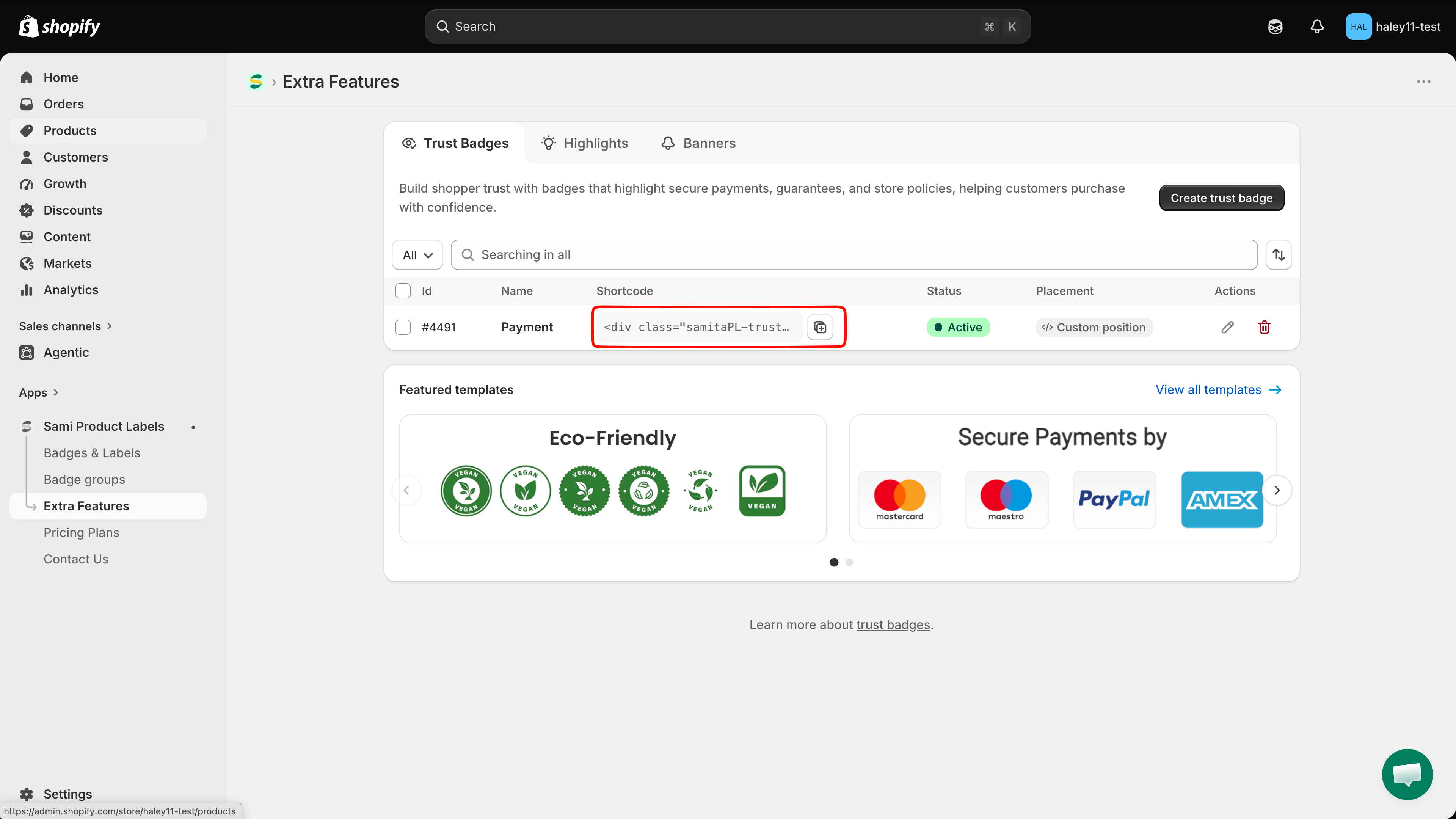
* **Trust badge table** — open **Sami Product Labels → Extra Features → Trust Badges**. Copy the snippet from the **Shortcode** column of the trust badge you want to place.
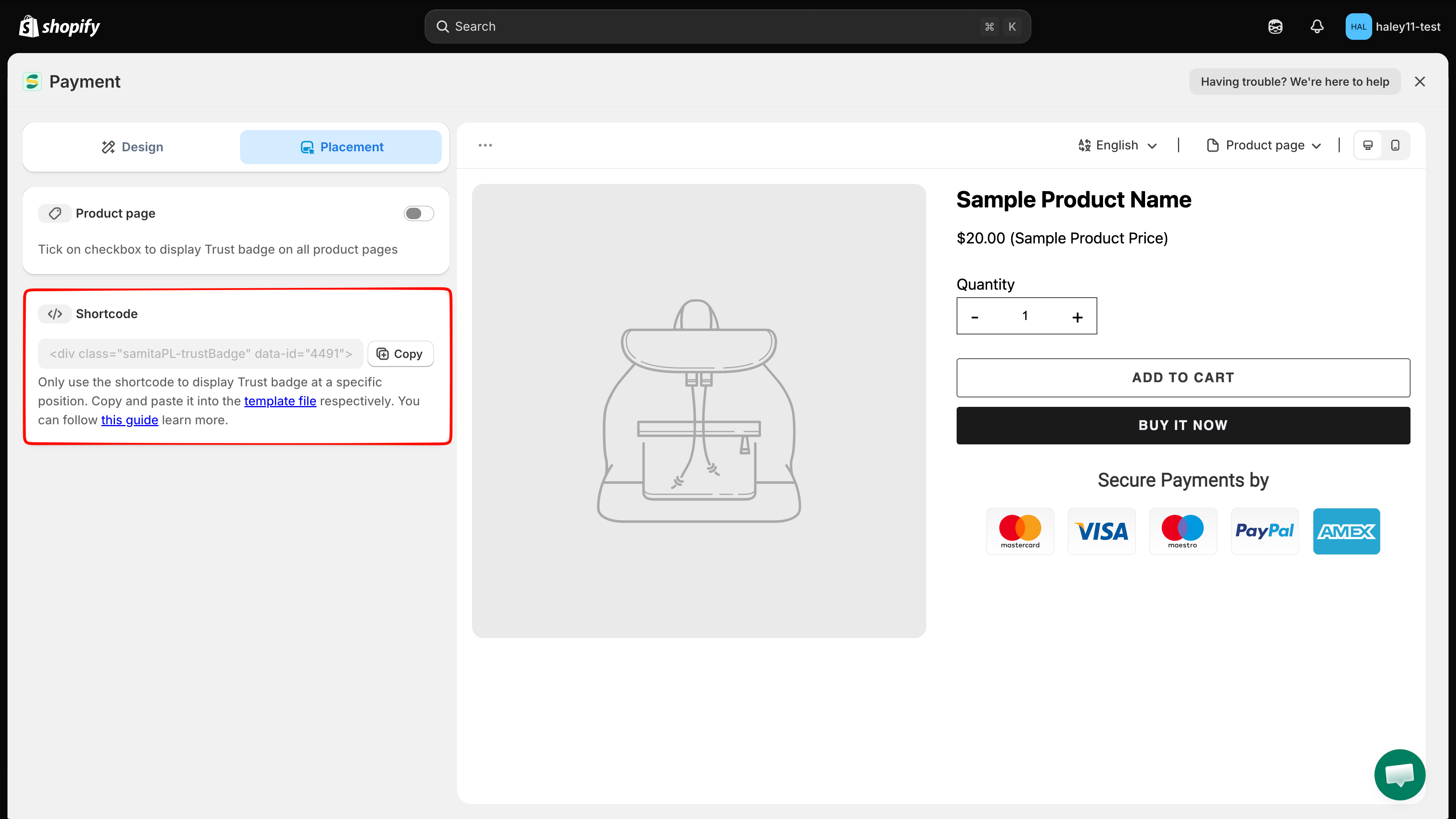
* **Trust badge editor** — click the row's edit action, open **Placement**, then click **Copy** in the **Shortcode** section.

<figure><img src="https://1598842017-files.gitbook.io/~/files/v0/b/gitbook-x-prod.appspot.com/o/spaces%2F1WRTlT5AcaLSAedbCJyZ%2Fuploads%2Fgit-blob-c401454204473711349b802e1675be307f548af9%2Fimage_211.png?alt=media" alt="Trust badge table with the Shortcode column and copy button"><figcaption><p>Copy the shortcode directly from the updated Trust Badges table.</p></figcaption></figure>

<figure><img src="https://1598842017-files.gitbook.io/~/files/v0/b/gitbook-x-prod.appspot.com/o/spaces%2F1WRTlT5AcaLSAedbCJyZ%2Fuploads%2Fgit-blob-c314ee1c7b9f04ffd069a33e9226daa93e715d43%2Fimage_212.png?alt=media" alt="Placement tab with the Product page switch and Shortcode section"><figcaption><p>The Placement tab also provides the shortcode and a Copy button.</p></figcaption></figure>

{% hint style="warning" %}
Save the trust badge before copying its shortcode. An unsaved trust badge uses `data-id="new"`, which will not render on your storefront.
{% endhint %}

## Place the shortcode in your theme

{% stepper %}
{% step %}

## Copy the saved trust badge's shortcode

Copy the snippet from the table or the editor. It looks like this, with a unique ID for your trust badge:

```html
<div class="samitaPL-trustBadge" data-id="4477"></div>
```

Do not reuse a snippet from another row. Each trust badge has its own `data-id`.
{% endstep %}

{% step %}

## Open the theme editor

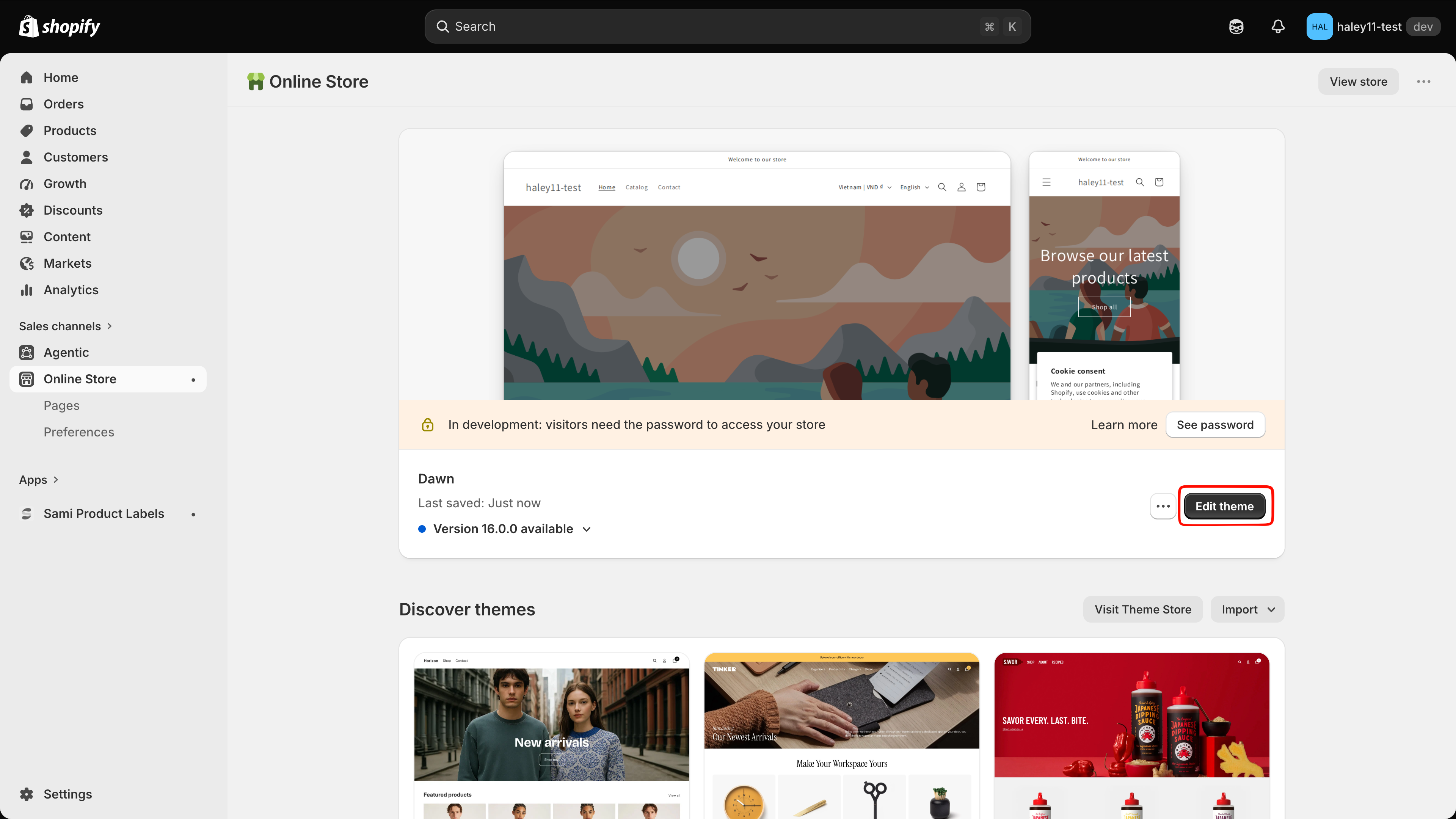
In your Shopify admin, open **Online Store**. Find the theme you want to update and click **Edit theme**.

<figure><img src="https://1598842017-files.gitbook.io/~/files/v0/b/gitbook-x-prod.appspot.com/o/spaces%2F1WRTlT5AcaLSAedbCJyZ%2Fuploads%2Fgit-blob-e2cb63ce86bab5cde0df284264098ea2259258d1%2Fimage_214.png?alt=media" alt="Online Store page with Edit theme on the selected theme"><figcaption><p>Open the theme that should display the trust badge.</p></figcaption></figure>
{% endstep %}

{% step %}

## Open the product template

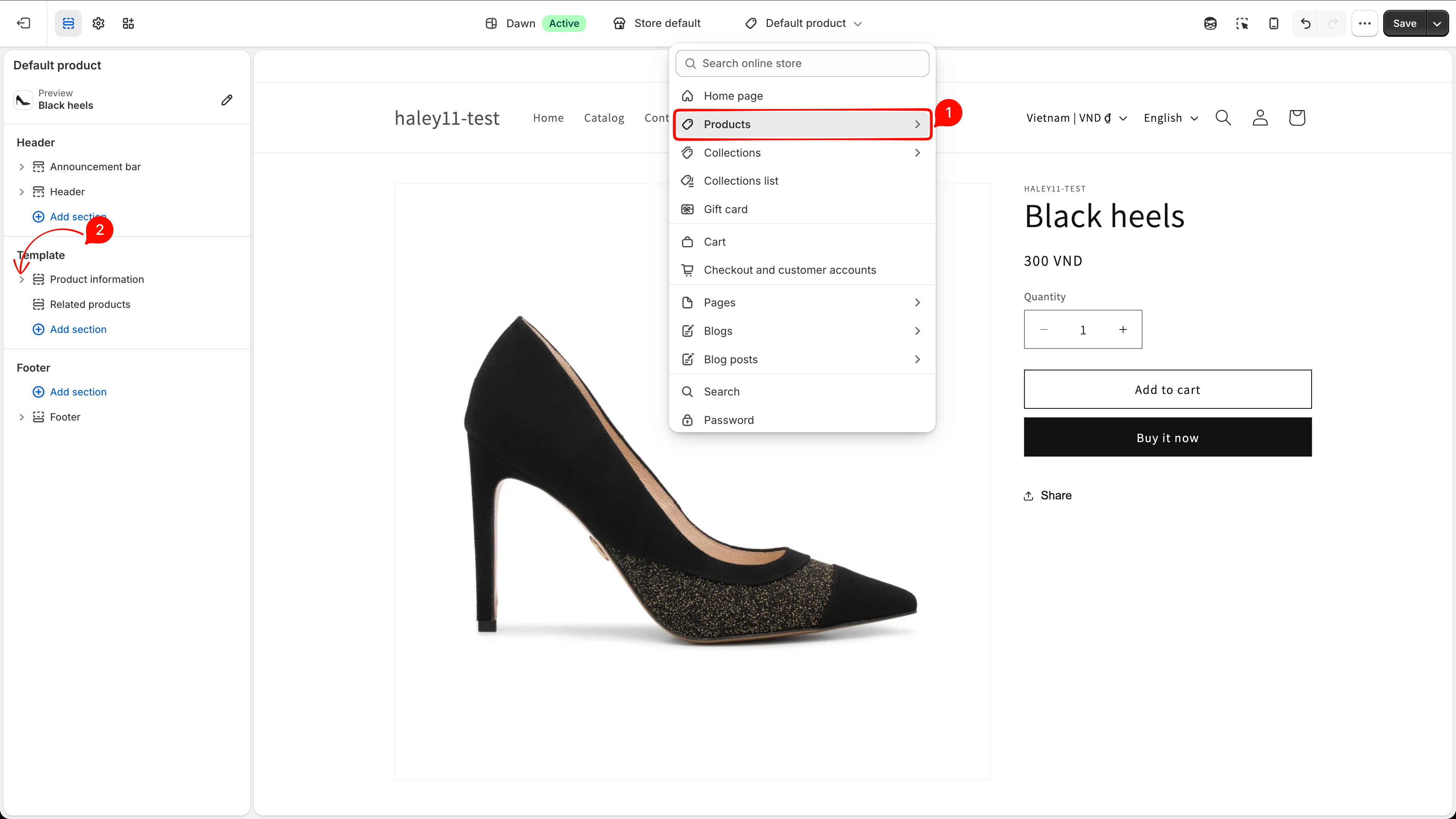
Use the page selector at the top of the theme editor, then choose **Products → Default product** or another product template used by your store.

In the sections panel, expand **Product information**. The existing blocks — such as **Title**, **Price**, **Buy buttons**, and **Description** — show where the trust badge can be inserted.

<figure><img src="https://1598842017-files.gitbook.io/~/files/v0/b/gitbook-x-prod.appspot.com/o/spaces%2F1WRTlT5AcaLSAedbCJyZ%2Fuploads%2Fgit-blob-cdb6953bfd64472375bbfa2b433a248a228d4813%2Fimage_216.png?alt=media" alt="Shopify theme editor with Default product selected and Product information expanded"><figcaption><p>Open the product template and expand Product information before adding the app block.</p></figcaption></figure>
{% endstep %}

{% step %}

## Add the Samita Trust Badge block

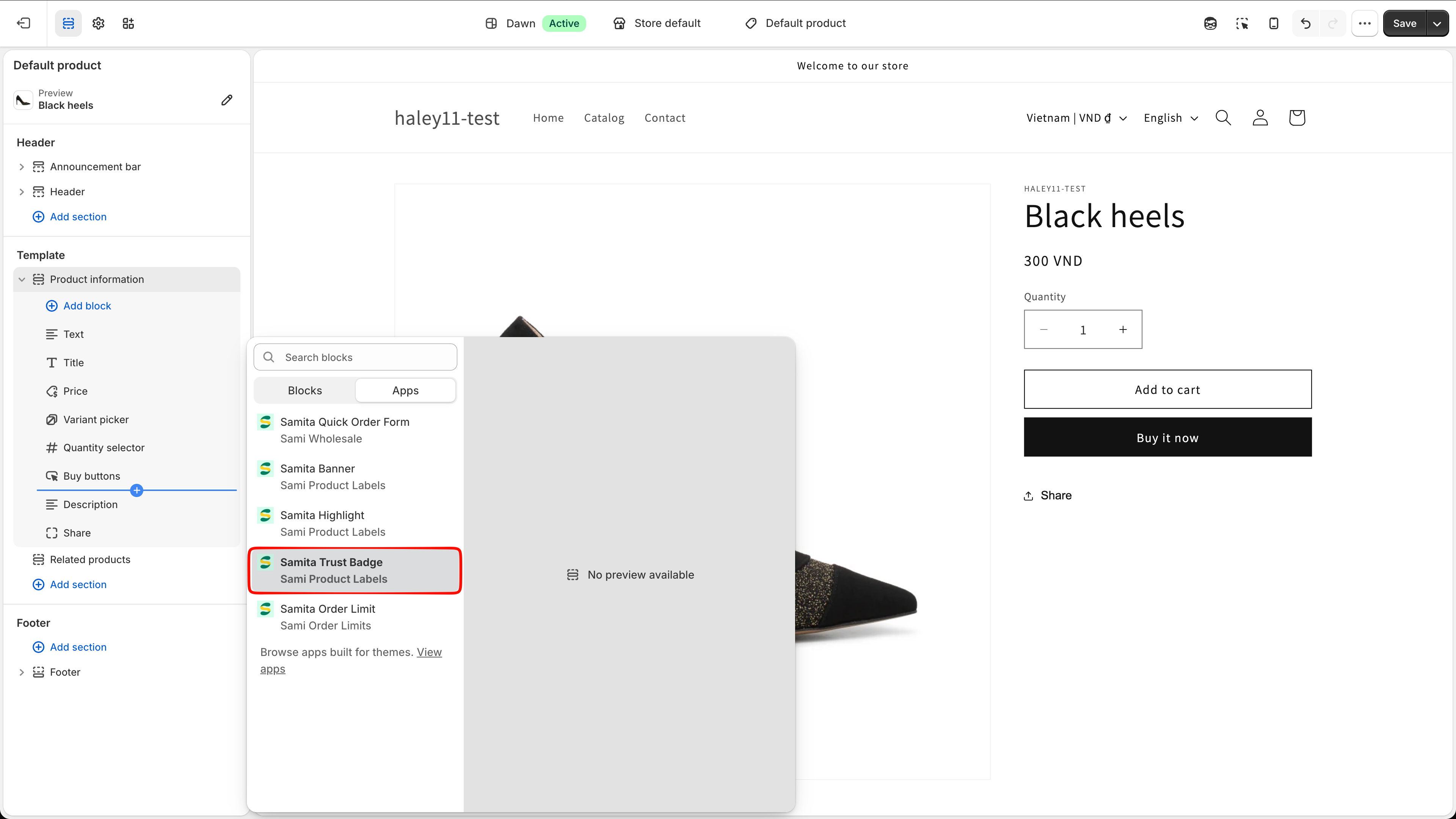
Click **Add block**, select the **Apps** tab, then choose **Samita Trust Badge** from **Sami Product Labels**. Drag the new block to the position you want, such as directly below **Buy buttons**.

<figure><img src="https://1598842017-files.gitbook.io/~/files/v0/b/gitbook-x-prod.appspot.com/o/spaces%2F1WRTlT5AcaLSAedbCJyZ%2Fuploads%2Fgit-blob-bee230e7a86e7cf3e739872cea3c373ed4556d05%2Fimage_215.png?alt=media" alt="Add block dialog on the Apps tab with Samita Trust Badge from Sami Product Labels"><figcaption><p>Select Samita Trust Badge from the Apps list, then place it in Product information.</p></figcaption></figure>
{% endstep %}

{% step %}

## Paste the shortcode and save the theme

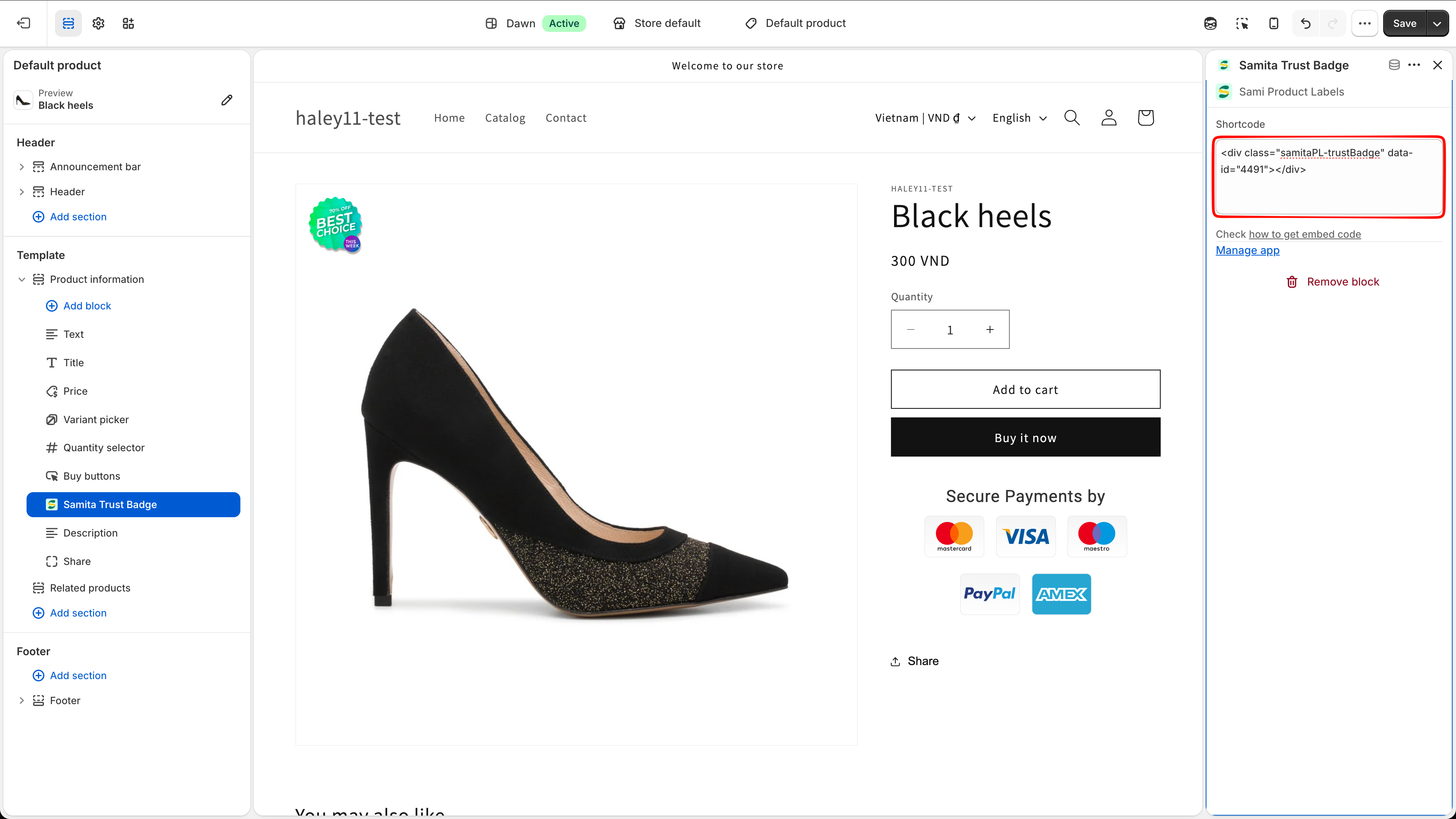
Select the **Samita Trust Badge** block and paste the complete snippet into its **Shortcode** field. Click **Save** in the theme editor.

<figure><img src="https://1598842017-files.gitbook.io/~/files/v0/b/gitbook-x-prod.appspot.com/o/spaces%2F1WRTlT5AcaLSAedbCJyZ%2Fuploads%2Fgit-blob-e27c1024c70254bc6035eacf46a4a3daa048a46e%2Fimage_217.png?alt=media" alt="Samita Trust Badge app block with the shortcode pasted into its Shortcode field"><figcaption><p>Paste the complete shortcode into the app block, then save the theme.</p></figcaption></figure>

{% hint style="info" %}
The app block also provides **Check how to get embed code** to reopen this guide and **Manage app** to return to Sami Product Labels.
{% endhint %}
{% endstep %}

{% step %}

## Check the storefront

Open a product that uses the edited template and confirm that the trust badge appears in the expected position.

If it does not appear, verify that:

* the trust badge is **Active**, not Draft;
* the shortcode contains the saved trust badge's exact `data-id`;
* the full `<div class="samitaPL-trustBadge" ...></div>` snippet is in the **Shortcode** field;
* the product uses the theme template you edited;
* the **Samita Trust Badge** block is visible and the theme changes were saved.
  {% endstep %}
  {% endstepper %}

## Built-in placement vs. shortcode

| Method           | How it works                                                                                                                                   |
| ---------------- | ---------------------------------------------------------------------------------------------------------------------------------------------- |
| **Product page** | Turn on the switch in **Placement** to show the trust badge at the app's built-in position on all product pages. No theme editing is required. |
| **Shortcode**    | Paste the saved trust badge's snippet into a **Samita Trust Badge** app block to control its exact position.                                   |

If you enable both methods on the same product template, the trust badge can appear twice. Use the product-page switch for the built-in position or the shortcode app block for a custom position.

## Next steps

* [Create a trust badge](/extra-features/create-trust-badge.md) — create the content and design before placing it.
* [Trust badge overview](/extra-features/trust-badge-overview.md) — manage saved trust badges and copy shortcodes from the table.

{% hint style="success" %}
**Need support?**

If you run into any difficulty while following these steps, contact us at <support@samita.io>.
{% endhint %}


---

# Agent Instructions
This documentation is published with GitBook. GitBook is the documentation platform designed so that both humans and AI agents can read, navigate, and reason over technical content effectively. Learn more at gitbook.com.

## Querying This Documentation
If you need additional information that is not directly available in this page, you can query the documentation dynamically by asking a question.

Perform an HTTP GET request on the current page URL with the `ask` query parameter, and the optional `goal` query parameter:

```
GET https://docs.samita.io/extra-features/place-with-shortcode.md?ask=<question>&goal=<endgoal>
```

`ask` is the immediate question: it should be specific, self-contained, and written in natural language.
`goal` is optional and describes the broader end goal you are ultimately trying to accomplish on behalf of the user. GitBook uses it to tailor the answer towards what is most useful for that goal.

The response will contain a direct answer to the question and relevant excerpts and sources from the documentation.

Use this mechanism when the answer is not explicitly present in the current page, you need clarification or additional context, or you want to retrieve related documentation sections.