Target highlight display
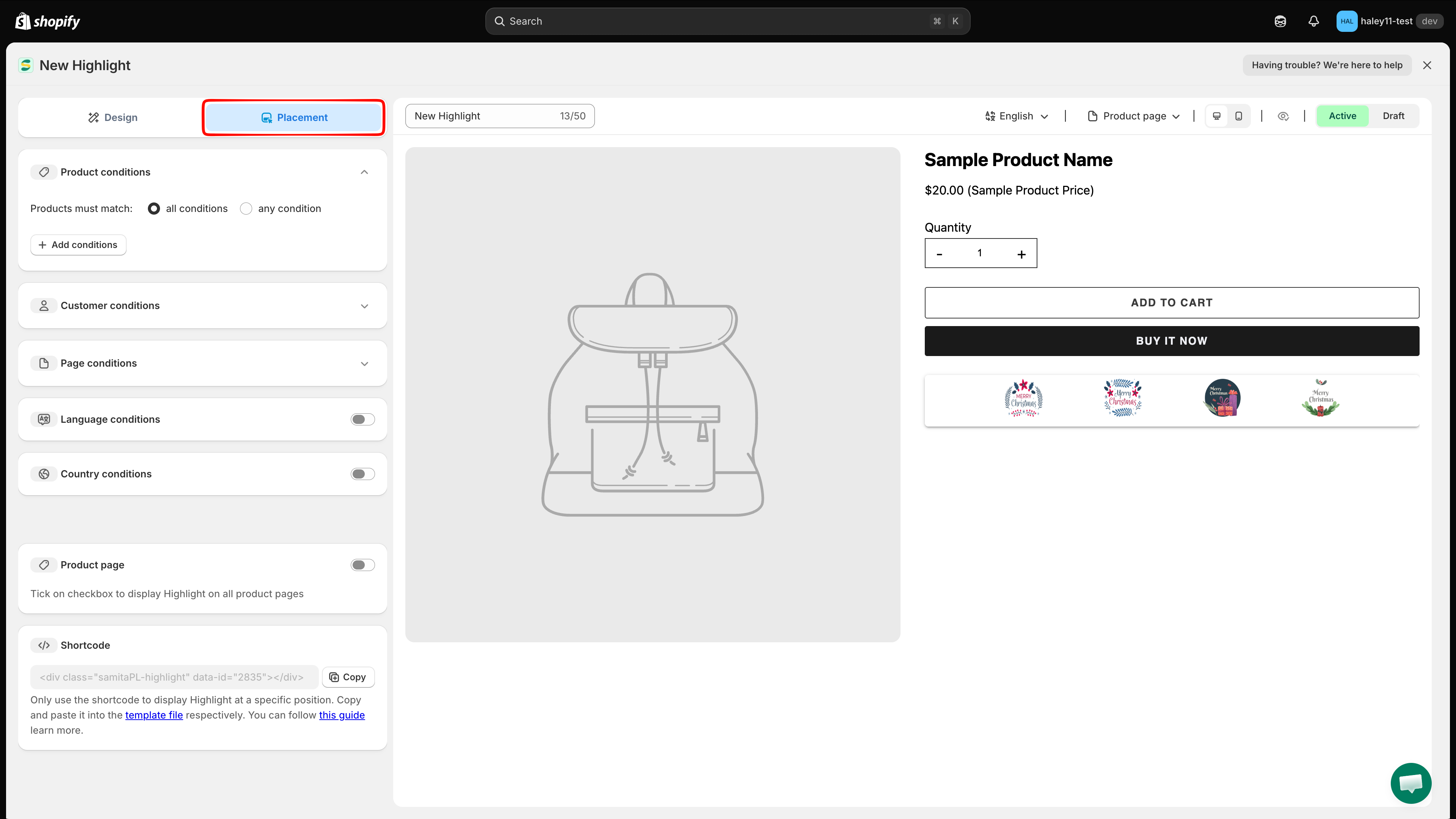
Control where a highlight block appears and who sees it, using the conditions on the Placement tab.
Every highlight block has its own display rules. You set them on the Placement tab of the highlight editor, which holds five condition groups plus the two placement options.

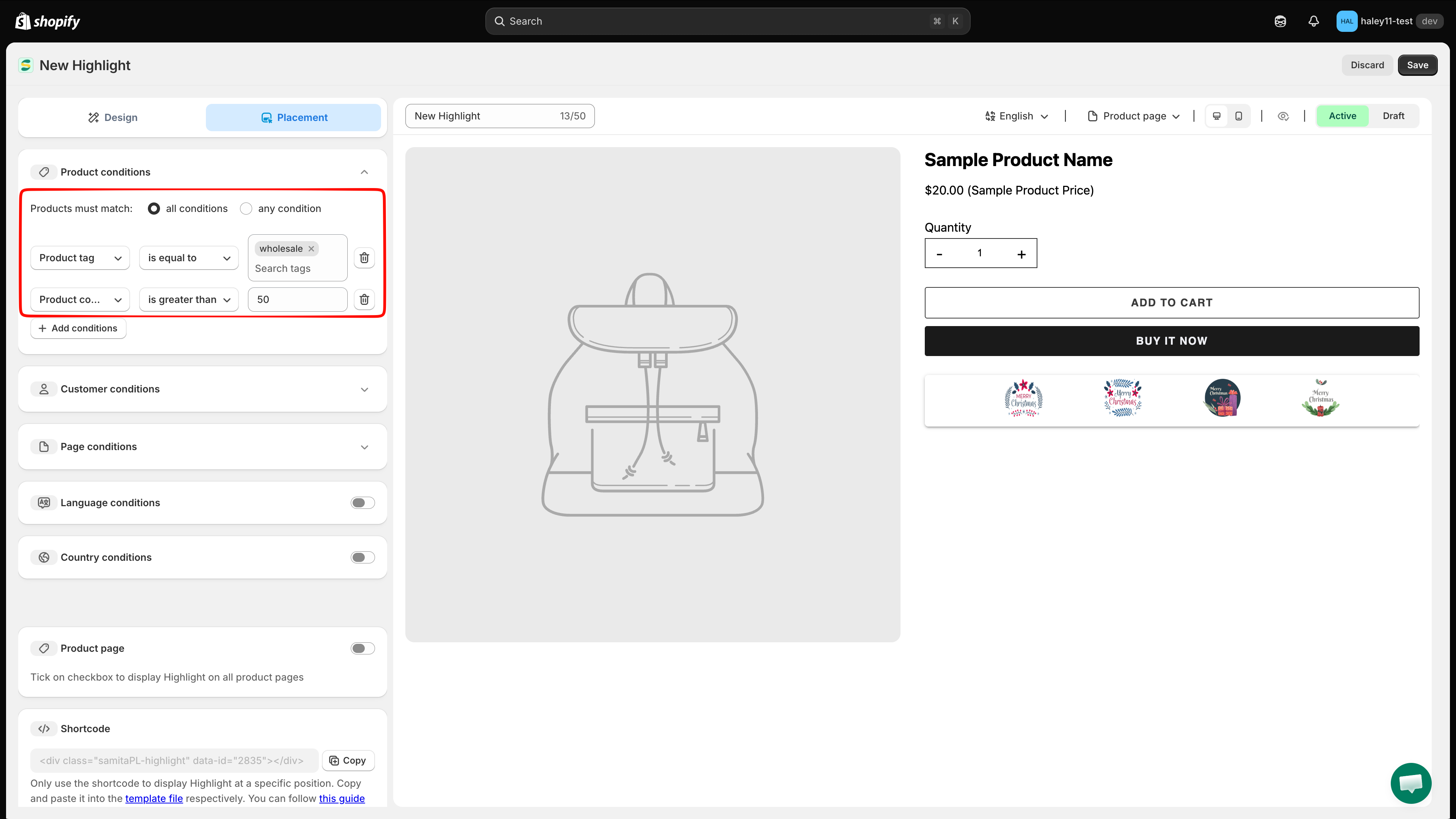
Product conditions
Decide which products the highlight appears on.
Set Products must match to all conditions (every rule must be true) or any condition (one rule is enough), then click Add conditions to build a rule row:
Condition
Select Products, Product tag, Product compare price, Collections
Operator
is equal to / is not equals to
Value
Click select items to pick the products, tags, or collections
Use the trash icon at the end of a row to remove that rule.

Customer conditions
Decide who sees the highlight. Click Add conditions — the row is pre-filled with Customer / Is Logged In.
Customer
Is Logged In / Not Logged In
Customer tag
Pick the customer tags the rule applies to
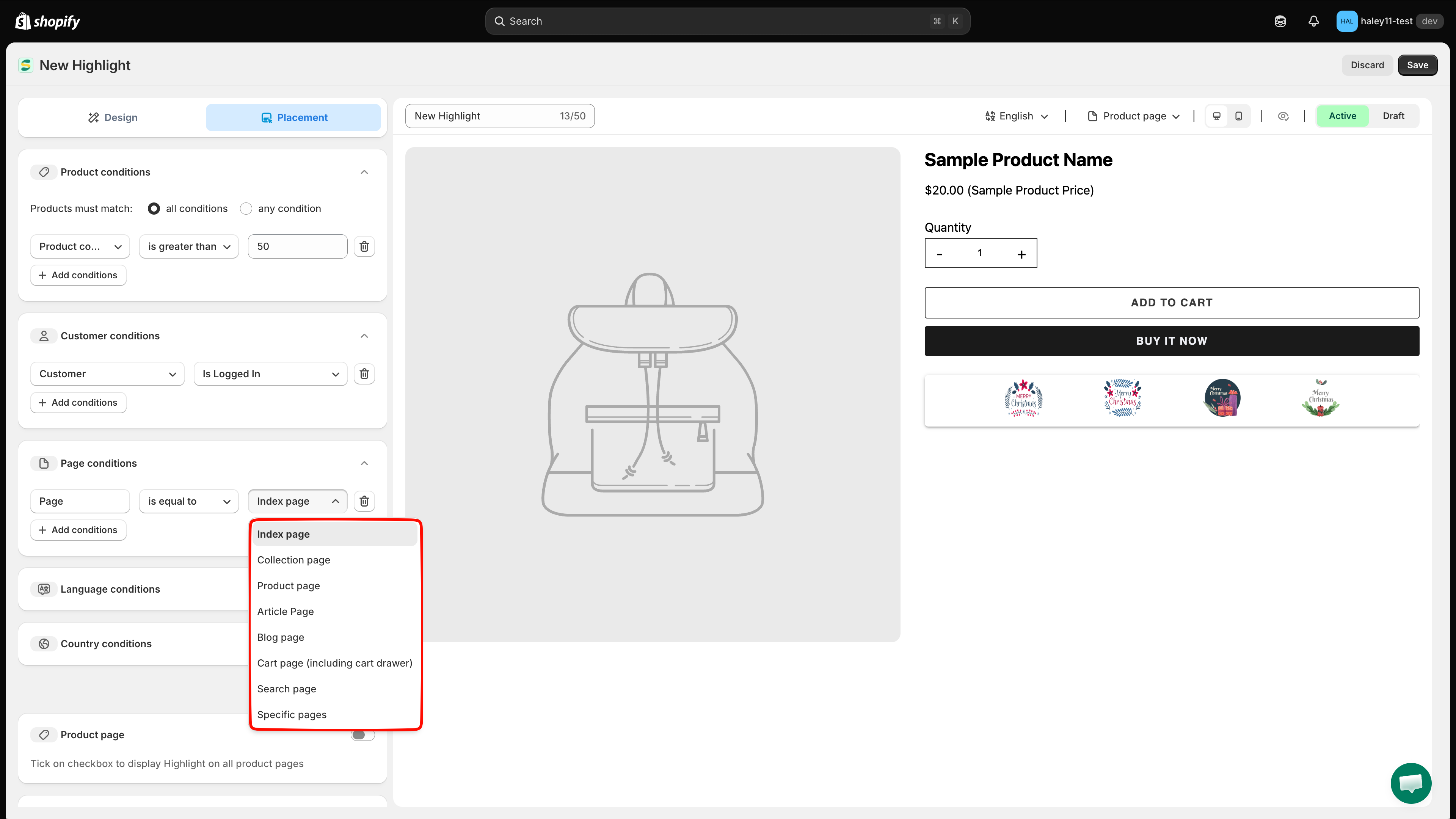
Page conditions
Decide which page types show the highlight. Click Add conditions, then pick the page:
Operator
is equal to / is not equals to
Page
Index page, Collection page, Product page, Article Page, Blog page, Cart page (including cart drawer), Search page

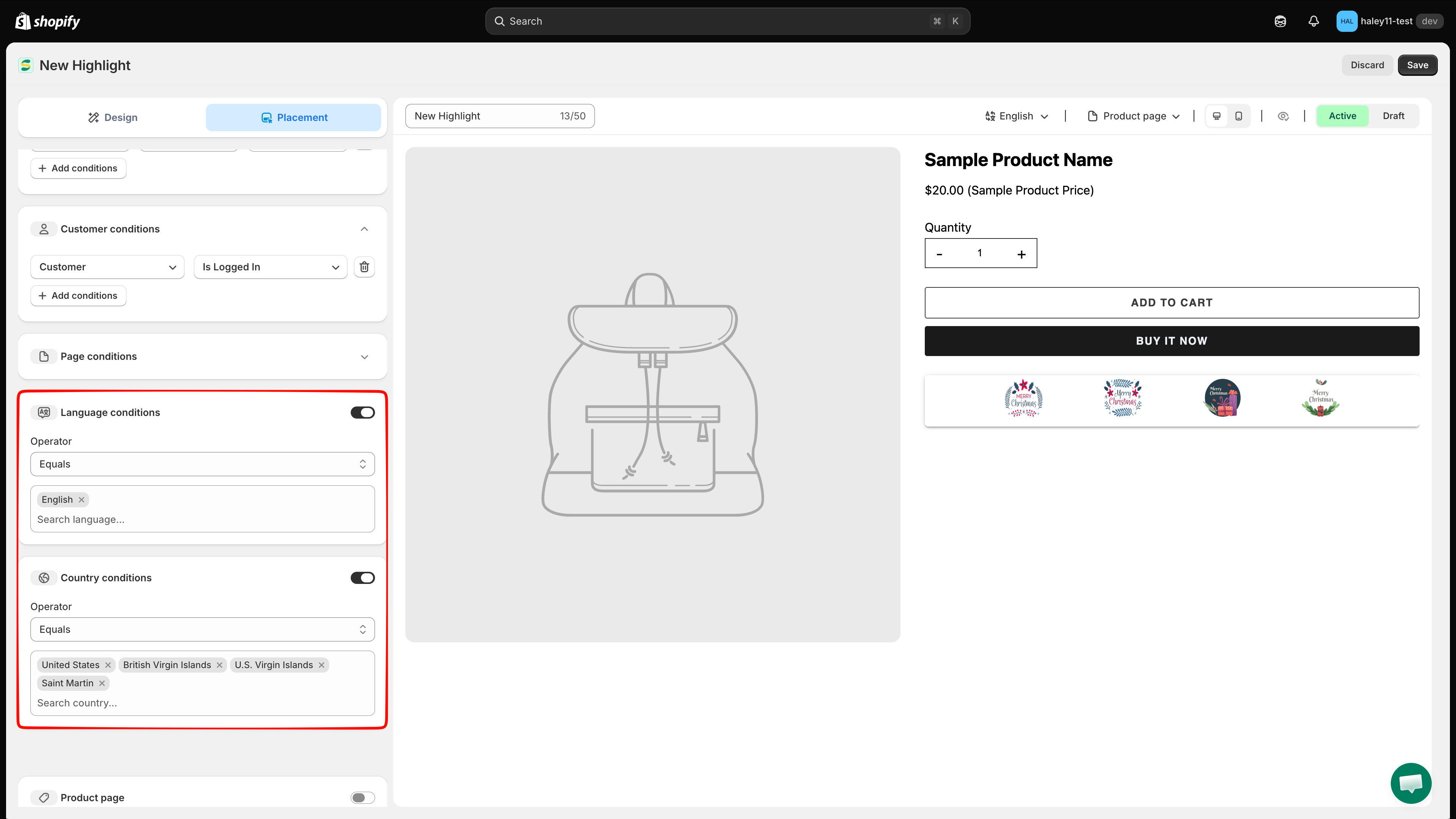
Language conditions
Turn on the Language conditions toggle, set the Operator, then search for and select the languages the rule applies to.
Country conditions
Turn on the Country conditions toggle, set the Operator, then search for and select the countries the rule applies to.

Where the highlight is placed
Conditions decide whether the block shows; these two settings decide where:
Product page
Turn on to display the highlight at the app's built-in position on every product page.
Shortcode
Copy <div class="samitaPL-highlight" data-id="…"></div> and place it in your theme yourself — see Place a highlight with shortcode.
Save the highlight before copying its shortcode — on an unsaved block the snippet reads data-id="new" and will not render.
Next steps
Create a highlight — build the block and style its grid.
Highlight overview — what highlights are and when to use them.
Pricing plans — what each plan includes.
Need support?
If you run into any difficulty while following these steps, contact us at support@samita.io.
Last updated
Was this helpful?