> For the complete documentation index, see [llms.txt](https://docs.samita.io/llms.txt). Markdown versions of documentation pages are available by appending `.md` to page URLs; this page is available as [Markdown](https://docs.samita.io/getting-started/enable-app-in-theme.md).
# Enable the app in your theme
Turn on the Sami Product Labels app embed in your Shopify theme so badges, banners, and trust badges render on your storefront.
**Sami Product Labels** renders everything through Shopify's **App Embed** block. Until that block is enabled in your active theme, nothing the app creates appears on your storefront.
{% hint style="warning" %}
This is the single most common reason a badge doesn't show. A badge set to **Active** still stays invisible while the app embed is off.
{% endhint %}
{% stepper %}
{% step %}
## Open the app
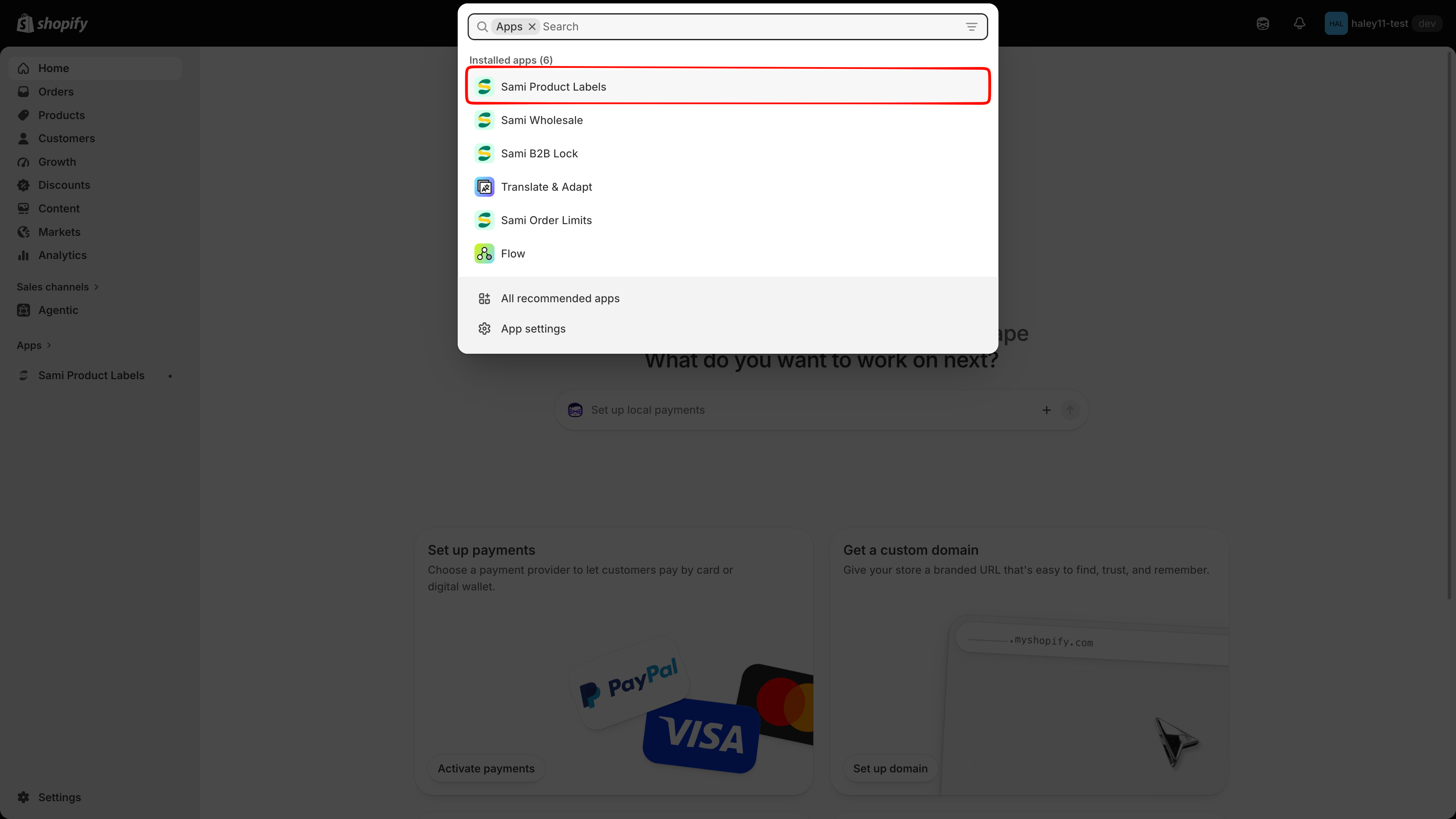
In your Shopify admin, find **Sami Product Labels** under **Apps** in the left sidebar and open it. The app opens on its **Dashboard**.
Open the app from your Shopify admin.
{% endstep %}
{% step %}
## Check the status chip
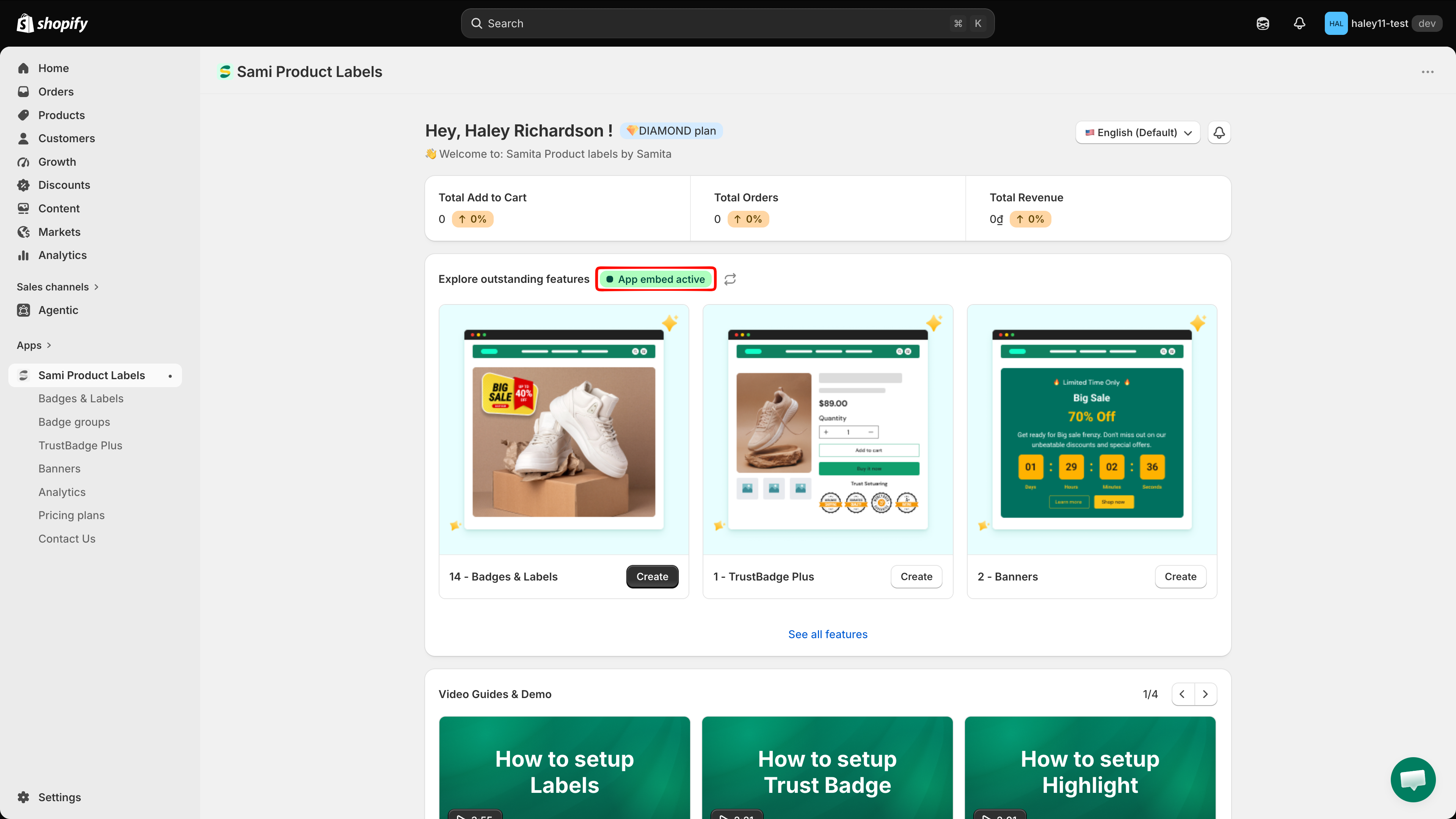
On the Dashboard, look at the chip beside the **Explore outstanding features** heading:
| Chip | Meaning |
| ---------------------- | --------------------------------------------------- |
| **App embed active** | The embed is on for your live theme — you are done. |
| **App embed inactive** | The embed is off. Continue to the next step. |
The refresh icon next to the chip rechecks the status without reloading the page.
{% hint style="info" %}
The chip only reports your **live (published) theme**. It does not check draft or unpublished themes — see [Working with more than one theme](#working-with-more-than-one-theme) below.
{% endhint %}
The chip beside "Explore outstanding features" reports the embed status.
{% endstep %}
{% step %}
## Turn on the app embed
In your Shopify admin, go to **Online Store > Themes** and click **Customize** on your active theme. Then:
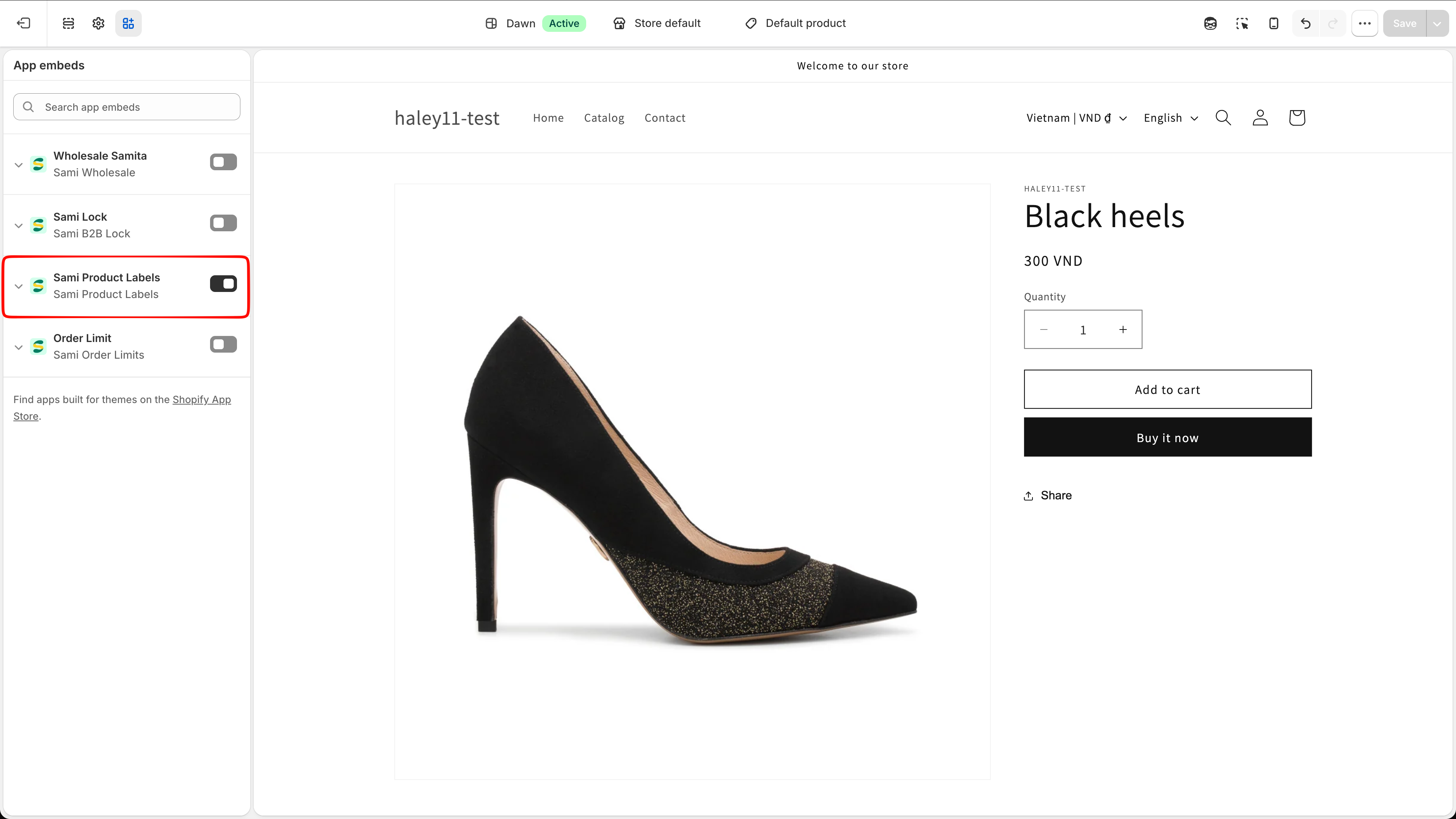
1. Open **App embeds** in the left sidebar of the theme editor.
2. Find **Sami Product Labels** in the list.
3. Toggle the switch **On**.
4. Click **Save** in the top-right corner.
Toggle on the app embed, then save the theme.
{% hint style="danger" %}
Saving is what applies the change. Closing the theme editor without clicking **Save** leaves the embed off.
{% endhint %}
{% endstep %}
{% step %}
## Verify
Go back to the app Dashboard and click the refresh icon beside the status chip. It should now read **App embed active**.
Still inactive? Reload the page, then repeat the previous step and confirm you clicked **Save** in the theme editor.
{% endstep %}
{% endstepper %}
## Working with more than one theme
The app embed is a per-theme setting.
{% hint style="warning" %}
Enable it separately in every theme you publish. Switching your active theme, duplicating a theme, or installing a new one means repeating these steps for that theme — badges will silently stop showing otherwise.
{% endhint %}
{% hint style="info" %}
App embeds require an **Online Store 2.0** theme. If yours doesn't support them, contact us at for alternative installation methods.
{% endhint %}
### Testing on a draft theme
The Dashboard status chip is tied to your live theme only, so it stays on **App embed inactive** while you work on a draft — even after you have turned the embed on there. That is expected, and it does not stop badges from rendering.
To preview badges on a draft theme:
1. Go to **Online Store > Themes** and click **Customize** on the draft theme.
2. Open **App embeds**, toggle **Sami Product Labels** **On**, and click **Save**.
3. Preview the draft theme — your badges render as usual.
{% hint style="info" %}
Enabling the app embed is the only step needed on a draft theme. Ignore the Dashboard chip while testing; it will switch to **App embed active** once you publish that theme.
{% endhint %}
## Next steps
* [Quickstart](/getting-started/quickstart.md) — create your first badge.
* [Troubleshooting](/help/troubleshooting.md) — what to check when a badge still doesn't show.
* [Badges & Labels overview](/badges-and-labels/overview.md) — the full feature set.
---
# Agent Instructions
This documentation is published with GitBook. GitBook is the documentation platform designed so that both humans and AI agents can read, navigate, and reason over technical content effectively. Learn more at gitbook.com.
## Querying This Documentation
If you need additional information that is not directly available in this page, you can query the documentation dynamically by asking a question.
Perform an HTTP GET request on the current page URL with the `ask` query parameter, and the optional `goal` query parameter:
```
GET https://docs.samita.io/getting-started/enable-app-in-theme.md?ask=&goal=
```
`ask` is the immediate question: it should be specific, self-contained, and written in natural language.
`goal` is optional and describes the broader end goal you are ultimately trying to accomplish on behalf of the user. GitBook uses it to tailor the answer towards what is most useful for that goal.
The response will contain a direct answer to the question and relevant excerpts and sources from the documentation.
Use this mechanism when the answer is not explicitly present in the current page, you need clarification or additional context, or you want to retrieve related documentation sections.