> For the complete documentation index, see [llms.txt](https://docs.samita.io/llms.txt). Markdown versions of documentation pages are available by appending `.md` to page URLs; this page is available as [Markdown](https://docs.samita.io/integrations/sidekick-draft-badge.md).
# Draft a text badge with Sidekick
Describe a text badge to Shopify Sidekick and it opens the badge editor already filled in with your wording and colors, ready for you to review and save.
Tell Sidekick what a badge should say and which colors to use. Sidekick opens the **Sami Product Labels** badge editor with the text badge already filled in — you review it, pick the products, and save.
{% hint style="info" %}
Sidekick does **not** create the badge for you. Nothing is added to your store until you click **Save** in the editor.
{% endhint %}
{% stepper %}
{% step %}
## Describe the badge
Open **Sidekick** in your Shopify admin and describe the badge. Include the wording and, if you want, the colors as hex codes.
**Try asking:**
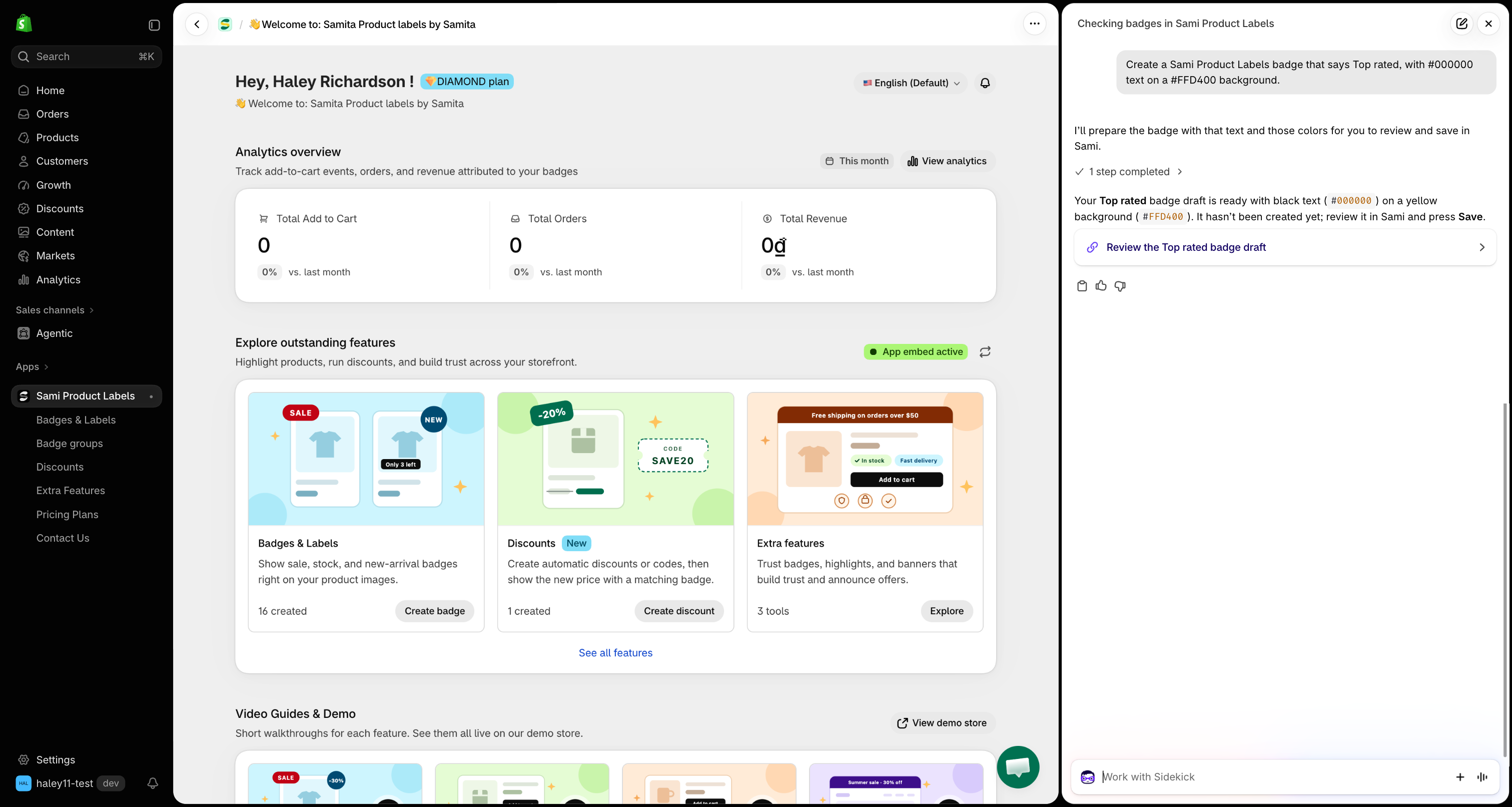
* *"Create a badge that says Top rated, black text on a #FFD400 background."*
* *"Make a badge that says Free shipping with white text on #1A7F37."*
* *"Draft a badge saying Last chance, #FFFFFF text, #D72C0D background, and a #000000 border."*
| You can set | How to say it |
| -------------------- | ----------------------------------------------------- |
| **Text** | The exact wording, for example *Top rated*. Required. |
| **Text color** | A hex code, for example `#000000`. |
| **Background color** | A hex code, for example `#FFD400`. |
| **Border color** | A hex code. Leave it out for no border. |
{% hint style="warning" %}
Colors must be hex codes, such as `#FFD400`. If you give a color name like *yellow*, Sidekick asks for the hex code instead of guessing one.
{% endhint %}
{% endstep %}
{% step %}
## Open the draft
Sidekick replies with a **Review the … badge draft** link. Click it to open the badge editor in **Sami Product Labels**.
Click the link to open the pre-filled draft.
If you did not say what the badge should say, Sidekick asks you for the wording first.
{% endstep %}
{% step %}
## Review the badge in the editor
The editor opens a new **text badge** with:
* The **name** and **text** set to your wording.
* Your **text color**, **background color**, and **border** applied. A border is drawn 2px wide in the color you chose.
Change anything you like — font, shape, size, position, or animation — exactly as you would for any badge. See [Create a text badge](/badges-and-labels/create-text-badge.md).
The draft opens with your wording and colors already applied.
{% endstep %}
{% step %}
## Choose the products
On the **Products** tab, choose which products show the badge. Sidekick does not set targeting for you. See [Target specific products](/badges-and-labels/target-products.md).
{% endstep %}
{% step %}
## Save the badge
Set the status switch above the preview to **Active**, then click **Save** in the **Unsaved changes** bar at the top of the page. Leave it on **Draft** if the badge is not ready for your storefront.
Click **Discard**, or leave the page without saving, to throw the draft away.
{% endstep %}
{% endstepper %}
## Good to know
* **Text badges only** — Sidekick drafts text badges. For image badges, see [Create an image badge](/badges-and-labels/create-image-badge.md) or [Generate a badge image with AI](/ai-features/generate-image.md).
* **Dynamic variables** — you can add variables such as `{sami_discount_value_percent}` to the text in the editor after the draft opens. See [Use dynamic variables](/badges-and-labels/dynamic-variables.md).
## Next steps
* [Ask Sidekick about your app data](/integrations/ask-sidekick.md) — more questions you can ask.
* [Find out why a badge isn't showing](/integrations/sidekick-troubleshoot-badges.md) — check that your new badge appears.
{% hint style="success" %}
**Need support?**
If you run into any difficulty while following these steps, contact us at .
{% endhint %}
---
# Agent Instructions
This documentation is published with GitBook. GitBook is the documentation platform designed so that both humans and AI agents can read, navigate, and reason over technical content effectively. Learn more at gitbook.com.
## Querying This Documentation
If you need additional information that is not directly available in this page, you can query the documentation by asking a question.
Perform an HTTP GET request on the following URL with the `ask` and `goal` query parameters:
```
GET https://docs.samita.io/integrations/sidekick-draft-badge.md?ask=&goal=
```
`ask` is the immediate question: it should be specific, self-contained, and written in natural language.
`goal` is what the user is ultimately trying to achieve, the reason they need the answer. Sharing it helps GitBook give you a better, more relevant answer. A goal is most helpful when it describes the outcome the user wants rather than restating the question. For example, with `ask=how do I create an API token`, a goal like `automate deployments from our CI pipeline` lets GitBook tailor the answer to that use case.
The response will contain a direct answer to the question and relevant excerpts and sources from the documentation.
Use this mechanism when the answer is not explicitly present in the current page, you need clarification or additional context, or you want to retrieve related documentation sections.