> For the complete documentation index, see [llms.txt](https://docs.samita.io/llms.txt). Markdown versions of documentation pages are available by appending `.md` to page URLs; this page is available as [Markdown](https://docs.samita.io/sa-request-a-quote/collecting-quote-requests/add-cart-items.md).

# Add cart items to a quote

Show the quote button on your cart page so customers who have already filled a cart can ask for a price instead.

Some customers fill a cart before deciding they would rather negotiate. **Cart page button position** puts your quote button on the cart page so they have somewhere to do that.

## What the button does

The cart-page button turns a cart the customer has already built into a quote request:

1. The customer adds products to the cart in the normal way.
2. On the cart page they click your quote button instead of checking out.
3. Those products are added to their quote.
4. They fill in your quote form and submit it, and the request arrives in your **Quote list**.

{% hint style="warning" %}
Only products you have enabled for quoting come across. If a cart mixes quotable and non-quotable products, decide which products qualify in **Select quote products** on the **Quote settings** page first — see [Choose quotable products](/sa-request-a-quote/collecting-quote-requests/choose-products.md) — then test with a mixed cart on your own storefront so you know exactly what lands in the quote.
{% endhint %}

What customers see the moment they click — a popup, the quote cart, or the quote page — is the **Click action** setting, covered in [Set the after-click behavior](/sa-request-a-quote/collecting-quote-requests/after-click-behavior.md).

## Set the position

{% stepper %}
{% step %}

### Open the button settings

In the app, go to **Quote settings** and click **Customize**, then open the **Button & widget** tab.
{% endstep %}

{% step %}

### Find Button position

Scroll to **Button position** and open the **Cart page button position** dropdown.

<figure><img src="https://2993310686-files.gitbook.io/~/files/v0/b/gitbook-x-prod.appspot.com/o/spaces%2FIvNtDAMNVIdy5nl9kiOU%2Fuploads%2FwvIkx6gPgmchNw1EEeSt%2Fimage.png?alt=media&amp;token=d4c60635-8fc7-40d6-a109-0440a1cfbe99" alt=""><figcaption></figcaption></figure>
{% endstep %}

{% step %}

### Choose where the button goes

The dropdown holds three values. Choose **Below checkout button** to put the quote button under the checkout button, **Above checkout button** to put it first, or **Don't show on cart page** to leave the cart alone. The table below explains what each one looks like; **Below checkout button** is the safe starting point.

<figure><img src="https://2993310686-files.gitbook.io/~/files/v0/b/gitbook-x-prod.appspot.com/o/spaces%2FIvNtDAMNVIdy5nl9kiOU%2Fuploads%2FVXP5iuBSqPmPTIGTKuX5%2Fimage.png?alt=media&amp;token=829cfeb5-78e9-4436-8da8-ead0b3e2330c" alt=""><figcaption></figcaption></figure>
{% endstep %}

{% step %}

### Save and check your cart page

As soon as you change the dropdown, **Discard** and **Save** appear at the top right of the **Customize** editor. Click **Save** — nothing reaches your storefront until you do. Try to close the editor first and it stops you with "Discard all unsaved changes", offering **Discard changes** or **Continue editing**.

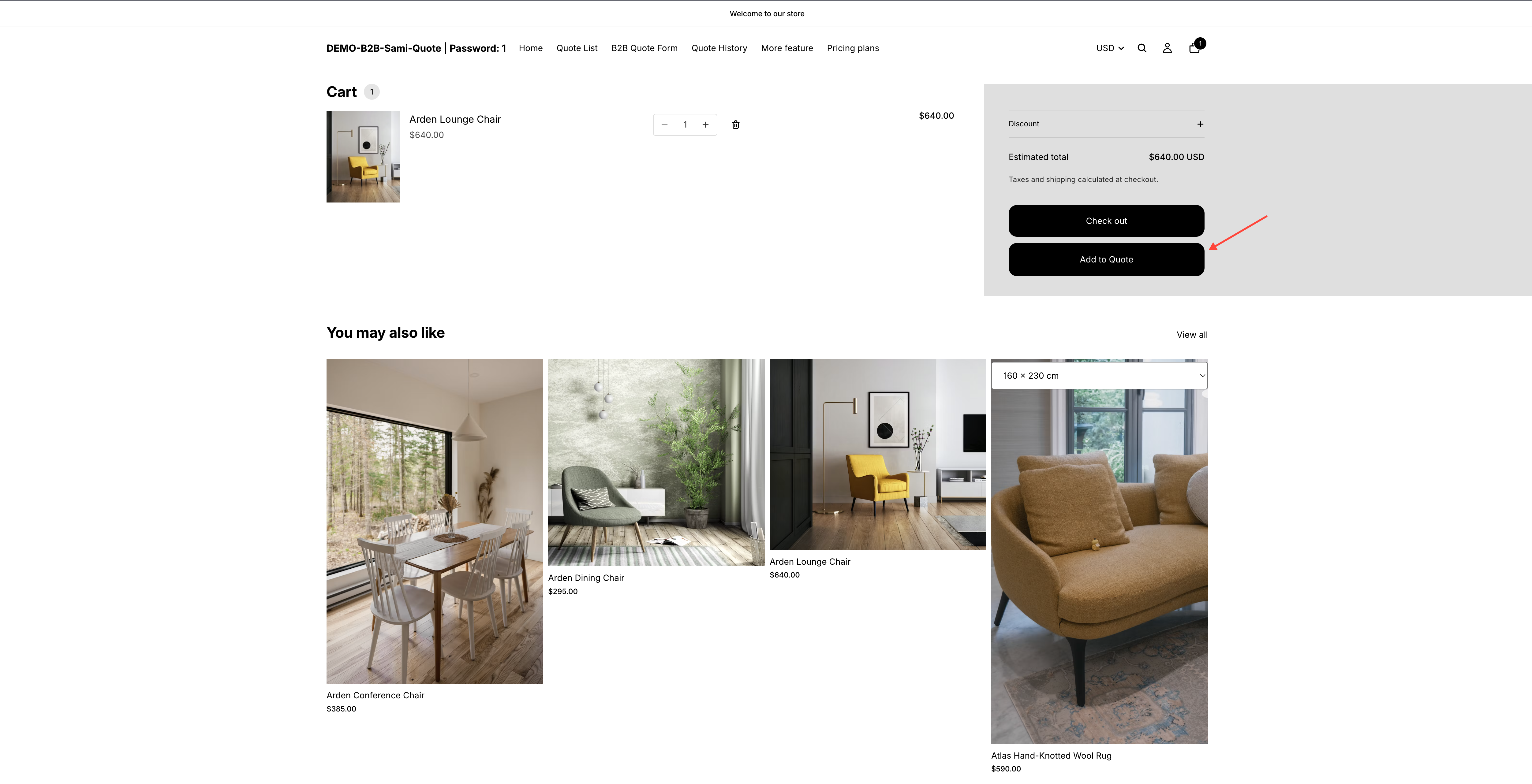
Then add a product to your cart on your own storefront and open the cart page.

<figure><img src="https://2993310686-files.gitbook.io/~/files/v0/b/gitbook-x-prod.appspot.com/o/spaces%2FIvNtDAMNVIdy5nl9kiOU%2Fuploads%2Fgit-blob-8d393dad2ef3da27669779d97f5322626f88eeed%2FScreenshot%202026-09-29%20at%2014-58-40.png?alt=media" alt="A storefront cart page with the quote button shown next to the usual checkout button"><figcaption><p>On the cart page, customers can turn what they have collected into a quote request.</p></figcaption></figure>
{% endstep %}
{% endstepper %}

## What each position does

<table><thead><tr><th width="290">Option</th><th>What customers see</th></tr></thead><tbody><tr><td><strong>Don't show on cart page</strong></td><td>No quote button on the cart page. Use this if the cart is strictly for buying.</td></tr><tr><td><strong>Below checkout button</strong></td><td>The quote button sits under the checkout button, as a clear second option.</td></tr><tr><td><strong>Above checkout button</strong></td><td>The quote button comes first, above checkout. Use it when most of your cart traffic is expected to ask rather than buy.</td></tr></tbody></table>

{% hint style="info" %}
**Above checkout button** puts the quote button in front of the one customers use to pay you. On a store that sells and quotes, **Below checkout button** is usually the better balance.
{% endhint %}

<figure><img src="https://2993310686-files.gitbook.io/~/files/v0/b/gitbook-x-prod.appspot.com/o/spaces%2FIvNtDAMNVIdy5nl9kiOU%2Fuploads%2Fgit-blob-aef7fe39226bb3c330562b3569b251f0f768630b%2FScreenshot%202026-09-30%20at%2017-23-11.png?alt=media" alt=""><figcaption></figcaption></figure>

Build a test cart on your own storefront, click the button yourself and see exactly what your customers get before you leave it live.

## If the button doesn't appear on the cart page

1. **Check you saved.** **Save** still active at the top right of the editor means the dropdown never took effect.
2. **The app embed isn't enabled in your theme.** The app embed is what lets quote buttons and request forms appear on the storefront at all — see [Enable the app in your theme](/sa-request-a-quote/getting-started/enable-app-in-theme.md).
3. **Nothing in the cart is a quote product.** The cart button has nothing to send — check **Select quote products**, see [Choose quotable products](/sa-request-a-quote/collecting-quote-requests/choose-products.md).
4. **The visitor isn't allowed to see it.** **Who can see the RFQ button?** on the same **Button & widget** tab can limit the button to logged-in customers — see [Require login to quote](/sa-request-a-quote/collecting-quote-requests/require-login.md).

More detail in [Troubleshooting](/sa-request-a-quote/help/troubleshooting.md).

## Worth pairing with hidden prices

If you hide prices and the Add to Cart button on your quoted products, customers can't put those products in a cart at all — so this position matters most when the same catalogue can be both bought and quoted.

See [Hiding prices overview](/sa-request-a-quote/hiding-prices/overview.md) to decide which model fits your store.

## Need a hand?

If the cart-page button still isn't behaving after those checks, send us the cart page URL and a screenshot of your **Button position** settings — see [Contact support](/sa-request-a-quote/help/contact-support.md).

## Next steps

* [Set the after-click behavior](/sa-request-a-quote/collecting-quote-requests/after-click-behavior.md) — what customers see after clicking
* [Hide Add to Cart and Buy now](/sa-request-a-quote/hiding-prices/hide-buy-buttons.md) — remove buy buttons on quoted products
* [Floating quote widget](/sa-request-a-quote/collecting-quote-requests/quote-widget.md) — a floating way back to the quote cart


---

# Agent Instructions
This documentation is published with GitBook. GitBook is the documentation platform designed so that both humans and AI agents can read, navigate, and reason over technical content effectively. Learn more at gitbook.com.

## Querying This Documentation
If you need additional information that is not directly available in this page, you can query the documentation by asking a question.

Perform an HTTP GET request on the following URL with the `ask` and `goal` query parameters:

```
GET https://docs.samita.io/sa-request-a-quote/collecting-quote-requests/add-cart-items.md?ask=<question>&goal=<user_goal>
```

`ask` is the immediate question: it should be specific, self-contained, and written in natural language.
`goal` is what the user is ultimately trying to achieve, the reason they need the answer. Sharing it helps GitBook give you a better, more relevant answer. A goal is most helpful when it describes the outcome the user wants rather than restating the question. For example, with `ask=how do I create an API token`, a goal like `automate deployments from our CI pipeline` lets GitBook tailor the answer to that use case.

The response will contain a direct answer to the question and relevant excerpts and sources from the documentation.

Use this mechanism when the answer is not explicitly present in the current page, you need clarification or additional context, or you want to retrieve related documentation sections.
