> For the complete documentation index, see [llms.txt](https://docs.samita.io/llms.txt). Markdown versions of documentation pages are available by appending `.md` to page URLs; this page is available as [Markdown](https://docs.samita.io/sa-request-a-quote/collecting-quote-requests/after-click-behavior.md).

# Set the after-click behavior

Choose what happens the moment a customer clicks your quote button, and what the confirmation message says.

**Click action** decides what your quote button does. It is the single most important setting on the **Button & widget** tab, because it determines whether customers finish a request straight away or keep collecting products first.

## Choose the click action

{% stepper %}
{% step %}

### Open the button settings

In the app, go to **Quote settings** and click **Customize**, then open the **Button & widget** tab.
{% endstep %}

{% step %}

### Find Click action

**Click action** sits just under **Button text**, near the top of the **Quote Button Settings** section.
{% endstep %}

{% step %}

### Pick one of the three actions

Select **Open quote form popup**, **Add product to quote cart**, or **Redirect to quote page**. The table and the walkthroughs below explain each one; **Add product to quote cart** is the choice for stores where a request usually covers several products. Watch the **Preview** panel as you switch between them.

{% hint style="warning" %}
Choosing **Add product to quote cart** opens a **Show popup message after adding product** panel *inside* that radio. On the other two actions those fields are not on the page at all — see **The confirmation message** below.
{% endhint %}
{% endstep %}

{% step %}

### Save and try it

As soon as you change the radio, **Discard** and **Save** appear at the top right of the **Customize** editor. Click **Save**, then click the quote button on your own storefront to see the action for yourself.

{% hint style="warning" %}
Close the editor before saving and it asks first: "Discard all unsaved changes" — "If you discard changes, you'll delete any edits you made since you last saved." Choose **Continue editing** and save, unless you really meant to throw the change away.
{% endhint %}
{% endstep %}
{% endstepper %}

## What each action does

<table><thead><tr><th width="270">Option</th><th width="290">What the customer sees</th><th>Best for</th></tr></thead><tbody><tr><td><strong>Open quote form popup</strong></td><td>The quote form opens over the page they were looking at.</td><td>Single-product requests you want finished on the spot.</td></tr><tr><td><strong>Add product to quote cart</strong></td><td>The product is added to their quote cart and they carry on browsing.</td><td>Customers who request several products at once.</td></tr><tr><td><strong>Redirect to quote page</strong></td><td>They are taken straight to your quote cart page.</td><td>Stores where a request is nearly always one product and nothing else needs adding.</td></tr></tbody></table>

{% hint style="info" %}
If customers usually quote several items, **Add product to quote cart** is the one to choose. **Redirect to quote page** interrupts browsing on every click.
{% endhint %}

{% hint style="info" %}
**Seeing a fourth option called Toast?** Some stores are still served by the app's earlier storefront code, and those see **Toast** as well. It does the same as **Add product to quote cart** but confirms with a small toast message instead of the popup. If your **Click action** shows only three options, your store is on the newer storefront and the three above are all you have.
{% endhint %}

## What the customer experiences

The three actions feel completely different on the storefront. This is what each one puts in front of a shopper.

### Open quote form popup

The quote form opens over the page the customer is already on, so they never leave the product. The fields are the ones you built on the **Quote form** tab, and the form carries the prompt "Already have an account? Log in to auto-fill your contact and company information."

<figure><img src="https://2993310686-files.gitbook.io/~/files/v0/b/gitbook-x-prod.appspot.com/o/spaces%2FIvNtDAMNVIdy5nl9kiOU%2Fuploads%2Fgit-blob-e3530625e607dcced0cef20cf68080b33cc0e821%2FScreenshot%202026-09-30%20at%2011-04-03.png?alt=media" alt="A storefront product page with the quote form open in a popup over it"><figcaption><p>The popup keeps the customer on the page they were reading.</p></figcaption></figure>

### Add product to quote cart

The product goes into the customer's quote cart and they stay exactly where they were. Nothing reaches you yet: a request is only sent once they open the quote cart page and submit the form.

Two things tell them it worked: the confirmation popup described below, and the floating widget at the edge of the screen, labelled **Quote (n)**, whose number goes up with every product added.

{% hint style="warning" %}
This action is the one where a customer can walk away with a quote they never sent. Give them two ways back to it: leave the popup's **Primary button** (**View Quote** by default) in place, and turn on the floating widget so the **Quote (n)** count follows them around the store. See [Floating quote widget](/sa-request-a-quote/collecting-quote-requests/quote-widget.md).
{% endhint %}

### Redirect to quote page

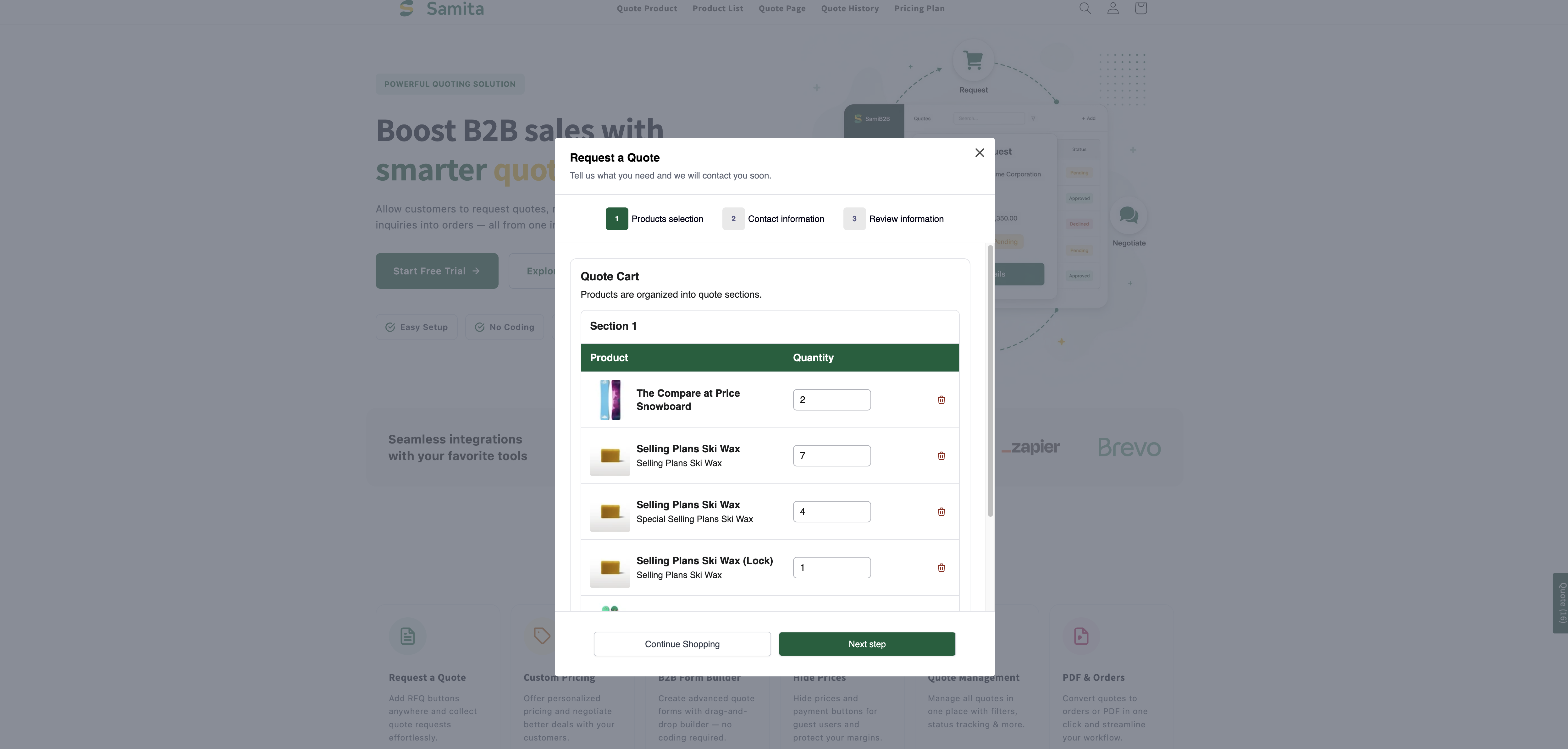
The customer is taken straight to your quote cart page at `/pages/request-for-quote`, headed **Request a Quote** with the line "Tell us what you need and we will contact you soon.", and the product already listed in their **Quote Cart**.

With **Quote form appearance** set to **Multiple step** they arrive at step **1 Products selection** and move on with **Next step**, while **Continue Shopping** is there for anyone who meant to keep browsing. With **Single page** the whole form sits on that one screen. Either way the request is sent from that page — see [Request a Quote page](/sa-request-a-quote/storefront-quote-pages/request-a-quote-page.md).

<figure><img src="https://2993310686-files.gitbook.io/~/files/v0/b/gitbook-x-prod.appspot.com/o/spaces%2FIvNtDAMNVIdy5nl9kiOU%2Fuploads%2F6vdZshld38TaNIsURpV3%2Fimage.png?alt=media&amp;token=9b1b5752-173d-47e8-9f5f-094fcf3b9ac8" alt=""><figcaption></figcaption></figure>

There is no confirmation popup with this action — the quote page itself is the confirmation.

## The confirmation message

When a product is added, you can show a short confirmation so the customer knows it worked.

{% hint style="warning" %}
**These fields live inside the Add product to quote cart action.** **Show popup message after adding product** — and its **Message**, **Primary button**, **Secondary button** and **URL link** fields — only appear once **Click action** is set to **Add product to quote cart**. If you are on **Open quote form popup** or **Redirect to quote page** and cannot find them, that is why: change the click action first.
{% endhint %}

The panel is headed **Show popup message after adding product**, with a **Preview** link on the right that shows you the popup without leaving the editor. Fill in these fields:

<table><thead><tr><th width="230">Field</th><th>What it does</th></tr></thead><tbody><tr><td><strong>Message</strong></td><td>The confirmation wording. The default is <code>The product {{ product_title }} is added to your quote.</code></td></tr><tr><td><strong>Primary button</strong></td><td>The main button in the popup. The default is <code>View Quote</code>.</td></tr><tr><td><strong>Secondary button</strong></td><td>The button that sends the customer back to shopping. The default is <code>Continue Shopping</code>.</td></tr><tr><td><strong>URL link</strong></td><td>"Where the secondary button sends customers. Defaults to your all-products collection."</td></tr></tbody></table>

Under **Message** the app lists **Available variables**: `{{ product_title }}`. Click it to copy it, then paste it into your wording wherever the product's name should appear — `We have added {{ product_title }} to your quote request.` It is the only variable the message accepts.

<figure><img src="https://2993310686-files.gitbook.io/~/files/v0/b/gitbook-x-prod.appspot.com/o/spaces%2FIvNtDAMNVIdy5nl9kiOU%2Fuploads%2F0rS8Pe4b16j6jBppqylN%2Fimage.png?alt=media&amp;token=02026e10-60ed-40f8-9e82-fcd0c78aecd2" alt=""><figcaption></figcaption></figure>

## What the popup looks like

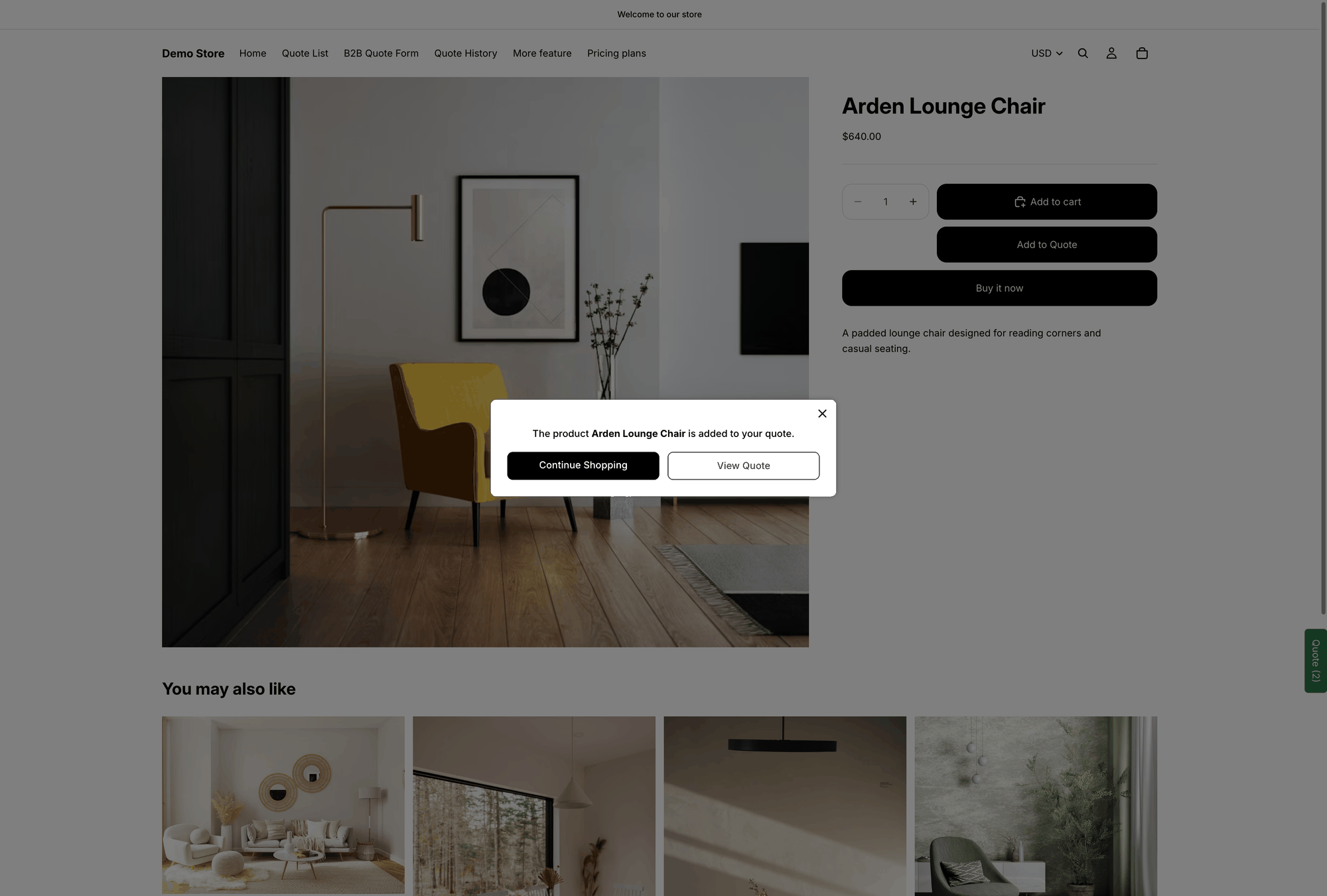
On the storefront it comes out as a small popup over the page the customer was on: your **Message**, with the product named in it, and two buttons — **View Quote** to go straight to their quote, and **Continue Shopping** to carry on browsing.

<figure><img src="https://2993310686-files.gitbook.io/~/files/v0/b/gitbook-x-prod.appspot.com/o/spaces%2FIvNtDAMNVIdy5nl9kiOU%2Fuploads%2Fgit-blob-5240086bb6e4bb097b3d87e5caaf04c6e3c57412%2Fscreenshot-storefront-add-to-quote-popup.png?alt=media" alt="Storefront popup reading The product is added to your quote, with Continue Shopping and View Quote buttons"><figcaption><p>The popup on a live storefront, after a product is added to a quote.</p></figcaption></figure>

{% hint style="info" %}
**URL link** is what the **Continue Shopping** button in the popup does. Point it at the collection you actually want customers to carry on from, rather than leaving it on the all-products default. It is a small change that keeps people in the right part of your catalogue.
{% endhint %}

## Where the quote goes next

Once the customer has everything they want, they open the quote cart page, fill in the form and send the request. It arrives in **Quote list** in the app. The fields they filled in come from the **Quote form** tab.

What they see at the moment they send it comes from the **Success message** tab of the same editor: **Success message** holds the confirmation — **Thank you**, "Thank you for submitting a request a quote!" and **Continue Shopping** — and **After submit** can send them somewhere else instead.

## Send customers to your own page after they submit

If you have written a thank-you page of your own, **Redirect to custom URL** takes customers there instead of leaving them on the confirmation.

{% stepper %}
{% step %}

### Open the Success message tab

In the app, go to **Quote settings**, click **Customize**, and open the **Success message** tab.
{% endstep %}

{% step %}

### Find After submit

Scroll to the **After submit** section and turn on **Redirect to custom URL**.
{% endstep %}

{% step %}

### Enter the page URL

Paste the address of the page you want customers to land on — your own thank-you page, for example `https://your-store.com/pages/thank-you`. Copy it from the page's own address bar so you know it resolves.
{% endstep %}

{% step %}

### Save

Click **Save** at the top right of the editor, then submit a test quote from your own storefront and check you land on the right page.

<figure><img src="https://2993310686-files.gitbook.io/~/files/v0/b/gitbook-x-prod.appspot.com/o/spaces%2FIvNtDAMNVIdy5nl9kiOU%2Fuploads%2FBOv4ggWEeTlAjOYyQ5XE%2Fimage.png?alt=media&amp;token=b0341261-03ec-4870-939f-54ee04c95522" alt=""><figcaption></figcaption></figure>
{% endstep %}
{% endstepper %}

{% hint style="info" %}
Leave **Redirect to custom URL** off and customers stay on the built-in confirmation, which is fine for most stores. Use the redirect when the thank-you page does more — order-tracking instructions, a discount code, an upsell.
{% endhint %}

Email notifications are **not** set here. The **Success message** tab only points at them: customer confirmation and admin notification emails are managed in **Other settings** — see [Emails sent to customers](/sa-request-a-quote/emails/emails-to-customers.md).

## Need a hand?

If a click action does something other than what this page describes, tell us which one you picked and what happened — see [Contact support](/sa-request-a-quote/help/contact-support.md).

## Next steps

* [Floating quote widget](/sa-request-a-quote/collecting-quote-requests/quote-widget.md) — a floating way back to the quote cart
* [Change button text and colors](/sa-request-a-quote/collecting-quote-requests/change-button-style.md) — the wording and look of the button itself
* [Request a Quote page](/sa-request-a-quote/storefront-quote-pages/request-a-quote-page.md) — the quote cart page customers land on


---

# Agent Instructions
This documentation is published with GitBook. GitBook is the documentation platform designed so that both humans and AI agents can read, navigate, and reason over technical content effectively. Learn more at gitbook.com.

## Querying This Documentation
If you need additional information that is not directly available in this page, you can query the documentation by asking a question.

Perform an HTTP GET request on the following URL with the `ask` and `goal` query parameters:

```
GET https://docs.samita.io/sa-request-a-quote/collecting-quote-requests/after-click-behavior.md?ask=<question>&goal=<user_goal>
```

`ask` is the immediate question: it should be specific, self-contained, and written in natural language.
`goal` is what the user is ultimately trying to achieve, the reason they need the answer. Sharing it helps GitBook give you a better, more relevant answer. A goal is most helpful when it describes the outcome the user wants rather than restating the question. For example, with `ask=how do I create an API token`, a goal like `automate deployments from our CI pipeline` lets GitBook tailor the answer to that use case.

The response will contain a direct answer to the question and relevant excerpts and sources from the documentation.

Use this mechanism when the answer is not explicitly present in the current page, you need clarification or additional context, or you want to retrieve related documentation sections.