> For the complete documentation index, see [llms.txt](https://docs.samita.io/llms.txt). Markdown versions of documentation pages are available by appending `.md` to page URLs; this page is available as [Markdown](https://docs.samita.io/sa-request-a-quote/collecting-quote-requests/button-on-product-pages.md).

# Quote button on product pages

Show the quote button on your product pages and choose exactly where it sits next to your buy buttons.

This is the most common way to collect quotes. The button sits on the product page near your normal buy buttons. A customer clicks it, fills in your form, and the request lands in your **Quote list**.

Where the button sits is a single dropdown, so you can put it below your buy buttons, above them, beside them, in place of them, or nowhere at all.

## Set the position

{% stepper %}
{% step %}

### Open the button settings

In the app, go to **Quote settings** and click **Customize**, then open the **Button & widget** tab.
{% endstep %}

{% step %}

### Find Button position

Scroll to **Button position** and open the **Product page button position** dropdown.

<figure><img src="https://2993310686-files.gitbook.io/~/files/v0/b/gitbook-x-prod.appspot.com/o/spaces%2FIvNtDAMNVIdy5nl9kiOU%2Fuploads%2Ff7295QtcYg47WaHbbWda%2Fimage.png?alt=media&amp;token=d471d295-0a8d-44cf-91ae-889c7ab7c33f" alt=""><figcaption></figcaption></figure>

{% endstep %}

{% step %}

### Choose where the button goes

Pick the option that suits your theme — the table below explains each one.
{% endstep %}

{% step %}

### Check the preview, then save

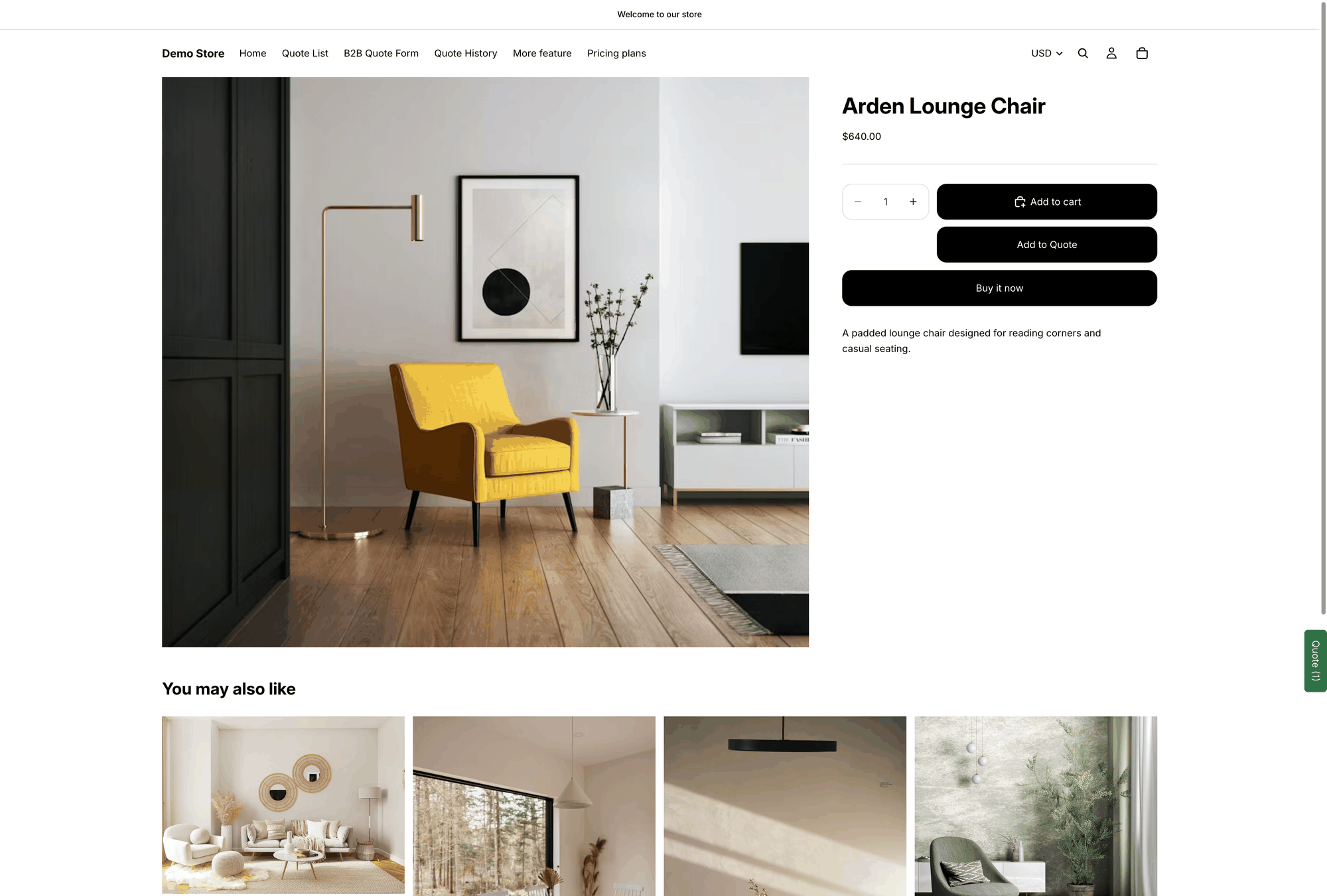
The **Preview** panel beside the settings updates as you go, and has a desktop and mobile toggle so you can check both. Save your changes, then open a product on your storefront.

<figure><img src="https://2993310686-files.gitbook.io/~/files/v0/b/gitbook-x-prod.appspot.com/o/spaces%2FIvNtDAMNVIdy5nl9kiOU%2Fuploads%2Fgit-blob-228d1efc6842b244a307ff0a232c0b697f21b848%2Fscreenshot-storefront-product-page.png?alt=media" alt="Storefront product page with the Add to Quote button below the Add to cart button"><figcaption><p>The quote button on a live product page.</p></figcaption></figure>
{% endstep %}
{% endstepper %}

## What each position does

<table><thead><tr><th width="290">Option</th><th>What customers see</th></tr></thead><tbody><tr><td><strong>Below Add to Cart button</strong></td><td>The quote button appears under your buy buttons, so your normal buying path stays first. The least disruptive option in most themes.</td></tr><tr><td><strong>Above Add to Cart button</strong></td><td>The quote button comes first. Use it when asking for a price is the main action on the page.</td></tr><tr><td><strong>Replace Add to Cart button</strong></td><td>The quote button takes the place of Add to Cart, so the product can only be quoted, not bought.</td></tr><tr><td><strong>Beside Add to Cart button</strong></td><td>The two buttons sit side by side. Check this one on a phone before you keep it.</td></tr><tr><td><strong>Don't show on product pages</strong></td><td>No quote button on product pages. Use this if you collect quotes only from collection or cart pages.</td></tr></tbody></table>

{% hint style="info" %}
**Replace Add to Cart button** only changes the button the app controls. If you also want the price and the buy buttons gone on those products, use the **Hide price** settings — see [Hide Add to Cart and Buy now](/sa-request-a-quote/hiding-prices/hide-buy-buttons.md).
{% endhint %}

## What the button says and how it looks

The wording comes from **Button text** on the same tab — the default is `Add to Quote`. Colours, shape and size are set in the **Style** section. Both are covered in [Change button text and colors](/sa-request-a-quote/collecting-quote-requests/change-button-style.md).

## If the button doesn't appear

Work through these in order:

1. **The app embed isn't enabled in your theme.** By far the most common cause — see [Enable the app in your theme](/sa-request-a-quote/getting-started/enable-app-in-theme.md).
2. **The product isn't one of your quote products.** Check **Select quote products** on the **Quote settings** page — see [Choose quotable products](/sa-request-a-quote/collecting-quote-requests/choose-products.md).
3. **The visitor isn't allowed to see it.** **Who can see the RFQ button?** can limit the button to logged-in customers — see [Require login to quote](/sa-request-a-quote/collecting-quote-requests/require-login.md).
4. **You edited an unpublished theme.** Preview that theme, or enable the app embed on your live one.

More detail in [Troubleshooting](/sa-request-a-quote/help/troubleshooting.md).

## Next steps

* [Change button text and colors](/sa-request-a-quote/collecting-quote-requests/change-button-style.md) — change the wording and the look
* [Set the after-click behavior](/sa-request-a-quote/collecting-quote-requests/after-click-behavior.md) — choose what happens when it's clicked
* [Quote button on collection pages](/sa-request-a-quote/collecting-quote-requests/button-on-collection-pages.md) — add the button to collection pages too


---

# Agent Instructions
This documentation is published with GitBook. GitBook is the documentation platform designed so that both humans and AI agents can read, navigate, and reason over technical content effectively. Learn more at gitbook.com.

## Querying This Documentation
If you need additional information that is not directly available in this page, you can query the documentation by asking a question.

Perform an HTTP GET request on the following URL with the `ask` and `goal` query parameters:

```
GET https://docs.samita.io/sa-request-a-quote/collecting-quote-requests/button-on-product-pages.md?ask=<question>&goal=<user_goal>
```

`ask` is the immediate question: it should be specific, self-contained, and written in natural language.
`goal` is what the user is ultimately trying to achieve, the reason they need the answer. Sharing it helps GitBook give you a better, more relevant answer. A goal is most helpful when it describes the outcome the user wants rather than restating the question. For example, with `ask=how do I create an API token`, a goal like `automate deployments from our CI pipeline` lets GitBook tailor the answer to that use case.

The response will contain a direct answer to the question and relevant excerpts and sources from the documentation.

Use this mechanism when the answer is not explicitly present in the current page, you need clarification or additional context, or you want to retrieve related documentation sections.
