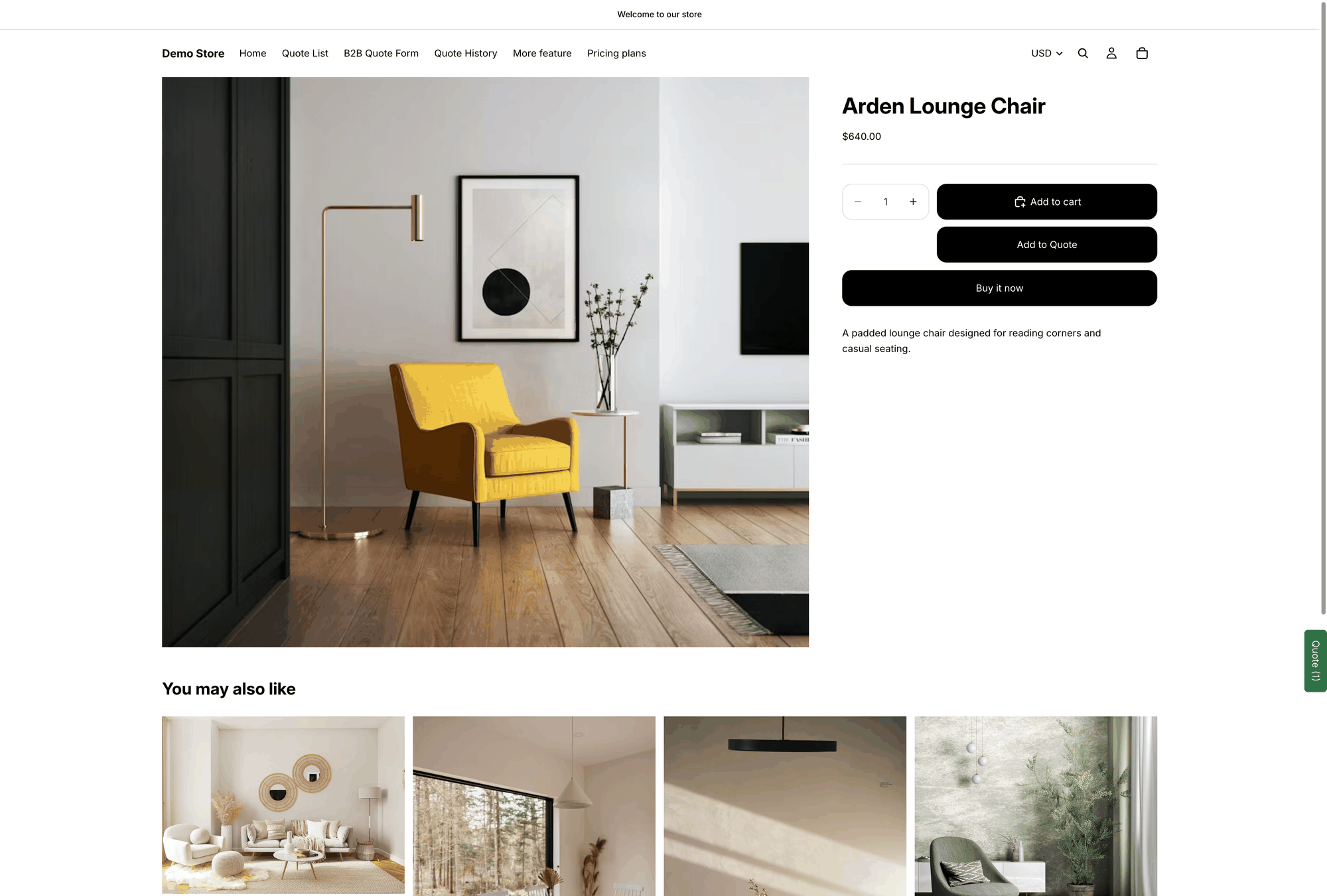
Change button text and colors
Change the wording, shape, size and colours of your quote button so it sits comfortably in your theme.
The wording and the appearance of the quote button are both on the Button & widget tab, a few sections apart. This page covers both.
Change the wording
Change the look
Scroll down the same tab to Style.
Button type
Filled, Outline or Text link. Filled draws the most attention; Text link is the quietest.
Size
Medium, Large or Full width. Full width usually reads best directly under a buy button.
Text color
The colour of the wording on the button.
Background color
The button's fill colour.
Font size
The text size, in px.

Matching your theme
A common pairing is Outline with your theme's own accent colour as the Text color: the quote button stays clearly secondary to your filled Add to Cart button, but still belongs to the same design.
If the quote button sits beside your buy buttons, match its Size to theirs so the row doesn't look uneven.
Other languages
Button text sets the wording for your default language. To translate it along with the rest of what customers see, use Translations AI in Advanced settings — "Translate everything your customers see — quote form, storefront text and both quote emails."

See Translate storefront text.
Next steps
Set the after-click behavior — what happens when customers click
Quote button on product pages — where the button sits
Match your theme style — style the quote form to match
Last updated
Was this helpful?
