> For the complete documentation index, see [llms.txt](https://docs.samita.io/llms.txt). Markdown versions of documentation pages are available by appending `.md` to page URLs; this page is available as [Markdown](https://docs.samita.io/sa-request-a-quote/collecting-quote-requests/change-button-style.md).

# Change button text and colors

Change the wording, shape, size and colours of your quote button so it sits comfortably in your theme.

The wording and the appearance of the quote button are both on the **Button & widget** tab, a few sections apart. This page covers both.

## Change the wording

{% stepper %}
{% step %}

### Open the button settings

In the app, go to **Quote settings** and click **Customize**, then open the **Button & widget** tab.
{% endstep %}

{% step %}

### Edit Button text

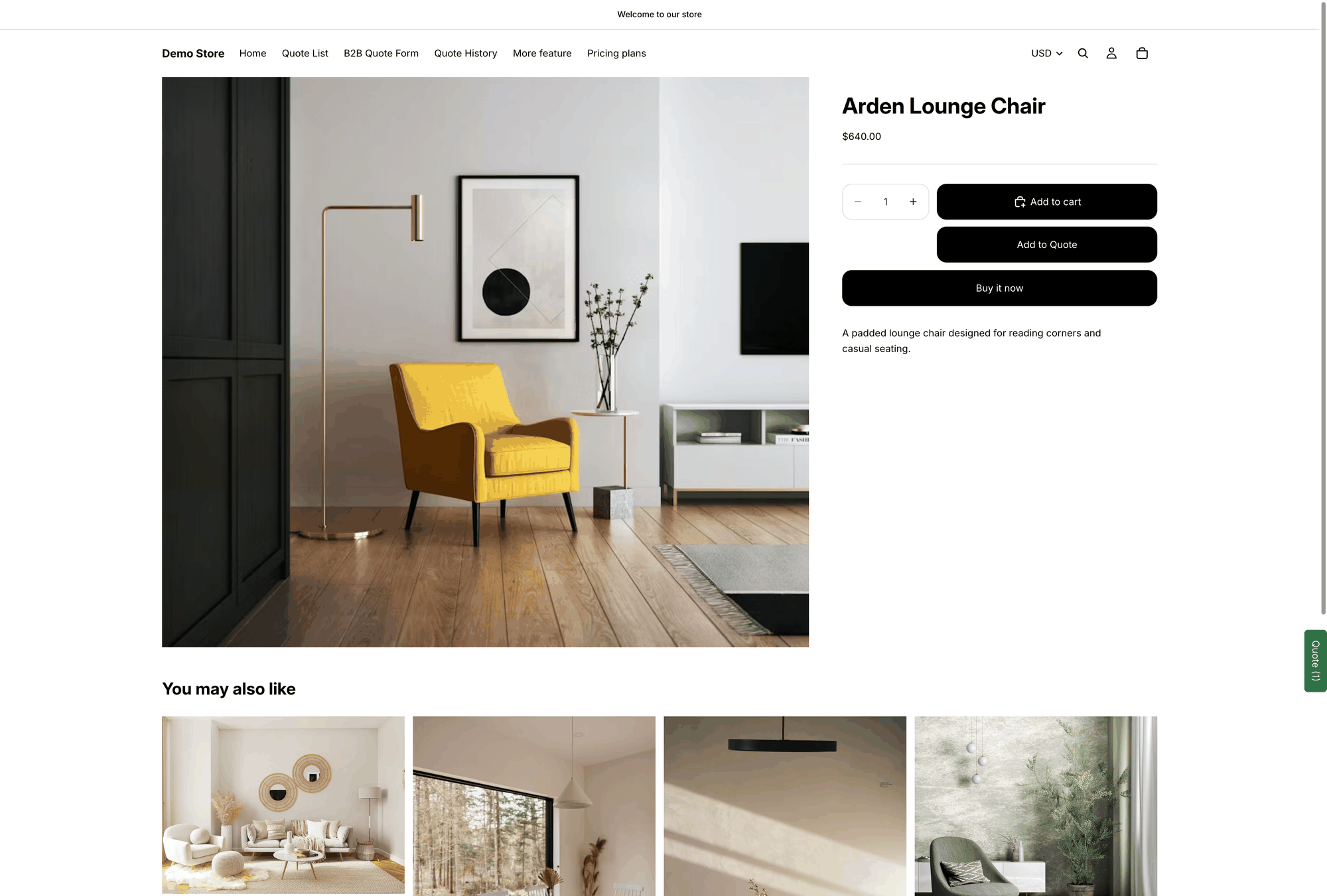
**Button text** is the first field in the **Quote Button Settings** section. The default is `Add to Quote`, and the help text reads: "This text appears on product pages and collection pages. Recommended default: Request a Quote."

<figure><img src="https://2993310686-files.gitbook.io/~/files/v0/b/gitbook-x-prod.appspot.com/o/spaces%2FIvNtDAMNVIdy5nl9kiOU%2Fuploads%2FviM6uVX1G22mUhAvFABn%2Fimage.png?alt=media&amp;token=c31c53b2-6c73-4c2d-8332-aa1b5434d286" alt=""><figcaption></figcaption></figure>
{% endstep %}

{% step %}

### Save and reload your storefront

Save your changes, then reload a product page to see the new wording.

<figure><img src="https://2993310686-files.gitbook.io/~/files/v0/b/gitbook-x-prod.appspot.com/o/spaces%2FIvNtDAMNVIdy5nl9kiOU%2Fuploads%2Fgit-blob-228d1efc6842b244a307ff0a232c0b697f21b848%2Fscreenshot-storefront-product-page.png?alt=media" alt="Storefront product page with the Add to Quote button below the Add to cart button"><figcaption><p>The wording from <strong>Button text</strong>, on a live product page.</p></figcaption></figure>
{% endstep %}
{% endstepper %}

{% hint style="info" %}
Wording matters more than it looks. "Request a Quote" reads as a commitment; something lighter like "Check price" often gets more clicks on high-value products. Keep it short — the same text has to fit on a product card in a collection grid.
{% endhint %}

## Change the look

Scroll down the same tab to **Style**.

<table><thead><tr><th width="210">Setting</th><th>What it changes</th></tr></thead><tbody><tr><td><strong>Button type</strong></td><td><strong>Filled</strong>, <strong>Outline</strong> or <strong>Text link</strong>. Filled draws the most attention; Text link is the quietest.</td></tr><tr><td><strong>Size</strong></td><td><strong>Medium</strong>, <strong>Large</strong> or <strong>Full width</strong>. Full width usually reads best directly under a buy button.</td></tr><tr><td><strong>Text color</strong></td><td>The colour of the wording on the button.</td></tr><tr><td><strong>Background color</strong></td><td>The button's fill colour.</td></tr><tr><td><strong>Font size</strong></td><td>The text size, in px.</td></tr></tbody></table>

<figure><img src="https://2993310686-files.gitbook.io/~/files/v0/b/gitbook-x-prod.appspot.com/o/spaces%2FIvNtDAMNVIdy5nl9kiOU%2Fuploads%2FPcddmNkOOK4h6vp3ogwb%2Fimage.png?alt=media&amp;token=4e5a7e61-3ea0-492b-9747-fade15a4133c" alt=""><figcaption></figcaption></figure>

{% hint style="warning" %}
Check the result on a phone as well as a desktop. The **Preview** panel has a desktop and mobile toggle — a font size that looks right on a wide screen is often too large on a product card on mobile.
{% endhint %}

## Matching your theme

A common pairing is **Outline** with your theme's own accent colour as the **Text color**: the quote button stays clearly secondary to your filled Add to Cart button, but still belongs to the same design.

If the quote button sits beside your buy buttons, match its **Size** to theirs so the row doesn't look uneven.

## Other languages

**Button text** sets the wording for your default language. To translate it along with the rest of what customers see, use **Translations AI** in **Advanced settings** — "Translate everything your customers see — quote form, storefront text and both quote emails."

<figure><img src="https://2993310686-files.gitbook.io/~/files/v0/b/gitbook-x-prod.appspot.com/o/spaces%2FIvNtDAMNVIdy5nl9kiOU%2Fuploads%2F1sDsta6qxn7ZdfLtzojw%2Fimage.png?alt=media&amp;token=014b4c12-2ee6-45e2-9de3-6aae29f8ef13" alt=""><figcaption></figcaption></figure>

See [Translate storefront text](/sa-request-a-quote/settings/translations.md).

## Next steps

* [Set the after-click behavior](/sa-request-a-quote/collecting-quote-requests/after-click-behavior.md) — what happens when customers click
* [Quote button on product pages](/sa-request-a-quote/collecting-quote-requests/button-on-product-pages.md) — where the button sits
* [Match your theme style](/sa-request-a-quote/quote-form/match-theme-style.md) — style the quote form to match


---

# Agent Instructions
This documentation is published with GitBook. GitBook is the documentation platform designed so that both humans and AI agents can read, navigate, and reason over technical content effectively. Learn more at gitbook.com.

## Querying This Documentation
If you need additional information that is not directly available in this page, you can query the documentation by asking a question.

Perform an HTTP GET request on the following URL with the `ask` and `goal` query parameters:

```
GET https://docs.samita.io/sa-request-a-quote/collecting-quote-requests/change-button-style.md?ask=<question>&goal=<user_goal>
```

`ask` is the immediate question: it should be specific, self-contained, and written in natural language.
`goal` is what the user is ultimately trying to achieve, the reason they need the answer. Sharing it helps GitBook give you a better, more relevant answer. A goal is most helpful when it describes the outcome the user wants rather than restating the question. For example, with `ask=how do I create an API token`, a goal like `automate deployments from our CI pipeline` lets GitBook tailor the answer to that use case.

The response will contain a direct answer to the question and relevant excerpts and sources from the documentation.

Use this mechanism when the answer is not explicitly present in the current page, you need clarification or additional context, or you want to retrieve related documentation sections.
