> For the complete documentation index, see [llms.txt](https://docs.samita.io/llms.txt). Markdown versions of documentation pages are available by appending `.md` to page URLs; this page is available as [Markdown](https://docs.samita.io/sa-request-a-quote/collecting-quote-requests/form-on-product-pages.md).

# Quote form on product pages

Show the whole quote form on the product page so customers can send a request without opening anything first.

Instead of a button that opens your form, you can put the form itself on the product page. Customers fill it in and submit without an extra click.

This suits custom or made-to-order items sold one at a time, where every visitor is expected to ask rather than buy.

{% hint style="warning" %}
**The form replaces the product-page button.** A product page shows the form or the quote button, never both — they are the same setting underneath. Turn this on and **Product page button position** stops applying, whatever it is set to. Your collection-page and cart-page buttons are separate settings and carry on working.
{% endhint %}

## Turn it on

{% stepper %}
{% step %}

### Open the quote form settings

In the app, go to **Quote settings** and click **Customize**, then open the **Quote form** tab.
{% endstep %}

{% step %}

### Find Product page form display

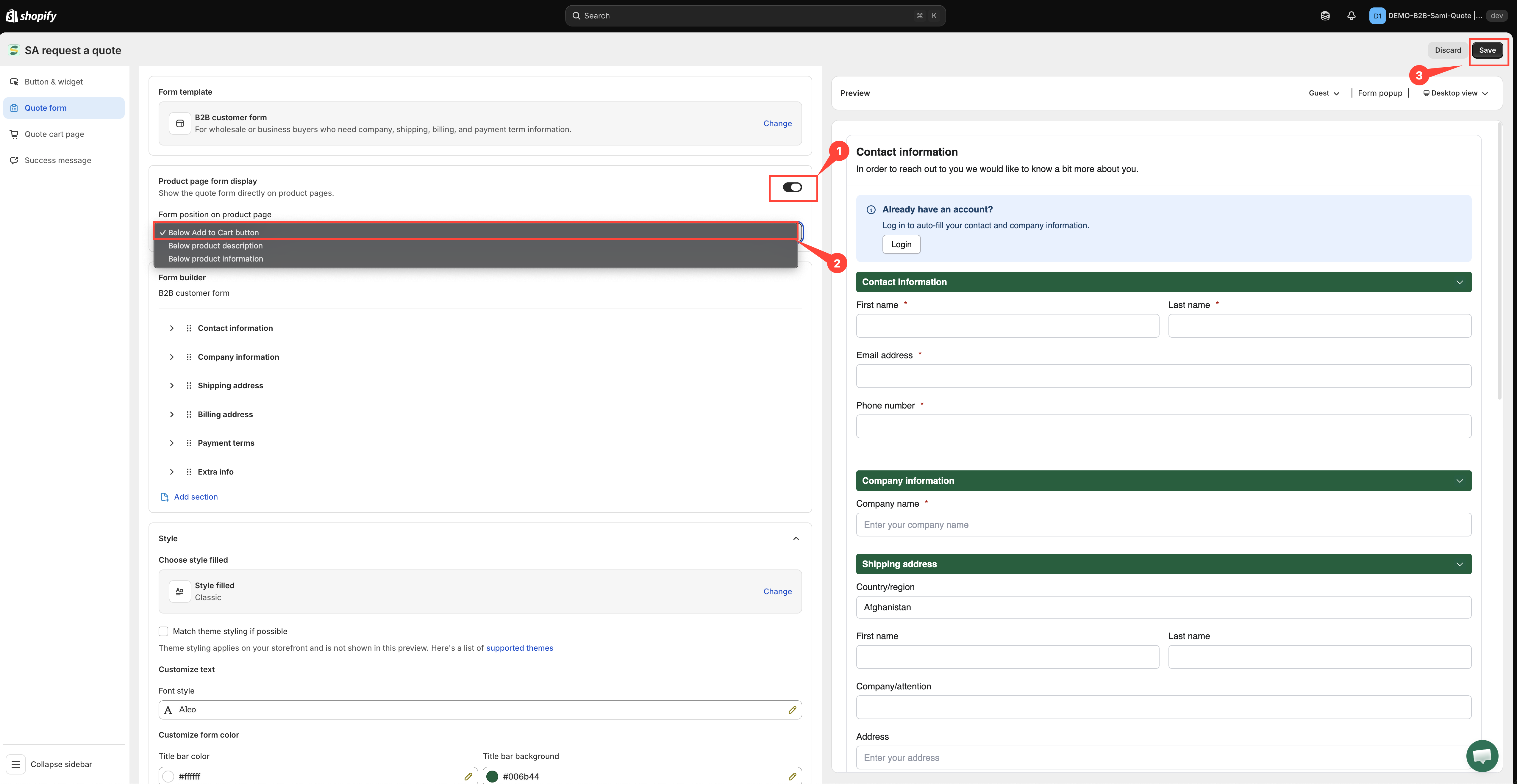
**Product page form display** sits between **Form template** and **Form builder**, and is described as "Show the quote form directly on product pages."
{% endstep %}

{% step %}

### Switch it on

The control is the toggle at the right-hand end of the **Product page form display** header — it is labelled **Enable product page form display**. Switch it on and a **Form position on product page** dropdown appears underneath.

<figure><img src="https://2993310686-files.gitbook.io/~/files/v0/b/gitbook-x-prod.appspot.com/o/spaces%2FIvNtDAMNVIdy5nl9kiOU%2Fuploads%2FAV1766vsxmLLCibId5n8%2Fimage.png?alt=media&amp;token=e64e2022-c1e2-49d4-8c8f-f6848908e1dd" alt=""><figcaption></figcaption></figure>
{% endstep %}

{% step %}

### Choose where the form sits

Open **Form position on product page** and pick one of three:

<table><thead><tr><th width="300">Option</th><th>Where the form lands</th></tr></thead><tbody><tr><td><strong>Below Add to Cart button</strong></td><td>Directly under your buy buttons, in the same block. The default, and the one most themes handle cleanly.</td></tr><tr><td><strong>Below product description</strong></td><td>After the description text, so shoppers read the details before they ask.</td></tr><tr><td><strong>Below product information</strong></td><td>After the whole product information block.</td></tr></tbody></table>

<figure><img src="https://2993310686-files.gitbook.io/~/files/v0/b/gitbook-x-prod.appspot.com/o/spaces%2FIvNtDAMNVIdy5nl9kiOU%2Fuploads%2Fgit-blob-c0fa700472e52d712f724dce4cbbccfa696f2a4f%2FScreenshot%202026-09-30%20at%2017-05-17.png?alt=media" alt=""><figcaption></figcaption></figure>

{% hint style="info" %}
No **Form position on product page** dropdown? Your store is still on the app's earlier storefront code, where the form always goes below the Add to Cart button. Ask support if you need it moved.
{% endhint %}
{% endstep %}

{% step %}

### Save and check your storefront

Click **Save** at the top right of the editor, then open one of your quote products. The form is now on the page itself.

<figure><img src="https://2993310686-files.gitbook.io/~/files/v0/b/gitbook-x-prod.appspot.com/o/spaces%2FIvNtDAMNVIdy5nl9kiOU%2Fuploads%2FMFhXQxg9yTUqyHXkEMtO%2Fimage.png?alt=media&amp;token=d5078428-e446-4407-b96a-1118e10cce30" alt=""><figcaption></figcaption></figure>
{% endstep %}
{% endstepper %}

## Which products show the form

Only the products in your quote-products selection. The app checks each product against **Select quote products** as the page loads, and puts the form on the ones that qualify — exactly the same test the quote button uses. A product outside the selection shows your normal buy buttons and nothing else.

If the form is missing on a product you expected it on, check that selection first — see [Choose quotable products](/sa-request-a-quote/collecting-quote-requests/choose-products.md).

## What the button settings still do

Turning the form on takes the button off the product page, but the other two placements are unaffected:

<table><thead><tr><th width="290">Setting on Button &#x26; widget</th><th>With the product-page form on</th></tr></thead><tbody><tr><td><strong>Product page button position</strong></td><td>Ignored. The form is on the page instead, in whatever <strong>Form position on product page</strong> you chose.</td></tr><tr><td><strong>Collection page button position</strong></td><td>Still works. Customers can add products to a quote from your collection grids.</td></tr><tr><td><strong>Cart page button position</strong></td><td>Still works — see <a href="/sa-request-a-quote/collecting-quote-requests/add-cart-items.md">add-cart-items.md</a>.</td></tr><tr><td><strong>Click action</strong></td><td>Applies to those other buttons, not to the form. The form is submitted where it stands.</td></tr></tbody></table>

See [Quote button on product pages](/sa-request-a-quote/collecting-quote-requests/button-on-product-pages.md) and [Set the after-click behavior](/sa-request-a-quote/collecting-quote-requests/after-click-behavior.md).

{% hint style="info" %}
A form on the page has to be short to be worth it. Every extra field is one more thing between a visitor and a lead — keep it to what you genuinely need to price the job.
{% endhint %}

## The log-in prompt

Above the fields the form carries a prompt — "Already have an account?" / "Log in to auto-fill your contact and company information." — with a **Login** button. A customer who signs in gets their contact and company details filled in for them, which is the difference between a two-field form and a ten-field one for your repeat buyers.

## Which fields it shows

The form on the product page is the same form you build on the **Quote form** tab — the **Form template** you have chosen, and whatever you have set up in the **Form builder**. **Form template** names what you are using and what it covers: **Simple quote form**, for instance, is "Best for most stores. Includes login autofill, contact details, company, quantity, request message, and file upload."

Changing the template replaces the current field list, so set the template first and edit fields afterwards.

## Need a hand?

If the form lands in an awkward place in your theme and none of the three positions fixes it, send us the product URL — see [Contact support](/sa-request-a-quote/help/contact-support.md).

## Next steps

* [Quote form overview](/sa-request-a-quote/quote-form/overview.md) — choose which fields the form asks for
* [Match your theme style](/sa-request-a-quote/quote-form/match-theme-style.md) — style the form to match your theme
* [Quote button on product pages](/sa-request-a-quote/collecting-quote-requests/button-on-product-pages.md) — the button alternative


---

# Agent Instructions
This documentation is published with GitBook. GitBook is the documentation platform designed so that both humans and AI agents can read, navigate, and reason over technical content effectively. Learn more at gitbook.com.

## Querying This Documentation
If you need additional information that is not directly available in this page, you can query the documentation by asking a question.

Perform an HTTP GET request on the following URL with the `ask` and `goal` query parameters:

```
GET https://docs.samita.io/sa-request-a-quote/collecting-quote-requests/form-on-product-pages.md?ask=<question>&goal=<user_goal>
```

`ask` is the immediate question: it should be specific, self-contained, and written in natural language.
`goal` is what the user is ultimately trying to achieve, the reason they need the answer. Sharing it helps GitBook give you a better, more relevant answer. A goal is most helpful when it describes the outcome the user wants rather than restating the question. For example, with `ask=how do I create an API token`, a goal like `automate deployments from our CI pipeline` lets GitBook tailor the answer to that use case.

The response will contain a direct answer to the question and relevant excerpts and sources from the documentation.

Use this mechanism when the answer is not explicitly present in the current page, you need clarification or additional context, or you want to retrieve related documentation sections.