> For the complete documentation index, see [llms.txt](https://docs.samita.io/llms.txt). Markdown versions of documentation pages are available by appending `.md` to page URLs; this page is available as [Markdown](https://docs.samita.io/sa-request-a-quote/collecting-quote-requests/quote-widget.md).

# Floating quote widget

Turn on the floating button that lets customers open their quote cart from any page of your store.

**Enable Quote Cart Widget** — "Shows a floating button on your storefront so customers can open their quote cart from any page."

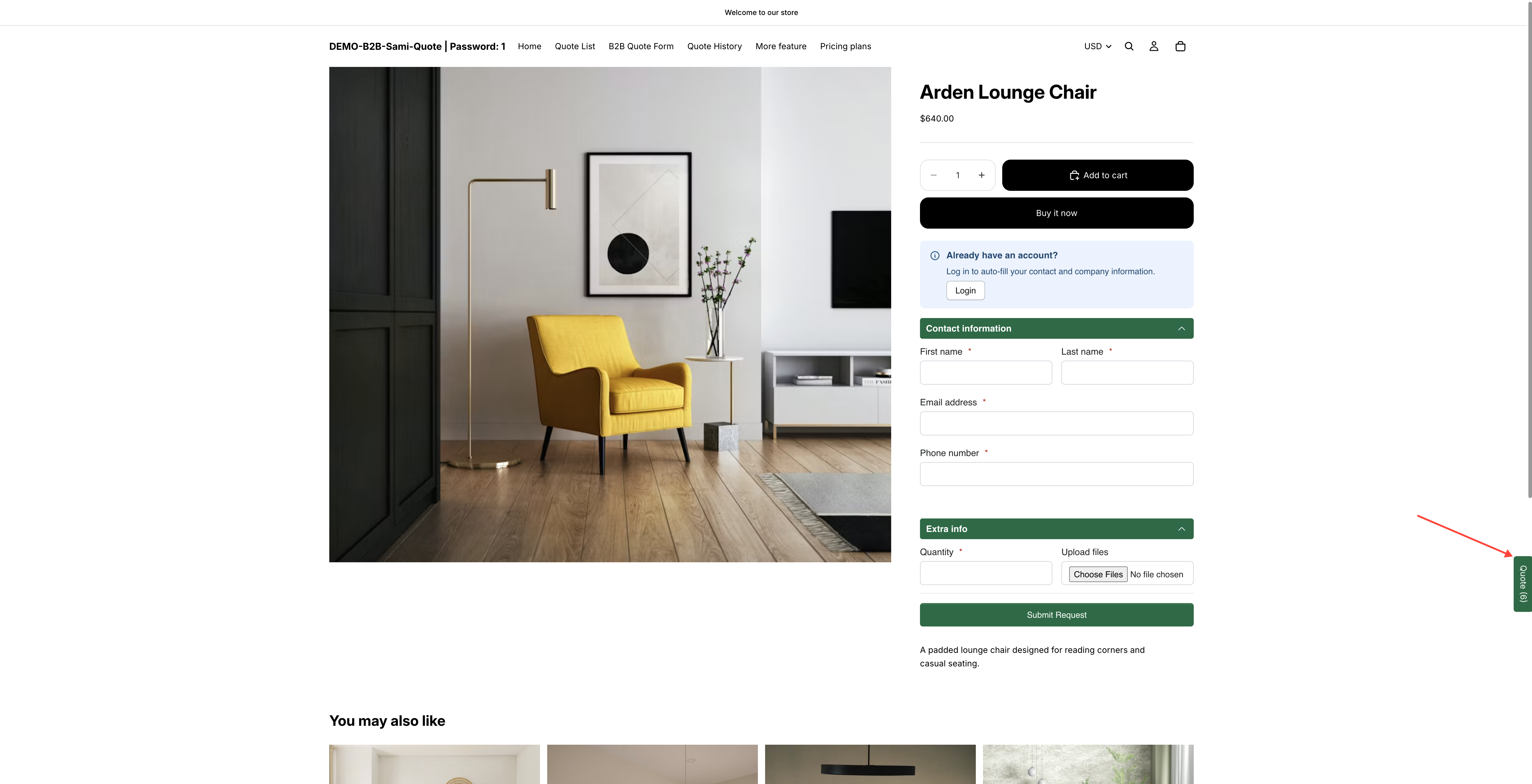
The widget is a quick quote button pinned to the edge of every page. It works like a cart icon: once a customer has added something it shows how many products are waiting, and one click takes them either to the quote cart page or straight into the quote popup — so they can check what they have collected and fill in the form without hunting for the page.

## Turn it on

{% stepper %}
{% step %}

### Open the quote cart settings

In the app, go to **Quote settings** and click **Customize**, then open the **Quote cart page** tab.
{% endstep %}

{% step %}

### Turn on Enable Quote Cart Widget

**Enable Quote Cart Widget** is the last block on the tab, under **Enable Quote Sections**. The control is the toggle at the right-hand end of its header. Switch it on and the block expands to show six settings.

<figure><img src="https://2993310686-files.gitbook.io/~/files/v0/b/gitbook-x-prod.appspot.com/o/spaces%2FIvNtDAMNVIdy5nl9kiOU%2Fuploads%2FZovlDz89BNqPi6KhmSNg%2Fimage.png?alt=media&amp;token=9347d525-7f98-4908-b501-5298411c3b5a" alt=""><figcaption></figcaption></figure>
{% endstep %}

{% step %}

### Set the six widget settings

Work through **Text**, **Action**, **Position**, **Border radius**, **Text color** and **Background color** — each one is explained in the table below. The **Preview** panel on the right shows the widget as you change them.

<figure><img src="https://2993310686-files.gitbook.io/~/files/v0/b/gitbook-x-prod.appspot.com/o/spaces%2FIvNtDAMNVIdy5nl9kiOU%2Fuploads%2FGjVWtc7XRsGRWdqocrWF%2Fimage.png?alt=media&amp;token=67f96b56-c38d-47fd-8fda-6e6af4b33320" alt=""><figcaption><p>Only two colours to choose: background and text.</p></figcaption></figure>

<figure><img src="https://2993310686-files.gitbook.io/~/files/v0/b/gitbook-x-prod.appspot.com/o/spaces%2FIvNtDAMNVIdy5nl9kiOU%2Fuploads%2FP6zRkVaAjBHw2DVCYwOg%2Fimage.png?alt=media&amp;token=c44efd16-013d-4833-bd7b-9acb1a62a942" alt=""><figcaption></figcaption></figure>
{% endstep %}

{% step %}

### Save and check your storefront

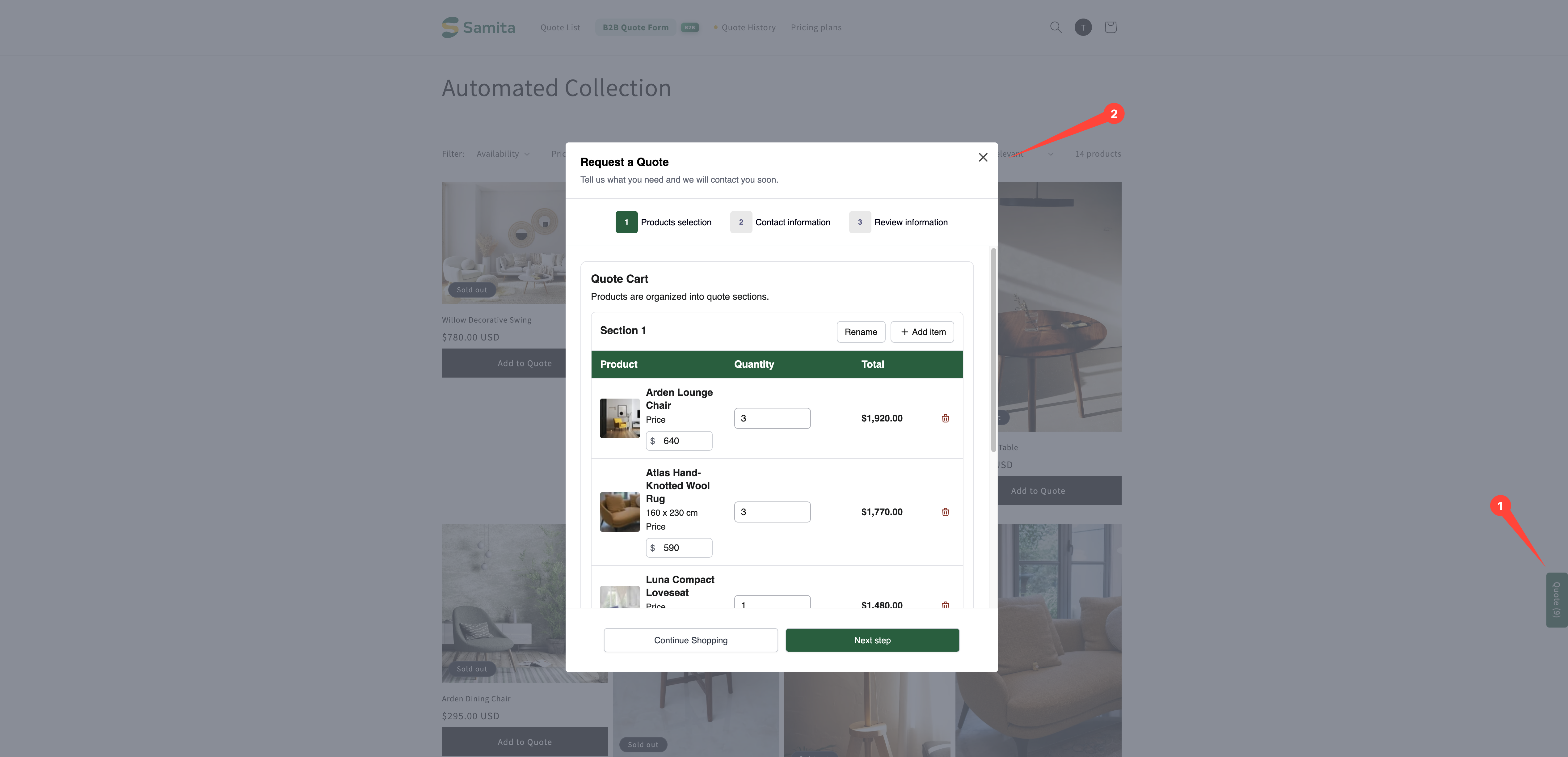
Click **Save** at the top right of the editor, then add a product to a quote on your storefront. The widget appears at the edge of the screen, labelled **Quote** with the number of products in brackets.

<figure><img src="https://2993310686-files.gitbook.io/~/files/v0/b/gitbook-x-prod.appspot.com/o/spaces%2FIvNtDAMNVIdy5nl9kiOU%2Fuploads%2Fgit-blob-670e69b288d89b7a24d9d0c43fa418374c504ffa%2FScreenshot%202026-09-29%20at%2014-56-42.png?alt=media" alt="A storefront product page with the quote cart widget floating over it"><figcaption><p>The widget as customers see it, on every page of your store.</p></figcaption></figure>

<figure><img src="https://2993310686-files.gitbook.io/~/files/v0/b/gitbook-x-prod.appspot.com/o/spaces%2FIvNtDAMNVIdy5nl9kiOU%2Fuploads%2Fgit-blob-328fe609fca04203614d2a455f1267a65ed9bfa5%2FScreenshot%202026-09-30%20at%2017-10-15.png?alt=media" alt=""><figcaption></figcaption></figure>
{% endstep %}
{% endstepper %}

## Every widget setting

<table><thead><tr><th width="190">Setting</th><th width="230">Values and default</th><th>What it does</th></tr></thead><tbody><tr><td><strong>Text</strong></td><td>Arrives as <code>Quote ({numOfItem})</code></td><td>The wording on the widget. <code>{numOfItem}</code> is replaced by the number of products in the customer's quote, so this renders as <strong>Quote (3)</strong>. Take the token out and the widget shows a plain label with no count.</td></tr><tr><td><strong>Action</strong></td><td><strong>Go to quote cart page</strong> · <strong>Open quote popup</strong></td><td>What clicking the widget does. See below.</td></tr><tr><td><strong>Position</strong></td><td><strong>Half bottom right</strong> · <strong>Bottom right</strong> · <strong>Half top right</strong> · <strong>Half bottom left</strong> · <strong>Bottom left</strong> · <strong>Half top left</strong></td><td>Which edge the widget clings to, and how far up or down it sits. The "half" options pin it to the side of the screen; <strong>Bottom right</strong> and <strong>Bottom left</strong> put it in the corner.</td></tr><tr><td><strong>Border radius</strong></td><td>A number in px, starting at <code>0</code></td><td>How rounded the widget's corners are. <code>0</code> is square.</td></tr><tr><td><strong>Text color</strong></td><td>A colour</td><td>The colour of the wording.</td></tr><tr><td><strong>Background color</strong></td><td>A colour</td><td>The colour of the widget itself.</td></tr></tbody></table>

{% hint style="info" %}
No **Border radius** field? Your store is still on the app's earlier storefront code, which does not offer it. Everything else on the list is there.
{% endhint %}

## Where it takes customers

**Action** decides this, and the two values behave differently:

<table><thead><tr><th width="270">Action</th><th>What happens when a customer clicks</th></tr></thead><tbody><tr><td><strong>Go to quote cart page</strong></td><td>The widget is a link to your quote cart page — the storefront page at <code>/pages/request-for-quote</code>, which "Shows the quote form and the customer's quote cart." They leave the page they were on.</td></tr><tr><td><strong>Open quote popup</strong></td><td>The quote popup opens over the page they are already on. They never leave their place in your catalogue.</td></tr></tbody></table>

Both the quote cart page and the widget are set up on the same **Quote cart page** tab, so the page's own name and path are right above the widget block.

Which one to pick follows from how customers build a quote. If they collect several products before asking, **Go to quote cart page** is the better choice: the quote cart page shows the whole list with quantities, and that is what they want to check. If they add one product and are ready to send, **Open quote popup** saves them a page load.

{% hint style="info" %}
The widget earns its place when **Click action** is set to **Add product to quote cart**: customers collect products as they browse, and the widget is their way back to the list. With **Open quote form popup** it matters much less, because requests are finished on the spot. See [Set the after-click behavior](/sa-request-a-quote/collecting-quote-requests/after-click-behavior.md).
{% endhint %}

## Where the widget does not appear

The app hides the widget on the quote cart page itself — there is nothing for it to link to once a customer is already looking at their quote. Everywhere else on your storefront it follows them.

## Choosing the colours

Pick a **Background color** that stands out against your pages without fighting your buy buttons, and a **Text color** with enough contrast to be legible at a glance. Check it on a phone as well — a floating element competes for room with live chat bubbles and cookie banners, so make sure yours is still readable where it lands. If it collides with something, move it with **Position** rather than turning it off: **Half top right** and **Half top left** sit clear of the bottom-corner controls most chat tools use.

## Translating the widget text

Whatever you type in **Text** is storefront text, so it goes through the app's translations along with the rest of what customers read. Set the wording per language there rather than settling for English on a translated store — see [Translate storefront text](/sa-request-a-quote/settings/translations.md).

## Need a hand?

If the widget collides with something else on your storefront and **Position** doesn't clear it, send us a screenshot — see [Contact support](/sa-request-a-quote/help/contact-support.md).

## Next steps

* [Set the after-click behavior](/sa-request-a-quote/collecting-quote-requests/after-click-behavior.md) — control what happens when products are added
* [Request a Quote page](/sa-request-a-quote/storefront-quote-pages/request-a-quote-page.md) — the quote cart page the widget opens
* [Quote history page](/sa-request-a-quote/storefront-quote-pages/quote-history-page.md) — where customers find past quotes


---

# Agent Instructions
This documentation is published with GitBook. GitBook is the documentation platform designed so that both humans and AI agents can read, navigate, and reason over technical content effectively. Learn more at gitbook.com.

## Querying This Documentation
If you need additional information that is not directly available in this page, you can query the documentation by asking a question.

Perform an HTTP GET request on the following URL with the `ask` and `goal` query parameters:

```
GET https://docs.samita.io/sa-request-a-quote/collecting-quote-requests/quote-widget.md?ask=<question>&goal=<user_goal>
```

`ask` is the immediate question: it should be specific, self-contained, and written in natural language.
`goal` is what the user is ultimately trying to achieve, the reason they need the answer. Sharing it helps GitBook give you a better, more relevant answer. A goal is most helpful when it describes the outcome the user wants rather than restating the question. For example, with `ask=how do I create an API token`, a goal like `automate deployments from our CI pipeline` lets GitBook tailor the answer to that use case.

The response will contain a direct answer to the question and relevant excerpts and sources from the documentation.

Use this mechanism when the answer is not explicitly present in the current page, you need clarification or additional context, or you want to retrieve related documentation sections.