> For the complete documentation index, see [llms.txt](https://docs.samita.io/llms.txt). Markdown versions of documentation pages are available by appending `.md` to page URLs; this page is available as [Markdown](https://docs.samita.io/sa-request-a-quote/collecting-quote-requests/require-login.md).

# Require login to quote

Decide who can see the quote button and whether customers must be logged in before they can add anything to a quote.

Some stores only want to quote people who are already registered as Shopify customers in the back end. Two settings on the **Button & widget** tab control that: **Customer visibility** decides who even sees the button, and **Require login before adding to quote** decides who can use it.

## Require login before adding to quote

{% stepper %}
{% step %}

### Open the button settings

In the app, go to **Quote settings** and click **Customize**, then open the **Button & widget** tab.
{% endstep %}

{% step %}

### Find the Add to quote section

Scroll down the **Button & widget** tab to the **Add to quote** section — the same group of checkboxes that holds **Allow customers to edit quote item prices** and **Show variant selector** — and tick **Require login before adding to quote**.

<figure><img src="https://2993310686-files.gitbook.io/~/files/v0/b/gitbook-x-prod.appspot.com/o/spaces%2FIvNtDAMNVIdy5nl9kiOU%2Fuploads%2FARWUHkHRBkX4yh9uc7Wp%2Fimage.png?alt=media&amp;token=999c587e-1812-4a79-8b5a-341f062cf684" alt=""><figcaption></figcaption></figure>
{% endstep %}

{% step %}

### Save

Click **Save** to update the changes.
{% endstep %}

{% step %}

### Check the result on the front store

Open a product page in a private browser window, so you are signed out of your own store, and click the quote button. You should land on your store's login page instead of the quote form.
{% endstep %}
{% endstepper %}

This setting is about *using* the button, not seeing it: with it ticked, a visitor who is not signed in has to log in before a product goes into their quote. Customers who are already signed in are unaffected. Who sees the button in the first place is decided separately, by **Customer visibility** below — so check both settings together before you decide what a logged-out visitor can do.

{% hint style="info" %}
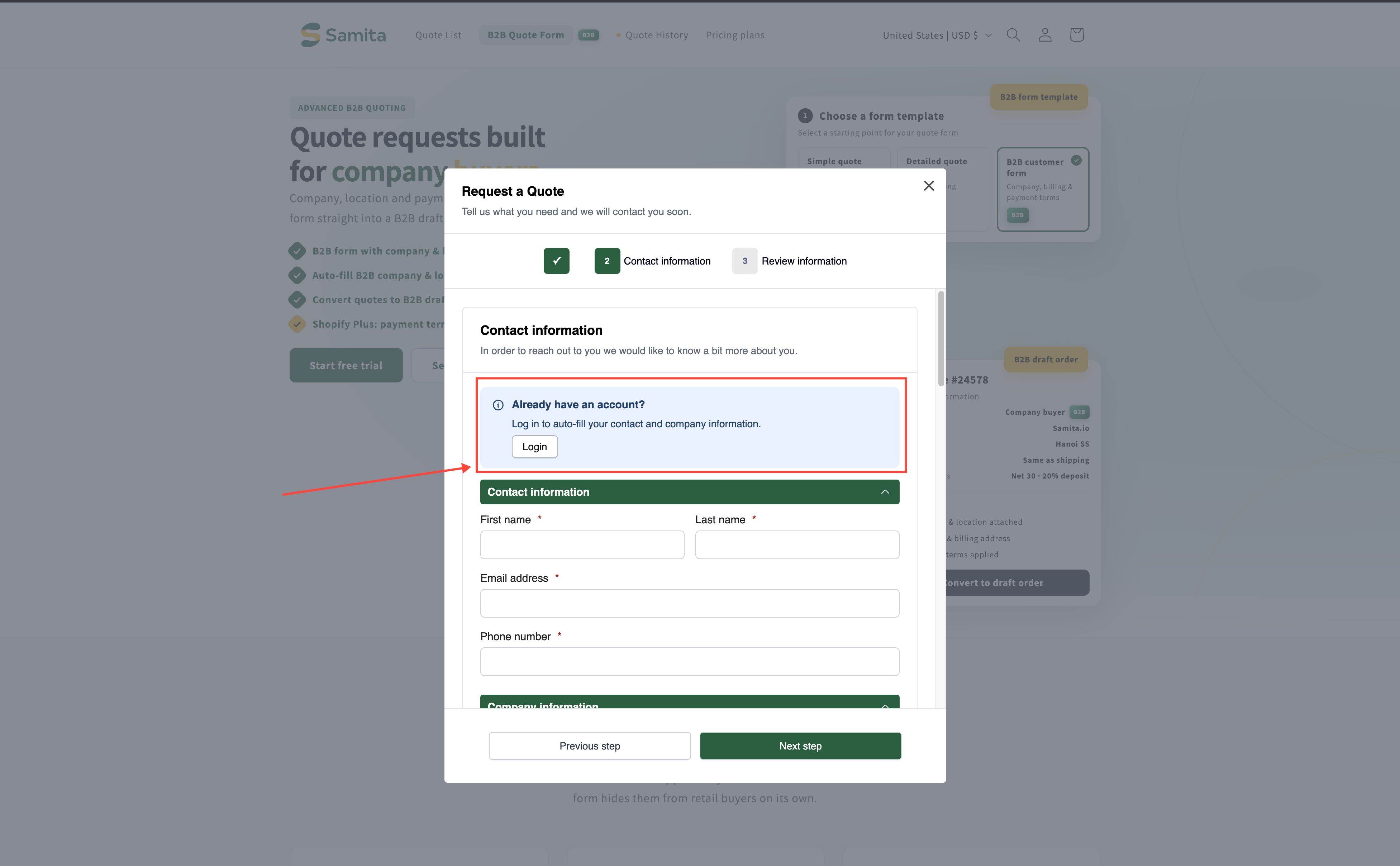
Logged-in customers are known to you, so the quote form can fill itself in: "Already have an account? Log in to auto-fill your contact and company information." Fewer fields to type, and the quote arrives matched to the right account.
{% endhint %}

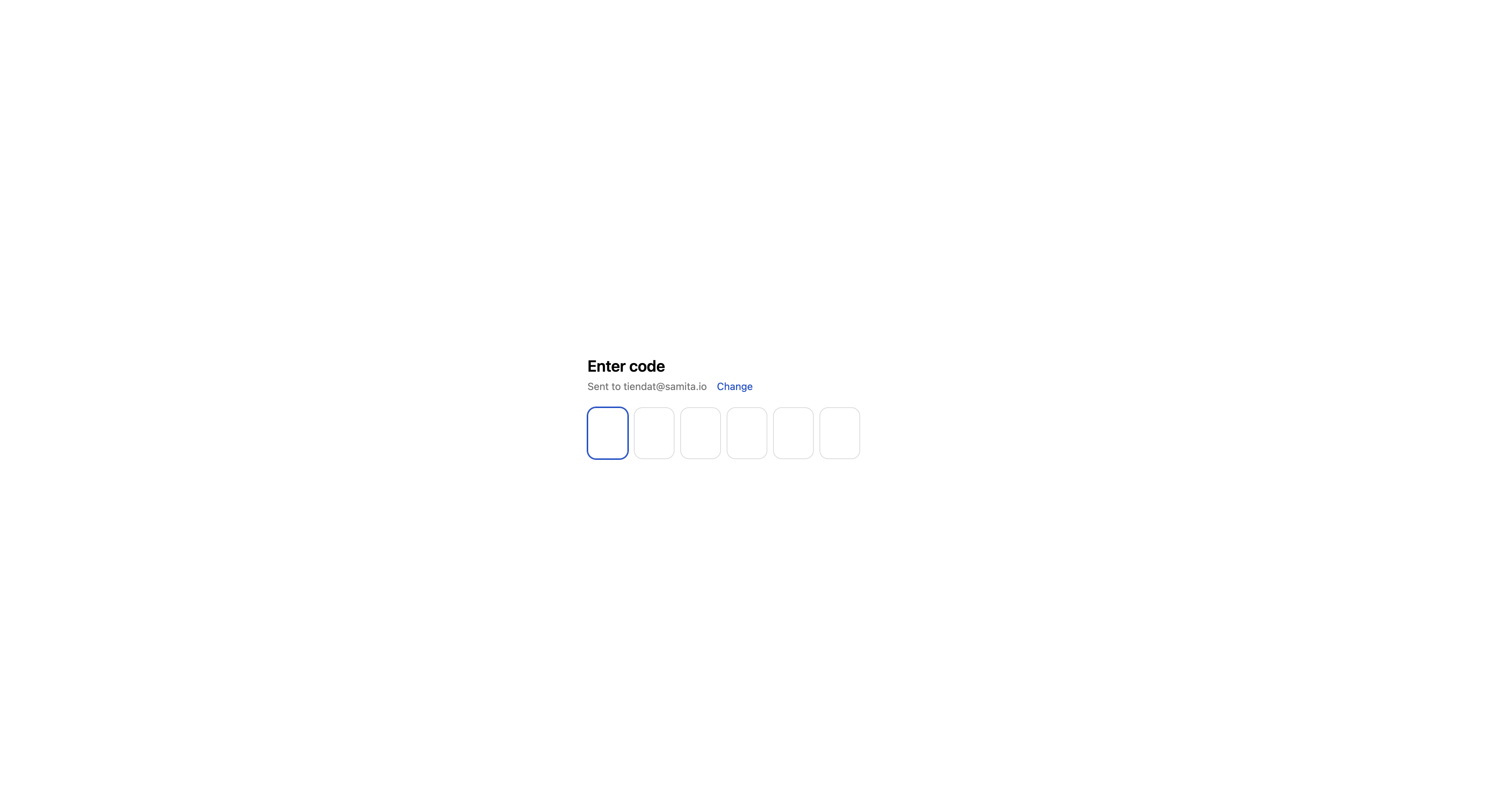
### What the shopper sees

The round trip happens by itself — nobody is left on a dead end:

1. A customer who has not logged in to their customer account clicks the quote button.
2. The button sends them to the login page of your site immediately.
3. They log in to their customer account.
4. They go back to the product page, where they can carry on requesting a quote.

Because step 4 returns them to the product page they started from, the product they were interested in is not lost on the way through the login page.

<figure><img src="https://2993310686-files.gitbook.io/~/files/v0/b/gitbook-x-prod.appspot.com/o/spaces%2FIvNtDAMNVIdy5nl9kiOU%2Fuploads%2Fgit-blob-9e44f468a3bd5bdb2a1aa7837598ebbc1699d746%2FScreenshot%202026-09-30%20at%2017-34-54.png?alt=media" alt=""><figcaption></figcaption></figure>

<figure><img src="https://2993310686-files.gitbook.io/~/files/v0/b/gitbook-x-prod.appspot.com/o/spaces%2FIvNtDAMNVIdy5nl9kiOU%2Fuploads%2Fgit-blob-7d740e7d2cdb36bc5fedcceea5b7ba007c84d58a%2FScreenshot%202026-09-30%20at%2017-35-40.png?alt=media" alt=""><figcaption></figcaption></figure>

On the quote cart page, the prompt "Already have an account? Log in to auto-fill your contact and company information." carries a **Login** link. See [Request a Quote page](/sa-request-a-quote/storefront-quote-pages/request-a-quote-page.md).

{% hint style="warning" %}
This only works if a visitor can actually get an account. If accounts on your store are invite-only, or you approve them by hand, a first-time buyer has no way to sign in, and so no way to add anything to a quote. Check how customer accounts are set up in your Shopify admin before you tick this box.
{% endhint %}

## Customer visibility

If you would rather some visitors never saw the button at all, use **Customer visibility**.

<table><thead><tr><th width="330">Who can see the RFQ button?</th><th>Use it when</th></tr></thead><tbody><tr><td><strong>All customers</strong></td><td>Anyone can ask for a price. The right choice if quotes are how you collect leads.</td></tr><tr><td><strong>Logged-in customers</strong></td><td>You only quote people who already have an account with you.</td></tr><tr><td><strong>Guest (non-logged) customers</strong></td><td>Account holders buy at their agreed prices, and only new visitors are invited to ask.</td></tr><tr><td><strong>Logged-in customers with specific tags</strong></td><td>Only approved buyers — a wholesale or trade tag, for example — get the button.</td></tr></tbody></table>

**Exclude customer tags** takes the other side of the same decision: everyone in your chosen group sees the button *except* customers carrying the tags you list. It is the quickest way to keep the button away from one account type without rebuilding the rest of the rule.

{% hint style="warning" %}
**Logged-in customers** and **Logged-in customers with specific tags** hide the button from everyone who has not signed up. If accounts on your store are approval-only, new buyers have no way to reach you through a quote at all — check that another route exists before you choose one of these.
{% endhint %}

## Which should you use?

<table><thead><tr><th width="260">Your aim</th><th>Setting</th></tr></thead><tbody><tr><td>Collect leads from anyone</td><td><strong>All customers</strong>, and leave <strong>Require login before adding to quote</strong> unticked.</td></tr><tr><td>Quote only approved buyers</td><td><strong>Logged-in customers with specific tags</strong>.</td></tr><tr><td>Show the button widely, but require an account before quoting</td><td><strong>All customers</strong> plus <strong>Require login before adding to quote</strong>.</td></tr></tbody></table>

## Next steps

* [Create a Shopify customer after submit](/sa-request-a-quote/integrations/create-shopify-customer.md) — create Shopify customers from quotes automatically
* [Choose quotable products](/sa-request-a-quote/collecting-quote-requests/choose-products.md) — which products show the button
* [Hiding prices overview](/sa-request-a-quote/hiding-prices/overview.md) — control who sees your prices
* [Contact support](/sa-request-a-quote/help/contact-support.md) — if the redirect does not behave as described, send us the product URL and we will look


---

# Agent Instructions
This documentation is published with GitBook. GitBook is the documentation platform designed so that both humans and AI agents can read, navigate, and reason over technical content effectively. Learn more at gitbook.com.

## Querying This Documentation
If you need additional information that is not directly available in this page, you can query the documentation by asking a question.

Perform an HTTP GET request on the following URL with the `ask` and `goal` query parameters:

```
GET https://docs.samita.io/sa-request-a-quote/collecting-quote-requests/require-login.md?ask=<question>&goal=<user_goal>
```

`ask` is the immediate question: it should be specific, self-contained, and written in natural language.
`goal` is what the user is ultimately trying to achieve, the reason they need the answer. Sharing it helps GitBook give you a better, more relevant answer. A goal is most helpful when it describes the outcome the user wants rather than restating the question. For example, with `ask=how do I create an API token`, a goal like `automate deployments from our CI pipeline` lets GitBook tailor the answer to that use case.

The response will contain a direct answer to the question and relevant excerpts and sources from the documentation.

Use this mechanism when the answer is not explicitly present in the current page, you need clarification or additional context, or you want to retrieve related documentation sections.
