> For the complete documentation index, see [llms.txt](https://docs.samita.io/llms.txt). Markdown versions of documentation pages are available by appending `.md` to page URLs; this page is available as [Markdown](https://docs.samita.io/sa-request-a-quote/collecting-quote-requests/variant-selector.md).
# Show a variant selector
Let customers choose a size, colour or other variant before they add a product to their quote.
A quote button on a collection page has a problem: the customer can add the product, but can't say which version of it they want. **Show variant selector** adds that choice next to the button.
## Turn it on
{% stepper %}
{% step %}
### Open the button settings
In the app, go to **Quote settings** and click **Customize**, then open the **Button & widget** tab.
{% endstep %}
{% step %}
### Find the Add to quote section
Scroll down the **Button & widget** tab to the **Add to quote** section — the same group of checkboxes that holds **Allow customers to edit quote item prices** and **Require login before adding to quote** — and tick **Show variant selector**.
The label is singular, **Show variant selector**, so searching the page for "variants" will not find it.
{% endstep %}
{% step %}
### Save
Click **Save** to update the changes.
{% endstep %}
{% step %}
### Check the result on the front store
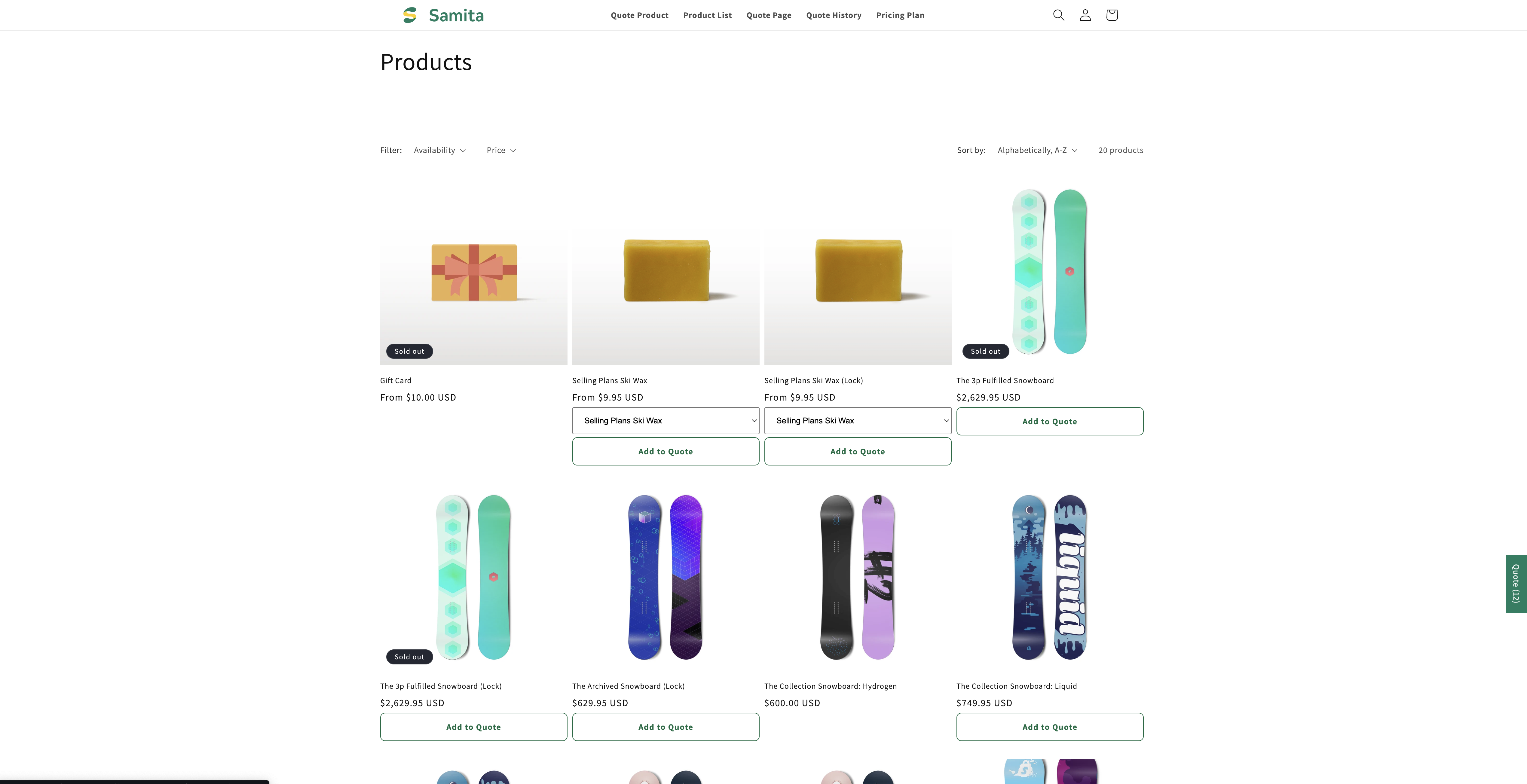
Open a collection on your storefront. The variant selector shows up on each product on the product list, beside the quote button, so a shopper can pick the version they want without opening the product.
Shoppers pick the variant without opening the product.
{% endstep %}
{% endstepper %}
{% hint style="info" %}
On a product page customers already have your theme's own variant picker, so this setting earns its keep mainly on collection pages — see [Quote button on collection pages](/sa-request-a-quote/collecting-quote-requests/button-on-collection-pages.md).
{% endhint %}
{% hint style="warning" %}
See nothing at all on the collection page? On some modern themes the quote button attaches to the theme's own quick-add control, which stays invisible until the shopper hovers a product card. Hover a card first — if the quote button itself is not on screen, the selector beside it will not be either. [Quote button on collection pages](/sa-request-a-quote/collecting-quote-requests/button-on-collection-pages.md) covers this.
{% endhint %}
## Why it's worth turning on
Without it, a request from a collection page tells you the product but not the size or finish, and you have to email back and ask. On a catalogue with variants, that is a wasted round trip on almost every quote.
## Seeing the choice on the quote
To show the chosen variant in the customer's quote cart, include the **Option** column under **Product list columns** on the **Quote cart page** tab — "The product details shown as columns in the customer's quote cart."
## Next steps
* [Quote button on collection pages](/sa-request-a-quote/collecting-quote-requests/button-on-collection-pages.md) — the position this setting supports
* [Let customers propose a price](/sa-request-a-quote/collecting-quote-requests/customer-price.md) — other columns in the customer's quote cart
* [Set the after-click behavior](/sa-request-a-quote/collecting-quote-requests/after-click-behavior.md) — what happens once they add a product
* [Contact support](/sa-request-a-quote/help/contact-support.md) — if the selector does not appear on your theme's product cards, send us a collection URL and we will look
---
# Agent Instructions
This documentation is published with GitBook. GitBook is the documentation platform designed so that both humans and AI agents can read, navigate, and reason over technical content effectively. Learn more at gitbook.com.
## Querying This Documentation
If you need additional information that is not directly available in this page, you can query the documentation by asking a question.
Perform an HTTP GET request on the following URL with the `ask` and `goal` query parameters:
```
GET https://docs.samita.io/sa-request-a-quote/collecting-quote-requests/variant-selector.md?ask=&goal=
```
`ask` is the immediate question: it should be specific, self-contained, and written in natural language.
`goal` is what the user is ultimately trying to achieve, the reason they need the answer. Sharing it helps GitBook give you a better, more relevant answer. A goal is most helpful when it describes the outcome the user wants rather than restating the question. For example, with `ask=how do I create an API token`, a goal like `automate deployments from our CI pipeline` lets GitBook tailor the answer to that use case.
The response will contain a direct answer to the question and relevant excerpts and sources from the documentation.
Use this mechanism when the answer is not explicitly present in the current page, you need clarification or additional context, or you want to retrieve related documentation sections.