> For the complete documentation index, see [llms.txt](https://docs.samita.io/llms.txt). Markdown versions of documentation pages are available by appending `.md` to page URLs; this page is available as [Markdown](https://docs.samita.io/sa-request-a-quote/emails/emails-to-you.md).

# Emails sent to admin

Set up the Mail notifications email that tells you when a customer has submitted a quote request.

This is the alert that tells you a quote has come in. Getting it right matters — a quote you do not notice is a sale you do not make.

The setting is called **Mail notifications**, and the app describes it as: "Automatically send an email notification to the store owner when a quote is submitted."

## Set it up

{% stepper %}
{% step %}

### Open Advanced settings

In the app sidebar, click **Advanced settings**.

From the dashboard you can also use the **Setup guide** step **Set up email notifications** and its **Open notifications** button.
{% endstep %}

{% step %}

### Go to the Email notifications tab

Choose **Email notifications** from the list of tabs.
{% endstep %}

{% step %}

### Open the Mail notifications editor

Click the icon button at the end of the **Mail notifications** row. The email opens in its own editor, with template tabs **Basic** and **Advanced**.

<figure><img src="https://2993310686-files.gitbook.io/~/files/v0/b/gitbook-x-prod.appspot.com/o/spaces%2FIvNtDAMNVIdy5nl9kiOU%2Fuploads%2FnYzA2IV97NMVD9X0BwzQ%2Fimage.png?alt=media&amp;token=bb1c0161-c54c-41a1-bb59-f0e0192b0b6a" alt=""><figcaption></figcaption></figure>

<figure><img src="https://2993310686-files.gitbook.io/~/files/v0/b/gitbook-x-prod.appspot.com/o/spaces%2FIvNtDAMNVIdy5nl9kiOU%2Fuploads%2FwvI3eE5vkpHhjZlCU2AH%2Fimage.png?alt=media&amp;token=80a3e783-0339-4280-87ed-76e96e915752" alt=""><figcaption><p>The <strong>Mail notifications</strong> editor. Settings on the left, <strong>Preview</strong> on the right.</p></figcaption></figure>
{% endstep %}

{% step %}

### Choose a template tab

There are two email templates, and you pick one of them:

* **Basic** — configure the email template with the available options. The email is built from sections you open and fill in, listed down the right of the page.
* **Advanced** — manually edit the email content yourself.

Choosing a template is itself a saved action: if you select the basic template and click **Save**, the basic template is applied to the emails.

Everything in the steps below is on **Basic**.

<figure><img src="https://2993310686-files.gitbook.io/~/files/v0/b/gitbook-x-prod.appspot.com/o/spaces%2FIvNtDAMNVIdy5nl9kiOU%2Fuploads%2FalLB7BiIDRjKpiuWeC2c%2Fimage.png?alt=media&amp;token=6c5575d6-68b1-4acb-8c2e-d7671492abd8" alt=""><figcaption></figcaption></figure>
{% endstep %}

{% step %}

### Set who receives the alert

The **General** section holds **Email**, and inside it the **Admin email** field. Put the address that should be notified here.

You can list more than one. The field's own help text says: "You can add multiple email addresses, separated by commas. A maximum of 5 addresses is allowed. Contact us to increase the number of emails added."

Choosing those addresses well is worth a moment — see [Change notification recipients](/sa-request-a-quote/emails/change-recipients.md).
{% endstep %}

{% step %}

### Write the Subject

**Subject** is the line the alert arrives with. Put something identifying in it so quote emails stand out in a busy inbox.
{% endstep %}

{% step %}

### Write the message

The editor gives you a rich-text editor with **File**, **Edit**, **View**, **Insert**, **Format**, **Tools**, **Table** and **Help** menus, so the wording can be changed without writing code.

**Show variants** lists the variables you can drop into the template, such as the name of the customer who submitted the quote. Copy one from the list and paste it where you want it — [The Advanced template](#the-advanced-template) below shows the syntax and a worked example.

If you want to use some app variables, click on **Show variant.**

<figure><img src="https://2993310686-files.gitbook.io/~/files/v0/b/gitbook-x-prod.appspot.com/o/spaces%2FIvNtDAMNVIdy5nl9kiOU%2Fuploads%2FkUrByLvHZhpN5ScHElHn%2Fimage.png?alt=media&amp;token=d34565c8-6a25-4394-940a-e43d6ca40801" alt=""><figcaption><p>Write the message, then drop variables in where the details belong.</p></figcaption></figure>
{% endstep %}

{% step %}

### Decide whether to attach the quote

The **PDF attachment** section holds **Attach PDF file**. Tick it if you would rather read the quote as a document than as an email. The document is built from your **Quote PDF** template — set that up first, as [Attach a PDF to quote emails](/sa-request-a-quote/emails/attach-pdf.md) explains.
{% endstep %}

{% step %}

### Read it back in Preview

**Preview** shows the email as it will arrive. Read it there before you save.

If an edit has gone wrong and you would rather start over, **Reset template** puts the email back to the template you began with.

<figure><img src="https://2993310686-files.gitbook.io/~/files/v0/b/gitbook-x-prod.appspot.com/o/spaces%2FIvNtDAMNVIdy5nl9kiOU%2Fuploads%2FE3Vpti0eJRwtZnPMRji1%2Fimage.png?alt=media&amp;token=2a241d5f-b033-45a2-bc87-df59cba5d2c7" alt=""><figcaption></figcaption></figure>
{% endstep %}

{% step %}

### Save, then send yourself a test

Click **Save** to save the template. Then submit a quote request from your own storefront and check the email arrives.
{% endstep %}
{% endstepper %}

{% hint style="warning" %}
Always send a real test request. It is the only way to confirm the address is right and the message is not being filtered.
{% endhint %}

## The Basic template, section by section

On the **Basic** template there are sections down the right of the page that build the email. Click each one to set it up.

<figure><img src="https://2993310686-files.gitbook.io/~/files/v0/b/gitbook-x-prod.appspot.com/o/spaces%2FIvNtDAMNVIdy5nl9kiOU%2Fuploads%2FzGOPpOfEggGwMfHmQxUL%2Fimage.png?alt=media&amp;token=50333fc7-30ad-4845-98f8-d14ab8efe193" alt=""><figcaption></figcaption></figure>

### 1. General

* **Admin Email** — add or change the email addresses that receive quote notifications. Set in the steps above, where the five-address limit is quoted.
* **Subject** — the subject of this notification email.
* **Attach PDF file** — tick this checkbox if you want to attach the quote as a PDF file to the email.

Emails are sent by the app's email server by default. If you want your own email address to be the sender instead, set up SMTP — see [Send from your own address (SMTP)](/sa-request-a-quote/emails/smtp.md).

<figure><img src="https://2993310686-files.gitbook.io/~/files/v0/b/gitbook-x-prod.appspot.com/o/spaces%2FIvNtDAMNVIdy5nl9kiOU%2Fuploads%2F6jCVIpFlB4HyPid5QX07%2Fimage.png?alt=media&amp;token=ccd2410d-85e3-4ee8-ba4a-4002c576fe28" alt=""><figcaption></figcaption></figure>

### 2. Header email content

* Enter the **Store name** and **Store link** fields.
* Click **Upload photo** to add the logo of the store.
* Edit the **Description** part. You can use the available email placeholders here.

<figure><img src="https://2993310686-files.gitbook.io/~/files/v0/b/gitbook-x-prod.appspot.com/o/spaces%2FIvNtDAMNVIdy5nl9kiOU%2Fuploads%2FPPGE6yAY7z7cQZHhwFni%2Fimage.png?alt=media&amp;token=c30aac12-dd05-4242-9242-faf3bfefd708" alt=""><figcaption></figcaption></figure>

### 3. Product information

Tick the checkbox of each piece of information you want shown in your email. This is the section that decides whether your alert is readable at a glance or whether you have to open the quote to learn anything:

<table><thead><tr><th width="260">Checkbox</th><th>Shows in the email</th></tr></thead><tbody><tr><td><strong>Product Image</strong></td><td>The product photo.</td></tr><tr><td><strong>Product Vendor</strong></td><td>The vendor recorded on the product.</td></tr><tr><td><strong>Product SKU</strong></td><td>The SKU — the fastest way to identify what was asked for.</td></tr><tr><td><strong>Product Option</strong></td><td>The variant the customer chose, such as size or finish.</td></tr><tr><td><strong>Product Quantity</strong></td><td>How many they asked for, so you can judge the job before opening it.</td></tr><tr><td><strong>Product Price</strong></td><td>The unit price.</td></tr><tr><td><strong>Product Total price</strong></td><td>The line total.</td></tr></tbody></table>

<figure><img src="https://2993310686-files.gitbook.io/~/files/v0/b/gitbook-x-prod.appspot.com/o/spaces%2FIvNtDAMNVIdy5nl9kiOU%2Fuploads%2FEW4cLacb1zWocrsMSEuG%2Fimage.png?alt=media&amp;token=0e18b131-a1cb-4d78-9bcd-dd7c1f60f3ac" alt=""><figcaption></figcaption></figure>

### 4. Additional information

Tick a checkbox to select the form builder fields you want shown in your email.

If a field you added to the quote form is missing from the alert, this is why: form builder fields are opt-in here, and an unticked box simply does not appear.

<figure><img src="https://2993310686-files.gitbook.io/~/files/v0/b/gitbook-x-prod.appspot.com/o/spaces%2FIvNtDAMNVIdy5nl9kiOU%2Fuploads%2FgEFCTeiZbWugMhlzD1KJ%2Fimage.png?alt=media&amp;token=7eb47f68-0575-43dd-9d35-a1ceb910e21c" alt=""><figcaption></figcaption></figure>

### 5. Footer email content

Edit the footer content as you want, using the available email placeholders.

<figure><img src="https://2993310686-files.gitbook.io/~/files/v0/b/gitbook-x-prod.appspot.com/o/spaces%2FIvNtDAMNVIdy5nl9kiOU%2Fuploads%2FaqoyrqrIY9xImCq8B99G%2Fimage.png?alt=media&amp;token=b135ff57-d0d7-4f26-b883-c814a0b72eea" alt=""><figcaption></figcaption></figure>

### 6. Color and font

* Drag and drop to adjust the **Font size**.
* Click to choose the **Text color** and the **Heading color** you want.

<figure><img src="https://2993310686-files.gitbook.io/~/files/v0/b/gitbook-x-prod.appspot.com/o/spaces%2FIvNtDAMNVIdy5nl9kiOU%2Fuploads%2Fwihe83xBwjTqfNzqmwzB%2Fimage.png?alt=media&amp;token=67ac367e-1a37-4c49-8b6c-ce4afe6e4d49" alt=""><figcaption></figcaption></figure>

## The Advanced template

Choose **Advanced** when you would rather write the alert yourself than assemble it from the Basic sections.

{% stepper %}
{% step %}

### Choose the Advanced template

From the same email setting page, choose the **Advanced** template.
{% endstep %}

{% step %}

### Edit the content

Manually edit the email template content on the right of the page — Admin email, Subject, attach PDF file and the rest.
{% endstep %}

{% step %}

### Add variables

Click **Show variants**, copy a variable from the list and add it to the email template.

For example, to show the name of the customer who submitted the quote: the **Email placeholders** list shows `{!! $name !!}` against **First name**. Put `{!! $name !!}` in the **Subject** field and in the body, and it is replaced with the name of the customer who submitted your quote.

Because variables work in **Subject** as well as the body, the alert can name the customer in your inbox list — which is exactly what makes a notification readable without opening it.

<figure><img src="https://2993310686-files.gitbook.io/~/files/v0/b/gitbook-x-prod.appspot.com/o/spaces%2FIvNtDAMNVIdy5nl9kiOU%2Fuploads%2F8OKSimr5hUXPm4fWZORQ%2Fimage.png?alt=media&amp;token=3155f89e-cc8c-4c54-afe7-c767d869cd89" alt=""><figcaption></figcaption></figure>
{% endstep %}

{% step %}

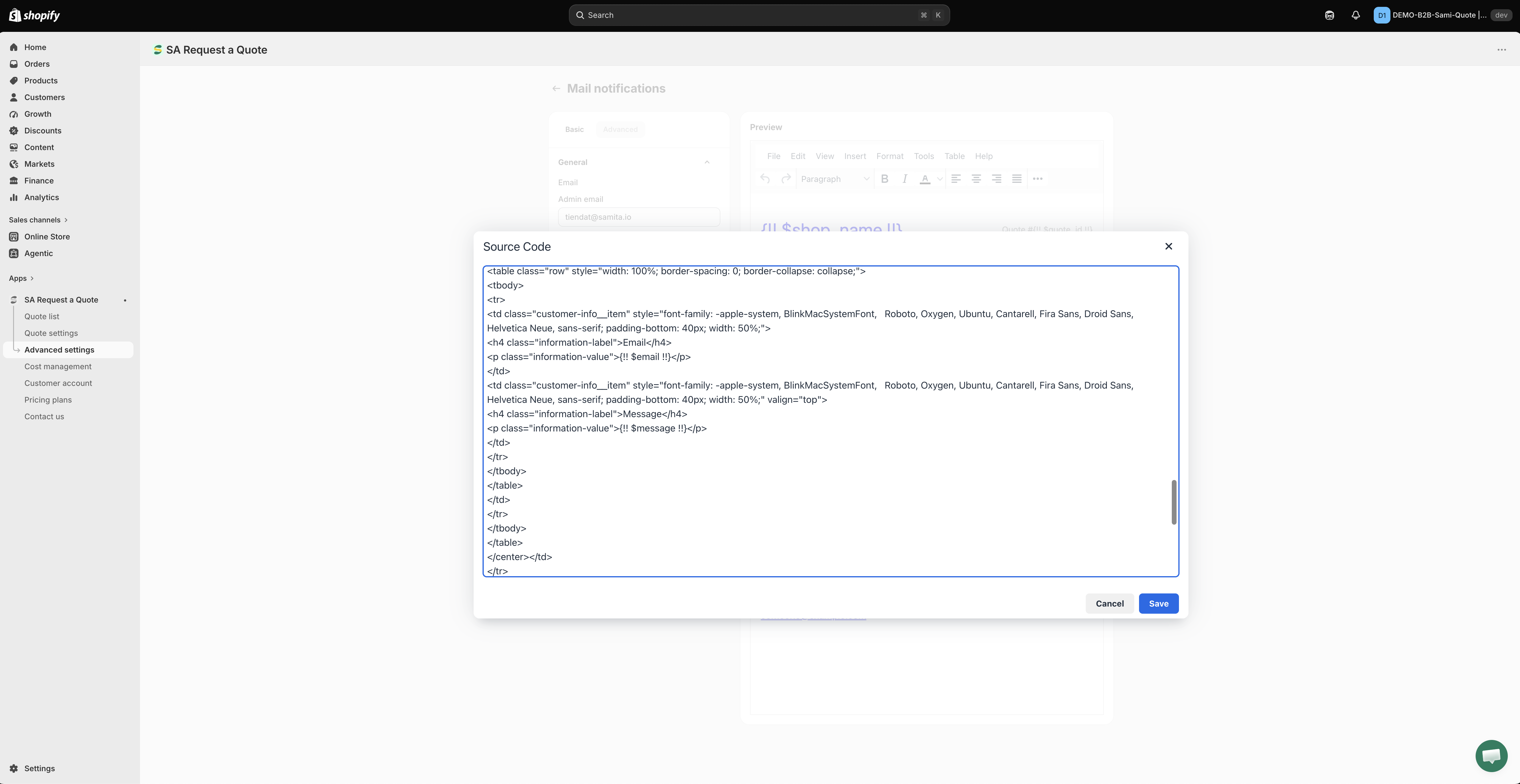
### Custom CSS codes

Put custom CSS codes for the email content in the **Custom CSS codes** field. This is optional.

<figure><img src="https://2993310686-files.gitbook.io/~/files/v0/b/gitbook-x-prod.appspot.com/o/spaces%2FIvNtDAMNVIdy5nl9kiOU%2Fuploads%2Fgit-blob-2dcd0777526f27c64a78452678c3e83753770871%2FScreenshot%202026-09-30%20at%2023-57-16.png?alt=media" alt=""><figcaption></figcaption></figure>
{% endstep %}

{% step %}

### Save

Click **Save** to save the template.
{% endstep %}
{% endstepper %}

## Make it useful at a glance

A notification you have to open to understand slows you down. Worth doing:

* **Put something identifying in Subject** so you can spot quote emails in a busy inbox. On the **Advanced** template, a variable such as `{!! $name !!}` puts the customer's name there too.
* **Tick the Product information boxes that matter to you** — **Product SKU**, **Product Option** and **Product Quantity** are usually enough to price a job from the alert alone.
* **Tick the Additional information fields** you rely on, or the answers your form collects will not travel with the alert.
* **Notify a shared inbox** rather than one person, so quotes do not stall when someone is away — see [Change notification recipients](/sa-request-a-quote/emails/change-recipients.md).
* **Tick Attach PDF file** if you would rather read the quote as a document — see [Attach a PDF to quote emails](/sa-request-a-quote/emails/attach-pdf.md).

{% hint style="info" %}
**Editable email template** is included on the **FREE** plan, so you can rewrite this email whatever you are paying. **Multiple email addresses** and **Remove copyright from email** are listed on the **PREMIUM** plan.

If a control is greyed out with a padlock line reading "🔐 This feature is available on …", that is your plan rather than a fault. **Pricing plans** in the app sidebar shows what each plan includes.
{% endhint %}

## The email is not the only record

Every request is also saved in the app. Open **Quote list** in the sidebar — the page is headed **Quotes** — and use the status tabs **All**, **Read**, **Unread**, **Order created** and **Purchased** to see what still needs attention. If an email goes astray, nothing is lost.

## If you are not receiving them

Notifications come from **<no-reply@samita.io>** unless you set up your own mail server. If nothing arrives, check your spam folder and allow that sender — full steps in [Troubleshooting](/sa-request-a-quote/help/troubleshooting.md).

## Next steps

* [Change notification recipients](/sa-request-a-quote/emails/change-recipients.md) — add colleagues to the notifications
* [Emails sent to customers](/sa-request-a-quote/emails/emails-to-customers.md) — what the customer receives
* [Send from your own address (SMTP)](/sa-request-a-quote/emails/smtp.md) — send from your own address instead


---

# Agent Instructions
This documentation is published with GitBook. GitBook is the documentation platform designed so that both humans and AI agents can read, navigate, and reason over technical content effectively. Learn more at gitbook.com.

## Querying This Documentation
If you need additional information that is not directly available in this page, you can query the documentation by asking a question.

Perform an HTTP GET request on the following URL with the `ask` and `goal` query parameters:

```
GET https://docs.samita.io/sa-request-a-quote/emails/emails-to-you.md?ask=<question>&goal=<user_goal>
```

`ask` is the immediate question: it should be specific, self-contained, and written in natural language.
`goal` is what the user is ultimately trying to achieve, the reason they need the answer. Sharing it helps GitBook give you a better, more relevant answer. A goal is most helpful when it describes the outcome the user wants rather than restating the question. For example, with `ask=how do I create an API token`, a goal like `automate deployments from our CI pipeline` lets GitBook tailor the answer to that use case.

The response will contain a direct answer to the question and relevant excerpts and sources from the documentation.

Use this mechanism when the answer is not explicitly present in the current page, you need clarification or additional context, or you want to retrieve related documentation sections.