> For the complete documentation index, see [llms.txt](https://docs.samita.io/llms.txt). Markdown versions of documentation pages are available by appending `.md` to page URLs; this page is available as [Markdown](https://docs.samita.io/sa-request-a-quote/emails/translate-emails.md).

# Translate quote emails

Translate both quote emails with Translations AI, driven by the languages you publish in Shopify.

If you sell across markets, your quote emails can reach buyers in their own language. You do not set up a separate translation job for each email — one **Translations AI** pass per language covers both quote emails together with the rest of what your customers see. Inside the editor each email still has its own tab, so you fill them in one after the other.

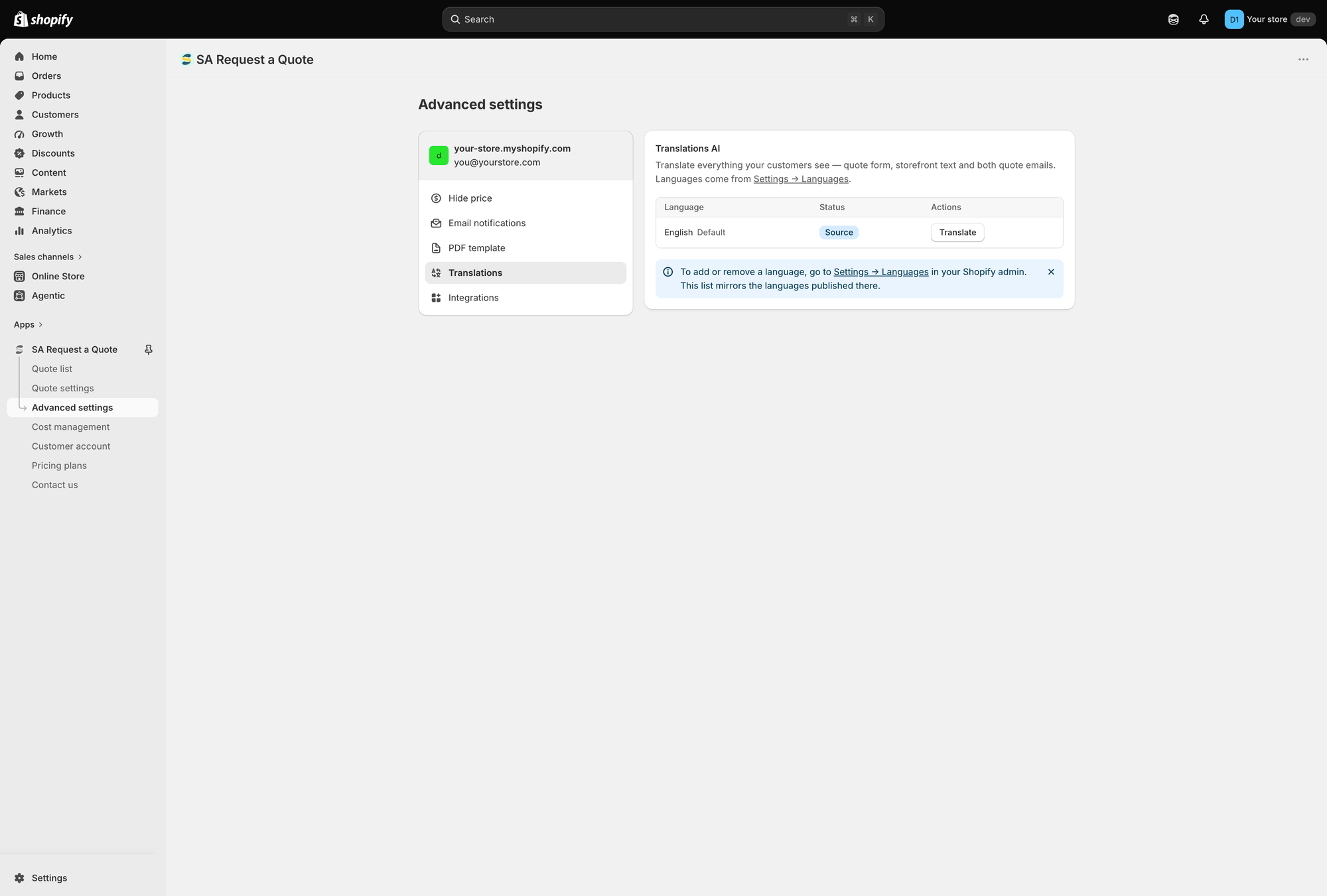
The setting is on the **Translations** tab of **Advanced settings**. The app describes it as: "Translate everything your customers see — quote form, storefront text and both quote emails. Languages come from Settings → Languages."

<figure><img src="https://2993310686-files.gitbook.io/~/files/v0/b/gitbook-x-prod.appspot.com/o/spaces%2FIvNtDAMNVIdy5nl9kiOU%2Fuploads%2Fgit-blob-2079f0906ed03974c2a733d332764370d5db38aa%2Fscreenshot-advanced-settings-translations.png?alt=media" alt="The Translations tab in Advanced settings showing Translations AI and the language table with Language, Status and Actions columns"><figcaption><p><strong>Translations AI</strong> on the <strong>Translations</strong> tab of <strong>Advanced settings</strong>.</p></figcaption></figure>

<figure><img src="https://2993310686-files.gitbook.io/~/files/v0/b/gitbook-x-prod.appspot.com/o/spaces%2FIvNtDAMNVIdy5nl9kiOU%2Fuploads%2Fgit-blob-2a8bda05be9be96b6e6d5131d0be126de3dc412e%2FScreenshot%202026-09-29%20at%2016-55-09.png?alt=media" alt="The email translation editor, with the source language and a translation side by side"><figcaption><p>Translate both quote emails alongside the original.</p></figcaption></figure>

{% hint style="info" %}
**Text translations** and **Multi-language (PDF & email)** are listed on the **FREE** plan, so translation is available whatever you are paying.
{% endhint %}

## Languages come from Shopify

The app does not keep its own list of languages. It mirrors the ones your store publishes.

{% hint style="warning" %}
"To add or remove a language, go to Settings → Languages in your Shopify admin. This list mirrors the languages published there."
{% endhint %}

{% hint style="info" %}
If you remember an **Add language** button inside the app, it is gone. Nothing is added here any more — publish the language in Shopify and it appears in this table by itself.
{% endhint %}

## Translate your emails

{% stepper %}
{% step %}

### Publish the language in Shopify

In your Shopify admin, go to **Settings** > **Languages** and publish the language you sell in. Until you do, it will not appear in the app.
{% endstep %}

{% step %}

### Open the Translations tab

In the app, go to **Advanced settings** > **Translations**.
{% endstep %}

{% step %}

### Find the language in the table

The table lists **Language**, **Status** and **Actions**. Your store's default language appears as **English**, marked **Default**, with the status **Source** — that is the text everything else is translated from.
{% endstep %}

{% step %}

### Click Translate on that row

**Translate** sits in the **Actions** column. It opens a full editor for that one language, headed with the language name and, on your default language, a **Source** badge.
{% endstep %}

{% step %}

### Switch to the email you want

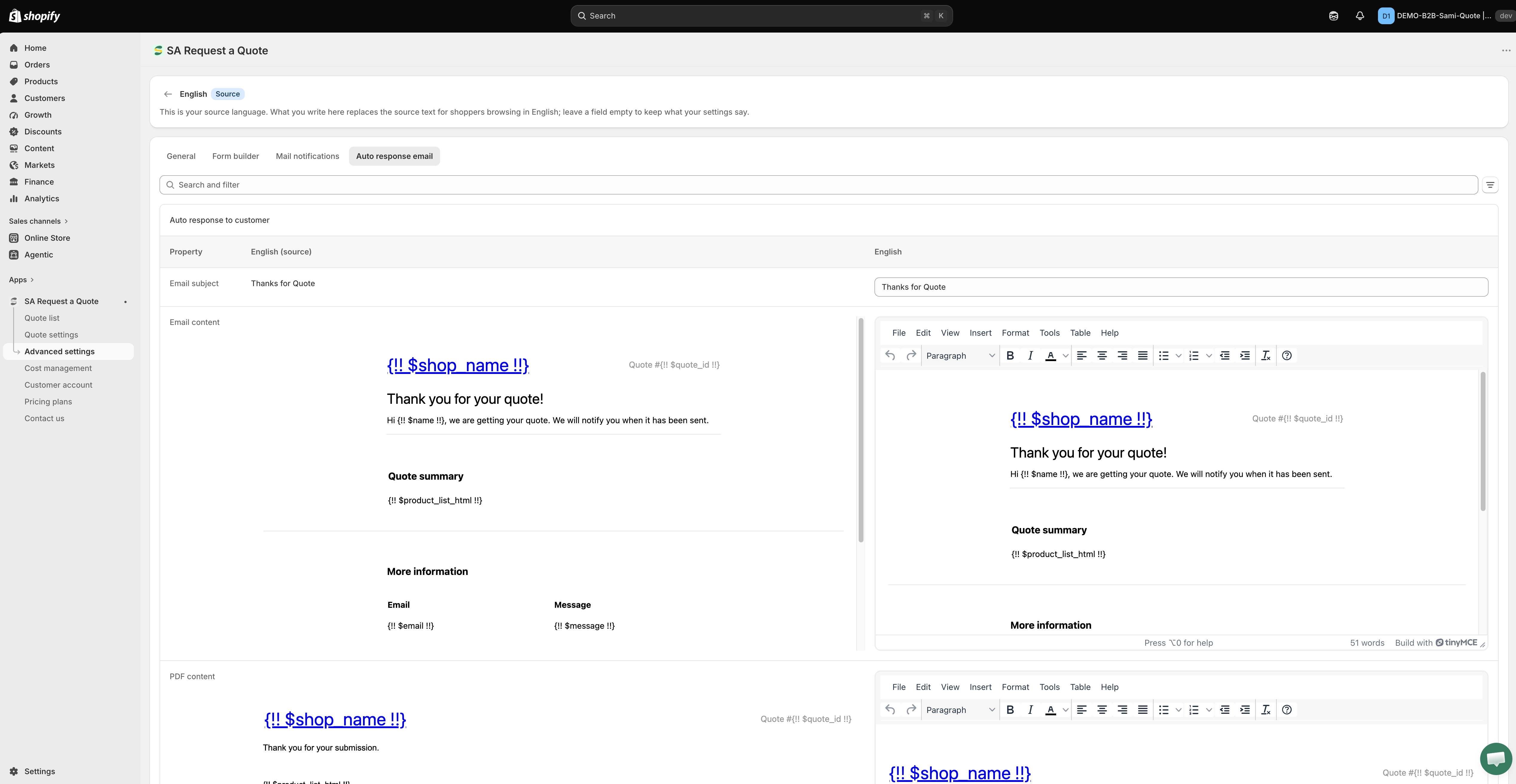
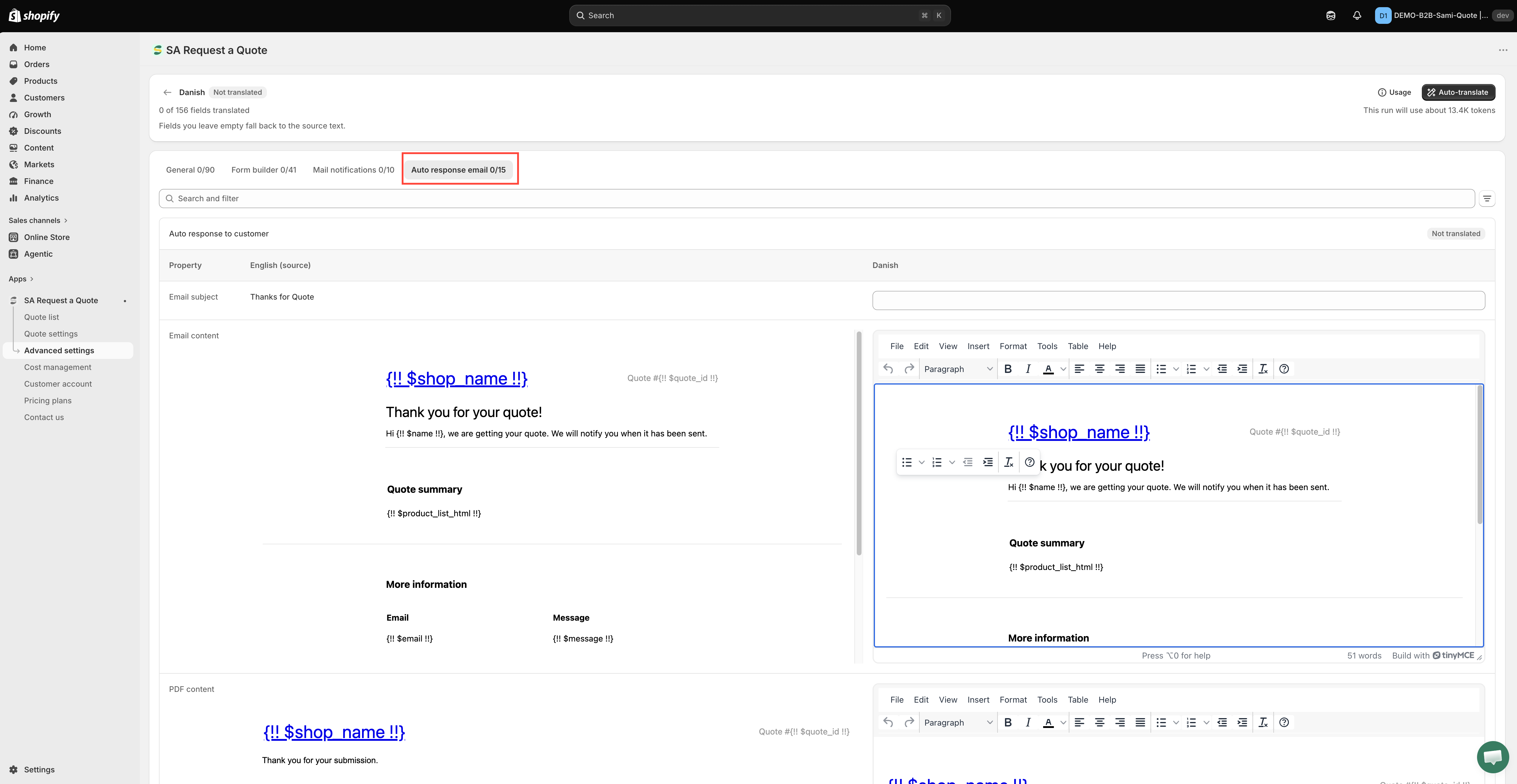
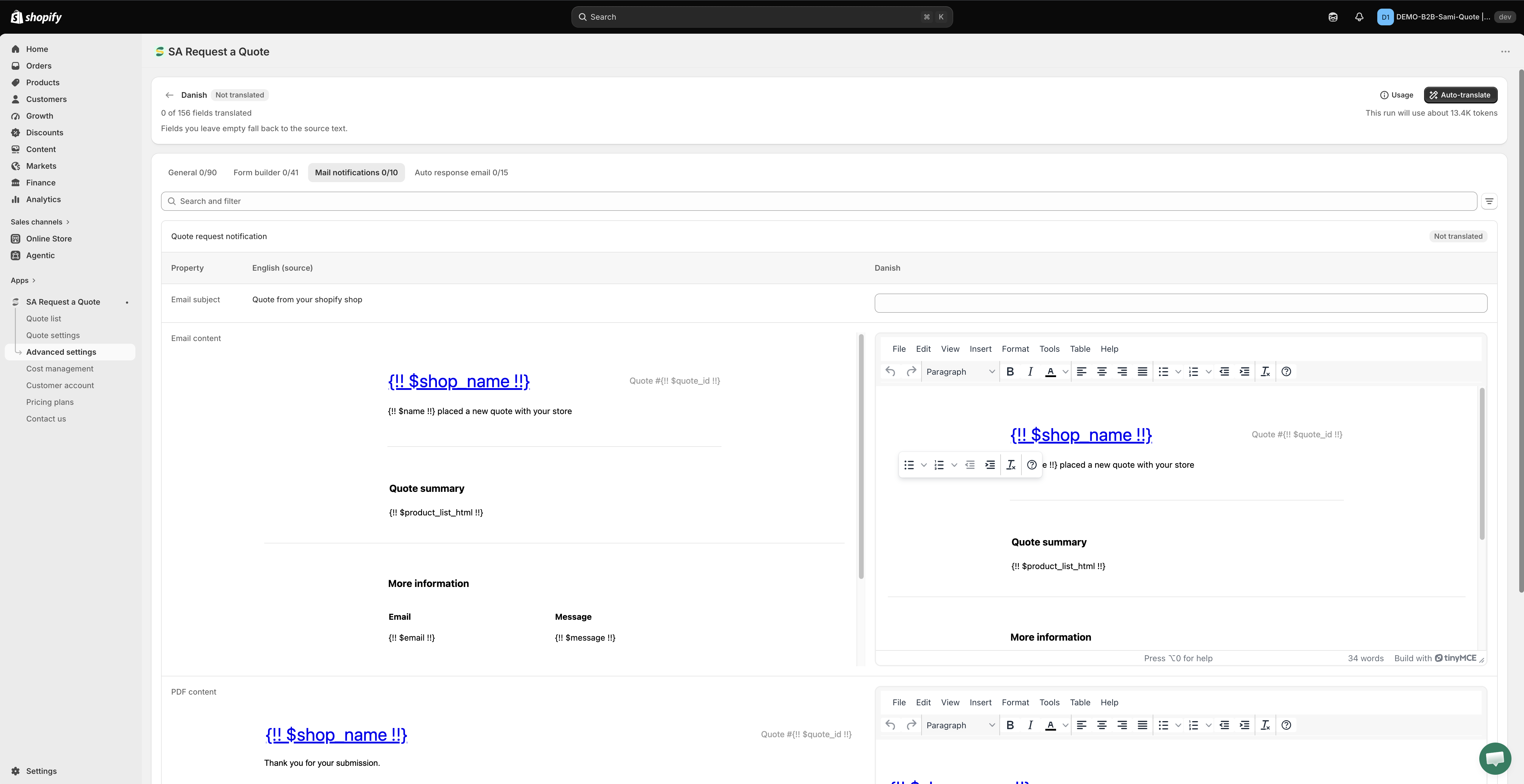
The editor opens on **General**. Your emails are not there. Across the top are four tabs — **General**, **Form builder**, **Mail notifications** and **Auto response email** — matching the four things the app says Translations AI covers: your storefront text, your quote form and the two emails.

Click the one you need:

* **Mail notifications** — the alert that comes to you.
* **Auto response email** — the confirmation that goes to your customer.

<figure><img src="https://2993310686-files.gitbook.io/~/files/v0/b/gitbook-x-prod.appspot.com/o/spaces%2FIvNtDAMNVIdy5nl9kiOU%2Fuploads%2Fgit-blob-10c63cd8e67250f8338ee1100668e6537178fab2%2FScreenshot%202026-10-01%20at%2000-12-23.png?alt=media" alt=""><figcaption></figcaption></figure>
{% endstep %}

{% step %}

<figure><img src="https://2993310686-files.gitbook.io/~/files/v0/b/gitbook-x-prod.appspot.com/o/spaces%2FIvNtDAMNVIdy5nl9kiOU%2Fuploads%2Fgit-blob-dd99d368e22d9f80512aa6706ed802029369df03%2FScreenshot%202026-10-01%20at%2000-11-58.png?alt=media" alt=""><figcaption></figcaption></figure>

### Fill in the third column

The tab shows one section per email — **Auto response to customer** on the **Auto response email** tab — laid out as a table with three columns: **Property**, your source language marked **(source)**, and the language you are translating into. You type in the third column only; the source column is there to read from.

The rows on an email tab are:

<table><thead><tr><th width="220">Property</th><th>What you write</th></tr></thead><tbody><tr><td><strong>Email subject</strong></td><td>A single-line field. This is the line a customer sees in their inbox.</td></tr><tr><td><strong>Email content</strong></td><td>A rich-text editor (<strong>File</strong>, <strong>Edit</strong>, <strong>View</strong>, <strong>Insert</strong>, <strong>Format</strong>, <strong>Tools</strong>, <strong>Table</strong>, <strong>Help</strong>) with the source version beside it.</td></tr><tr><td><strong>PDF content</strong></td><td>The same kind of editor, for the PDF wording that goes with this email.</td></tr></tbody></table>

Use **Search and filter** above the table if you are looking for one property rather than working straight down the list.

You do not have to type every row yourself. **Auto-translate** fills the third column for you, and you edit what it produces rather than starting from an empty field. It is the faster way into a long email, but read the result before you save it — an automatic translation of a commercial document is a draft, not an answer.

<figure><img src="https://2993310686-files.gitbook.io/~/files/v0/b/gitbook-x-prod.appspot.com/o/spaces%2FIvNtDAMNVIdy5nl9kiOU%2Fuploads%2Fgit-blob-758fb793741d30c4fc5c24720f9f205f8210df94%2FScreenshot%202026-10-01%20at%2000-13-23.png?alt=media" alt=""><figcaption></figcaption></figure>
{% endstep %}

{% step %}

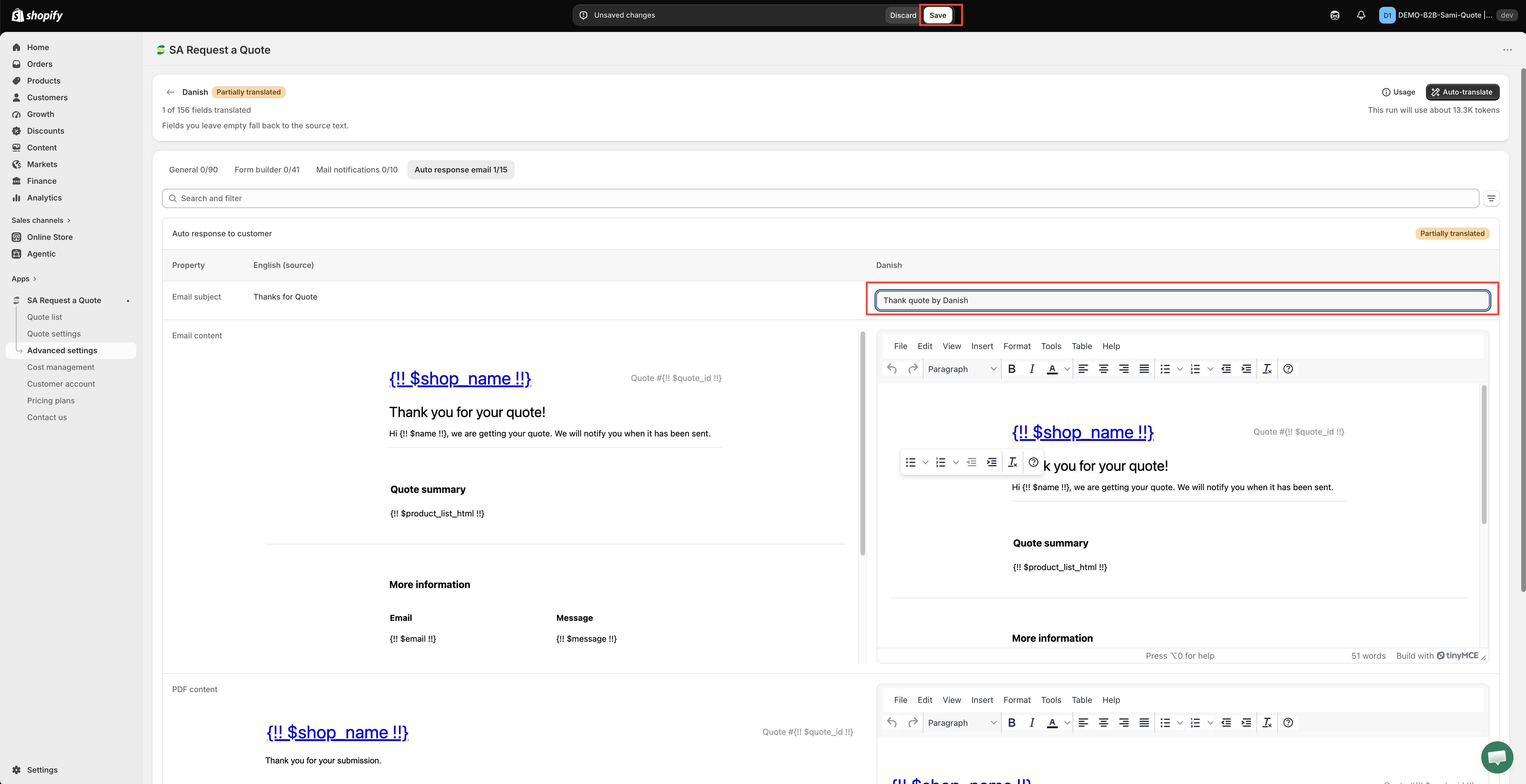
### Save

Click **Save** to store the changes. Nothing you typed survives leaving the editor otherwise.
{% endstep %}

{% step %}

### Read it back

Switch your storefront to that language, submit a test request, and read the email that arrives. Then repeat for every language you sell in.
{% endstep %}
{% endstepper %}

{% hint style="danger" %}
Leave the `{!! ... !!}` placeholders exactly as they are — `{!! $shop_name !!}`, `{!! $name !!}`, `{!! $quote_id !!}`, `{!! $product_list_html !!}` and the rest. They are filled in with real values when the email sends. Translate the words around them; translate a placeholder and that part of the email arrives empty.
{% endhint %}

{% hint style="warning" %}
Have a native speaker read the translations before they go live. A quote is a commercial document, and awkward wording costs you credibility at exactly the moment a customer is deciding whether to trust you.
{% endhint %}

## An empty field is not a blank email

A field you leave empty is not published as blank — it falls back to what your settings already say. The editor states this on your source language: "This is your source language. What you write here replaces the source text for shoppers browsing in English; leave a field empty to keep what your settings say."

So you can translate a subject line today and come back for the body tomorrow, and nothing breaks in between. The other side of that rule: if a translated email still arrives in English, check whether the field was actually filled in, rather than assuming the translation failed.

## Get the source text right first

Translations are made from your **Source** language, so anything you fix afterwards has to be translated again. Finish writing both emails before you translate:

* **Mail notifications** — the alert you receive. See [Emails sent to admin](/sa-request-a-quote/emails/emails-to-you.md).
* **Auto response email** — the confirmation your customer receives. See [Emails sent to customers](/sa-request-a-quote/emails/emails-to-customers.md).

{% hint style="success" %}
If your store's default language is not English, you do not need to add a translation for it at all. Open its row — the one marked **Default** / **Source** — and edit the wording there directly.
{% endhint %}

## When it does not look right

<table><thead><tr><th width="330">What you see</th><th>What to check</th></tr></thead><tbody><tr><td>The language is missing from the table</td><td>It has not been published in <strong>Settings</strong> > <strong>Languages</strong> in your Shopify admin. The app mirrors that list.</td></tr><tr><td>You clicked <strong>Translate</strong> but cannot find the emails</td><td>The editor opened on <strong>General</strong>. Move to the <strong>Mail notifications</strong> or <strong>Auto response email</strong> tab.</td></tr><tr><td>Your wording is gone when you come back</td><td>The editor was left without clicking <strong>Save</strong>.</td></tr><tr><td>The email still arrives in the source language</td><td>That property was left empty, so it fell back to your settings text.</td></tr><tr><td>A line in the email is blank</td><td>A <code>{!! ... !!}</code> placeholder was translated or deleted. Copy it back from the source column.</td></tr></tbody></table>

## The whole journey, not just the email

An email in French that links to a quote page in English is worse than not translating at all. Because **Translations AI** covers the quote form, storefront text and both emails together, translating a language once keeps them consistent.

The quote document is handled separately: **Quote PDF template** has its own **Translations** control. If you attach a PDF to your emails, set that up too — see [Attach a PDF to quote emails](/sa-request-a-quote/emails/attach-pdf.md).

For more on what gets translated across the storefront, see [Translate storefront text](/sa-request-a-quote/settings/translations.md).

## Next steps

* [Translate storefront text](/sa-request-a-quote/settings/translations.md) — the wider translation picture
* [Emails sent to customers](/sa-request-a-quote/emails/emails-to-customers.md) — what goes in the customer email
* [Customize the quote PDF](/sa-request-a-quote/pdf-templates/quote-pdf.md) — the document that goes with the quote


---

# Agent Instructions
This documentation is published with GitBook. GitBook is the documentation platform designed so that both humans and AI agents can read, navigate, and reason over technical content effectively. Learn more at gitbook.com.

## Querying This Documentation
If you need additional information that is not directly available in this page, you can query the documentation by asking a question.

Perform an HTTP GET request on the following URL with the `ask` and `goal` query parameters:

```
GET https://docs.samita.io/sa-request-a-quote/emails/translate-emails.md?ask=<question>&goal=<user_goal>
```

`ask` is the immediate question: it should be specific, self-contained, and written in natural language.
`goal` is what the user is ultimately trying to achieve, the reason they need the answer. Sharing it helps GitBook give you a better, more relevant answer. A goal is most helpful when it describes the outcome the user wants rather than restating the question. For example, with `ask=how do I create an API token`, a goal like `automate deployments from our CI pipeline` lets GitBook tailor the answer to that use case.

The response will contain a direct answer to the question and relevant excerpts and sources from the documentation.

Use this mechanism when the answer is not explicitly present in the current page, you need clarification or additional context, or you want to retrieve related documentation sections.